Connect Anthropic - Claude Team
Claude Team organizations have no analytics API. The spend report that claude.ai offers under Settings > Analytics is the only source of per-user, per-model cost data, and it has to be downloaded by hand.
The Claude Usage Exporter is a Chrome extension from DoiT that automates that download. Once an hour, while Chrome is open, it opens the analytics page in a background tab, exports one spend report per UTC day, keeps a local copy, and uploads each file unchanged to a DataHub dataset using the Anthropic spend report schema template.
For Claude Enterprise organizations, use Connect Anthropic - Claude.ai instead. For Claude Console organizations, see Connect Anthropic - Claude Platform. See Anthropic connection types for how the three differ.
Required permissions
-
In claude.ai, you must be an Owner of the Claude Team organization. Only Owners can see Analytics and export the spend report. The organization must have extra usage enabled; otherwise there is no spend report.
-
In Cloud Intelligence, you need a DoiT API key that belongs to a user or service account with the DataHub Admin permission, and your organization must be entitled to DataHub.
Install the extension
Install it from the Chrome Web Store: DoiT Claude Usage Exporter. Your Chrome administrator can instead deploy it to managed browsers with a force-install policy for extension ID mdfejmnbobmnaajlmpaibbgajmdkjncb.
The extension asks for these permissions and no others: alarms, downloads, notifications, scripting, storage, and access to claude.ai and api.doit.com. It never reads claude.ai cookies or credentials and talks to no other host. See the Claude Usage Exporter privacy notice for what it stores and transmits.
Set up the DataHub upload
-
Sign in to claude.ai as an Owner of your Claude Team organization in the same Chrome profile.
-
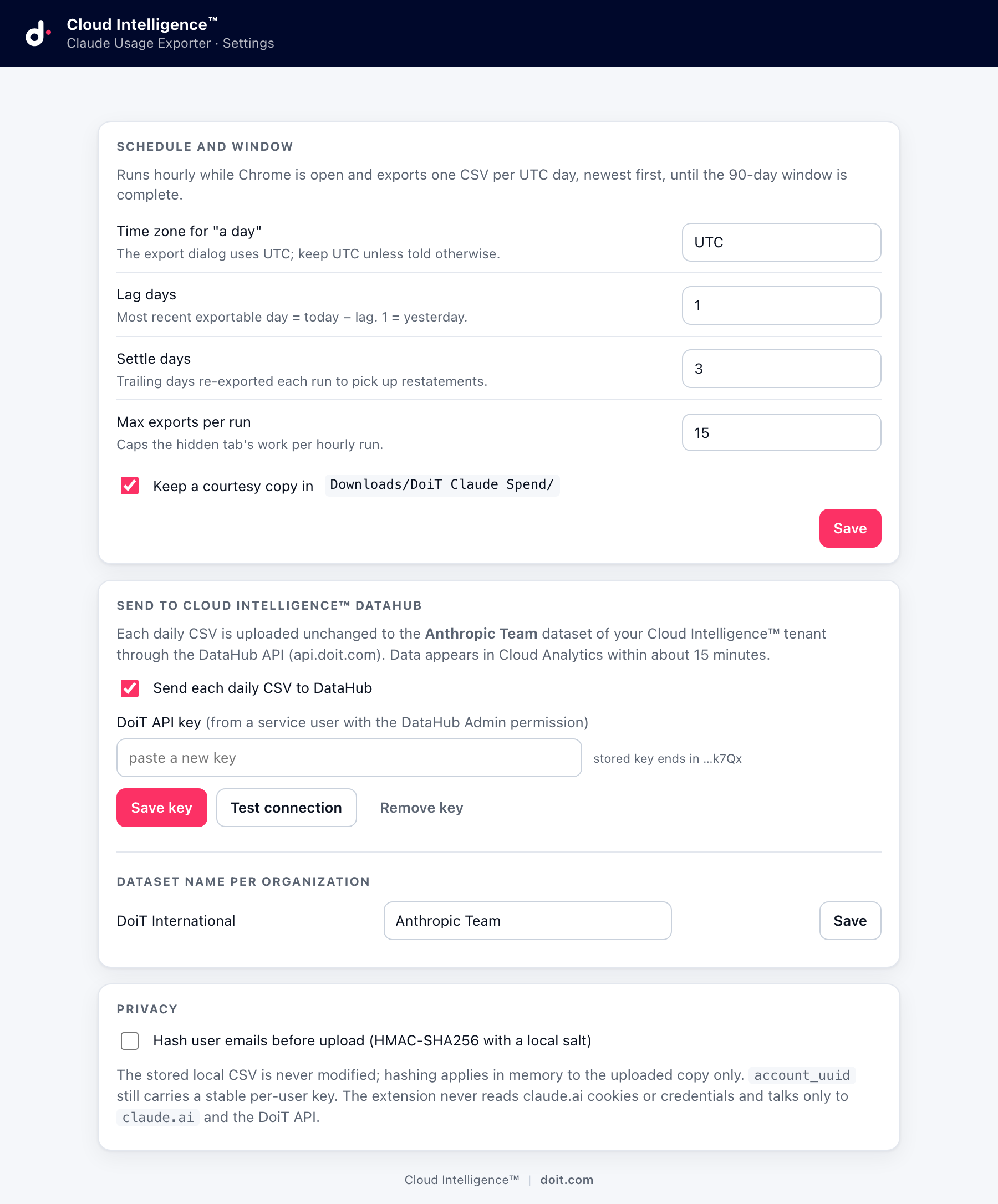
Select the extension icon, then Settings.
-
Under Send to Cloud Intelligence™ DataHub, select Send each daily CSV to DataHub, paste your DoiT API key and select Save key.
-
Select Test connection. The result shows the tenant domain and the user the key belongs to, whether the key has the DataHub Admin permission, and whether the dataset exists or will be created.
-
Optionally change the dataset name. The default is Anthropic Team. One dataset per Claude organization.
-
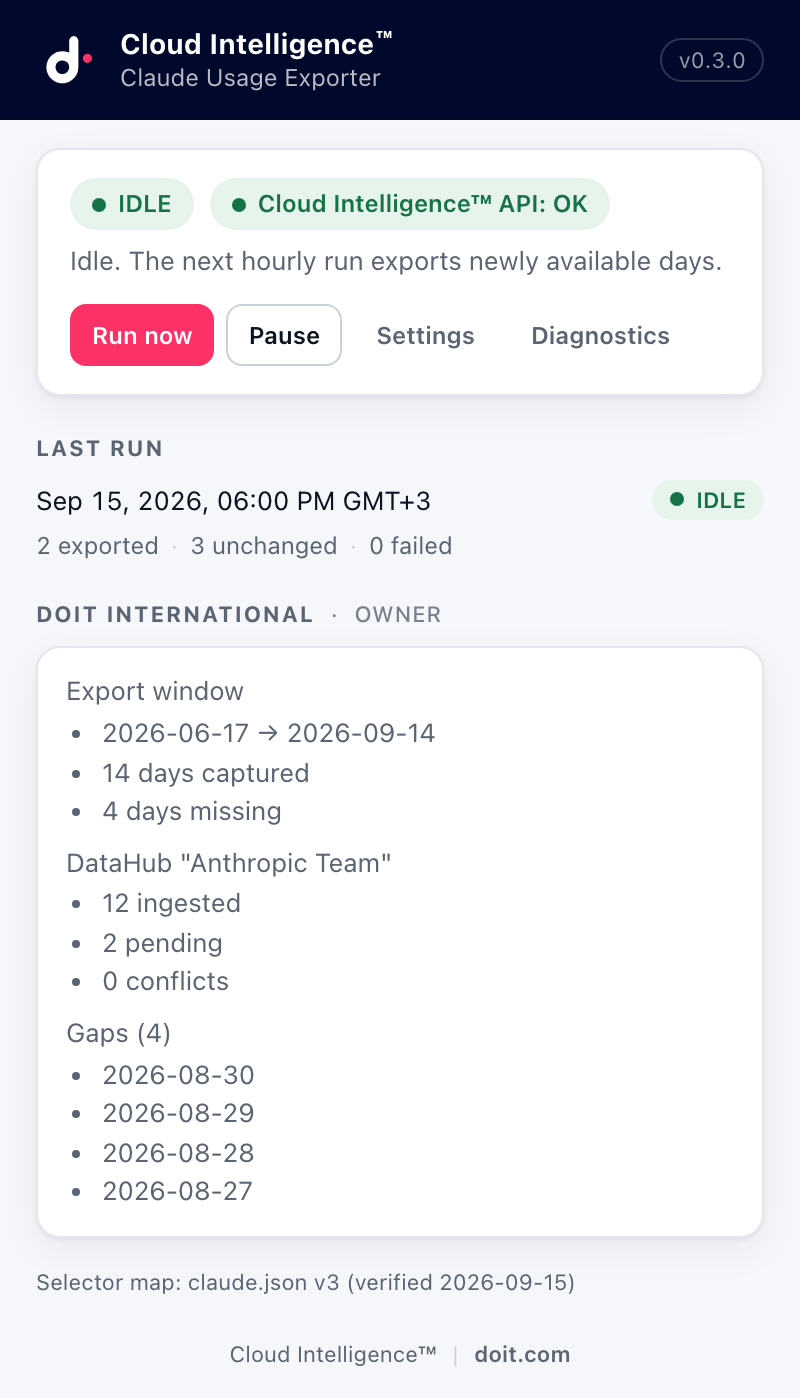
Go back to the popup and select Run now.
The first run exports the most recent days and uploads them; the following hourly runs backfill up to 90 days, newest first, 15 days per run. A notification appears once when the backfill is complete.
How the data flows
-
One file per UTC day. The export dialog works in UTC, so each CSV covers exactly one UTC day. The most recent exportable day is yesterday.
-
Restatements are picked up. The three most recent days are exported again on every run. When the content of a day changed, the extension re-uploads it with the DataHub
replaceoption, so the day is restated rather than double counted. -
Nothing is transformed. The CSV is uploaded exactly as claude.ai produced it. DataHub validates the columns of the Anthropic schema template and normalizes them into events; the report period comes from the filename.
-
Availability. Uploaded data appears in Cloud Analytics within about 15 minutes. The Metrics and Dimensions tabs of the dataset page are refreshed once a day.
-
Local copies. By default the extension also saves each CSV under
Downloads/DoiT Claude Spend/<organization>/. You can turn this off in Settings.
Do not upload spend reports for the same organization into the same dataset by hand. DataHub rejects an upload whose period overlaps an existing batch, and the extension then reports a day conflicts with a manual upload. Either let the extension own the dataset, or delete the manual batch from the dataset page and select Retry conflicts in the popup.
Reading the numbers
The spend report is the authoritative figure. The Analytics page in claude.ai rounds and aggregates differently and typically shows about 1.5 to 3 percent less than the sum of the exported days for the same period. Reports built on the DataHub dataset match the CSV cell for cell.
Each row of the report becomes events with the genai/* system labels of the Anthropic template, for example model, product (Chat, Claude Code, Cowork), user and token type, so you can group and filter them like any other GenAI source in Cloud Analytics.
Privacy options
-
Hash user emails. Under Privacy in the extension settings you can hash the
user_emailcolumn with HMAC-SHA256 and a salt that is generated once and stored locally. The salt is shown a single time; keep it if you ever need to re-identify users. The stableaccount_uuidcolumn is not hashed, so per-user grouping still works. -
Diagnostics. Diagnostics in the popup downloads a JSON file for DoiT support. The API key and the salt are never included.
Troubleshooting
| Popup state | Meaning and action |
|---|---|
| Sign in to claude.ai and click Run now | The Chrome profile is signed out of claude.ai. Sign in, then select Run now. |
| Analytics is not visible | The signed-in user is not an Owner of the organization. |
| Extra usage is disabled for this org | There is no spend report to export. The extension checks again daily. |
| claude.ai changed; exports are paused | The analytics page no longer matches the extension's selectors. Export manually until the extension is updated, then select Retry. |
| The spend report columns changed | The CSV header changed; the file was kept aside and nothing was uploaded. Contact DoiT support. |
| Cloud Intelligence™ API: key rejected / missing DataHub Admin | Save a key from a user with the DataHub Admin permission and select Test connection. |
| Cloud Intelligence™ API: a day conflicts with a manual upload | See the caution above. |
| Cloud Intelligence™ API: previous batch still processing | A day was re-uploaded within 90 minutes of its previous upload. The extension retries on its own. |
If the problem persists, select Diagnostics in the popup and open an expert inquiry with the file attached.