Microsoft 365
Microsoft 365(別名 Office 365)は、Microsoft が提供するクラウドベースの生産性向上プラットフォームです。Microsoft 365 のサブスクリプションを利用すると、デバイス管理・セキュリティ・オンラインサービスを備えた生産性向上アプリを利用できます。
Required permissions
コンソールで組織の Microsoft 365 サブスクリプションを管理するには、次の条件が必要です。
-
DoiT アカウントに Assets Manager 権限が付与されていること
-
サブスクリプションドメイン(テナント)に関連付けられている特定の Billing Profile へのアクセス権があること
Add new subscriptions
新しいサブスクリプションを追加するには、次の手順に従ってください。
-
DoiT コンソール にサインインします。
-
上部ナビゲーションのメガメニューから データ取り込みとインテグレーション > Integrations を選択します。
-
Microsoft 365 integration カードで Manage(または Connect +)を選択します。
-
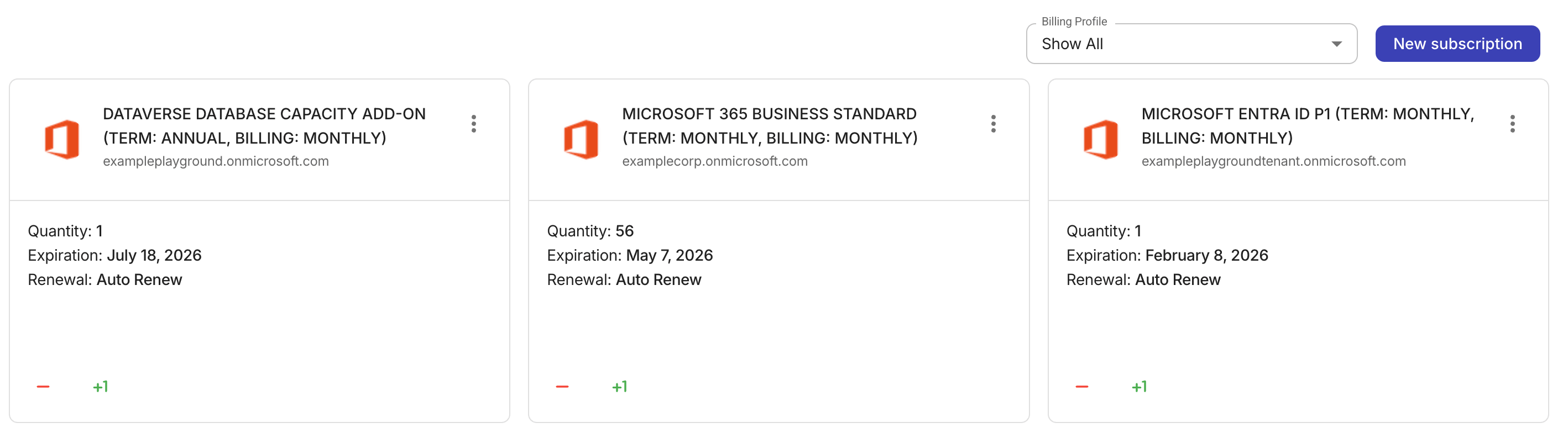
ページ右上の New subscription を選択します。
-
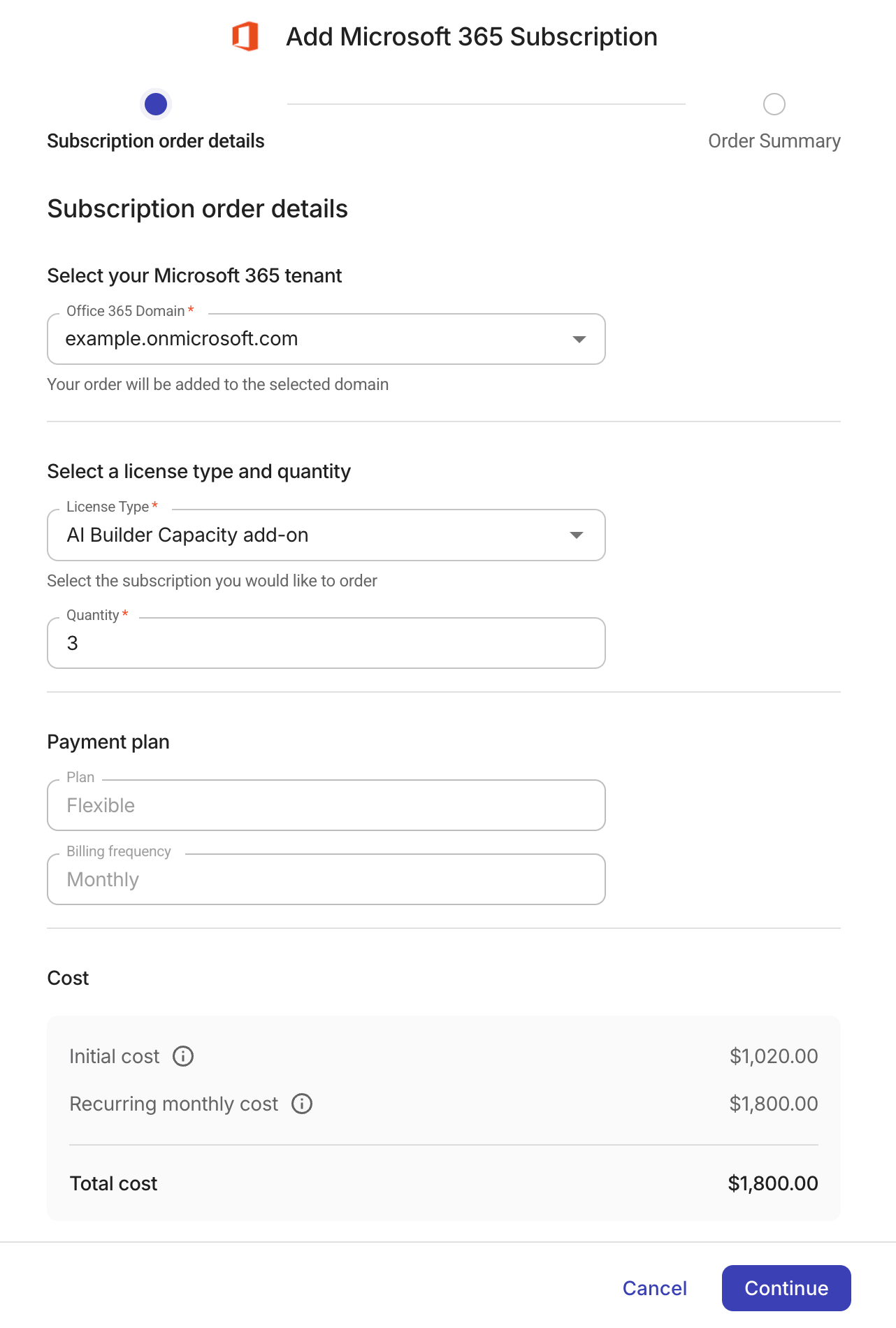
Office 365 ドメイン、ライセンスタイプ(サブスクリプション)、ライセンス数量など、注文の詳細を入力します。
-
注文概要を確認します。Subscribe を選択して注文を完了します。
Add or remove licenses
Microsoft 365 アセットページでは、サブスクリプション内のライセンス数が Quantity ラベルで表示されます。
サブスクリプションのライセンスを追加または削除するには、サブスクリプションカード内の + 1 ボタンおよび − ボタンをそれぞれ使用します。その後、変更を適用するか、キャンセル(リセット)できます。
ライセンスを追加する場合は、注文を確定する前にコストを確認してください。
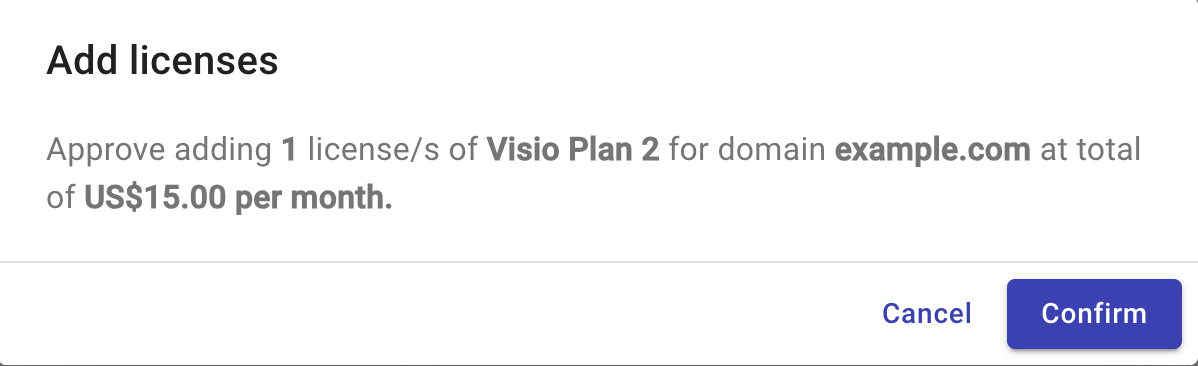
月の途中で追加または削除されたライセンスに関連するコストは、次回の請求書に反映されます。
Microsoft は、コマースのライセンスベースサブスクリプションに対して7 日間のキャンセル期間を設けています。7 日間の期間経過後にライセンスを削除しようとすると、コンソールはエラーを返します。
Assign a billing profile
各 Billing profile は、それぞれ個別の月次請求書を受け取ります。組織内のエンティティ(例: プロダクト・環境・チーム)の請求方法を管理するために、アセットを異なる Billing Profile に割り当てることができます。
アセットを Billing Profile に割り当てるには、Assets Manager と Billing Profile Admin の両方の権限が必要です。
-
アセットカード右上のケバブメニュー(⋮)を選択し、Billing Profile Assignment を選択します。
-
ドロップダウンリストから対象の Billing Profile を選択します。
-
変更を保存 を選択します。