Cloud Intelligence node
A Cloud Intelligence node lets you run Cloud Intelligence actions directly from your flow. Use it to call Allocations, Alerts, Composer Insights, Threads, and other DoiT APIs, and chain them with AWS, Azure, and GCP nodes so you can automate platform operations in a single flow.
Permissions for Cloud Intelligence actions
Cloud Intelligence actions use your DoiT account permissions. The permissions that your DoiT account needs depend on the feature you are calling. Check the documentation for each feature to understand the permissions your DoiT account must have.
Find an action
When adding a Cloud Intelligence node to a flow, select Cloud Intelligence as the provider and then find an action by searching or browsing within DoiT services. You can also add a template node that includes pre-built Cloud Intelligence actions to your flow.
Configure an action
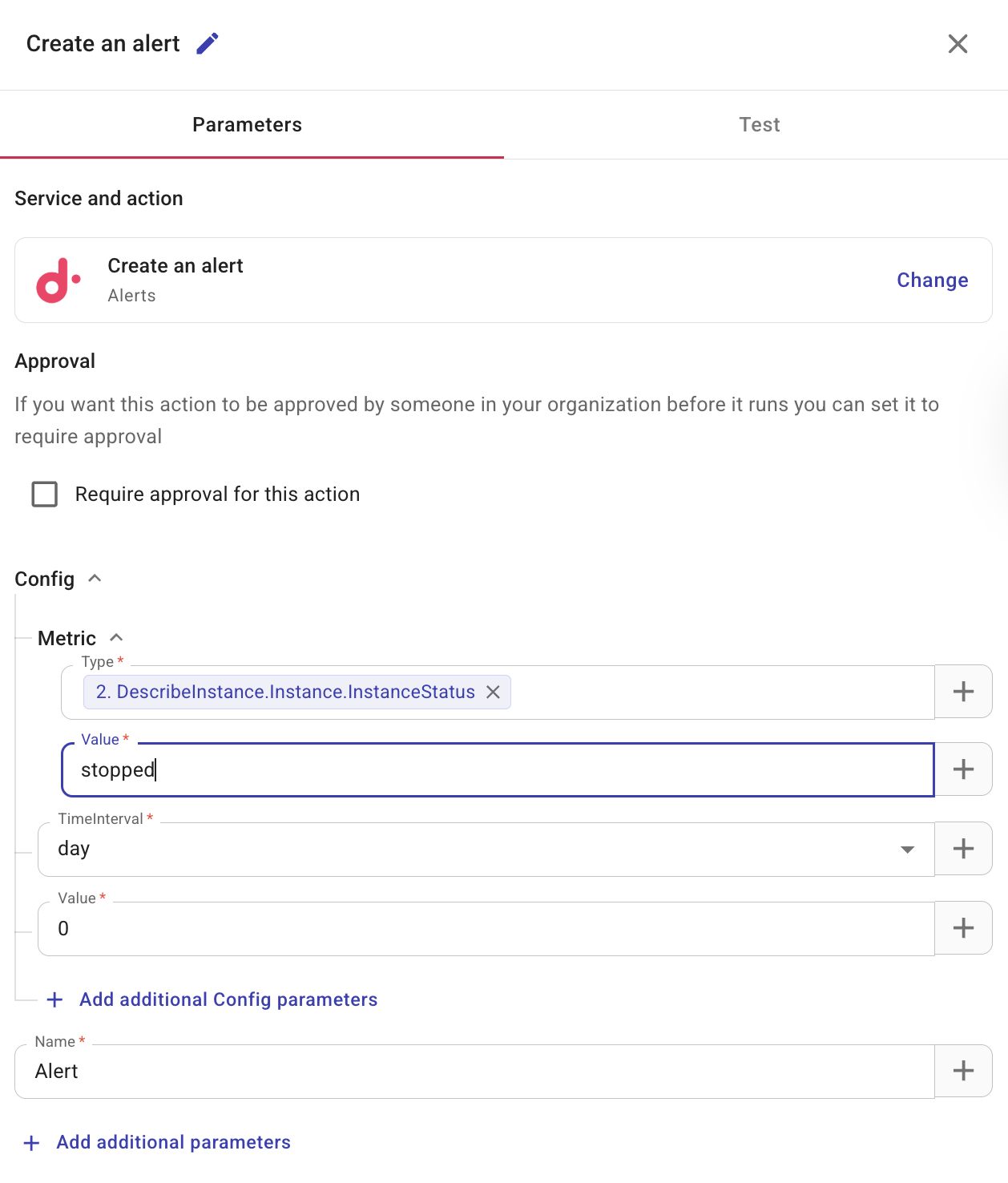
Selecting a Cloud Intelligence action node opens a side panel with three tabs for configuration:
-
Parameters: This tab shows the service and action you have chosen and the option to change. You also configure approval settings on this tab. The parameters available vary with service and action. You can insert dynamic values from previous nodes using the + button. For field types and how to reference values from previous nodes (including a whole list or map), see Node parameters. For API reference and request details, see the DoiT Developer Hub.
-
Test: Use Test to validate your configuration. Test each node in a flow to ensure it behaves as expected and that data is processed correctly.
CautionThis action performs a full execution of the step which can initiate real actions.
Require approval
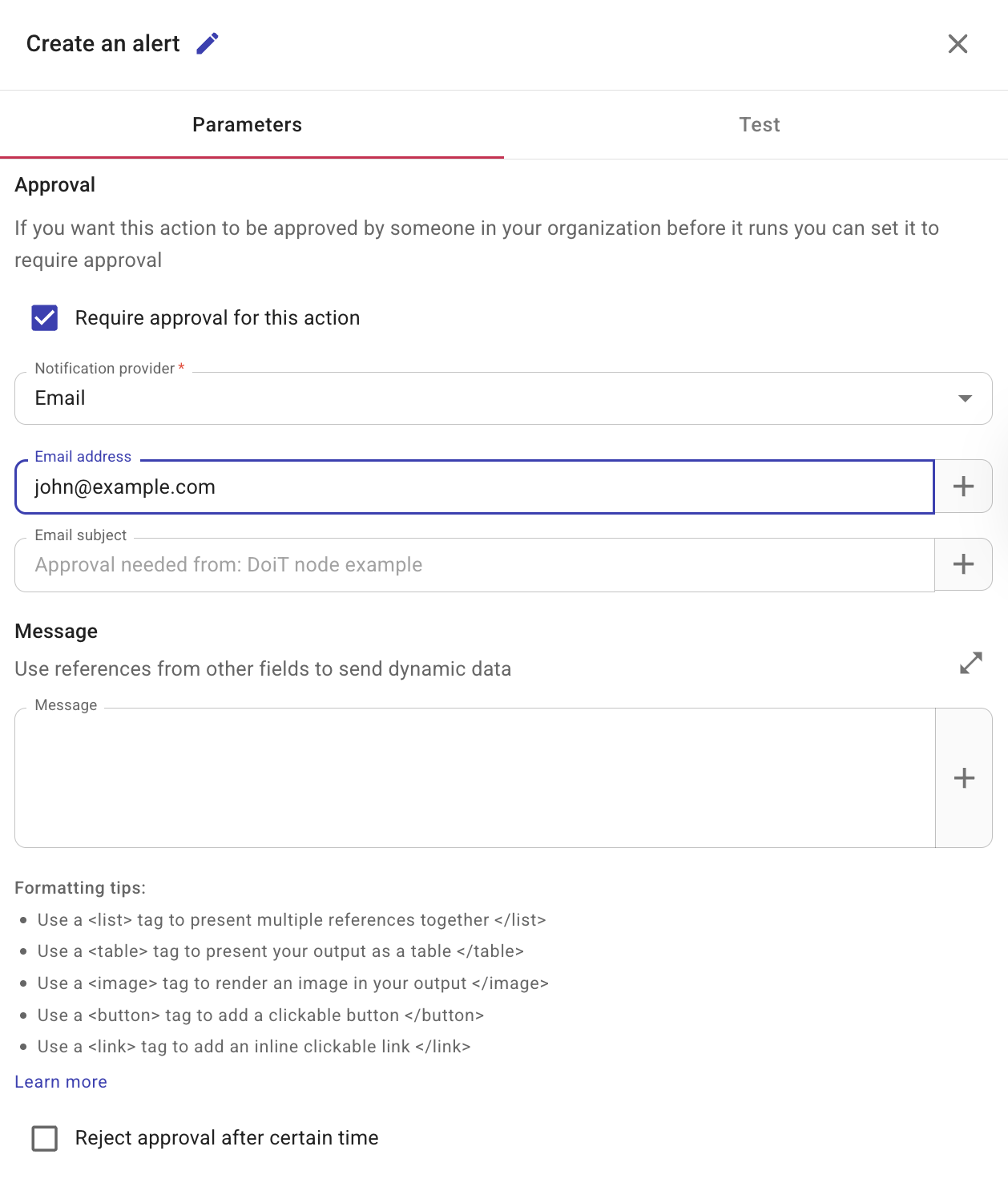
If an action should be approved before it runs, select Require approval for this action.
-
Notification provider: Choose whether to notify the approver via Slack or email. For Slack, you should have created a shared Slack channel with DoiT.
-
(Optional) Message: A message for the approver. You can add fields from previous nodes so recipients see the details they need to make a decision. See Configure the message field.
-
(Optional) Reject approval after certain time: How long the action waits for approval. If the approver takes no action before the time expires, the action is automatically rejected.
Composer Insights
To list Composer recipes and findings from a flow, add a Cloud Intelligence node and select List recipes or List recipe findings.
Create a thread
To create issues in your ITSM tool (for example, Jira or Linear) from a flow, add a Cloud Intelligence node and select Create a thread action.
See also
- Nodes
- Triggers
- Templates
- APIs in CloudFlow
- DoiT Developer Hub — API documentation and reference for DoiT APIs used in CloudFlow
- Composer Insights
- Threads node
- Create flows