Create flows
This page explains how to create and manage flows, including editing, deleting, and viewing the run history of a flow.
Access CloudFlow
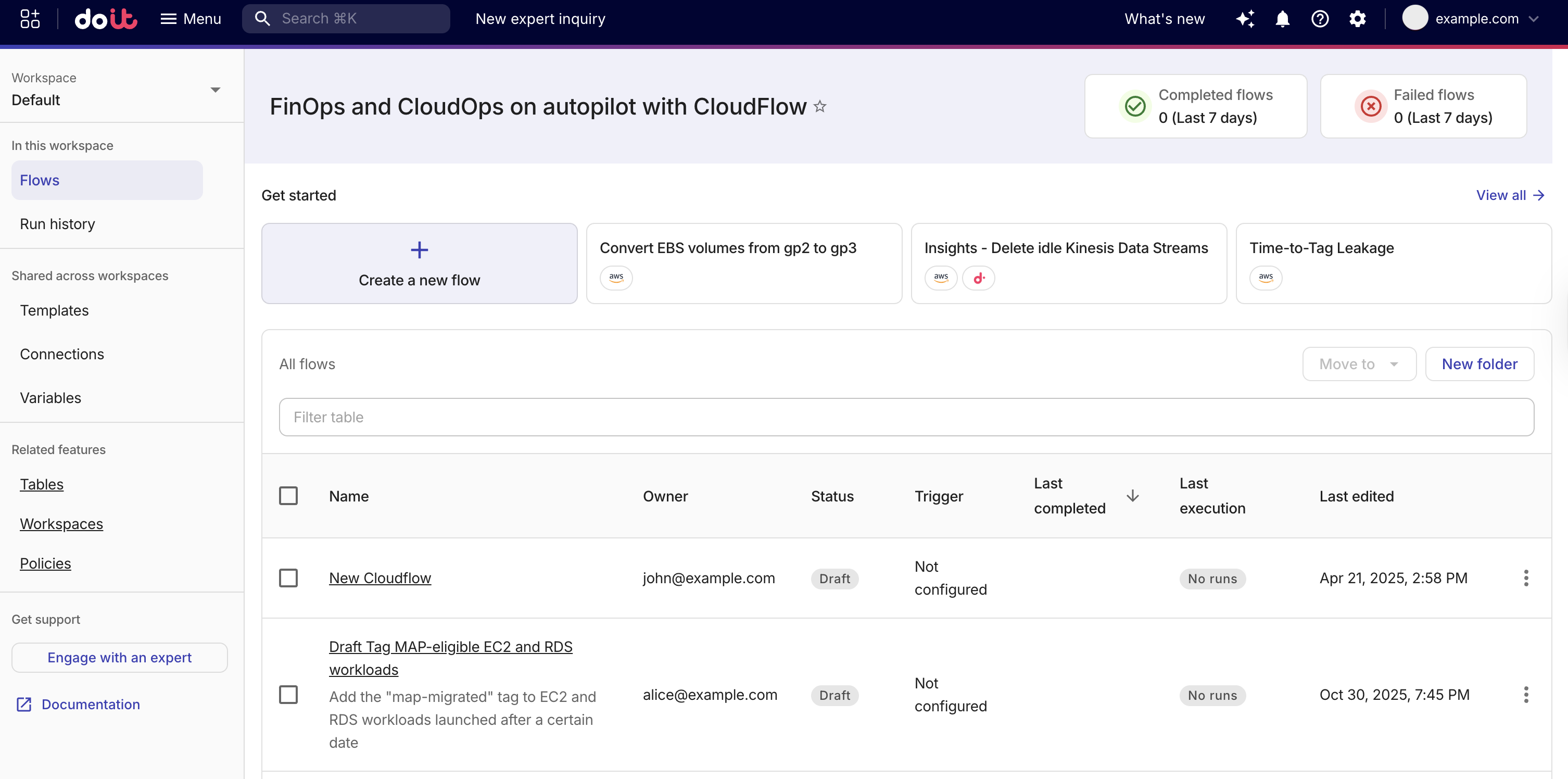
To access CloudFlow, sign in to the DoiT console, select Automation and operations from the top navigation mega menu, and then select CloudFlow.
The sidebar displays:
-
Current workspace: the currently selected workspace (including Default).
-
In this workspace: All flows and Run history apply to the selected workspace.
-
Shared across workspaces: Templates, Connections, and Variables are organization-wide resources.
-
Related features: CloudFlow features that apply to flows such as Tables, Workspaces, and Policies.
Create a flow
You can create a flow from scratch or based on a template.
Flows are available to customers on all tiers, and you can create as many as you like. However, customers subscribed to the Cloud Intelligence Essentials tier and DoiT Heritage customers can only publish up to two flows. To publish more flows, contact your account manager to upgrade to the Cloud Intelligence Enhanced or Enterprise tiers.
If you need help, have a question, or are unsure how to achieve your desired outcome in the flow, select Contact a human expert. Our experts are ready to guide you and help you create your flow!
See Quick start for a step-by-step tutorial that walks you through the process of creating a flow from scratch.
Manage a Flow
You can manage your flows in CloudFlow. You can run a published flow, or edit, duplicate, or delete a flow. Locate the flow in the list, select the kebab menu (⋮) at the rightmost end of the row, and choose the action. For actions on a node, such as Edit, Duplicate, Disable, or Delete, see Manage nodes.
Workspaces and folders help you organize your flows.
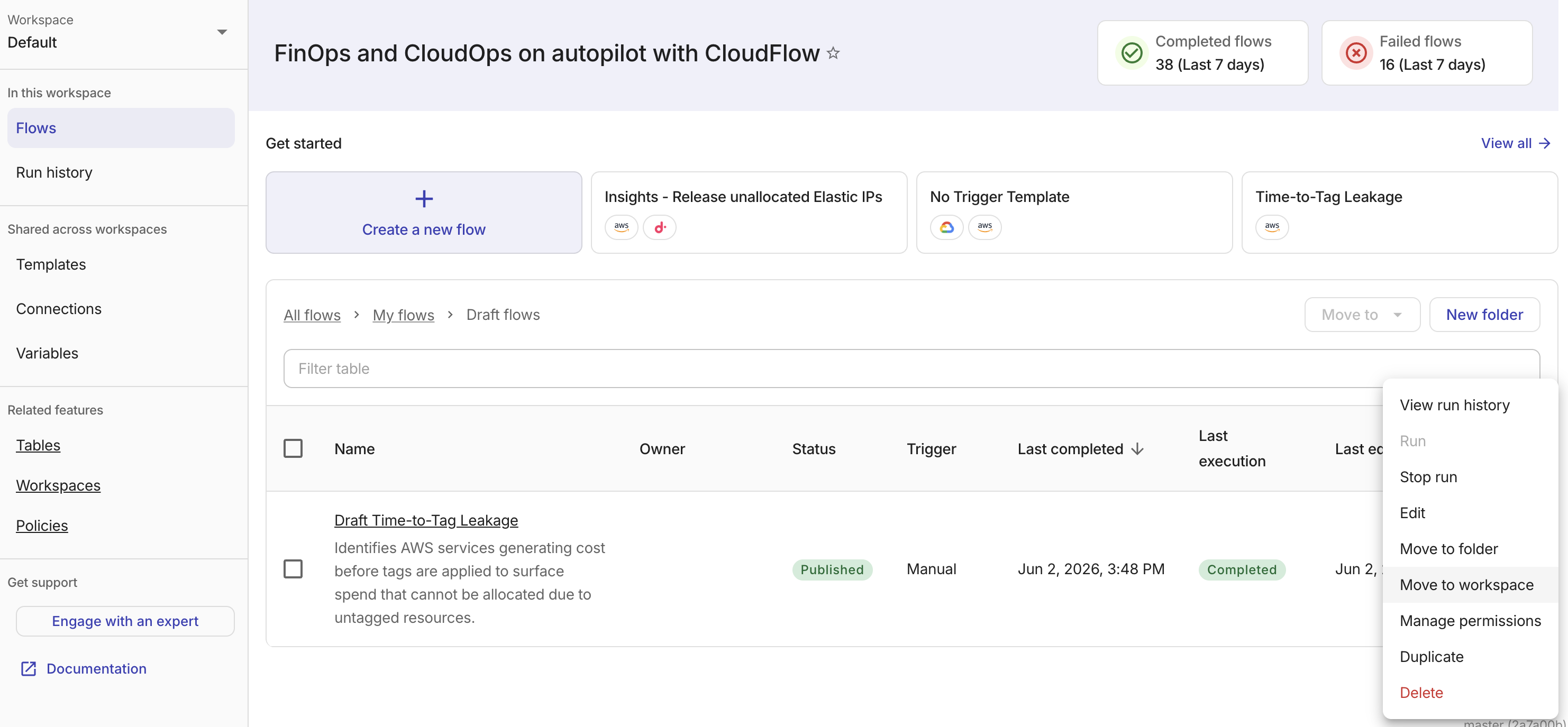
Note that to edit a flow, you must first unpublish it.
To share a specific node in your flow, select a node and copy the URL from your browser. Anyone who selects the link will be taken directly to that node in the flow.
Stop a running flow
You can stop a flow that is currently running. Stopping a flow stops the currently executing node and the remaining nodes in the flow. If the flow has invoked an action (for example, DescribeInstances) and then you select Stop run, the flow is stopped and ignores the response from the action. If the flow contains sub flows, active sub flow executions are also stopped.
To stop a flow, you must have write access to the flow. The Stop run option is available only while the flow is in an active state (Pending, In progress, Awaiting approval, or Sleeping).
If a modifying action is stopped in the middle of execution, your system can be left in an inconsistent state.
You can stop a flow run from the following locations:
-
All flows: Select the kebab menu (⋮) from the rightmost end of the flow row and select Stop run.
-
Flow builder: While viewing a flow, select the kebab menu (⋮) and select Stop run.
After a flow is stopped, you can check Run history to see where the flow was interrupted.
Flow templates
CloudFlow templates are prebuilt groups of activities that can be embedded in another flow or serve as a template when creating a new flow.
To browse available templates, in the CloudFlow sidebar select Templates. Basic information for each template is shown on its card.
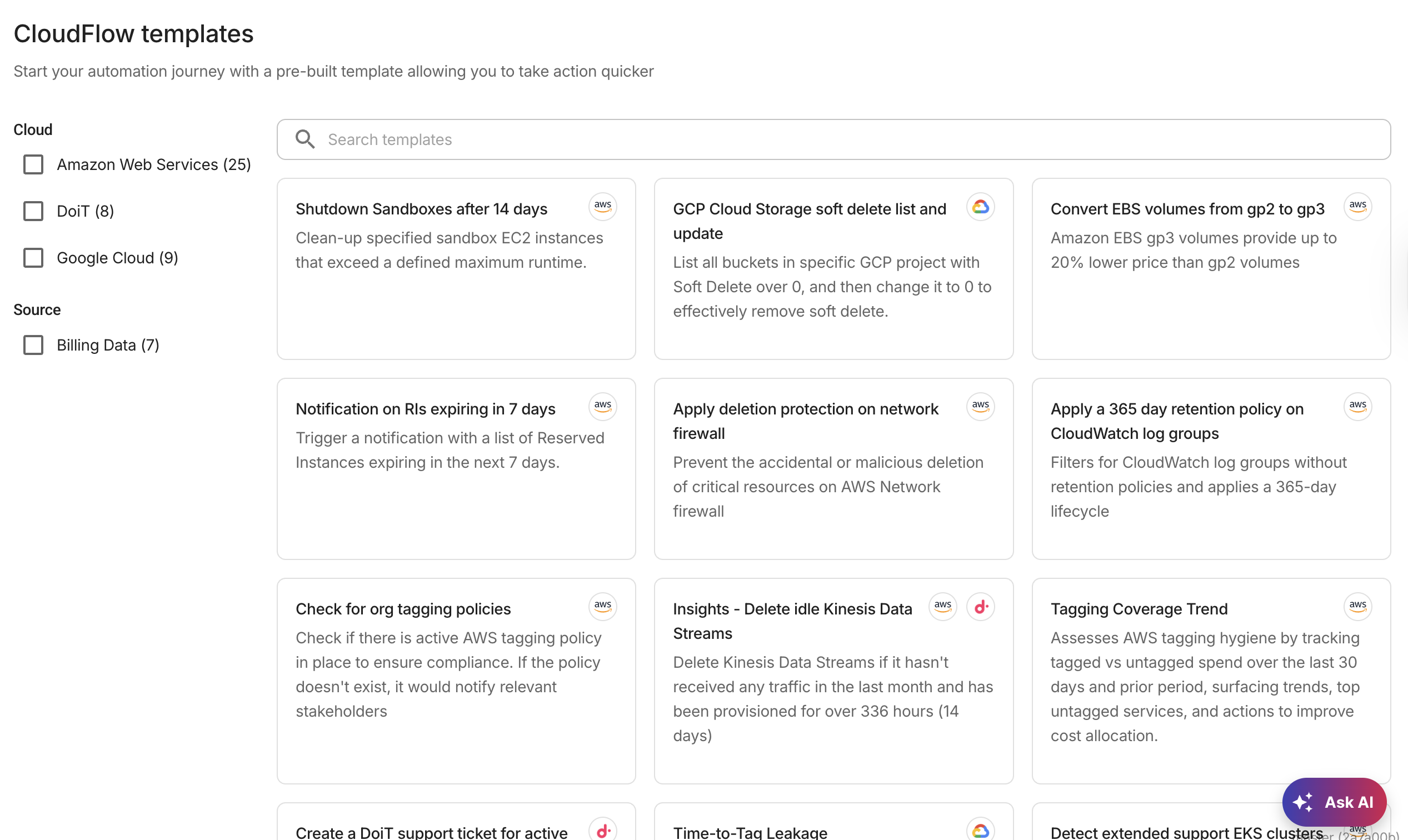
Selecting a template creates a new draft flow based on that template.