Permissions
CloudFlow permissions are a combination of your DoiT account permissions and your access level to a specific flow.
Permissions
To use flows, your DoiT account must be assigned one or more of the following permissions:
-
CloudFlow Manager
-
CloudFlow Editor
Some pre-built roles have the following CloudFlow permissions:
-
Admin role: CloudFlow Manager, CloudFlow Editor
-
Power user role: CloudFlow Editor
The following table describes the actions you can perform.
| Permissions | CloudFlow Manager | CloudFlow Editor |
|---|---|---|
| Create | ✓ | ✓ |
| Access | ✓ | ✓ |
| Edit | ✓ | ✓ |
| Delete | Can delete any flow | Can delete flows they created |
Access levels
A flow has the following access levels. The following table describes the flow permissions associated with each access level.
| Permissions | Owner | Editor | User |
|---|---|---|---|
| Create | ✓ | ✓ | |
| Access | ✓ | ✓ | ✓ |
| Edit | ✓ | ✓ | |
| Delete | Can delete any flows | Can delete flows they created |
Furthermore, depending on your flow access level, you can transfer ownership to another user or share flows with other individual users in your tenant.
To share a specific node in your flow, select a node and copy the URL from your browser. Anyone who selects the link will be taken directly to that node in the flow.
Workspace and folder permissions
CloudFlow also uses account-level permissions for workspaces and folders:
| Area | Action | CloudFlow Manager | CloudFlow Editor |
|---|---|---|---|
| Workspace | Create / edit / delete workspaces | ✓ | |
| Folders and flows in All flows | Create folders and move items | ✓ | ✓ |
| Folders and flows in All flows | Edit folders | ✓ | ✓ |
Note that:
-
Deleting a workspace requires that the workspace contains no flows or folders.
-
Deleting a folder or workspace requires that you are the owner or editor of every folder, subfolder, and flow.
-
None of the flows in a folder tree is currently running or waiting to run (for example, pending approval or sleeping as part of a run).
-
Some actions (such as Move to workspace) also depend on feature availability and ownership. If an action is disabled, hover over the action to view the reason.
Edit permissions
To share a flow, you need to give access to the intended recipients:
-
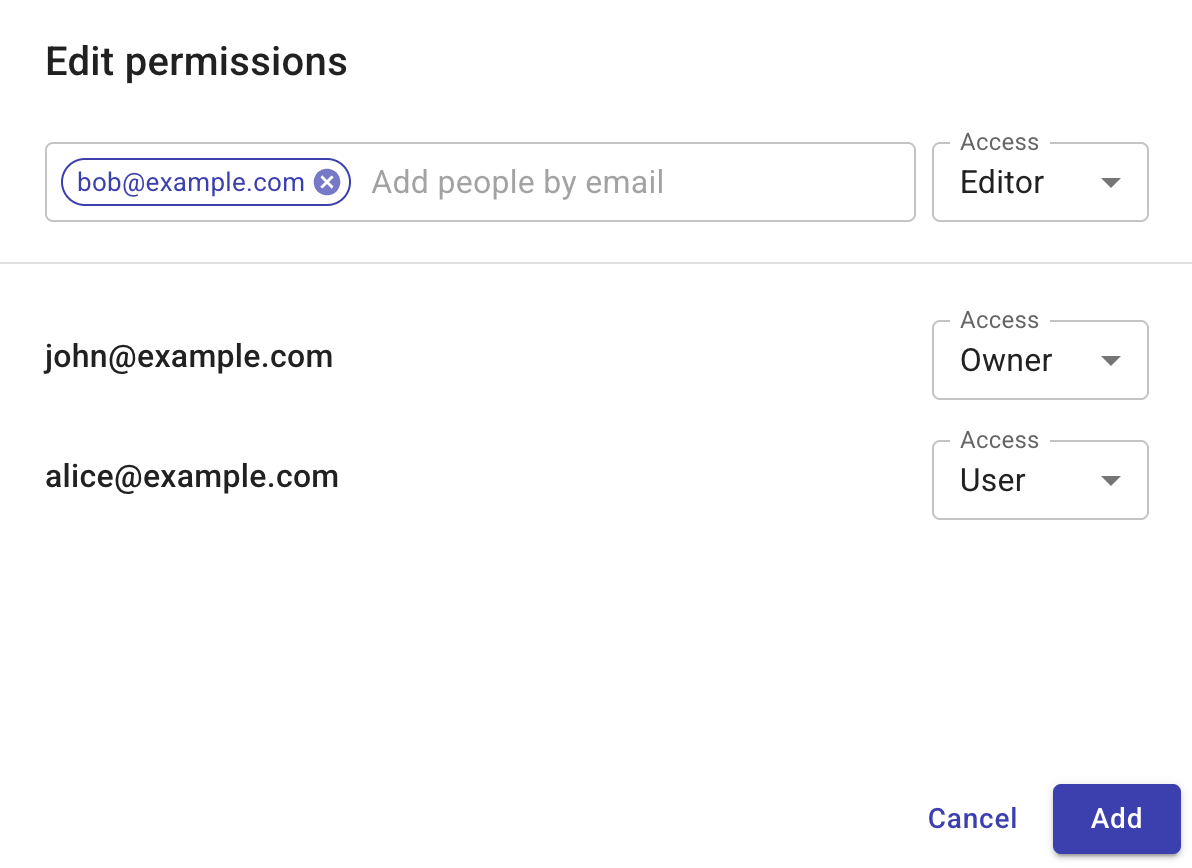
Select the kebab menu (⋮) at the rightmost end of the flow you want to edit and select Manage permissions. The Edit permissions window is displayed.
-
You can either:
-
add a new DoiT account. In Add people, select the email address of the DoiT account for which you want to share this flow. In Access, give them either Manager or Editor access and select Save.
-
edit an existing DoiT account. Next to the email address you want to edit, give them either Manager or Editor access, or remove the access and select Save.
-
-
Once you have finished making your changes, select Save to close the Edit Permissions window. The recipient will receive an invitation email with the relevant information.
Transfer ownership
To transfer the ownership of a flow to another user, select Make owner.
Be aware of the following rules when transferring ownership:
-
A flow can have only one owner and the owner must be an individual user.
-
Ownership can be transferred only to a user who already has the Editor permission.
-
Once the ownership is transferred, the previous owner becomes an Editor of the report.