HTTP node
An HTTP node lets you make HTTP requests to external APIs or services directly from your flow. Use it to integrate with third-party systems, fetch data from REST APIs, or send data to webhooks and external endpoints.
The response body of the HTTP request becomes the node output and is available to subsequent nodes in your flow.
Automatic parsing of YAML and CSV
When the response body is YAML (.yml/.yaml) or CSV (.csv), the HTTP node parses it to JSON automatically. Downstream nodes then receive the parsed JSON (object or array) and can reference it like any other API response. Detection uses the response Content-Type header or the request URL path (for example, a URL ending in .yml or .csv). For CSV, the first row is treated as headers; the result is an array of objects, one per row.
The raw response body is not preserved—the node output is only the parsed result. To inspect the original YAML or CSV before parsing, use the Test tab. If parsing fails, the node output is an error object with details.
Configure the HTTP request
Selecting an HTTP node opens a side panel with two tabs: Parameters and Test.
Parameters
Configure the following settings on the Parameters tab:
The URL, body, and header or query values can use + or @ to insert dynamic values from previous nodes. You can also use {{ }} formatting rules (as in notification messages) when you need to transform values before sending a request. Insert references using use + or @ rather than typing paths as plain text. See Highlighted references.
For arrays in HTTP fields, use a reference in brackets to keep it as an array in one request (for example, [<reference>]). Without brackets, values may be expanded across requests.
-
URL (required): The endpoint URL for the HTTP request. You can insert dynamic values from previous nodes using the + button. For field types and how to reference values, see Node parameters.
-
Method (required): The HTTP method to use. Supported methods include
GET,POST,PUT,PATCH, andDELETE.
Query params
Add query parameters to append to the request URL. Select Add new query param to define key-value pairs that are automatically appended to the URL as query string parameters.
Headers
You can send authentication and other custom data with each request by configuring headers. Headers support common credential types: bearer tokens (OAuth 2.0), basic authentication, and API keys. To reuse credentials across nodes, store them in flow variables and reference those variables when adding headers.
Configure headers in the Headers parameter. Select Add new header to define key-value pairs such as Authorization, Content-Type, or any custom headers required by the target API.
Body
Enter the request body content for methods that support it (e.g., POST, PUT, PATCH). You can insert dynamic values from previous nodes using the + button.
If a chip is in brackets, it will render as an array of values. Otherwise, it will render as a single value for each request.
Pagination
Enable Use pagination to automatically handle paginated API responses. This is useful when an API returns results across multiple pages and you need to retrieve all of them in a single flow execution.
When pagination is enabled, configure the following settings:
-
Page key: The query parameter name that the API uses for the page number (for example,
page). -
Items per page key: The query parameter name that controls how many items are returned per page (for example,
per_pageorlimit). -
Items per page: The number of items to request per page.
-
Max number of pages: The maximum number of pages to fetch. Use this to cap the total number of requests the node makes.
-
Items JMESPath: A JMESPath expression that extracts the items array from each response. For example, if the API returns
{"data": {"results": [...]}}, set this todata.results. If left empty, the node treats the entire response body as the items array. This is useful for APIs that return a top-level JSON array directly. -
(Optional) Has next page JMESPath: A JMESPath expression that evaluates whether there is a next page. If the expression returns a falsy value, pagination stops.
In test mode, pagination is automatically limited to 100 items. If the configured pagination would fetch more than 100 items, the test caps the number of pages and adds a message to the results indicating that pagination was limited. This does not affect actual flow executions.
HTTP client config
Fine-tune the behavior of the HTTP client:
-
Timeout (seconds): The maximum time to wait for a response before the request times out. Default is
30seconds. -
Max retries: The number of times to retry a failed request. Default is
3. -
Follow redirects: When enabled, the HTTP client automatically follows redirect responses (e.g.,
301,302). Enabled by default.
Test
Select Test to test the node.
Example: Fetch carbon intensity for an AWS region
This example shows how to use an HTTP node to fetch the current carbon intensity for the us-east-1 AWS region using the Electricity Maps API. This can be useful in a FinOps flow that monitors or compares carbon emissions across regions to support sustainability goals.
To follow this example, create a free API key on the Electricity Maps platform.
Configure the HTTP node with the following settings:
| Field | Value |
|---|---|
| URL | https://api.electricitymaps.com/v3/carbon-intensity/latest |
| Method | GET |
| Query params | zone = US-MIDA-PJM |
| Headers | auth-token = your Electricity Maps API key |
The US-MIDA-PJM zone corresponds to the PJM grid, which covers the us-east-1 AWS region.
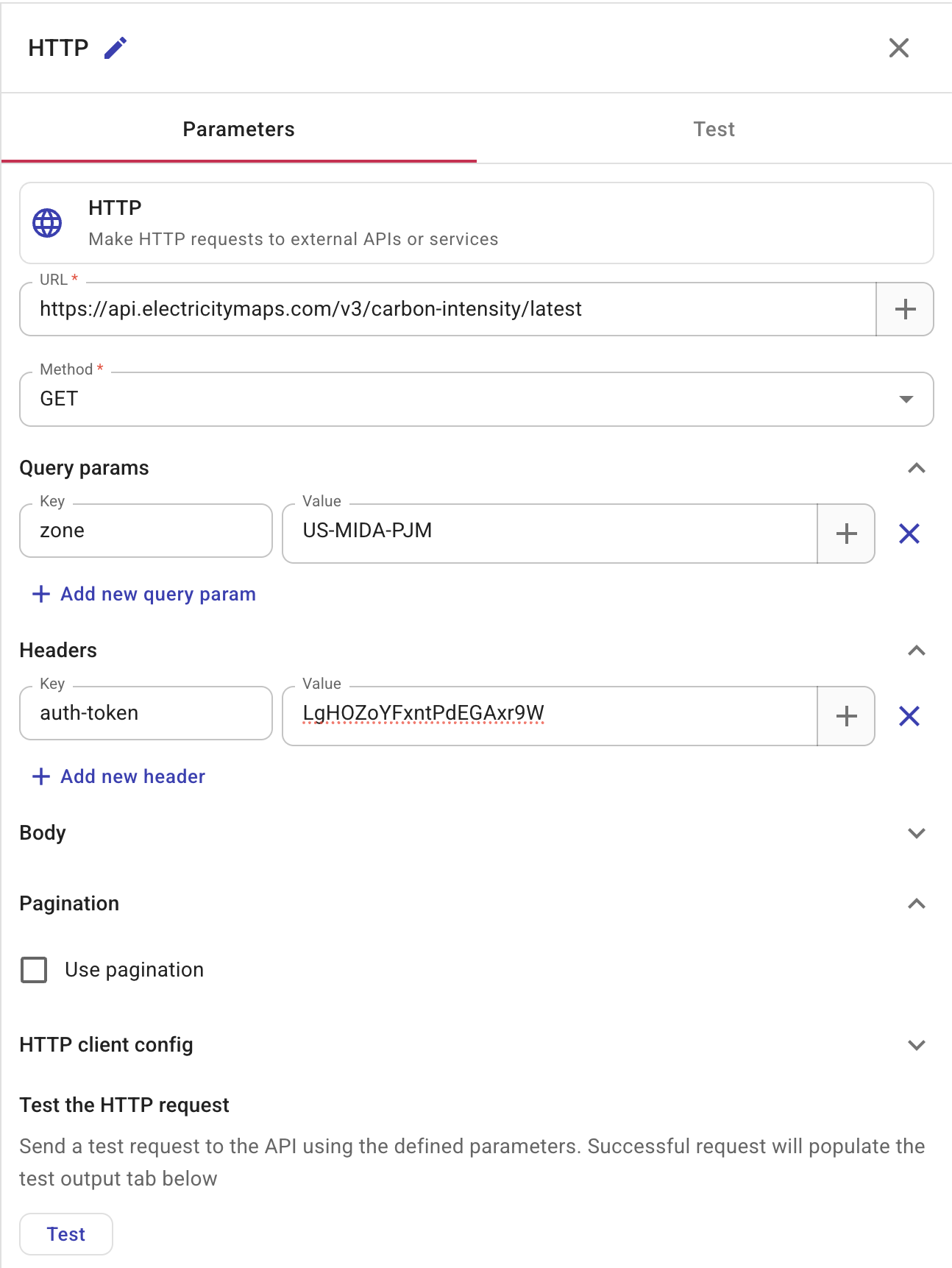
Select Test to send the request. A successful response returns the current carbon intensity for the zone:
{
  "zone": "US-MIDA-PJM",
  "carbonIntensity": 406,
  "datetime": "2026-02-15T20:00:00.000Z",
  "updatedAt": "2026-02-15T19:25:13.450Z",
  "createdAt": "2026-02-15T08:39:54.714Z",
  "emissionFactorType": "lifecycle",
  "isEstimated": true,
  "estimationMethod": "SANDBOX_MODE_DATA"
}
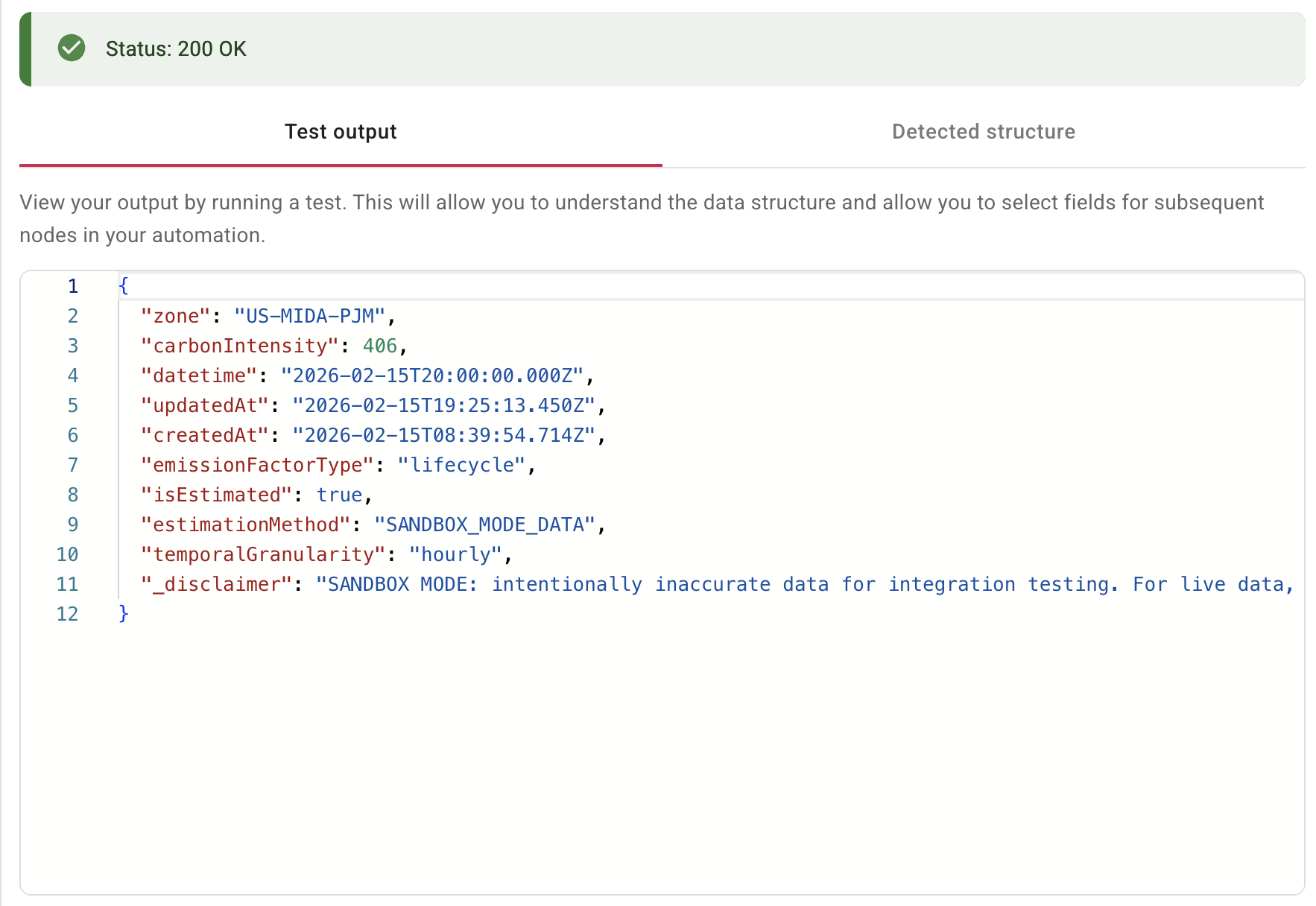
You can then use this data in subsequent nodes — for example, a Branch node to check if carbonIntensity exceeds a threshold, and a Notification node to alert stakeholders when emissions are high.