CLI node
A CLI node lets you run custom CLI commands as a step in your flow and pass structured output to the next nodes. The script runs in a secure, sandboxed environment. You must attach an AWS or GCP connection; the script runs with that connection's credentials, and gcloud or aws are pre-installed.
The CLI node is useful for simplifying your flows. For example, you can run the aws ec2 attach-volume command in a single CLI node. With regular AWS nodes, you would need to need to chain three nodes: DescribeInstances (validation), DescribeVolumes (state check), and AttachVolume.
Before you begin
Create an AWS or GCP connection before adding a CLI node. For an overview of connections, see Connections.
If you want to reuse the same connection across multiple action and CLI nodes, create a connection variable.
Configure the CLI node
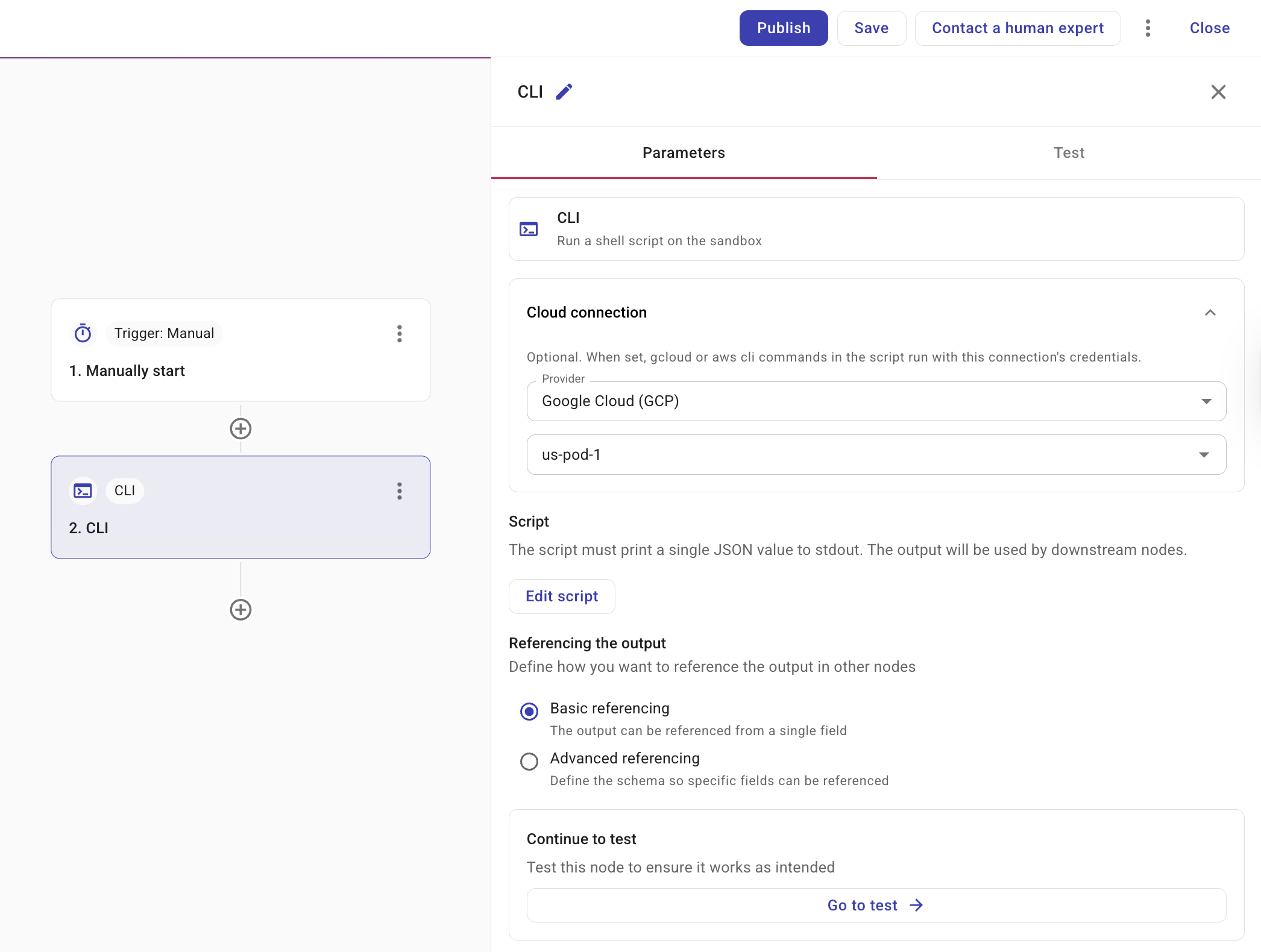
Selecting a CLI node opens a side panel with a Parameters tab.
-
Cloud connection provider: Select Google Cloud (GCP) or Amazon Web Services (AWS). The dropdown shows only the providers your organization has access to and defaults to the first available option. A connection is required; the script runs with that connection's credentials.
You can select a direct connection or a connection variable. Connection variables let you manage the connection in one place and reuse it across nodes. The Connection dropdown shows both connections and connection variables.
(AWS only) Account and Region: When the connection is Amazon Web Services (AWS), select the account and optionally the region. If not set, Region defaults to all regions.
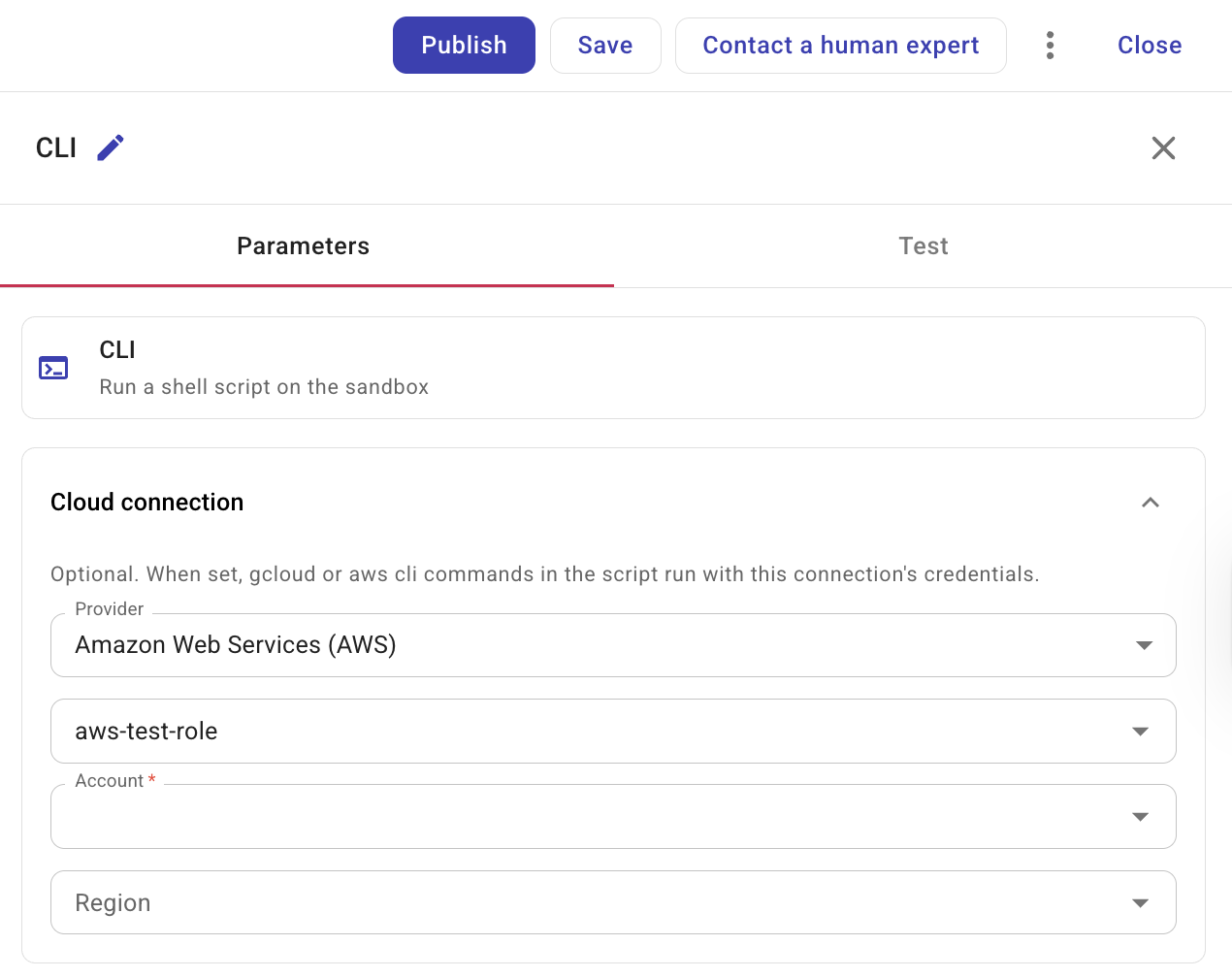
When you select a connection variable in a CLI node, CloudFlow resolves that variable to its underlying connection ID before running your script. Updating the connection variable changes which connection the CLI node uses without editing the node itself.
-
Select Add script or Edit script to open the script editor. The script runs in a sandbox. When you have selected a connection,
gcloudorawsis available and authenticated for the chosen provider. You should print a single JSON value to standard output (stdout). Downstream nodes can then reference individual fields from that output, use it in conditions, or pass it to the next step—so producing valid JSON is how you make the CLI node's result usable in the rest of your flow.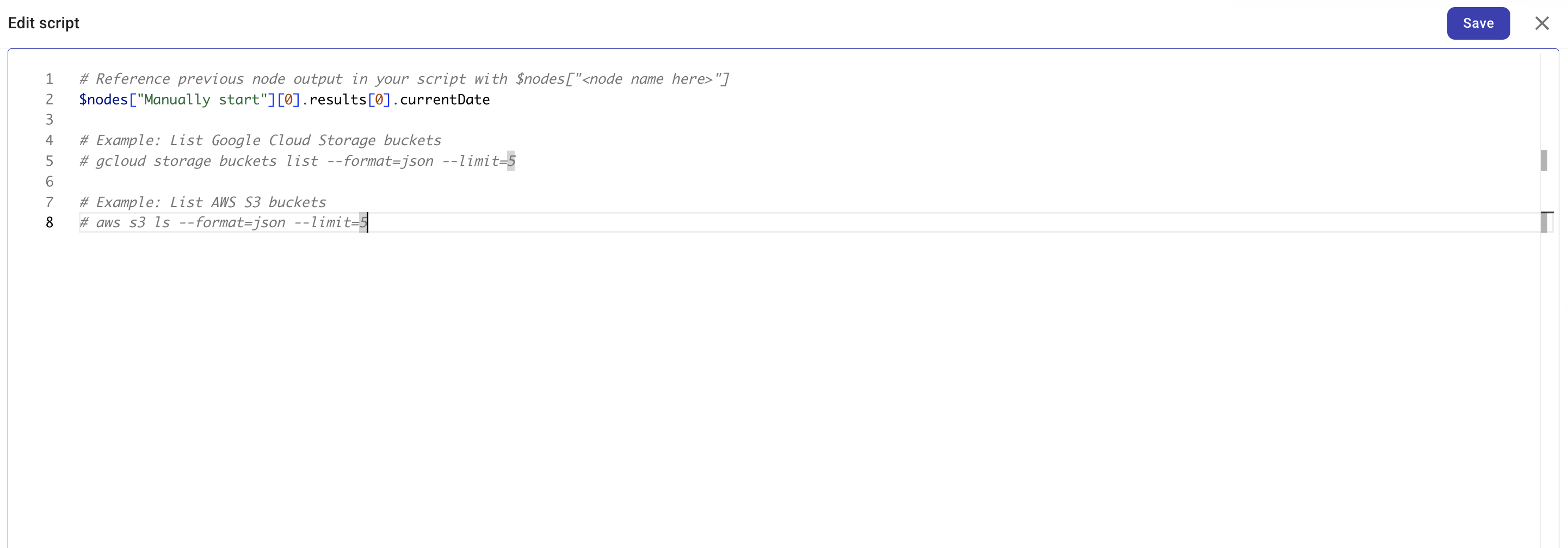
You can reference output from any preceding node in the flow using
$nodes["<Node name>"]. Add an optional path to reach nested values, for example$nodes["Manually start"][0].results[0].currentDate.# Reference previous node output in your script with $nodes["<node name>"]echo $nodes["Manually start"][0].results[0].currentDateYou can also access the flow's global and local variables using
$variables. Use$variables.globalVariables.<name>for global variables and$variables.localVariables.<name>for local variables. CloudFlow processes$nodesand$variablesusing text injection before the command runs. Each value is automatically wrapped to handle spaces and special characters. Unlike in Code nodes, these references are not live objects. They are swapped for plain text. Be careful when adding your own quotes or backslashes, as they will wrap around CloudFlow's internal formatting and may cause parsing errors.# Access flow variablesecho $variables.globalVariables.projectRegionecho $variables.localVariables.retryCountTipThe script editor supports completion for both
$nodesand$variables. Use it to insert node names, variable scopes, and variable names. -
Referencing the output: Defines how other nodes in your flow can reference the CLI node's output. For how to reference values from this node in later nodes (e.g. via the + button), see Node parameters.
-
Basic referencing: The output is referenced as a single field. Use this for simple return values.
-
Advanced referencing: Define a JSON schema so that specific fields in your output can be individually referenced by downstream nodes. See Output schema for how to define the schema.
-
Execution limits
The script runs in a sandboxed environment with the following limits:
-
Sandbox tools: The CLI sandbox provides shell plus
gcloudoraws(depending on your connection). Python and other runtimes are not available. For JSON transformation or filtering upstream node output, use a Code node instead. -
Maximum execution time: 10 seconds. If the script exceeds this, the node fails with a timeout error.
-
Rate limit: The sandbox may enforce rate limits. If exceeded, the node fails with a rate-limit error.
GCS object metadata
If your flow needs metadata about an object in Google Cloud Storage, use gcloud to return JSON metadata directly:
This returns GCS object metadata only. Retrieving GCS object file contents is not supported yet, including by using the alt=media query parameter with the storage.objects.get action. There is no CLI node workaround for downloading and filtering file contents through gcloud. This limitation helps prevent sensitive file contents, such as PII or secrets, from being persisted in CloudFlow results or execution history, and helps maintain system stability for significant file sizes.
gcloud storage objects describe gs://my-bucket/path/to/file.csv --format=json
Examples
Below are some example scripts that you can use with the CLI node.
List GCS buckets
The following script lists Google Cloud Storage buckets when a GCP connection is configured. The command outputs JSON directly, so downstream nodes can reference the array or its fields (for example with advanced referencing and a schema).
gcloud storage buckets list --format=json --limit=5
List S3 buckets
With an AWS connection and account selected, you can list S3 buckets instead:
aws s3api list-buckets --output json
List running EC2 instances
With an AWS connection and account selected, you can list running EC2 instances and return a JSON array for downstream nodes. The AWS CLI applies the filter and shapes the output:
aws ec2 describe-instances \
  --filters "Name=instance-state-name,Values=running" \
  --query 'Reservations[].Instances[].{InstanceId:InstanceId,State:State.Name}' \
  --output json
To filter or transform output from an upstream node (for example, an AWS Describe instances action node), use a Code node or a Transform/Filter node in a later step.
See also
- Nodes
- Output schema
- Code node — scripting and output referencing
- Connections
- Variables — including connection variables
- Create a GCP connection
- Create an AWS connection