Triggers
Every flow starts with a trigger. The trigger is the first node in a flow, and it defines when the flow runs—on a schedule, on demand, or in response to an external event. The trigger also produces output data, such as the run timestamp or the incoming event, that you can reference in filters, conditions, and any other downstream node.
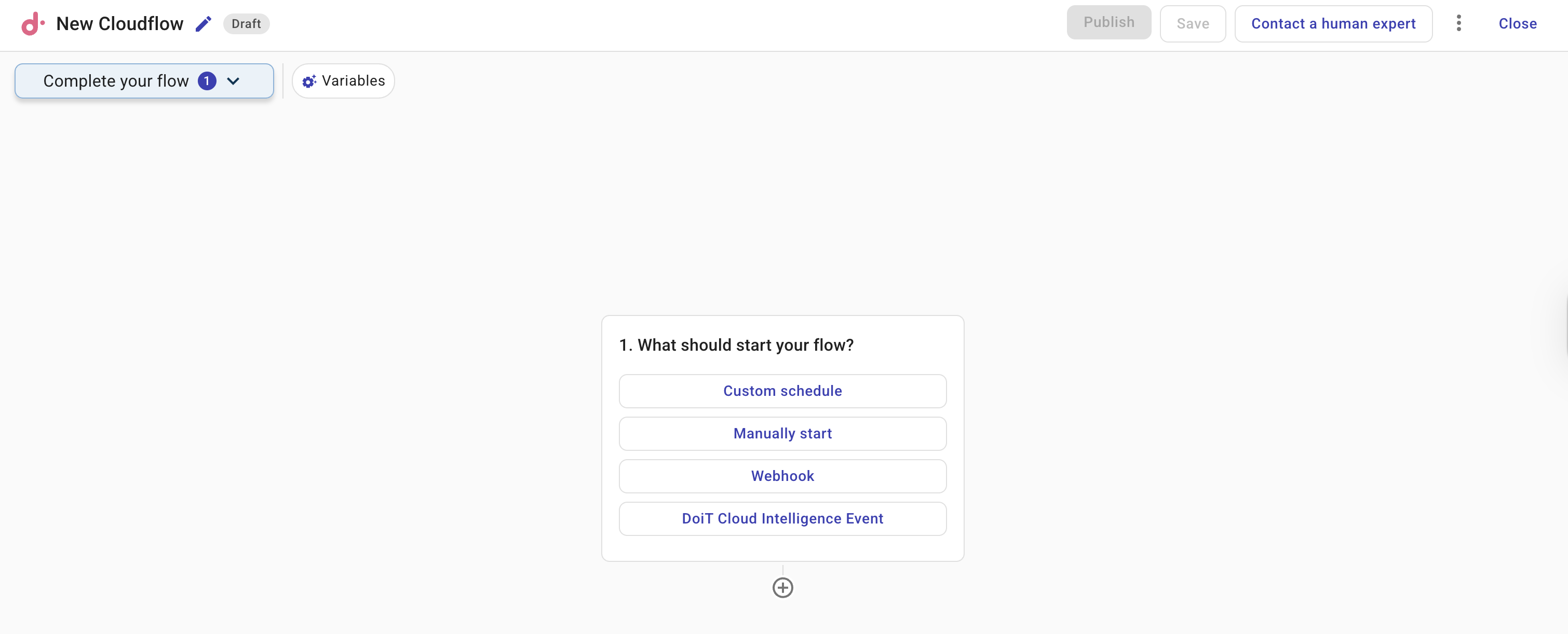
One flow can have only one trigger node. Schedule, webhook, email, and event triggers run only after the flow is published; a manual trigger lets you run the flow on demand from the editor once it is published.
There are five types of triggers. Each type has its own page with configuration details:
Custom schedule
A custom schedule runs your flow at specific times or recurring intervals. Use it for recurring hygiene and audit tasks—for example, listing unattached Azure managed disks every morning, checking AWS EC2 instance states hourly, or reviewing Google Cloud Compute Engine utilization once a week. A one-off schedule is also available for planned maintenance actions.
Manual trigger
A manual trigger runs your flow on demand from the CloudFlow editor. Use it for runbooks that need human oversight before every run—such as remediation steps you want to review first—and while building a flow, since it lets you test the flow end to end before switching to an automated trigger.
Webhook trigger
A webhook trigger starts your flow from an HTTP request, with the request's JSON payload available to downstream nodes. Use it to integrate external systems that can call an API—for example, Zapier, CI/CD pipelines, or internal tools that push structured data into a flow.
Email trigger
An email trigger starts your flow whenever an email is delivered to the flow's unique inbound address. Use it to connect alerting and ticketing tools that can send email notifications—pointing them at the flow's address is all the integration you need. The parsed email, including a structured jsonBody for machine-generated messages, is available to downstream nodes.
Cloud Intelligence event trigger
A Cloud Intelligence event trigger starts your flow when an event occurs in Cloud Intelligence—an alert condition is satisfied, spend crosses a budget threshold, a cost anomaly is detected, or AWS CloudTrail records API activity. Use it to automate responses such as posting to Slack, creating tickets, or running remediation steps.
Trigger node results
This section lists the fields available in the output of every trigger node that you can reference in downstream nodes. For Webhook, Email, and Cloud Intelligence event triggers, the node output also includes trigger-specific payload fields (for example, the webhook request body, the parsed email, or alert name and value). Those fields are shown when you configure the trigger and can be referenced like any other trigger output.
When configuring a node, you typically choose one upstream node whose output to reference. The Schedule trigger node is an exception: its output can be referenced from any node in the flow, in addition to that chosen node.
The trigger result includes date and time in both legacy and ISO 8601 formats. Use the iso8601 object when an API requires ISO 8601 timestamps. The existing currentDate and startTime fields remain for backward compatibility.
| Name | Description | Example value |
|---|---|---|
| currentDate | Date of the run in YYYY-MM-DD format | 2026-02-09 |
| currentDay | Day of month (1–31) | 9 |
| currentMonth | Month (1–12) | 2 |
| currentYear | Four-digit year | 2026 |
| customerId | DoiT customer or organization identifier | ABCDeFhijKLm1nopQrStUVwx |
| ownerEmail | Email of the flow owner | [email protected] |
| startTime | Unix timestamp in milliseconds | 1770644776279 |
| startTimeMillis | Unix timestamp in milliseconds | 1770644776279 |
| startTimeSeconds | Unix timestamp in seconds | 1770644776 |
| userId | DoiT user identifier | aBBCDe1FG2hIJkL34MNO |
| iso8601 | Object with ISO 8601 date and time strings:
| currentDate: "2026-02-09T00:00:00.000Z", startTime: "2026-02-09T15:21:01.760Z" |
| variables | Global and local flow variables | globalVariables: {}, localVariables: {} |
| billingScopes | Lists of cloud account, subscription, and project identifiers for the customer. Each key contains an array of objects with id and name:
| google-cloud: [{id: "my-project", name: "My GCP Project"}], amazon-web-services: [...], microsoft-azure: [...] |
| billingScopesRowCount | Total number of cloud scopes across all three providers (GCP + AWS + Azure). | 3 |
Use billingScopes when you need to run actions per GCP project, AWS account, or Azure subscription—for example, in loops or filters that reference Variables from the trigger node.