Datastore node
A Datastore node lets you store, retrieve, update, and delete structured data within your flows using a managed data store. It is useful when you need to persist information across flow runs without connecting to an external database — for example, to remember which cloud resources a flow has already processed, to keep a table of AWS account, Azure subscription, or Google Cloud project IDs and their budget thresholds, or to track the last time a scheduled flow ran for each cloud target or location. The tables you create are only accessible to flows within your organization.
Create and manage tables
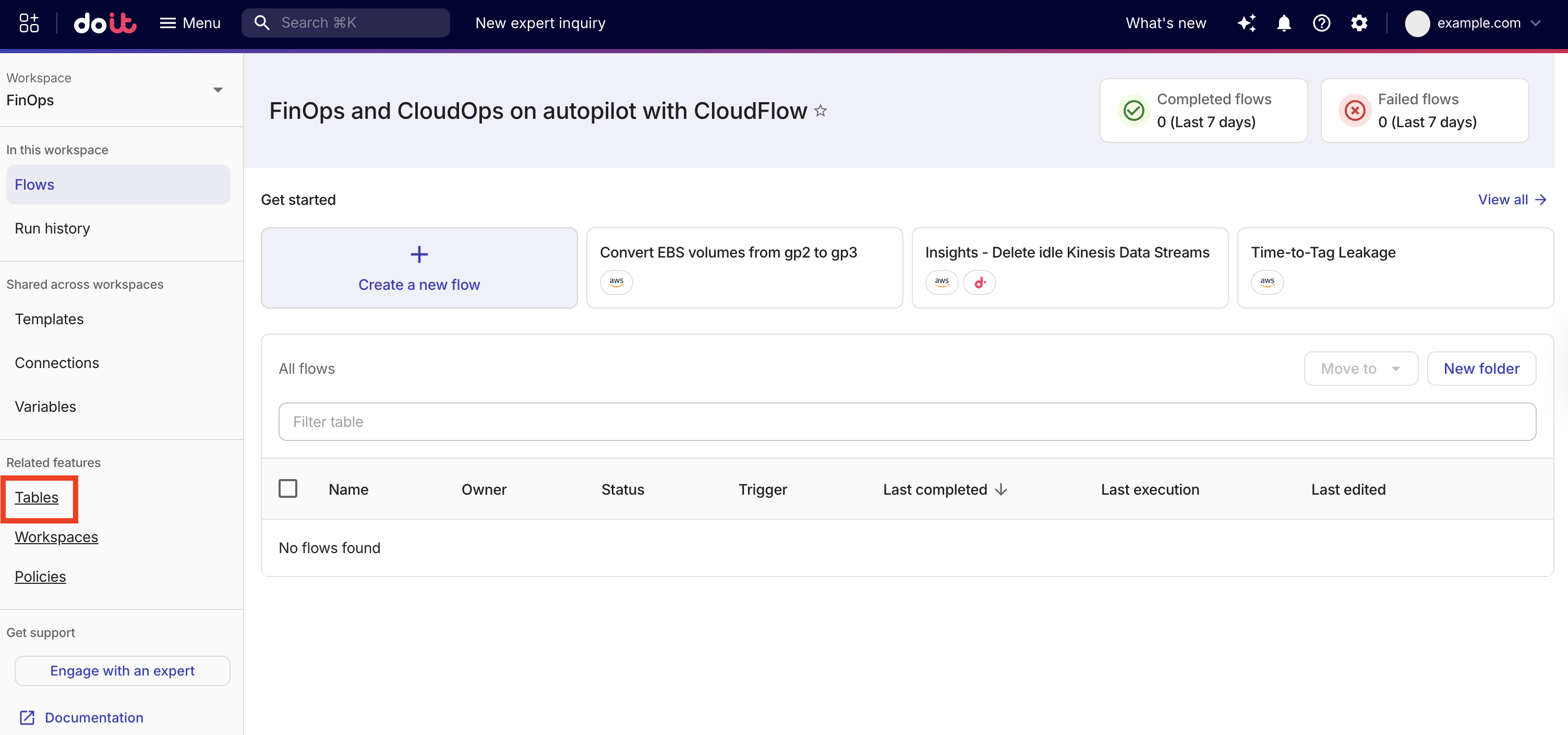
Before using a Datastore node in a flow, create one or more tables to store your data. On the CloudFlow landing page, select Tables to open the Datastore tab, where you manage your tables.
Create a table
-
On the CloudFlow landing page, select Tables to open the Datastore tab.
-
Select Create table.
-
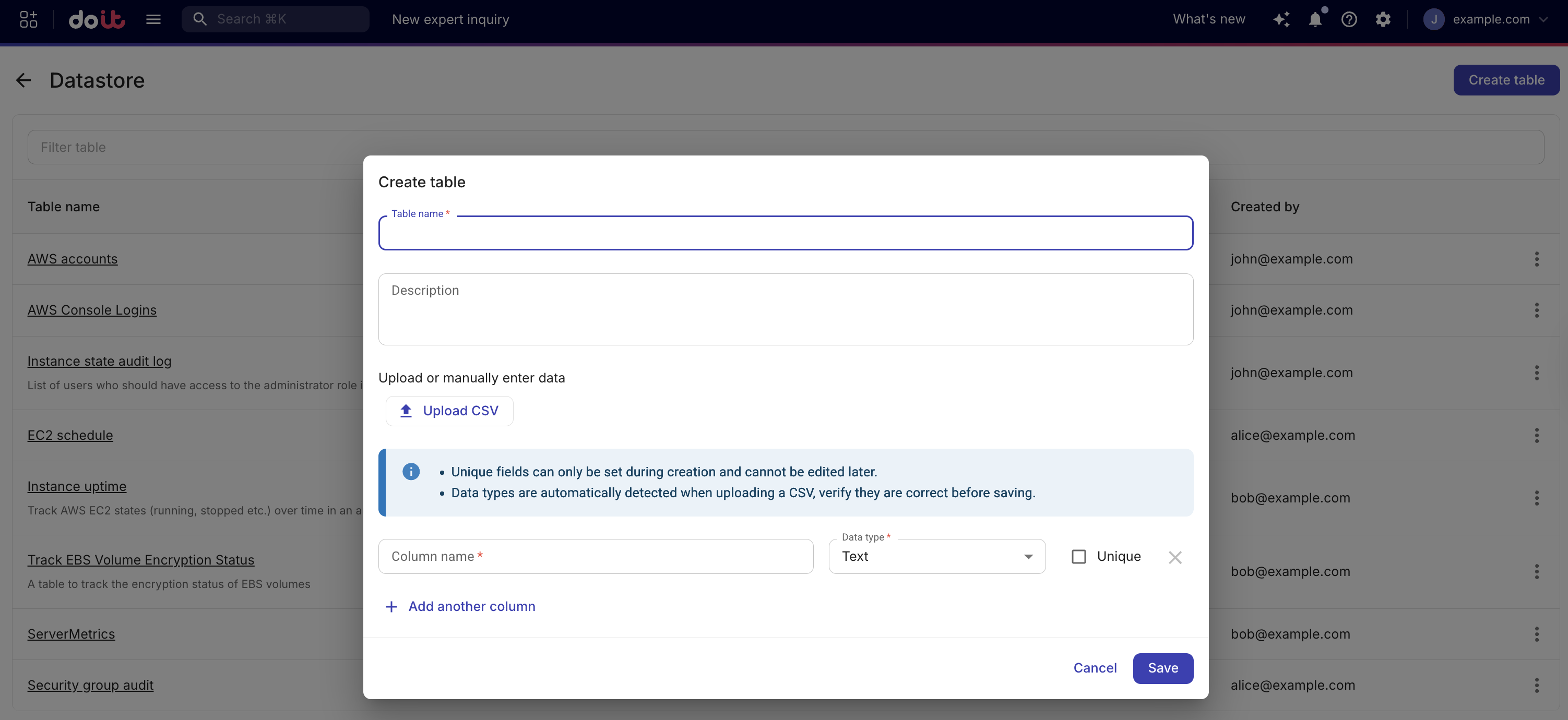
In Table name, enter a name for the table. The table name cannot be changed after creation.
-
(Optional) In Description, enter a brief description of what the table stores.
-
Either define columns manually or upload a CSV file.
-
Manually define columns: Define one or more columns, each with a name and data type. You can mark a column as Unique to enforce that no two records share the same value in that column. At least one unique column is required if you plan to use the Upsert action, because only unique columns can serve as upsert keys.
-
CSV ingestion: Select Upload CSV and choose a
.csvfile. The CSV file requirements are:-
Maximum 5 MB file size.
-
Maximum 50 columns.
-
Maximum 5,000 rows.
-
The CSV file cannot be compressed (for example, no ZIP or GZ).
-
Use a header row as the first line. The order of the columns is preserved in the new table.
-
Column names must start with a letter or underscore, followed by alphanumeric or underscore.
-
No duplicate column names.
-
Column data types are automatically detected when uploading the CSV. You must verify they are correct before saving the table.
-
Date and timestamp values must follow RFC3339/ISO 8601 UTC format (for example,
YYYY-MM-DDTHH:MM:SSZfor timestamps, orYYYY-MM-DDfor date-only fields).
When you click Save, the table is created first and then the CSV rows are inserted. If that insert step fails (for example, due to invalid data or a connection problem), the table may already exist but contain no rows, and an error message is shown. If your CSV contains sensitive or personally identifiable information (PII), sanitize or mask it before uploading.
Example CSV (header row plus data rows):
instance_id,state,last_updatedi-001,running,2026-01-15T10:00:00Zi-002,stopped,2026-01-14T09:30:00Z -
-
-
Select Save.
Edit a table
You can update a table's description and add or remove columns. The table name cannot be changed after creation, and existing columns cannot be renamed or have their data type changed.
You cannot use CSV ingestion to update an existing table.
-
To change which columns a table has, use Edit table and add or remove columns.
-
To add more rows to an existing table, use Add row in the Datastore tab or a flow with a Datastore Insert or Upsert node.
-
Open the table from the Datastore browser.
-
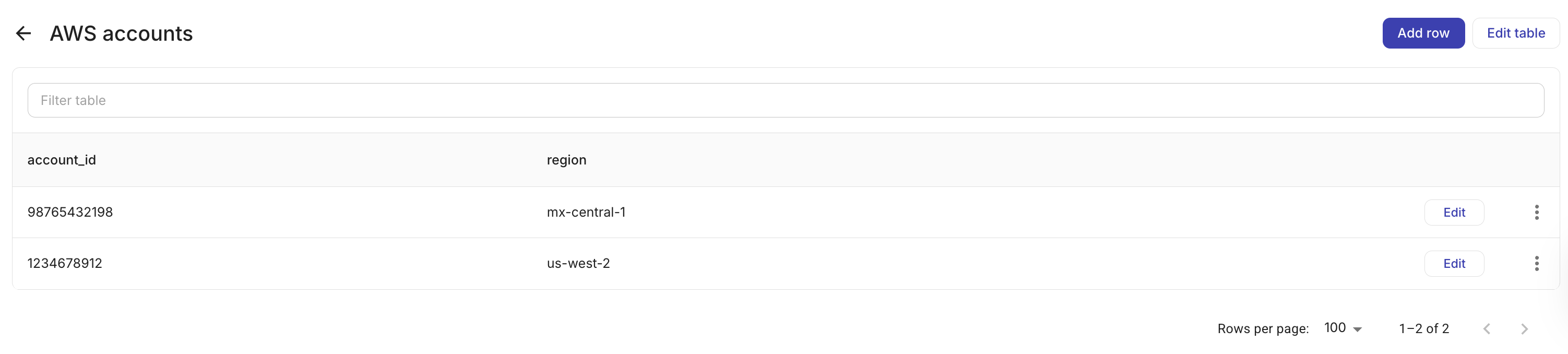
Select Edit table.
-
Make your changes and select Save.
Browse and manage records
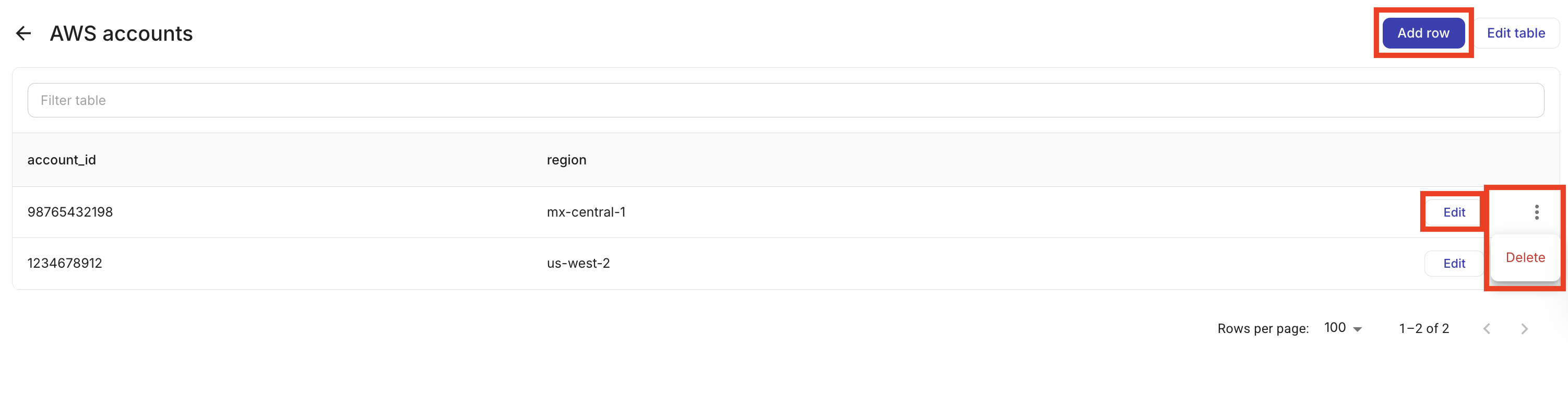
Open a table to view its records. From the table detail view, you can:
-
Add a record: Select Add row and fill in the column values.
-
Edit a record: Select a row to update its values.
-
Delete records: Select one or more rows and delete them.
Records are paginated and sortable by any column.
Delete a table
Deleting a table permanently removes all of its records. If the table is used in one or more flows, you can still delete it. The console will unpublish any published flows that use the table and remove the table from draft flows. Those flows may fail when run until you update them (for example, by choosing a different table or removing the Datastore node). To avoid broken flows, remove or reconfigure the Datastore node in each flow that uses the table before deleting the table.
To delete a table, from the Datastore tab, select the kebab menu (⋮) at the rightmost end of the table that you want to delete and select Delete.

Actions
When configuring a Datastore node in a flow, you can reference values from previous nodes in parameters using the + button; see Node parameters. Select one of the following actions:
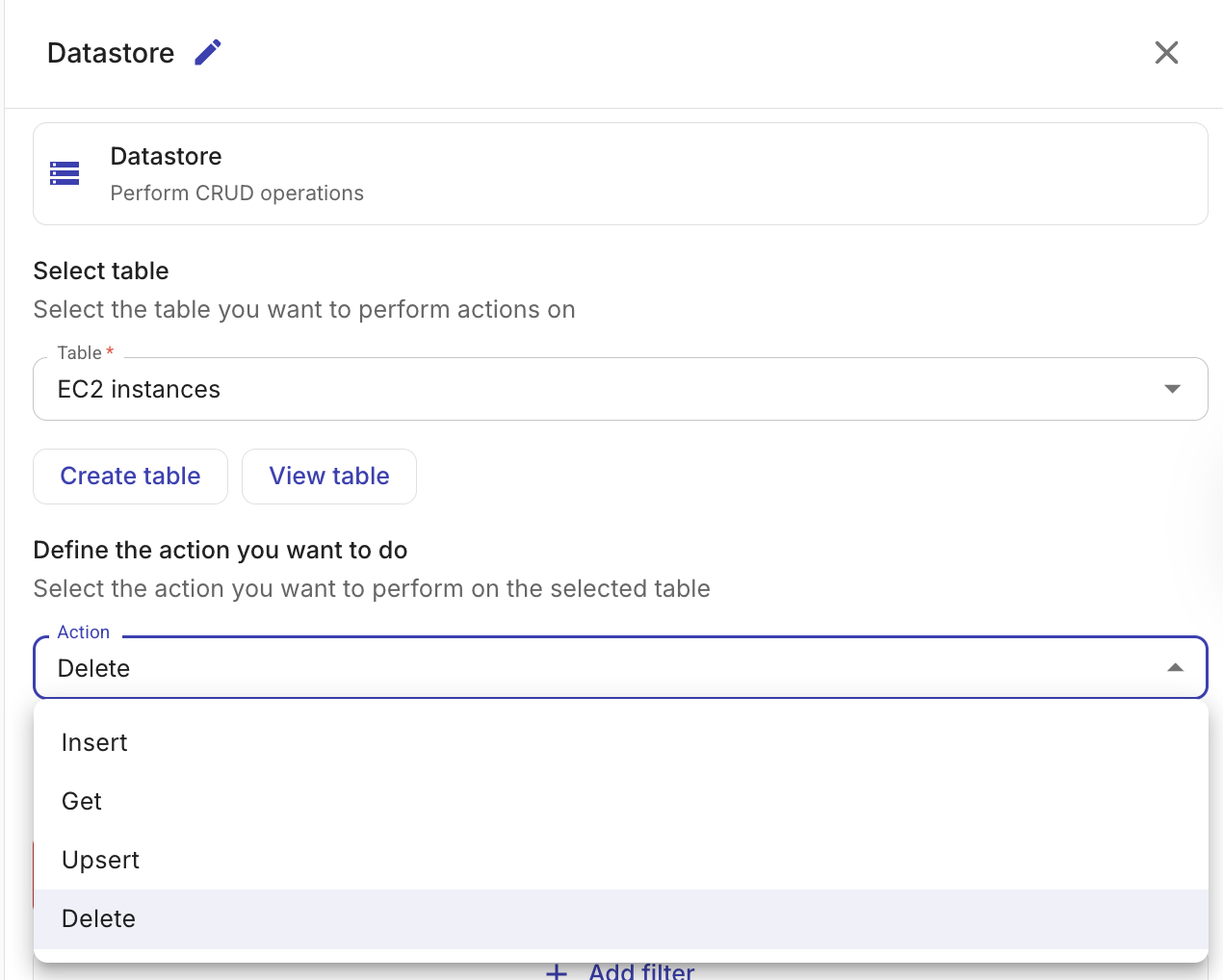
Get records
Retrieves records from a table. You can control which records are returned and what data is included:
-
Table: The table to query.
-
(Optional) Columns: Select specific columns to include in the result. If no columns are selected, all columns are returned.
-
(Optional) Filters: Define conditions to narrow down the results. Conditions within a filter group are combined with AND logic. Multiple filter groups are combined with OR logic.
The following filter operators are available:
Operator Description ==Equal to !=Not equal to >Greater than >=Greater than or equal to <Less than <=Less than or equal to Filter values can reference output from previous nodes in the flow.
-
(Optional) Limit: The maximum number of records to return (1–5,000).
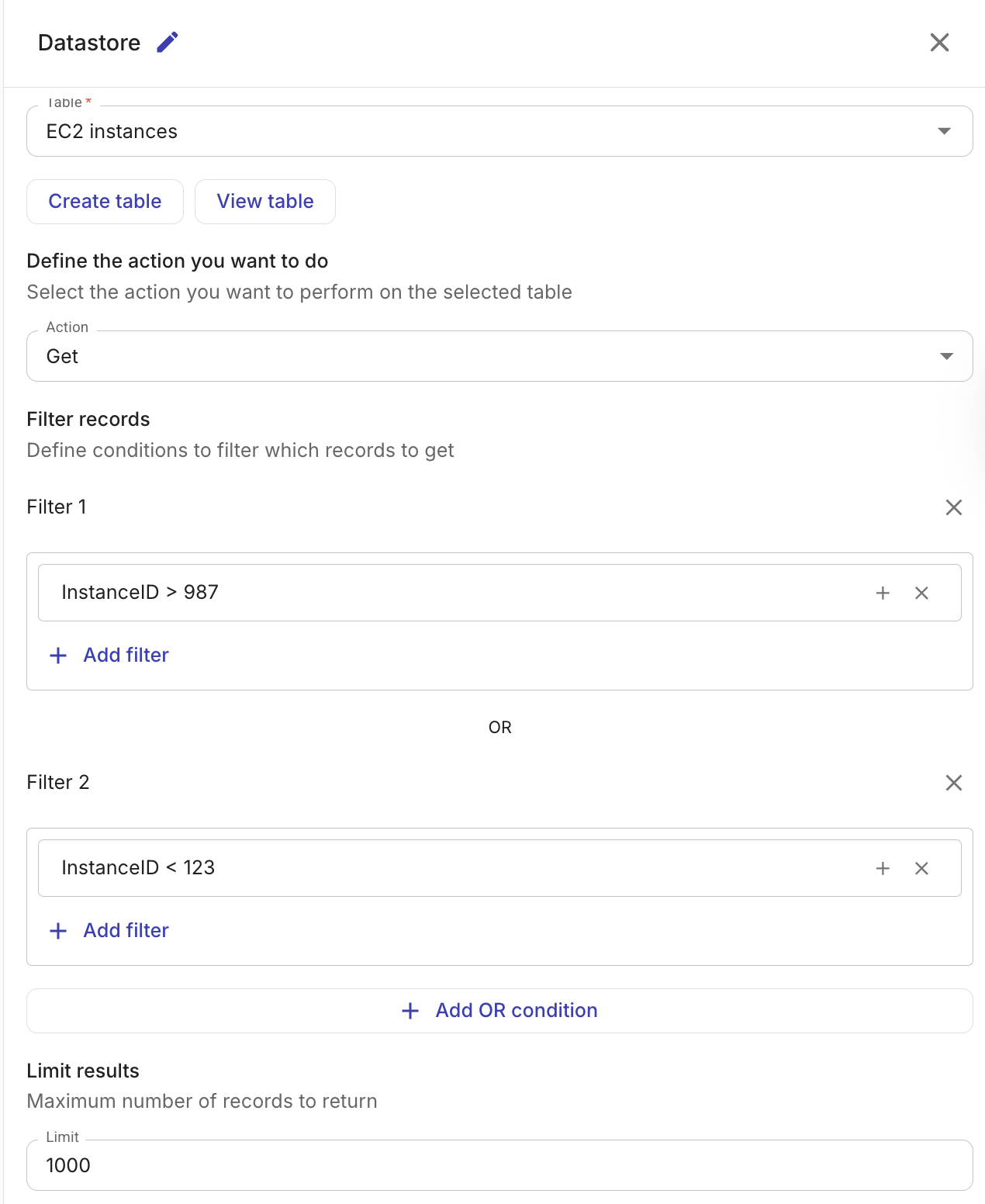
The output of the Get records action is an array of matching records, which subsequent nodes in the flow can reference.
Insert records
Inserts one or more records into a table.
-
Table: The table to insert records into.
-
Column mappings: Map each column to a value. Values can be static or reference output from previous nodes.
When a previous node's output contains multiple items (for example, a list of EC2 instances), the Datastore node automatically creates one record per item.
Records are inserted in batches of up to 1,000 rows. The insertion is atomic per batch — if any record in a batch fails validation, none of the records in that batch are inserted.
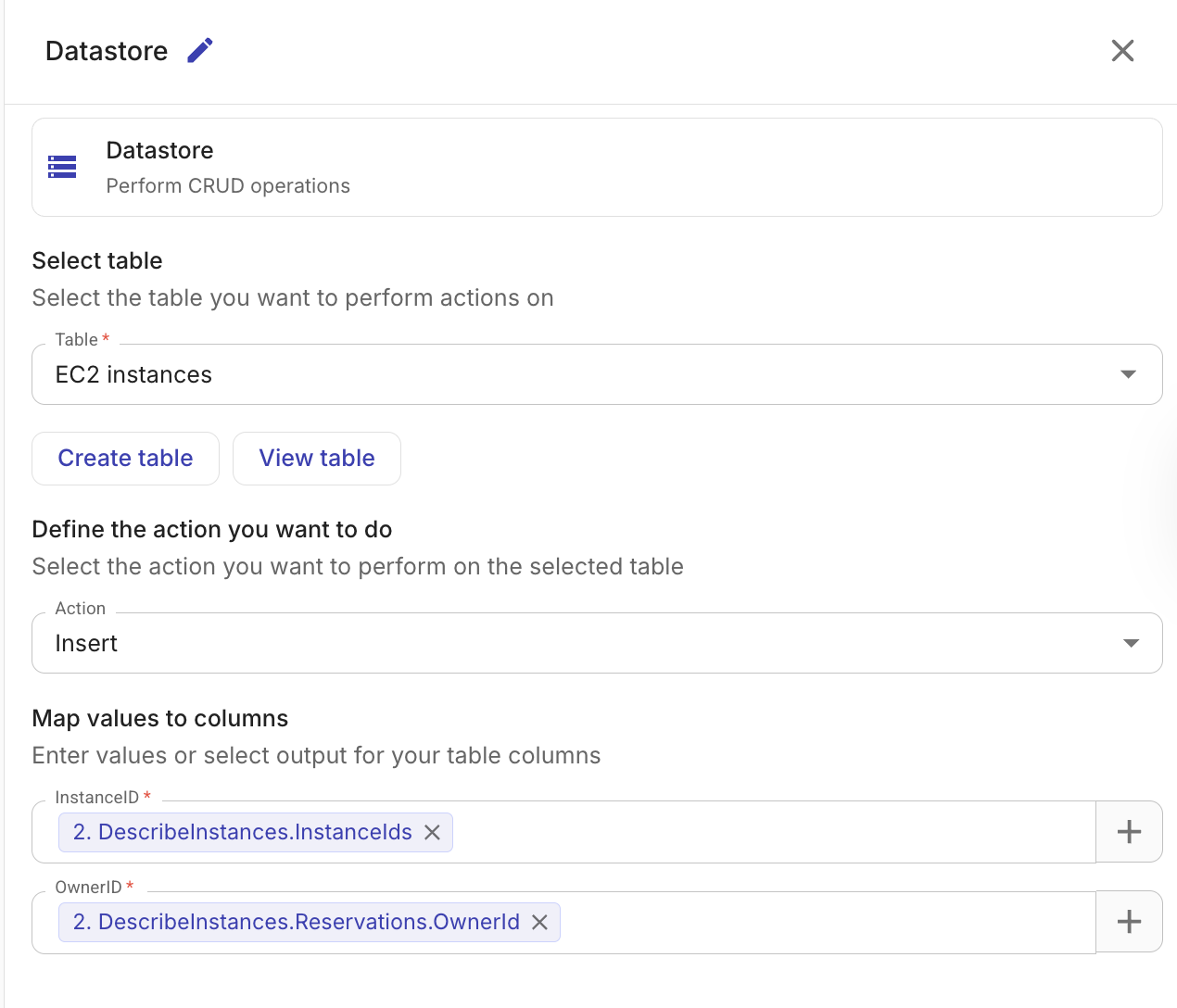
The output includes the IDs of the inserted records and a count of the total rows inserted.
Upsert records
Inserts new records or updates existing ones based on a unique key column. This is useful when you want to keep a table in sync with an external data source without creating duplicates.
-
Table: The table to upsert records into.
-
Upsert key: The column used to determine whether a record already exists. If a record with the same key value exists, it is updated; otherwise, a new record is inserted. The upsert key column should be marked as unique when creating the table.
-
Column mappings: Map each column to a value, the same as with Insert records.
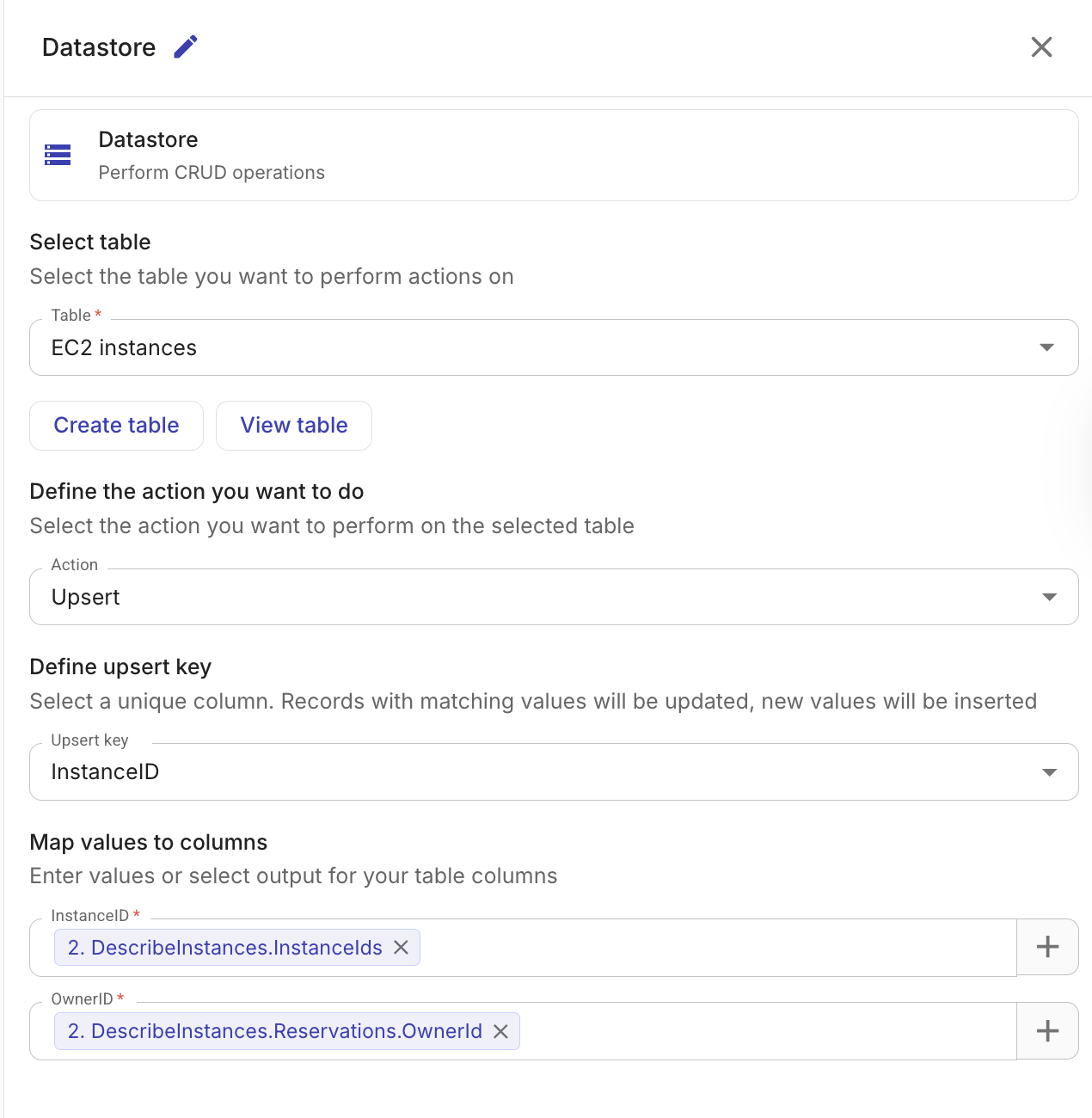
The output includes counts and IDs for both inserted and updated records.
Delete records
Deletes records from a table that match the given filter conditions.
-
Table: The table from which to delete records.
-
Filters: Define conditions that identify which records to delete. Conditions within a filter group are combined with AND logic. Multiple filter groups are combined with OR logic. At least one filter condition is required to avoid accidental full-table deletes.
The same filter operators are available as for Get records:
==,!=,>,>=,<,<=. Filter values can reference output from previous nodes in the flow.
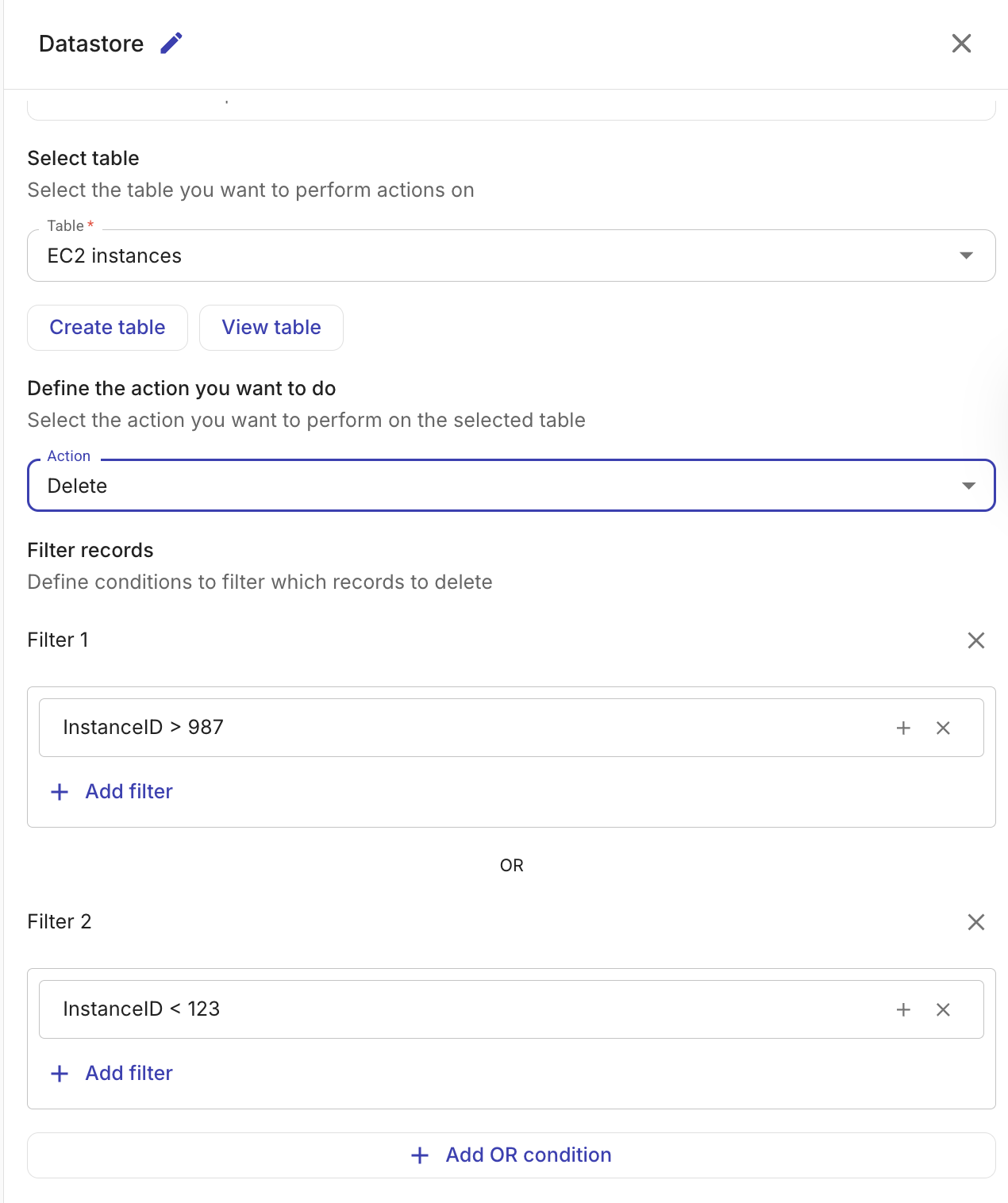
The output includes the number of records deleted (deletedCount) and the table ID.
Run SQL
Runs a PostgreSQL statement against your Datastore tables. Use this action when the other actions cannot express what you need: aggregating across rows, joining two tables, comparing today's values against a historical baseline, or letting a flow create and maintain its own tables.
-
Statement: The SQL to run. The editor validates it as you type and, for row-returning statements, shows the Output schema so that later nodes can reference each column by name before the flow has ever run.
-
(Optional) Bind parameters: Name each
:parameterused in the statement, then map it to a static value or to output from a previous node.
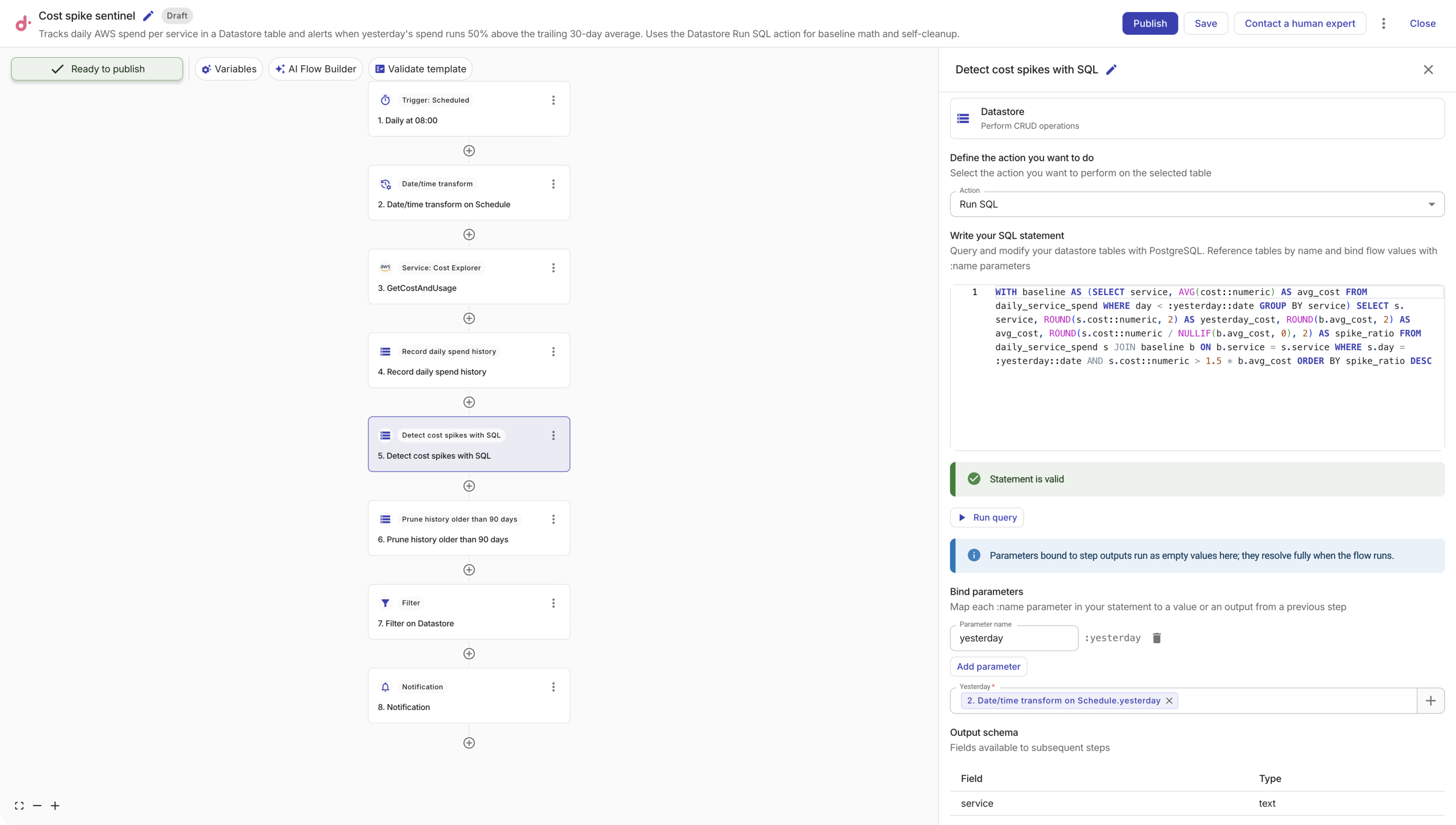
Select Run query to try the statement. For anything that modifies data, CloudFlow asks you to confirm first, because the statement runs immediately against your live tables. Parameters mapped to a previous node's output resolve to that node's saved test data, so the preview runs against real values. Where a node has no test data, the parameter resolves to an empty value in the editor and to the live value when the flow runs.
How the syntax works
Reference tables by their plain name. Write the table name exactly as it appears in the Tables tab, with no schema prefix. Names are case-sensitive, and names containing spaces or other special characters need double quotes:
SELECT service, cost FROM daily_service_spend
SELECT * FROM "monthly budget owners"
Every table has an automatic id column alongside the columns you defined, so SELECT * returns id too.
Pass values with :name parameters. Never concatenate values into the statement. Declare a parameter, map it in Bind parameters, and reference it with a leading colon. Positional parameters ($1) are not supported, every parameter you declare must be used, and every parameter you use must be declared:
SELECT service, cost
FROM daily_service_spend
WHERE day = :day AND cost::numeric > :threshold
Parameters carry values, not identifiers or SQL fragments: :table cannot stand in for a table name, and ORDER BY :column will not work.
Cast when a column's type does not match the maths. This matters most for values that arrive from cloud APIs as strings. Casting in SQL keeps the Insert node simple:
SELECT service, ROUND(AVG(cost::numeric), 2) AS avg_cost
FROM daily_service_spend
GROUP BY service
One statement per node. Semicolon-separated batches are rejected. To do several things, use several Datastore nodes in sequence.
Reading and aggregating
SELECT supports the SQL you would expect: joins, GROUP BY, HAVING, window functions, and WITH clauses. Common table expressions must be read-only.
Rank yesterday's spend against each service's trailing 30-day average, returning only the outliers. Bound both ends of the baseline window, otherwise the average quietly widens as the table accumulates history:
WITH baseline AS (
  SELECT service, AVG(cost::numeric) AS avg_cost
  FROM daily_service_spend
  WHERE day < :yesterday::date
    AND day >= :yesterday::date - 30
  GROUP BY service
)
SELECT s.service,
       ROUND(s.cost::numeric, 2) AS yesterday_cost,
       ROUND(b.avg_cost, 2) AS avg_cost,
       ROUND(s.cost::numeric / NULLIF(b.avg_cost, 0), 2) AS spike_ratio
FROM daily_service_spend s
JOIN baseline b ON b.service = s.service
WHERE s.day = :yesterday::date
  AND s.cost::numeric > 1.5 * b.avg_cost
ORDER BY spike_ratio DESC
Join a measurements table to a table of per-account thresholds, so each account gets its own limit:
SELECT m.account_id, m.spend, t.monthly_limit
FROM monthly_spend m
JOIN account_thresholds t ON t.account_id = m.account_id
WHERE m.month = :month AND m.spend::numeric > t.monthly_limit::numeric
Use a window function to find the largest day-over-day jump per account:
SELECT account_id, day, spend::numeric - LAG(spend::numeric) OVER (
         PARTITION BY account_id ORDER BY day
       ) AS delta
FROM daily_account_spend
WHERE day >= :since::date
ORDER BY delta DESC NULLS LAST
Writing and maintaining data
INSERT, UPDATE, DELETE, and MERGE are all available, with three rules that exist to catch mistakes before they touch your data:
-
INSERTmust list its columns explicitly.INSERT INTO t VALUES (...)is rejected; writeINSERT INTO t (day, service, cost) VALUES (...). -
UPDATEandDELETErequire aWHEREclause, so a missing condition cannot quietly rewrite or empty a table. When you really do mean every row, writeWHERE true. -
The
idcolumn is managed for you and cannot be inserted, updated, or dropped.
Add RETURNING when you want the affected rows back as node output instead of just a count:
UPDATE account_thresholds
SET monthly_limit = :new_limit
WHERE account_id = :account_id
RETURNING account_id, monthly_limit
Keep a table bounded by pruning on a schedule, which is what makes a history table safe to append to forever:
DELETE FROM daily_service_spend WHERE day < :today::date - 90
Copy rows between tables in one statement, for example to archive before deleting:
INSERT INTO spend_archive (day, service, cost)
SELECT day, service, cost FROM daily_service_spend WHERE day < :cutoff::date
Creating and changing tables
A flow can manage its own schema. CREATE TABLE accepts the same types as the Tables tab (text, integer, numeric, boolean, date, timestamp, json) and UNIQUE column constraints:
CREATE TABLE daily_service_spend (
  day date,
  service text,
  cost text
)
CREATE TABLE ... AS SELECT materializes a query result into a new table. Alias every expression column, and cast anything whose type is not one of the supported column types:
CREATE TABLE service_baselines AS
SELECT service, ROUND(AVG(cost::numeric), 2)::numeric AS avg_cost
FROM daily_service_spend
GROUP BY service
ALTER TABLE supports adding and dropping a column, and adding or dropping a single-column UNIQUE constraint:
ALTER TABLE daily_service_spend ADD COLUMN account_id text
ALTER TABLE account_thresholds ADD CONSTRAINT account_id_unique UNIQUE (account_id)
To change a column's type, drop the column and add it again with the new type. Changing the type in place is not supported, and dropping a column discards its data.
Limits and guardrails
-
Supported statements are
SELECT,INSERT,UPDATE,DELETE,MERGE,CREATE TABLE,CREATE TABLE ... AS,ALTER TABLE, andDROP TABLE, one per node. -
Statements run under a restricted database role that can only reach your own organization's tables, with a 30-second statement timeout.
-
Row-returning statements return at most 5,000 rows or 1 MB of data, whichever comes first. When a result is cut short, the output is flagged as truncated, so aggregate in SQL rather than returning raw rows to the flow.
-
Administrative and filesystem functions (for example
pg_sleep(),pg_read_file(),dblink(), sequence and advisory-lock functions) are rejected. -
The automatic
idcolumn cannot be dropped, inserted, or updated, and aCREATE TABLE ... ASresult cannot define its ownid. -
SELECT INTO,TEMPandUNLOGGEDtables, schema-qualified names, and data-modifying statements insideWITHare all rejected. -
DROP TABLEtakes one table per statement and does not supportCASCADE. Dropping a table that a flow still uses will break that flow.
For a worked example that combines most of this in one flow, see Detect AWS cost spikes with SQL.
Supported column types
When creating a table in the Datastore, the following column types are available:
| Type | Description | Example |
|---|---|---|
| Text | Variable-length string | us-east-1 |
| Integer | Whole number | 42 |
| Numeric | Decimal number | 3.14 |
| Boolean | True or false | true |
| Date | Calendar date (yyyy-MM-dd) | 2026-01-15 |
| Timestamp | Date and time with timezone | 2026-01-15T10:30:00Z |
| JSON | Structured JSON data | {"key": "value"} |
Example: Track EC2 instance state changes
A common use case for the Datastore node is to maintain a lookup table that tracks cloud resource state over time. For example, you could build a flow that:
- Uses an AWS node to list EC2 instances.
- Uses an Upsert action on the Datastore node to update a table with the current state of each instance, using the instance ID as the upsert key.
- Uses a Get records action on a second Datastore node to query the table for instances that have been stopped for more than 7 days.
- Sends a Notification to the relevant team with the list of long-stopped instances.
Since the upsert action updates existing records instead of creating duplicates, the table always reflects the latest state of each instance.
Test
Select Test to test the node.