Google Cloud node
A Google Cloud node lets you interact with Google Cloud services directly from your flow. Use it to retrieve data, create or modify resources, and perform actions across Google Cloud services. The output of one node becomes the input for the next, allowing you to define a sequence of actions and operations.
Find an action
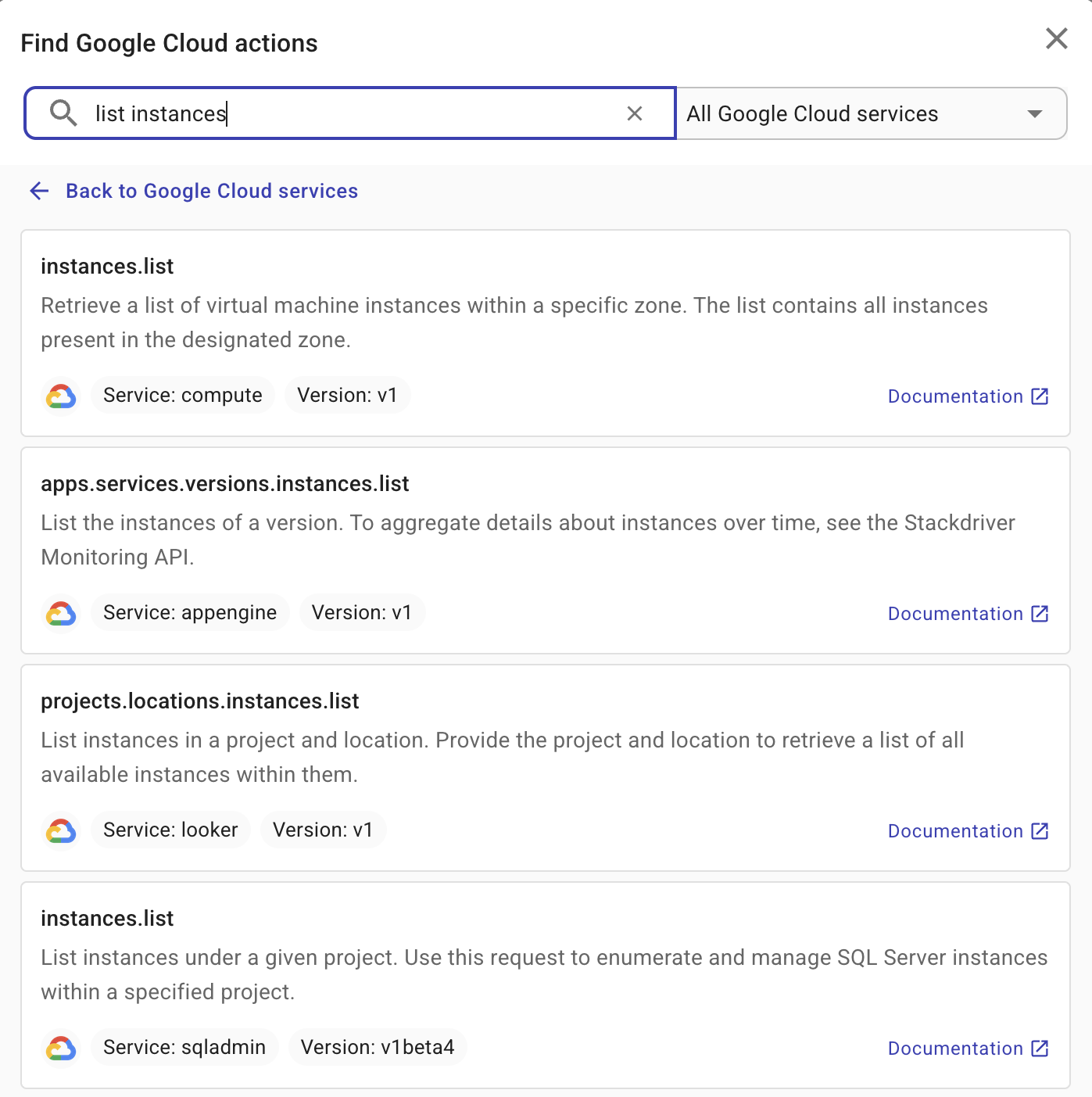
When adding a Google Cloud node to a flow, select Google Cloud as the provider and then find an action by searching or browsing within Google Cloud services. In addition, a template node allows you to add a pre-built group of actions to the current flow.
Configure an action
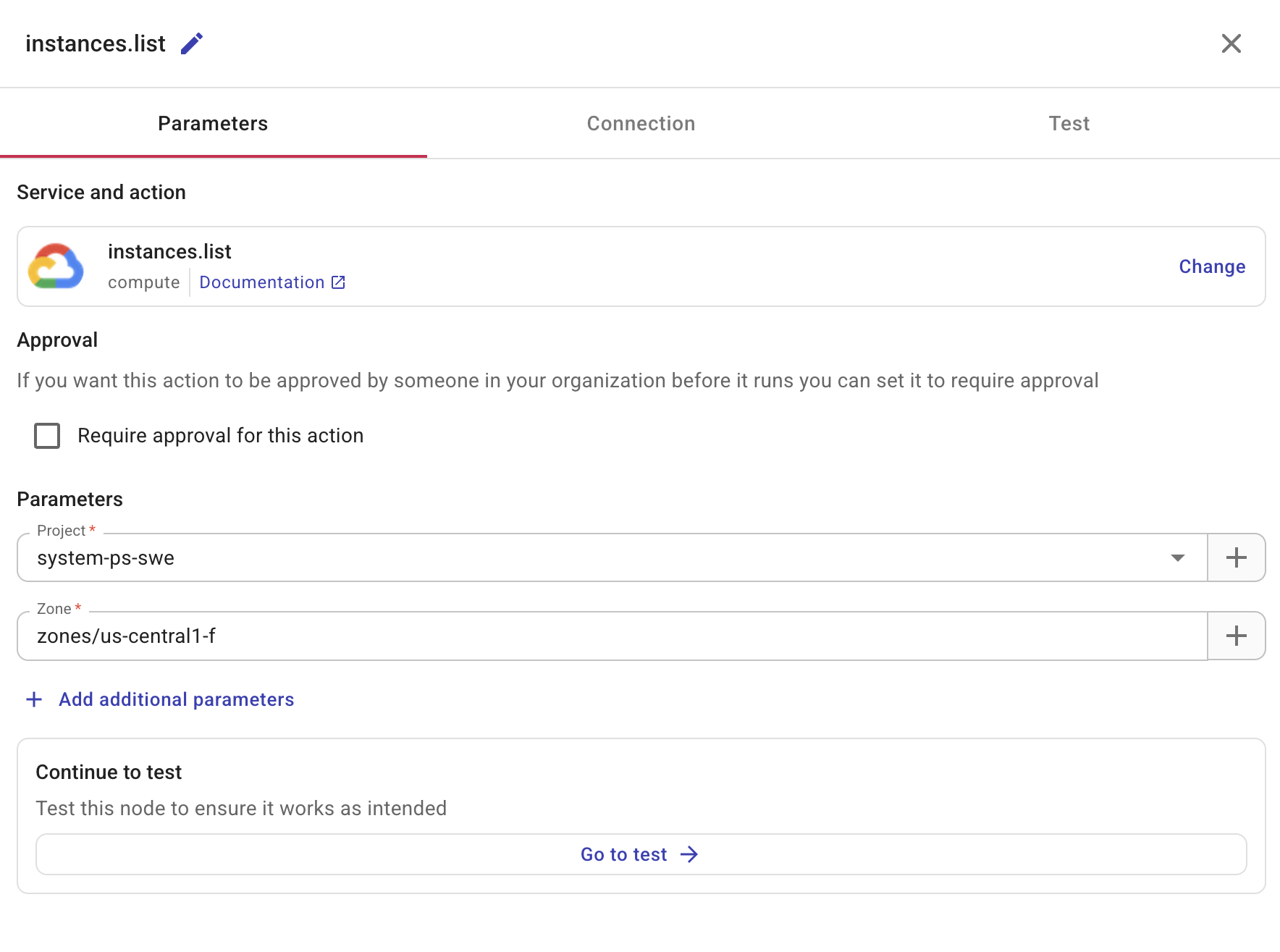
Selecting an action node will open a side panel with three tabs for configuration:
-
Parameters: This tab shows the service and action you've chosen and the option to change. You also configure approval settings on this tab. The parameters available vary with service and action. For field types and how to reference values from previous nodes (including a whole list or map), see Node parameters.
-
Permissions: This tab helps you verify whether you have the required permissions to perform the action and provides instructions if you don't. See also APIs in CloudFlow.
Filter response fields
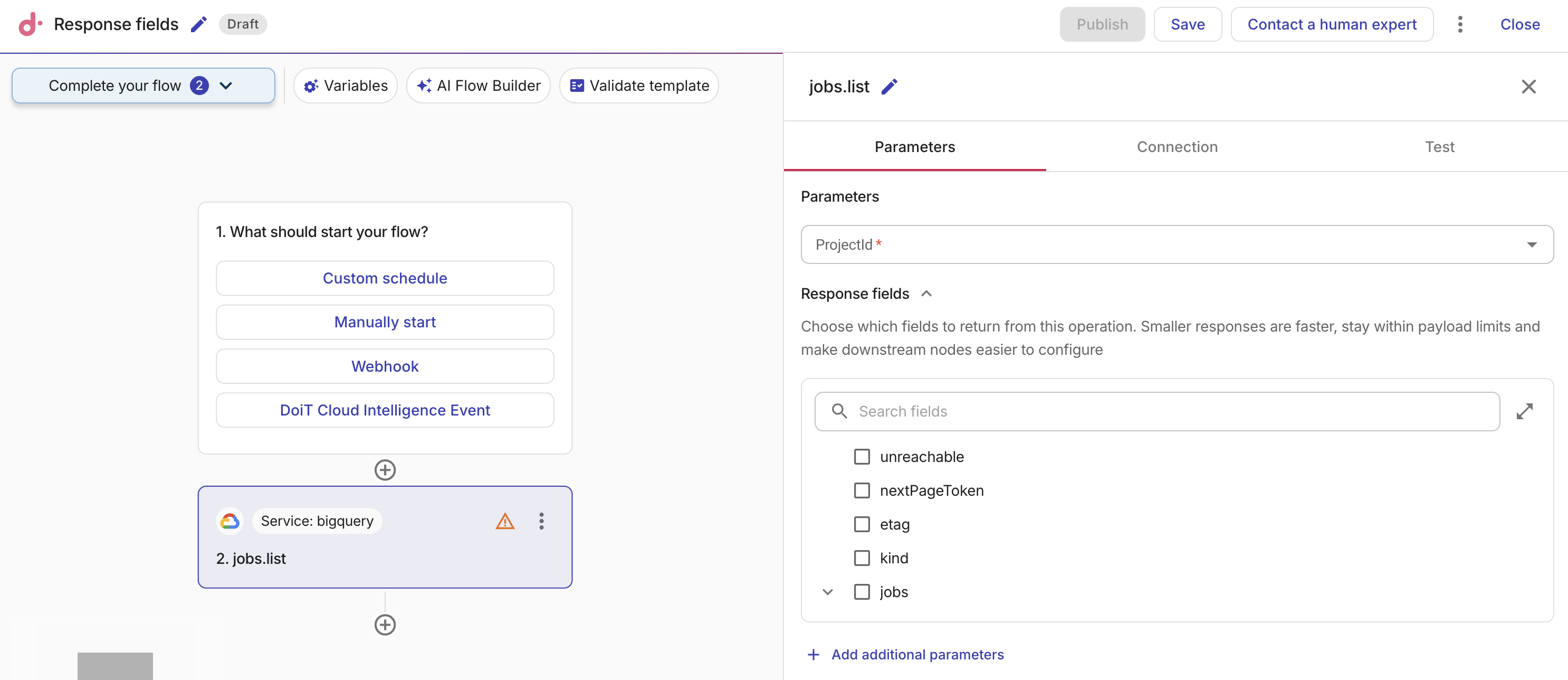
Use Response fields to limit a Google Cloud action's API response to only the fields your workflow needs. This keeps the response smaller and makes it easier to use the returned data in downstream nodes.
By default, the value is * (all fields). To select specific fields, expand the section to reveal a tree picker populated from the action's output model.
-
Select fields by checking or unchecking individual fields. Selecting a parent field includes all of its children. A partially selected parent shows an indeterminate state.
-
Use the Search fields box to filter the tree by field name.
-
Select the expand icon to open a larger dialog for easier navigation of complex output models.
The selected fields are serialized as a Google Cloud field mask and sent as the fields query parameter in the API request. Returning fewer fields results in smaller, faster responses and can simplify configuration of downstream nodes.
Require approval
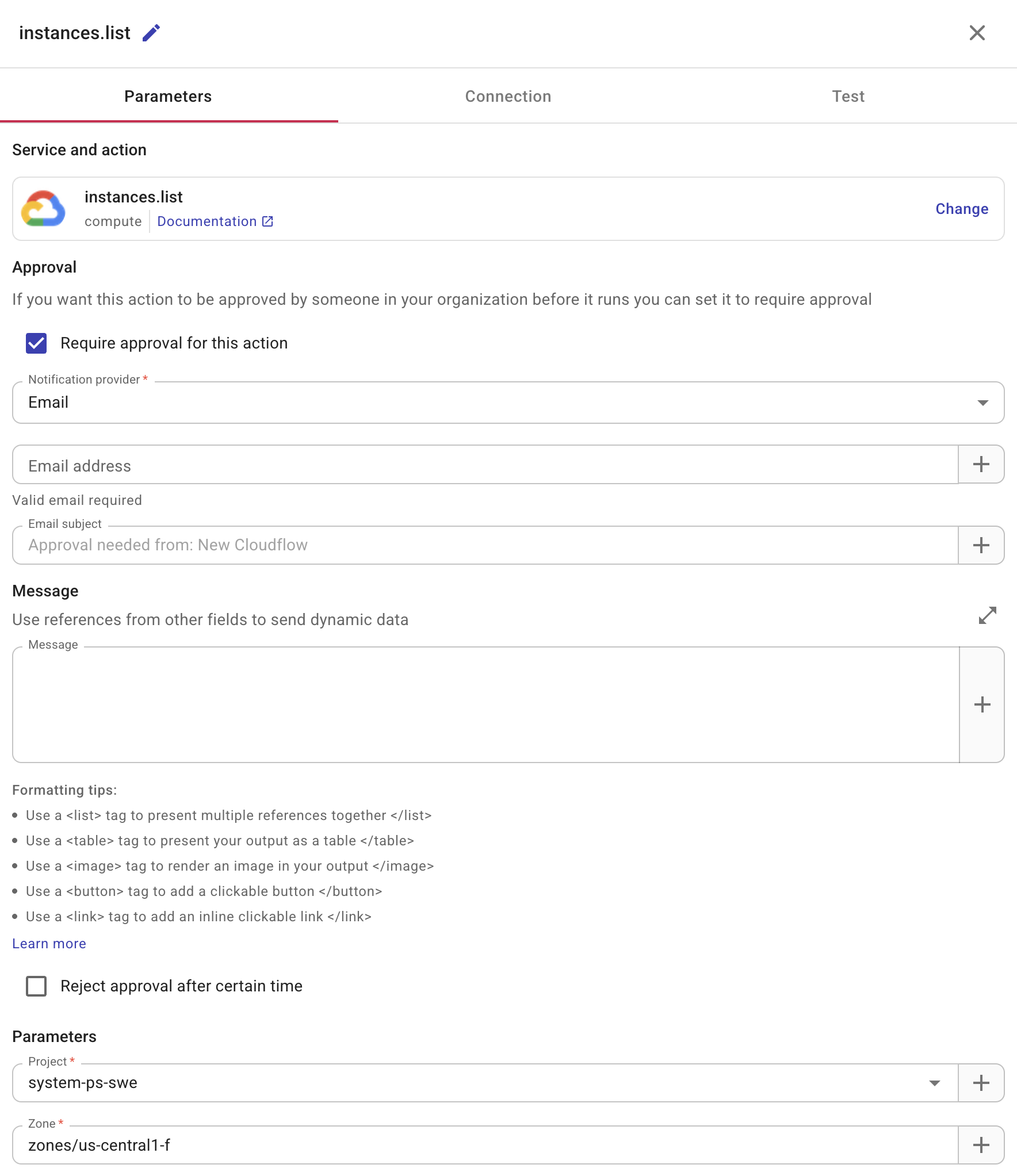
If an action should be approved before its execution, select Require approval for this action on the Permissions tab.
-
Notification provider: Specifies whether to notify the approver via Slack or email. For the former, you should have created a shared Slack channel with DoiT.
-
Message (optional): A message for the approver. You can add fields from previous nodes to your message. When the message is created, the data from the field is displayed in the message. This is useful because it provides recipients with the details they need to make a decision without having to navigate to the system and manually search for the relevant information. An array of fields are displayed as a comma-separated list. For example,
Instance ID: i-123,i-466. -
Reject approval after certain time (optional): Limits for how long the action will wait for an approval. Possible time units are Hours, Days, Weeks, and Months. For example, you can set that an approver must approve/reject the action within 24 hours. If the approver takes no action before the specified time period expires, the action is automatically rejected.
Add a waiter
A waiter ensures that a Google Cloud action in your flow is complete before the flow proceeds to the next step. Many Google Cloud operations are asynchronous: the API call returns before the resource reaches its final state. You can use a Waiter to define a JMESPath condition on an action result. The action is executed until the condition is met (or until max retries). You can wait for a VM to be running, a bucket to exist, or any state expressible as a JMESPath expression.
If an action requires a waiter, select Enable waiter then configure the JMESPath condition and retry settings.
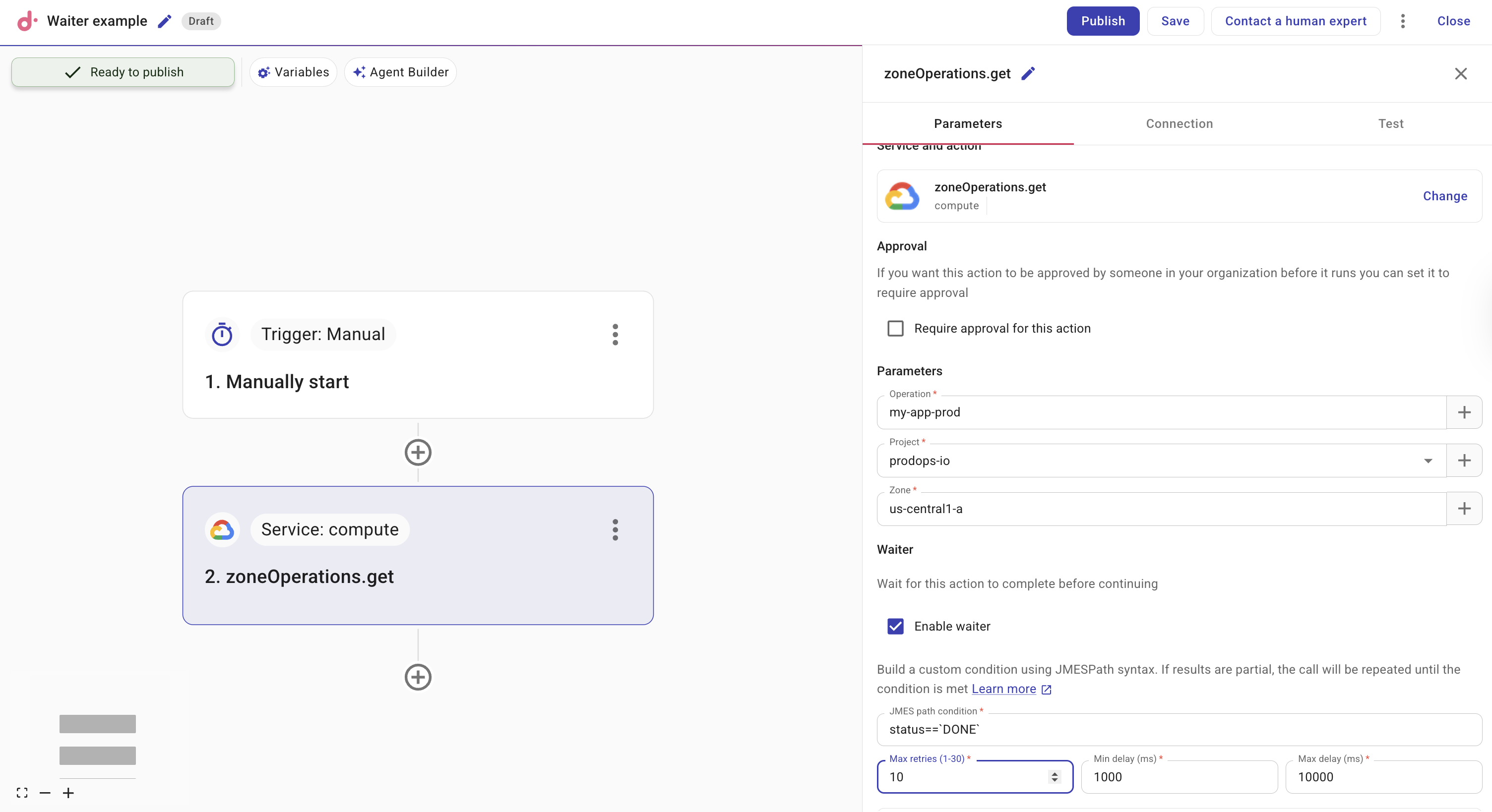
-
JMESPath condition: Define a condition using JMESPath syntax. The expression is evaluated against the action result and must return a boolean. If the condition is not yet met, the action is called again after a delay; this repeats until the condition is met or max retries is reached. For example,
status == 'RUNNING'waits until a resource reports that status. -
Max retries (1–30): Maximum number of times the action is re-executed before failing. The default is 5.
-
Min delay (ms) / Max delay (ms): Delay between attempts uses exponential backoff between these bounds. Min delay default is 1000 ms; max delay default is 10000 ms.
Waiter example
A typical pattern is to create or change a resource with a Google Cloud action, wait until it reaches a desired state, then continue with another action or notification.
- Trigger: For example, a schedule or manual trigger.
- Google Cloud node: Run an action that creates or modifies a resource (for example, Compute Engine insert instance, Cloud Storage create bucket). Enable the waiter and set a JMESPath condition that becomes true when the resource is ready (for example,
status == 'DONE'orstatus == 'Complete'). - Next nodes: Use the output in a Notification node, another Google Cloud action, or a Branch node to make decisions based on the result.
Without a waiter, the next node might run while the resource is still pending and fail or behave incorrectly. With the waiter, the flow continues only after the condition is met.
For long-running operations that return a done field, a condition like done == true waits until the operation completes.
Limitations
This section lists known limits for specific Google Cloud actions in CloudFlow.
Cloud Storage: storage.objects.get
CloudFlow does not support the alt=media query parameter for storage.objects.get. You can retrieve file metadata (such as name and size), but you cannot download raw file content directly through this action. This helps prevent sensitive data from being stored in Run history or stored results and reduces reliability risks from large downloads.
We recommend you do not use the [CLI node] to pass GCS object file contents through gcloud storage cat, for the same reasons as above.
Test
Select Test to test the node.