Shared Slack channel
You can create a shared Slack channel with DoiT that is owned and administered by the DoiT workspace.
The shared channel is used for the following purposes:
-
Send notifications to the shared channel.
-
Facilitate communication with your DoiT International Account Manager.
-
If needed, communicate with our Support team after creating an expert inquiry in the console.
To create a shared channel with Slack Connect, your Slack organization must be on a paid plan.
Create a shared channel
To create a shared Slack channel:
-
Sign in to the DoiT console and to Slack.
-
In the console, select Data ingestion and integrations > Integrations from the top navigation mega menu.
-
On the Integrations page, select Work management.
-
On the Slack integration card, select Manage.
-
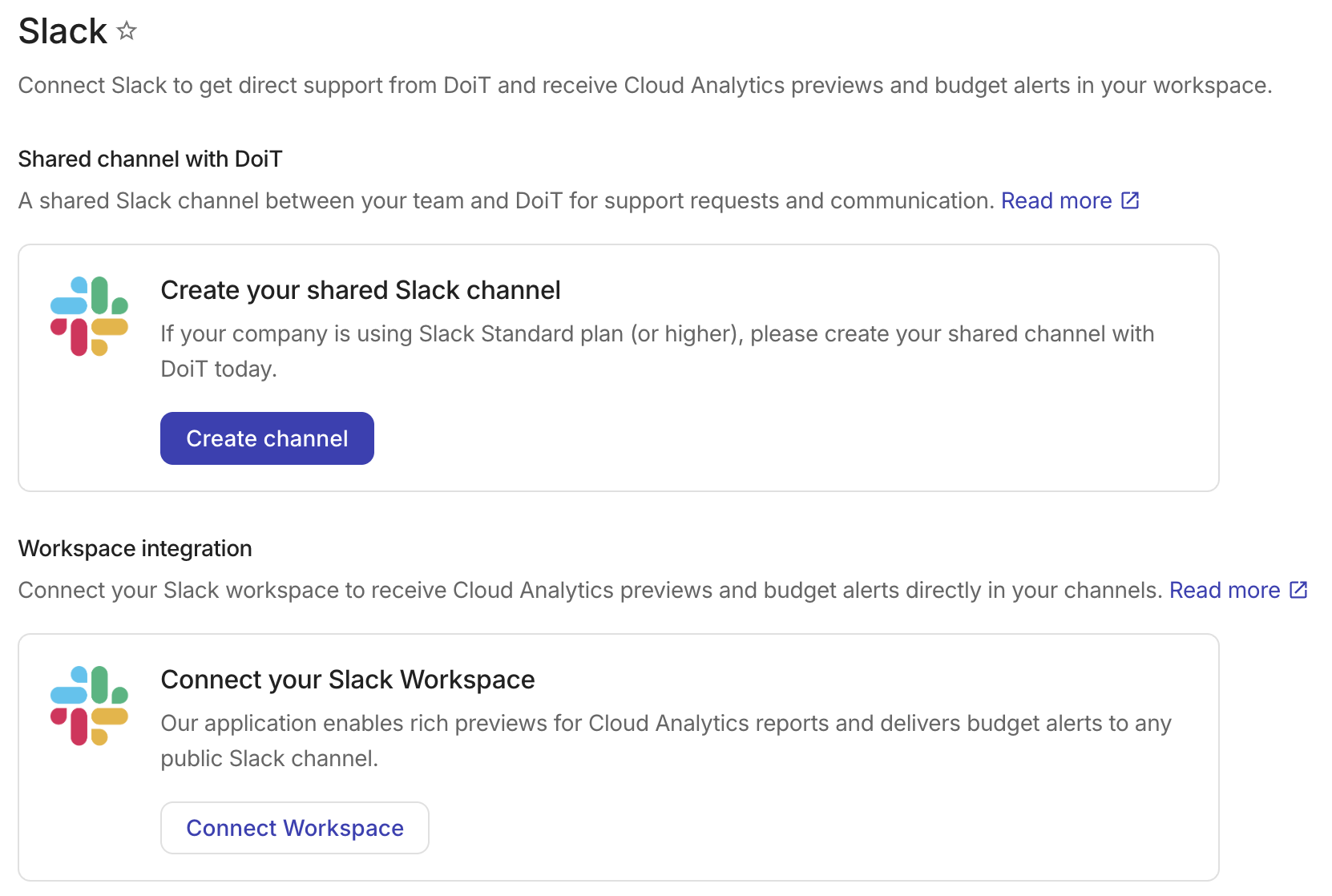
In the Shared channel with DoiT section, select Create channel.
 Tip
TipThe DoiT app for Slack and the shared Slack channel are two different components. They can be enabled or disabled independently.
-
Follow the instructions to create the channel.
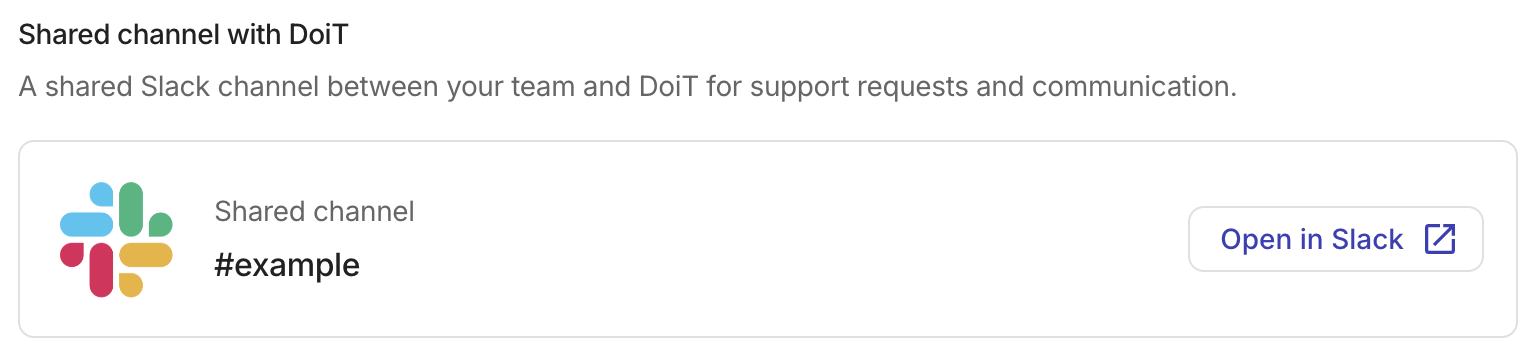
After creating your shared Slack channel, the Shared channel with DoiT section displays the channel name and an Open in Slack button that takes you directly to the channel.
Notifications
Anomaly detection notifications are set up by default for the shared channel. To set up additional notifications for Slack channels in your workspace, see Create and manage notifications.
Expert inquiries
We recommend that you always open expert inquiries via the DoiT console, the portal of our expert inquiry system.
When you reach out on the shared Slack channel, your DoiT International Account Manager is notified. If your Account Manager isn't able to respond within 10 minutes, you are prompted to submit an expert inquiry via the console.