Parallel paths ノード
Parallel paths ノードは、フローを 2 つ以上の独立したパスに分岐します。各パスは分岐直前のノードから同じ入力を受け取るため、結果を統合する必要がないタスクに使用します。
Parallel paths の追加と設定
-
フローエディタで、各パスに出力を送信したいノードの後ろにあるプラスアイコン(+)を選択します。
-
オペレーション の下で Parallel paths を選択します。
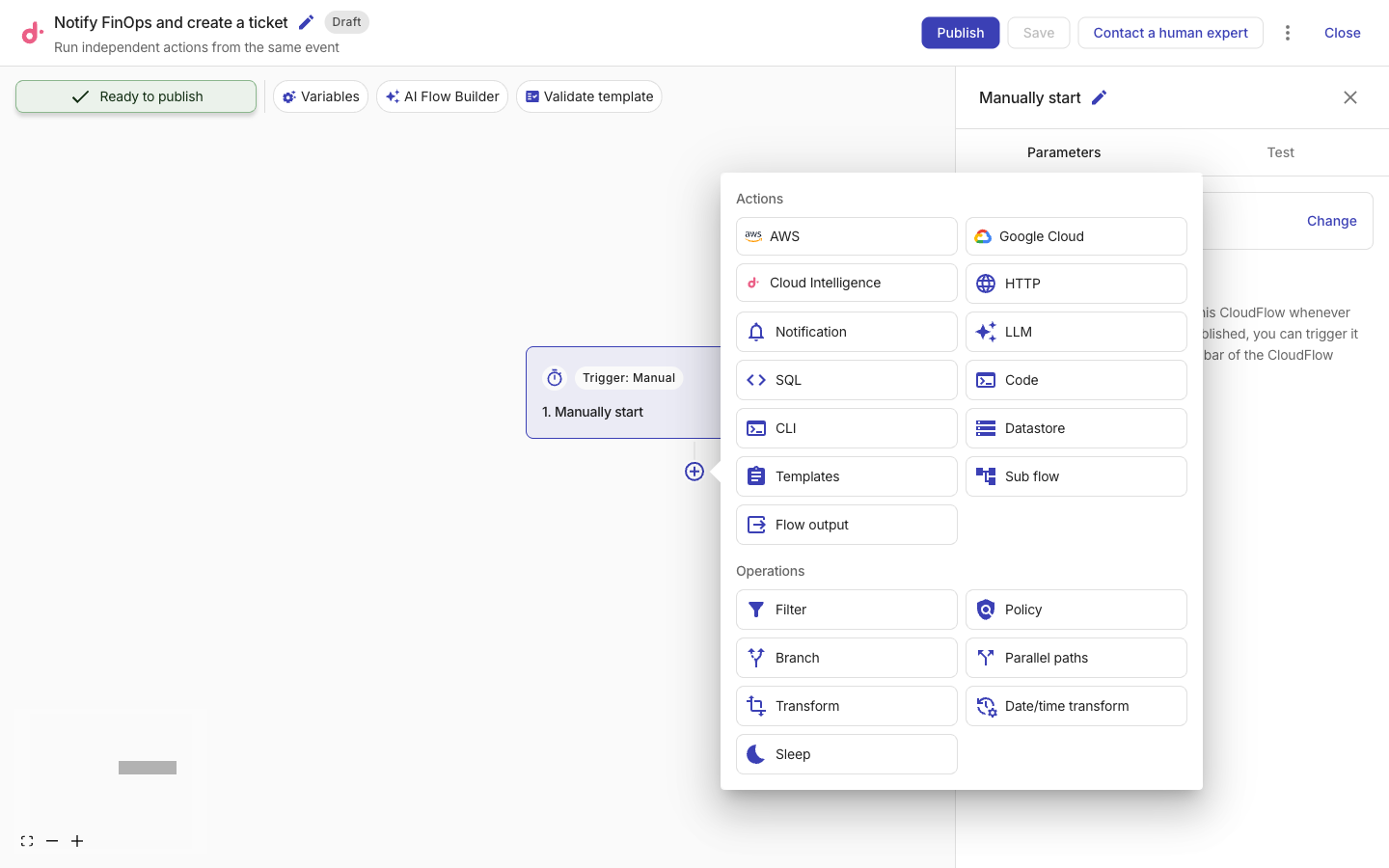
-
各パスに一意の Path name を入力します。
-
別のパスを作成するには、Add path を選択します。Parallel paths ノードには 2〜10 個のパスを含めることができます。
-
上下の矢印を使用して、パスの表示順序を変更します。
-
各パスの下にあるプラスアイコン(+)を選択し、そのパスにノードを追加します。
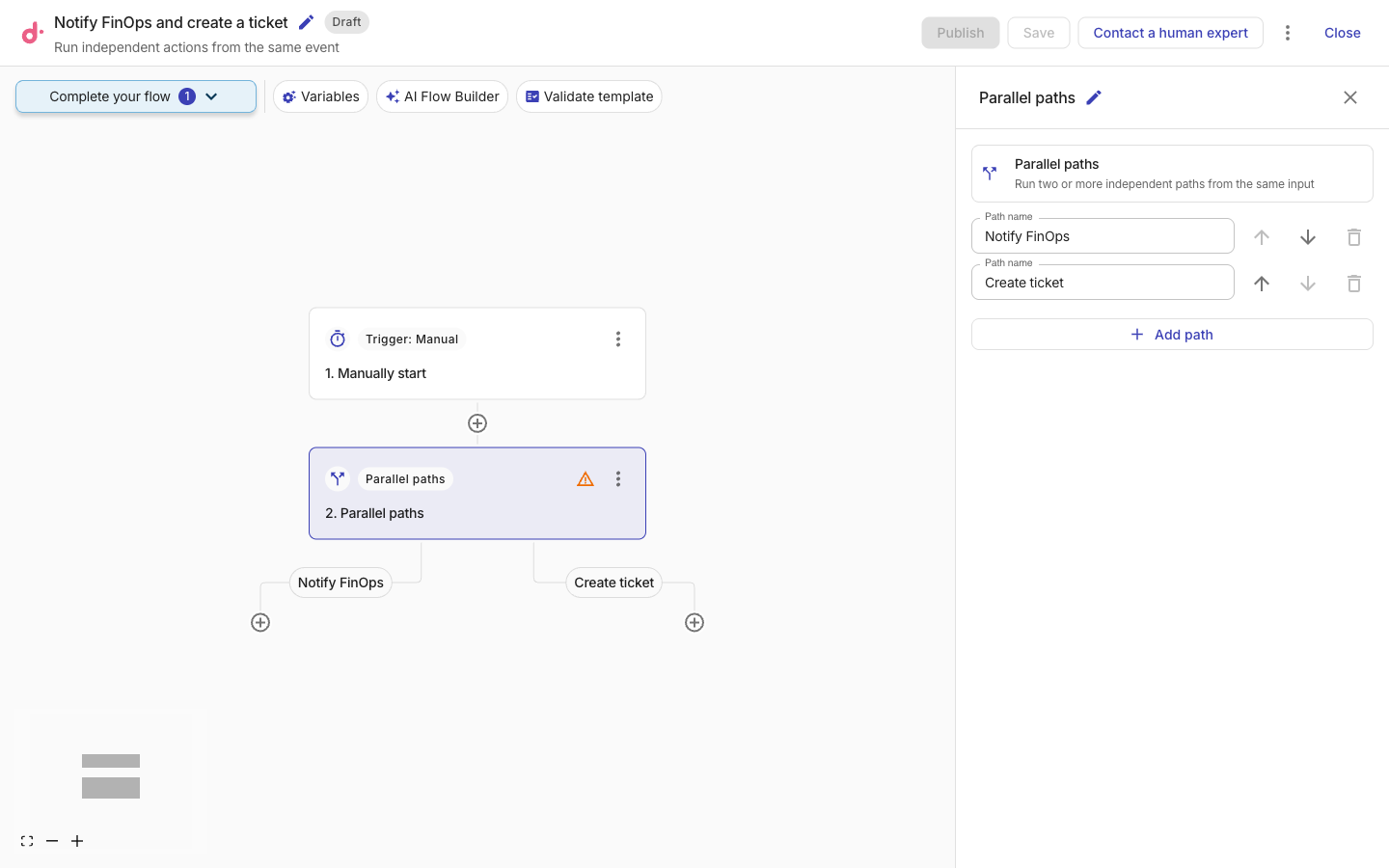
パスの順序はエディタ上での表示順を制御します。CloudFlow はパスが実行される順序や、同時に実行されることを保証しません。
Parallel paths の実行方法
-
各パスは、Parallel paths ノードに渡される完全な入力を受け取ります。
-
パスは互いに独立して実行されます。1 つのパスが失敗しても、他のパスは継続します。
-
少なくとも 1 つのパスが完了し、少なくとも 1 つのパスが失敗した場合、その実行は エラーありで完了 になります。すべてのパスが失敗した場合、その実行は 失敗 になります。
-
あるパスが一時停止され、後で再開された場合、CloudFlow はそのパスのみを続行し、すでに完了している他のパスを再実行することはありません。
制限事項
-
パスは直線的であり、共有の下流ノードにマージすることはできません。
-
ノードは、Parallel paths ノードより前のノードおよび同一パス内のそれ以前のノードを参照できますが、別のパスの出力を参照することはできません。
-
Parallel paths ノードを、別の Parallel paths のパス内に追加することはできません。
Parallel paths の削除
1 つのパスのみ削除するには、そのパス名の横にある削除アイコンを選択してください。パスを削除すると、そのパス内のすべてのノードも削除されます。Parallel paths ノードのパス数を 2 未満に減らすことはできません。
Parallel paths ノード自体を削除するには、そのメニュー(⋮)を開き、Delete を選択します。1 つのパスを残してそのノード群を直前のノードに再接続するか、すべてのパスとそのノードを削除することができます。