HTTP ノード
HTTP ノードを使用すると、フローから外部 API または サービス へ HTTP リクエストを直接送信できます。これにより、サードパーティシステムとの連携、REST API からのデータ取得、Webhook や外部エンドポイントへのデータ送信が可能になります。
HTTP リクエストのレスポンス本文はノード出力となり、フロー内の後続ノードで利用できます。
YAML と CSV の自動解析
レスポンス本文が YAML(.yml/.yaml)または CSV(.csv)の場合、HTTP ノードは自動的に JSON に変換します。下流のノードは、変換済みの JSON(オブジェクトまたは配列)を受け取り、他の API レスポンスと同様に参照できます。検出にはレスポンスの Content-Type ヘッダーまたはリクエスト URL パス(例:URL が .yml や .csv で終わる場合)を使用します。CSV の場合、最初の行はヘッダーとして扱われ、結果は 1 行につき 1 オブジェクトの配列になります。
生のレスポンス本文は保持されず、ノード出力は変換結果のみとなります。変換前の元の YAML や CSV を確認するには、Test タブを使用してください。変換に失敗した場合、ノード出力は詳細を含むエラーオブジェクトになります。
HTTP リクエストの設定
HTTP ノードを選択すると、Parameters タブと Test タブの 2 つを含むサイドパネルが開きます。
Parameters
Parameters タブで次の設定を行います。
URL、本文、ヘッダーおよびクエリの値には、+ または @ を使って前のノードからの動的な値を挿入できます。リクエスト送信前に値を変換する必要がある場合は、通知メッセージと同様に {{ }} のフォーマットルールも使用できます。パスをプレーンテキストで入力するのではなく、+ または @ を使用して参照を挿入してください。強調表示された参照を参照してください。
HTTP フィールドで配列を使用する場合、参照を角括弧で囲むことで、1 回のリクエスト内で配列として維持できます(例:[<reference>])。角括弧を付けない場合、値は複数のリクエストに展開される可能性があります。
-
URL(必須):HTTP リクエストのエンドポイント URL。+ ボタンを使用して、前のノードから動的な値を挿入できます。フィールドタイプと値の参照方法については、Node parameters を参照してください。
-
Method(必須):使用する HTTP メソッド。
GET、POST、PUT、PATCH、DELETEがサポートされています。
Query params
リクエスト URL に付加するクエリパラメータを追加します。Add new query param を選択し、キーと値のペアを定義すると、クエリ文字列パラメータとして自動的に URL に付加されます。
Headers
ヘッダーを設定することで、各リクエストに認証情報やその他のカスタムデータを送信できます。ヘッダーは、ベアラートークン(OAuth 2.0)、Basic 認証、API キーといった一般的な認証方式をサポートします。複数のノード間で認証情報を再利用するには、フローバリアブルに保存し、ヘッダー追加時にそのバリアブルを参照してください。
ヘッダーは Headers パラメータで設定します。Add new header を選択し、Authorization、Content-Type、または対象 API に必要なその他のカスタムヘッダーなどのキーと値のペアを定義してください。
Body
POST、PUT、PATCH など、本文をサポートするメソッドのリクエスト本文を入力します。+ ボタンを使用して、前のノードから動的な値を挿入できます。
チップが角括弧で囲まれている場合、そのチップは値の配列としてレンダリングされます。角括弧がない場合は、各リクエストに対して単一の値としてレンダリングされます。
Pagination
Use pagination を有効にすると、ページングされた API レスポンスを自動的に処理できます。これは、API が複数ページにわたって結果を返し、それらを 1 回のフロー実行で全て取得したい場合に便利です。
ページネーションを有効にした場合、次の設定を行います。
-
Page key:API がページ番号に使用するクエリパラメータ名(例:
page)。 -
Items per page key:1 ページあたりに返されるアイテム数を制御するクエリパラメータ名(例:
per_pageまたはlimit)。 -
Items per page:1 ページあたりにリクエストするアイテム数。
-
Max number of pages:取得する最大ページ数。ノードが発行するリクエスト総数の上限として使用します。
-
Items JMESPath:各レスポンスからアイテム配列を抽出するための JMESPath 式。たとえば API が
{"data": {"results": [...]}}を返す場合、ここにはdata.resultsを指定します。空のままにした場合、ノードはレスポンス本文全体をアイテム配列として扱います。これは、トップレベルで JSON 配列を直接返す API に便利です。 -
(任意)Has next page JMESPath:次のページが存在するかどうかを評価する JMESPath 式。この式が偽相当の値を返した場合、ページネーションは停止します。
テストモードでは、ページネーションは自動的に最大 100 件に制限されます。設定されたページネーションで 100 件を超えるアイテムを取得することになる場合、テストはページ数を制限し、ページネーションが制限されたことを示すメッセージを結果に追加します。これは実際のフロー実行には影響しません。
HTTP client config
HTTP クライアントの挙動を細かく調整します。
-
Timeout (seconds):レスポンスを待機する最大時間。これを超えるとリクエストはタイムアウトします。デフォルトは
30秒です。 -
Max retries:失敗したリクエストを再試行する回数。デフォルトは
3です。 -
Follow redirects:有効にすると、HTTP クライアントは
301、302などのリダイレクトレスポンスに自動的に従います。デフォルトで有効です。
Test
ノードをテストするには Test を選択してください。
例:AWS リージョンのカーボンインテンシティを取得する
この例では、HTTP ノードを使用して us-east-1 AWS リージョンの現在のカーボンインテンシティを Electricity Maps API から取得する方法を示します。これは、リージョン間でカーボン排出量を監視・比較し、サステナビリティ目標の達成を支援する FinOps フローで役立ちます。
この例を実行するには、Electricity Maps プラットフォームで無料の API キーを作成してください。
HTTP ノードを次の設定で構成します。
| フィールド | 値 |
|---|---|
| URL | https://api.electricitymaps.com/v3/carbon-intensity/latest |
| Method | GET |
| Query params | zone = US-MIDA-PJM |
| Headers | auth-token = あなたの Electricity Maps API キー |
US-MIDA-PJM ゾーンは PJM グリッドに対応しており、これは us-east-1 AWS リージョンをカバーしています。
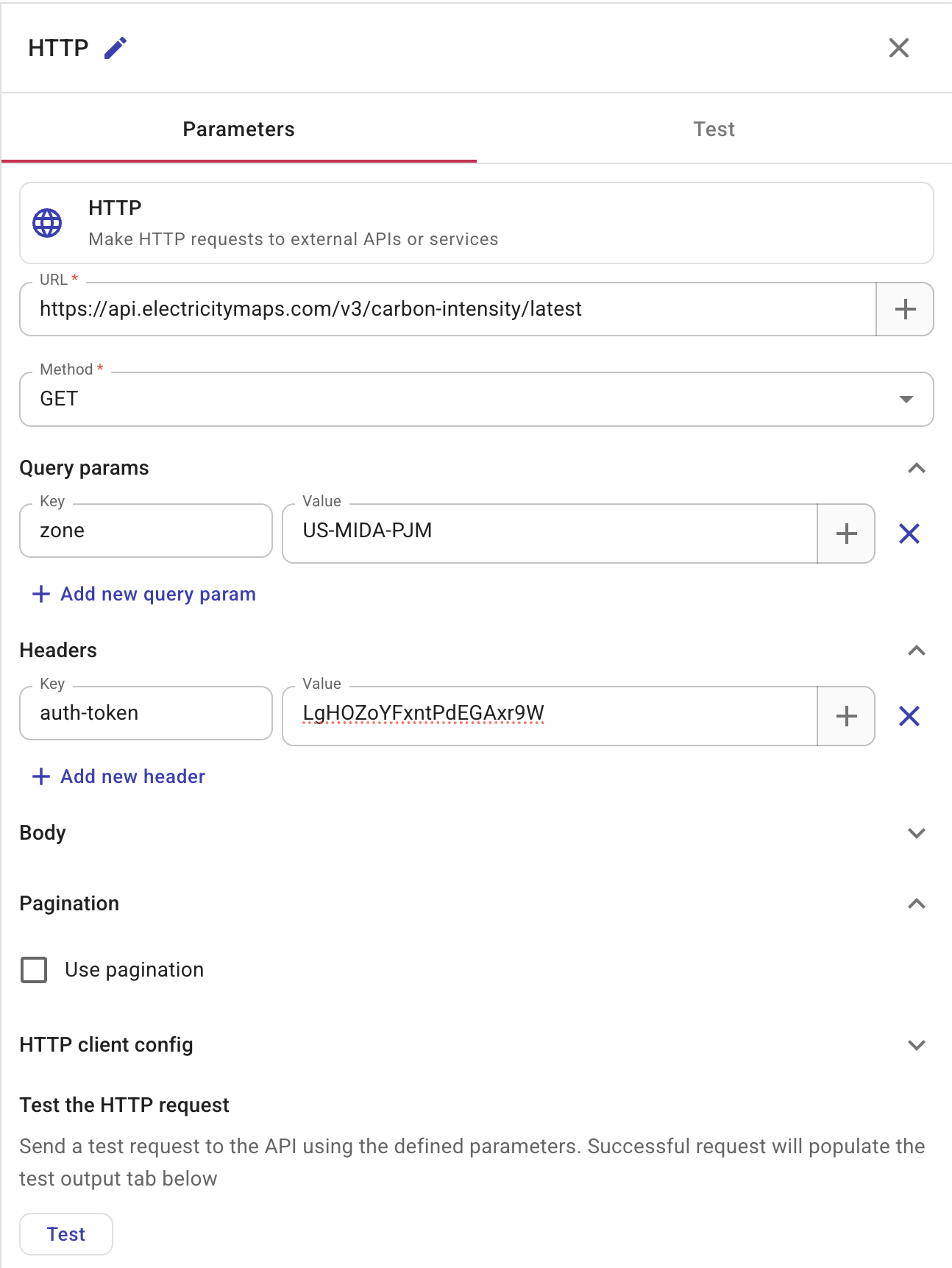
Test を選択してリクエストを送信します。成功すると、そのゾーンの現在のカーボンインテンシティが返されます。
{
  "zone": "US-MIDA-PJM",
  "carbonIntensity": 406,
  "datetime": "2026-02-15T20:00:00.000Z",
  "updatedAt": "2026-02-15T19:25:13.450Z",
  "createdAt": "2026-02-15T08:39:54.714Z",
  "emissionFactorType": "lifecycle",
  "isEstimated": true,
  "estimationMethod": "SANDBOX_MODE_DATA"
}
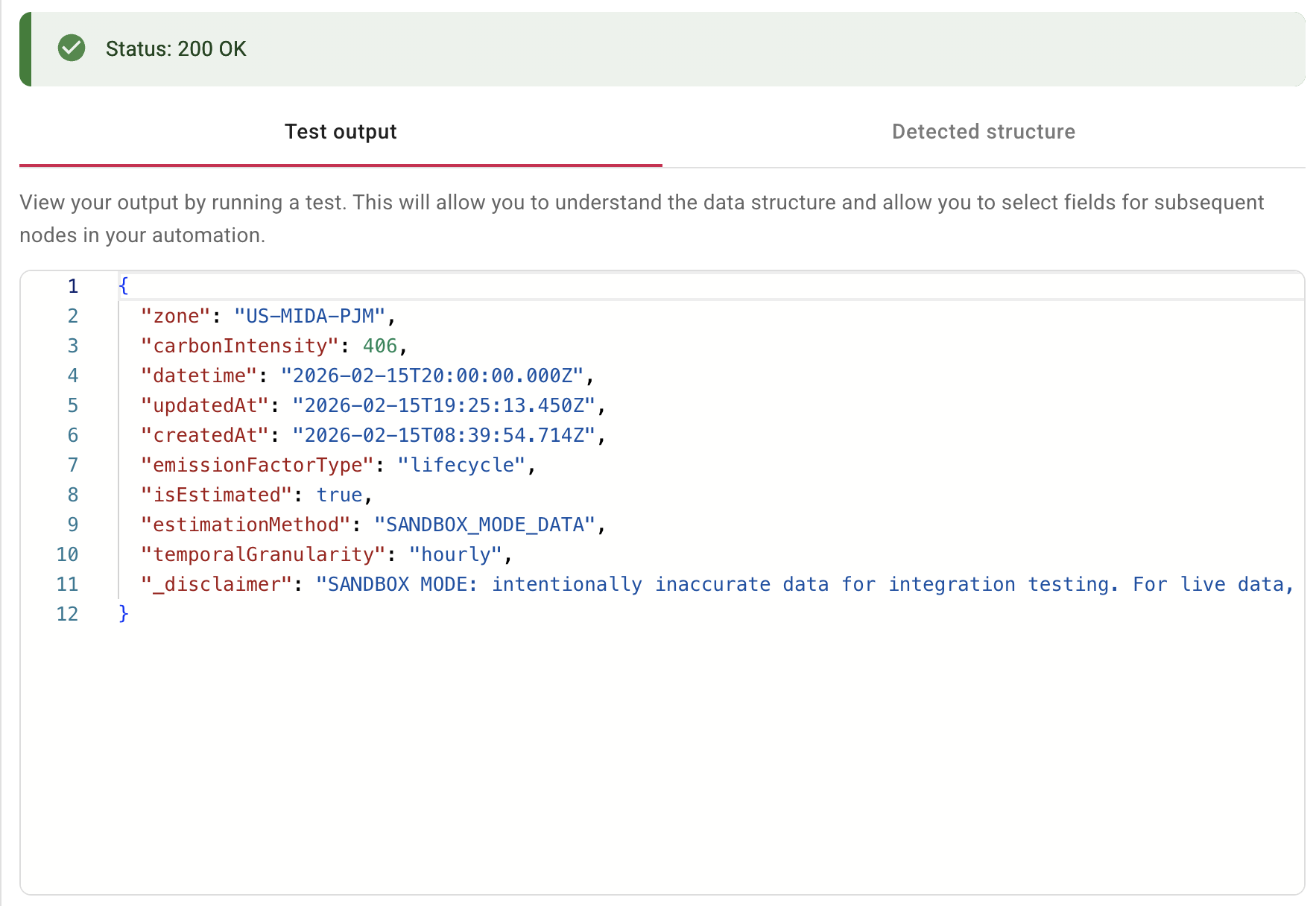
その後、このデータを後続ノードで使用できます。たとえば、Branch ノードで carbonIntensity が閾値を超えているか確認し、Notification ノードで排出量が高い場合にステークホルダーへ通知することができます。