AWS ノード
AWS ノードを使用すると、フローから直接 AWS サービスと対話できます。データの取得、リソースの作成や変更、AWS サービス間でのアクションの実行に使用します。1 つのノードの出力は次のノードの入力となり、一連のアクションとオペレーションを定義できます。
フローエディタから、ノードのメニュー(⋮)を使用して、そのステップを Edit、Duplicate、Disable または Enable したり、ノードを Delete できます。詳しくは ノードの管理 を参照してください。
アクションを探す
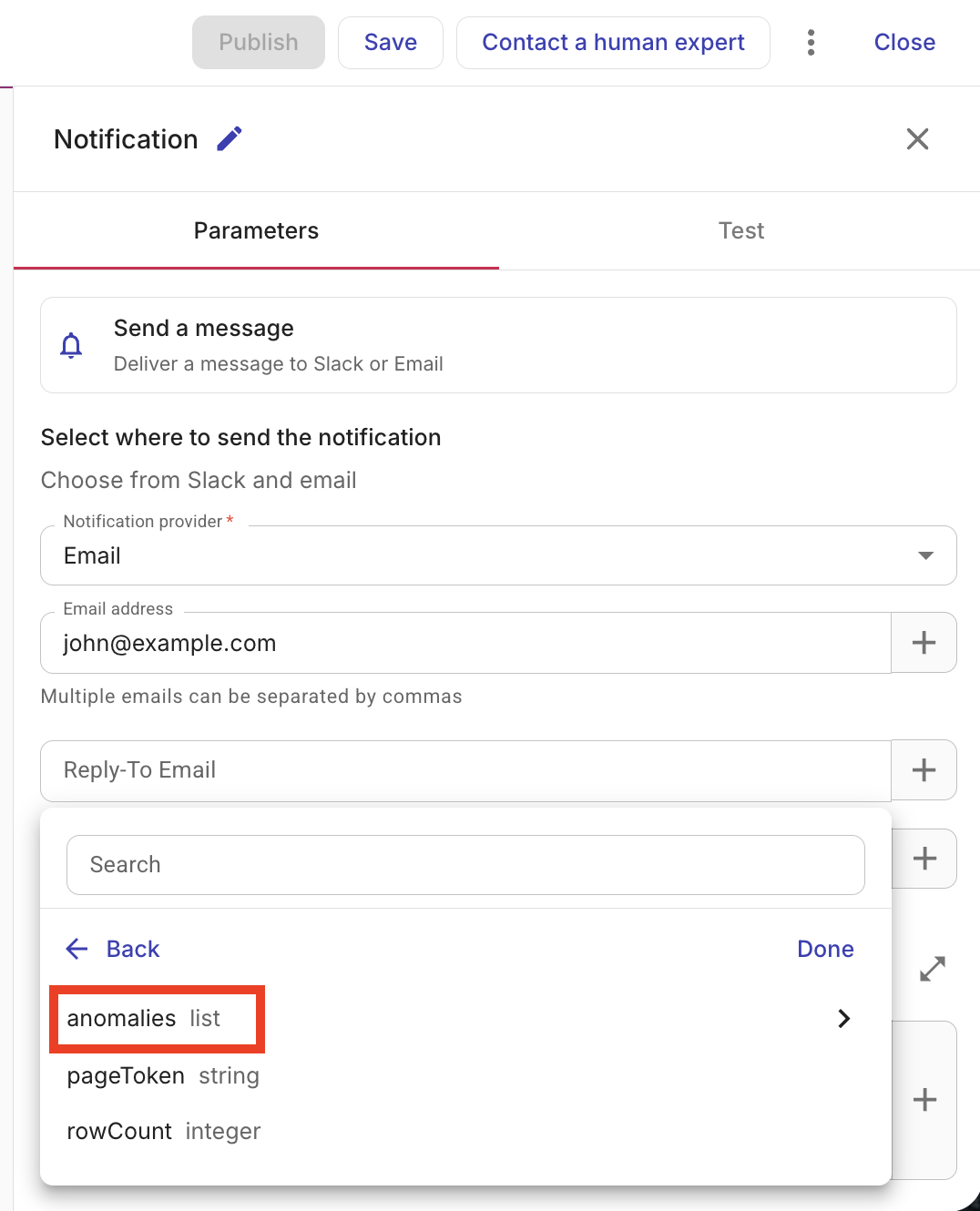
フローに AWS ノードを追加する際は、プロバイダとして AWS を選択し、その後 AWS サービス内を検索またはブラウズしてアクションを探してください。さらに、テンプレートノードを使用すると、あらかじめ構成されたアクションのグループを現在のフローに追加できます。
アクションを設定する
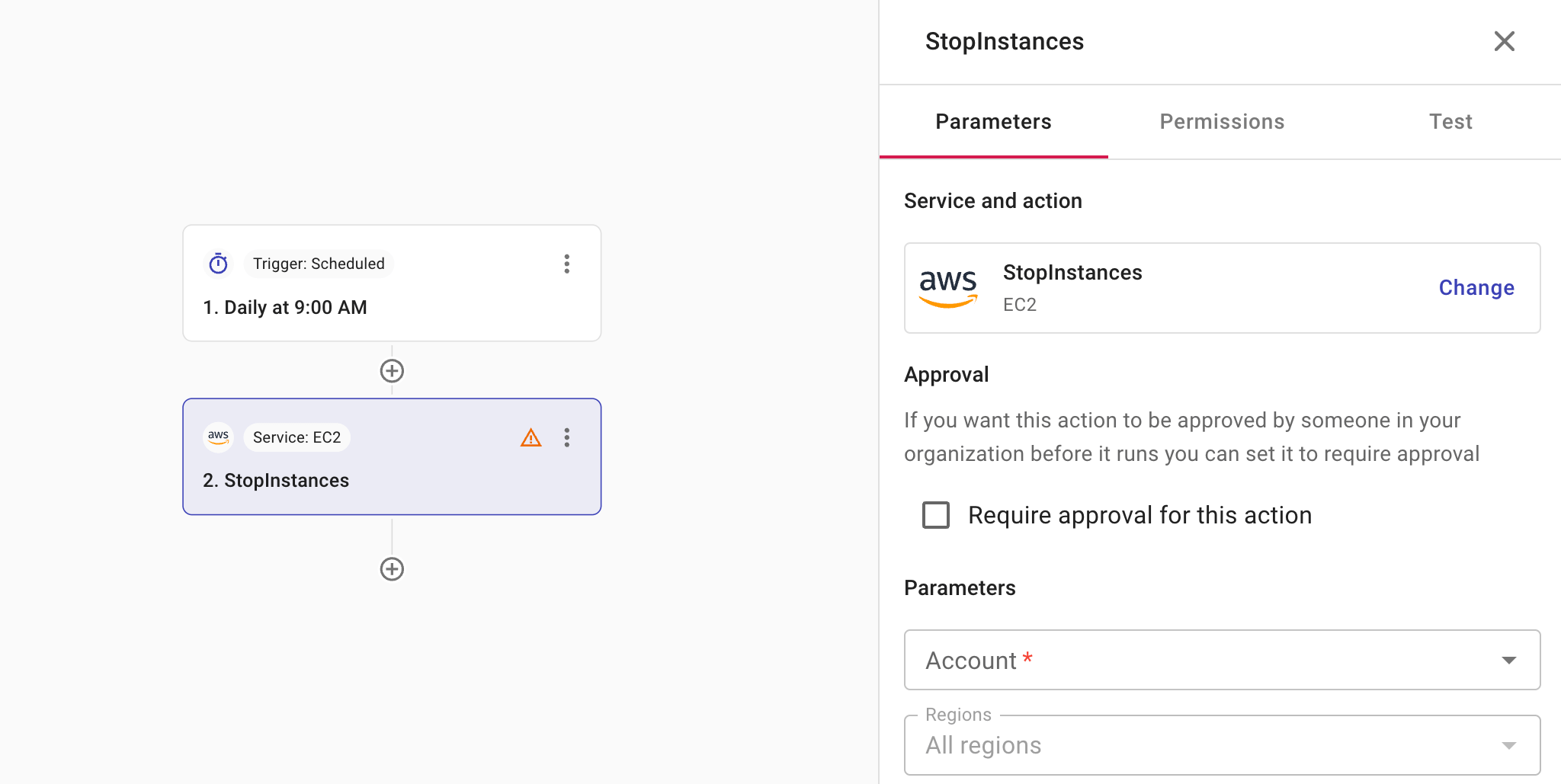
アクションノードを選択すると、設定用の 3 つのタブを持つサイドパネルが開きます。
-
Parameters: このタブには、選択したサービスとアクション、およびそれを変更するオプションが表示されます。また、このタブで承認設定も構成します。利用可能なパラメータはサービスとアクションによって異なります。フィールドの種類や、前のノードから値(リスト全体やマップを含む)を参照する方法については、ノードパラメータを参照してください。
-
Permissions: このタブでは、アクションを実行するために必要な権限を保持しているかどうかを確認でき、保持していない場合の手順が提示されます。CloudFlow における API も参照してください。
承認を必須にする
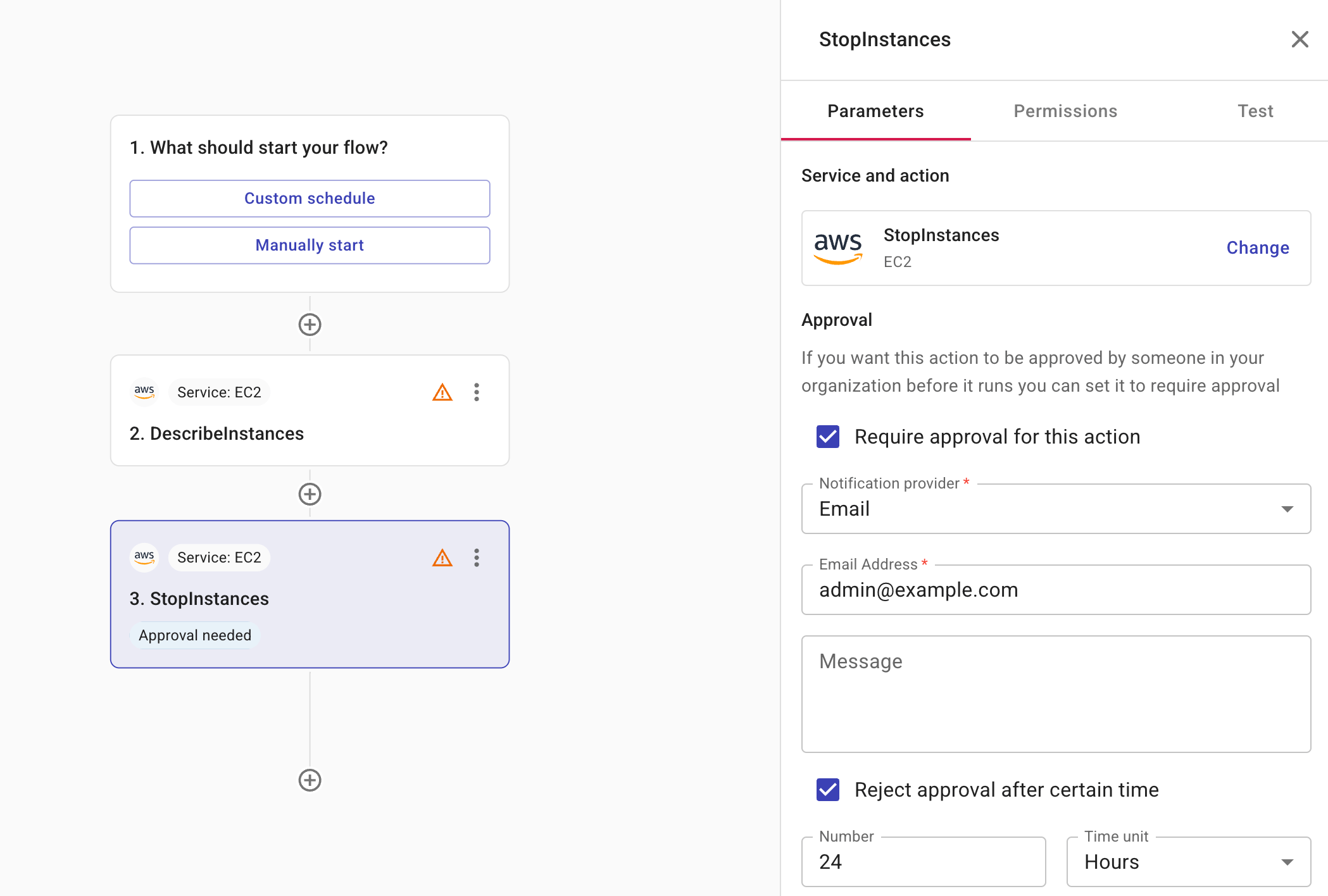
アクションの実行前に承認が必要な場合は、Permissions タブで Require approval for this action を選択してください。
-
Notification provider: 承認者に Slack かメールのどちらで通知するかを指定します。Slack を使用する場合は、事前に DoiT と共有 Slack チャンネルを作成しておく必要があります。
-
Message(任意): 承認者向けのメッセージです。メッセージには前のノードからフィールドを追加できます。メッセージが作成されると、そのフィールドのデータがメッセージ内に表示されます。これにより、受信者はシステムに移動して手動で関連情報を検索することなく、判断に必要な詳細を確認できるため便利です。フィールドの配列はカンマ区切りのリストとして表示されます。例:
Instance ID: i-123,i-466。 -
Reject approval after certain time(任意): アクションが承認を待機する最大時間を制限します。使用可能な時間単位は Hours、Days、Weeks、Months です。例えば、承認者が 24 時間以内にアクションを承認または拒否しなければならないように設定できます。指定した時間が経過するまでに承認者が何も行わない場合、そのアクションは自動的に拒否されます。
ウェイターを追加する
ウェイターは、フローが次のステップに進む前に、フロー内の AWS アクションが完了していることを保証します。多くの AWS オペレーションは非同期であり、API 呼び出しはリソースが最終状態に到達する前に戻ります。ウェイターはその状態になるまでポーリングを行うため、後続のノードで結果に依存できます。これは、リソースを作成または変更し、次のステップの前に準備完了である必要がある場合、例えば、ボリュームのアタッチや通知の送信前に EC2 インスタンスが running 状態になるのを待つ場合に有用です。
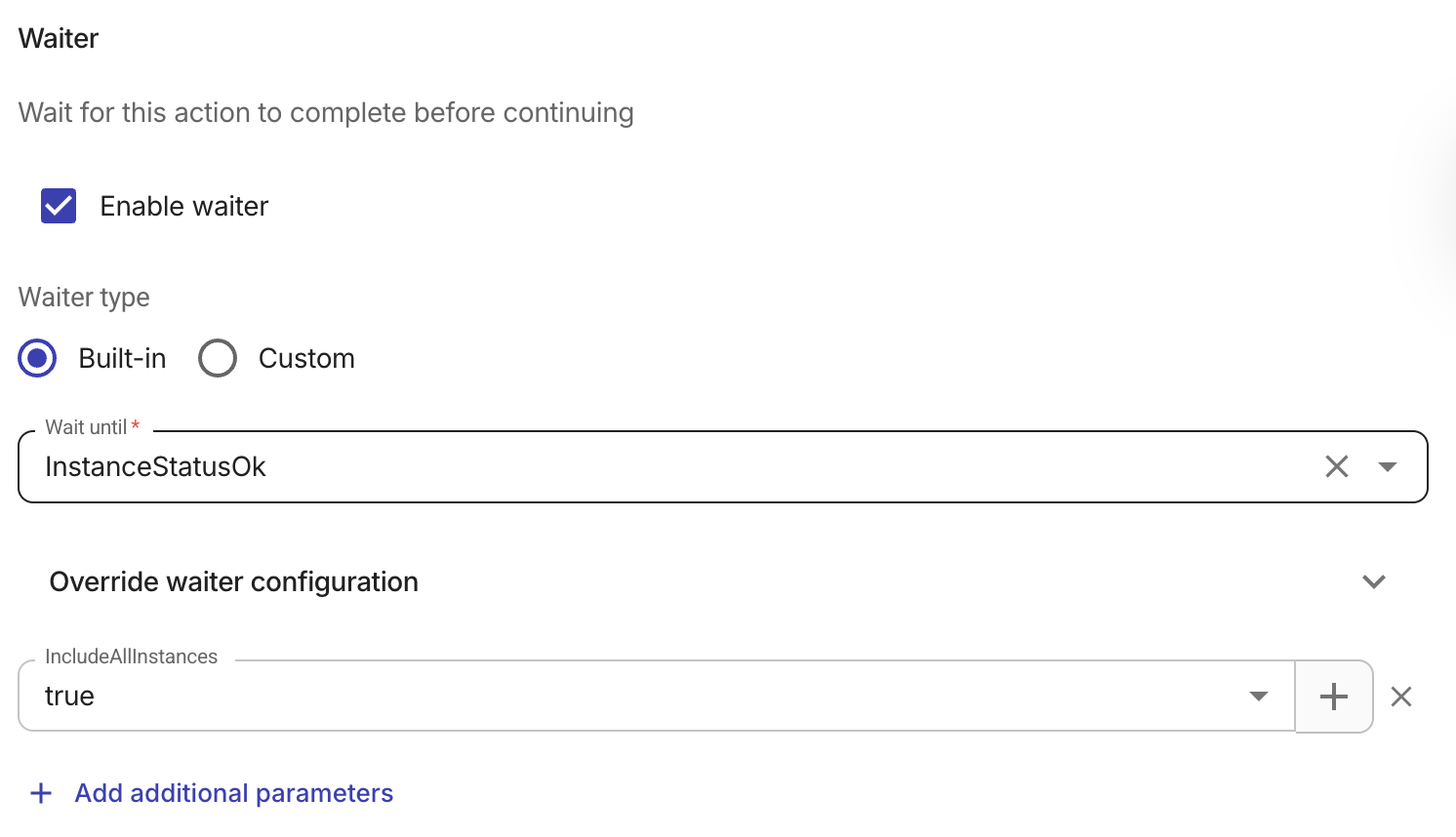
アクションにウェイターが必要な場合は、Enable waiter を選択してください。ウェイターを有効化した後、Waiter type を選択します。
-
Built-in: AWS サービスが提供する事前定義済みウェイターを使用します。ビルトインウェイターは多くの一般的なアクションで利用でき、ポーリングロジックを自動的に処理します。選択したアクションに対するビルトインウェイターが存在しない場合、このオプションは利用できず、ウェイタータイプは自動的に Custom になります。
-
Custom: JMESPath 式を使用して独自のポーリング条件を定義します。アクションにビルトインウェイターが存在しない場合や、ビルトインウェイターで対応できない特定の条件を待つ必要がある場合に使用します。カスタムウェイターは create および generate アクションでは使用できません。これは、カスタムウェイターが、JMESPath 条件が満たされるまで各ポーリングで同じアクションを再実行することによって動作するためです。create および generate 呼び出しは冪等ではないため、繰り返し実行すると重複したリソースが作成されたり、その他の望ましくない副作用を引き起こす可能性があります。これらのオペレーションについては、アクションがサポートしている場合はビルトインウェイターを使用するか、一度だけ create/generate を実行し、その後に別の read または describe アクションとカスタムウェイターを組み合わせて使用してください。
ビルトインウェイター
-
Wait until: このアクション用のウェイターを選択します。ドロップダウンには、現在の AWS サービスとアクションに適用可能なウェイターのみが表示されます(例: EC2 RunInstances 用の InstanceRunning)。
-
(任意)Parameters: ウェイターはどのリソースをポーリングするか(例: どの EC2 インスタンス、どの S3 bucket か)を知る必要があります。このセクションでそれらの値を指定します。現在のアクションの出力や、フロー内の前のノードからフィールドを参照できます。例として、RunInstances によって返されたインスタンス ID や、前のステップで指定された bucket 名などです。
-
(任意)Override waiter configuration: ウェイターがどのくらいの時間、どの頻度でポーリングを行うかを調整します。
-
Max wait time: 失敗と見なすまでに待機する最大時間(秒)です。デフォルトは 20 分です。
-
Min delay / Max delay: ポーリング試行間の最小および最大秒数です。これらを調整することで、処理の速いオペレーション向けにウェイターを高速化したり、処理の遅いオペレーション向けに負荷を軽減できます。
-
-
(任意)+ Add additional parameters: 1 つ以上のパラメータを追加し、それぞれの値を手動で入力するか、+ ボタンを使用して現在のアクションまたは前のノードからフィールドを挿入して設定します。ウェイターが確認すべきリソースを正確に指定する必要がある場合にパラメータを追加することがあります。例えば、InstanceRunning ウェイターの場合、InstanceId パラメータを追加し、その値として上記 RunInstances の出力からインスタンス ID を参照することで、その特定のインスタンスが起動するまでフローが待機するようにできます。
ヒントこれらのオプションの詳細については、AWS SDK ドキュメントの WaiterConfiguration を参照してください。
カスタムウェイター
カスタムウェイターを使用すると、ビルトインウェイターが利用できない場合や、特定の状態を確認する必要がある場合に、独自のポーリング条件を定義できます。
カスタムウェイターは create および generate アクションでは使用できません。これは、カスタムウェイターが、JMESPath 条件が満たされるまで各ポーリングで同じアクションを再実行することによって動作するためです。create および generate 呼び出しは冪等ではないため、繰り返し実行すると重複したリソースが作成されたり、その他の望ましくない副作用を引き起こす可能性があります。これらのオペレーションについては、アクションがサポートしている場合はビルトインウェイターを使用するか、一度だけ create/generate を実行し、その後に別の read または describe アクションとカスタムウェイターを組み合わせて使用してください。
例えば、新しい EC2 インスタンスを作成する際、フローをスムーズに実行するには 2 段階のプロセスを使用するのが最適です。まず 1 つ目のノードでインスタンスを作成します。次に、その状態を確認する 2 つ目のノードを追加します。例えば、1 台のインスタンスが起動するのを待っている間に誤って重複したサーバーを作成してしまうことを避けるためです。
-
インスタンスを作成する: RunInstances ノードを使用してインスタンスを起動します。ここではカスタムウェイターを追加しないでください。このノードは注文を行うために 1 回だけ実行されるべきです。
-
ステータスを確認する: 直後に DescribeInstances ノードを追加します。1 つ目のノードから取得した Instance ID を使用して、このノードにどのサーバーを確認すべきか正確に指定します。2 つ目のノードでカスタムウェイターを有効にし、
runningなど必要なステータスを確認するよう設定します。
手順を分離することで、2 つ目のノードに対し、インスタンスが running 状態に到達するまで待機し、定期的に確認するよう指示できます。これにより、最初のインスタンスが起動するのを待つ間に、システムが誤って 2 台目のインスタンスを作成しようとすることを防げます。2 つ目のノードがインスタンスの準備完了を確認すると、フローは自動的に次のタスクに進みます。
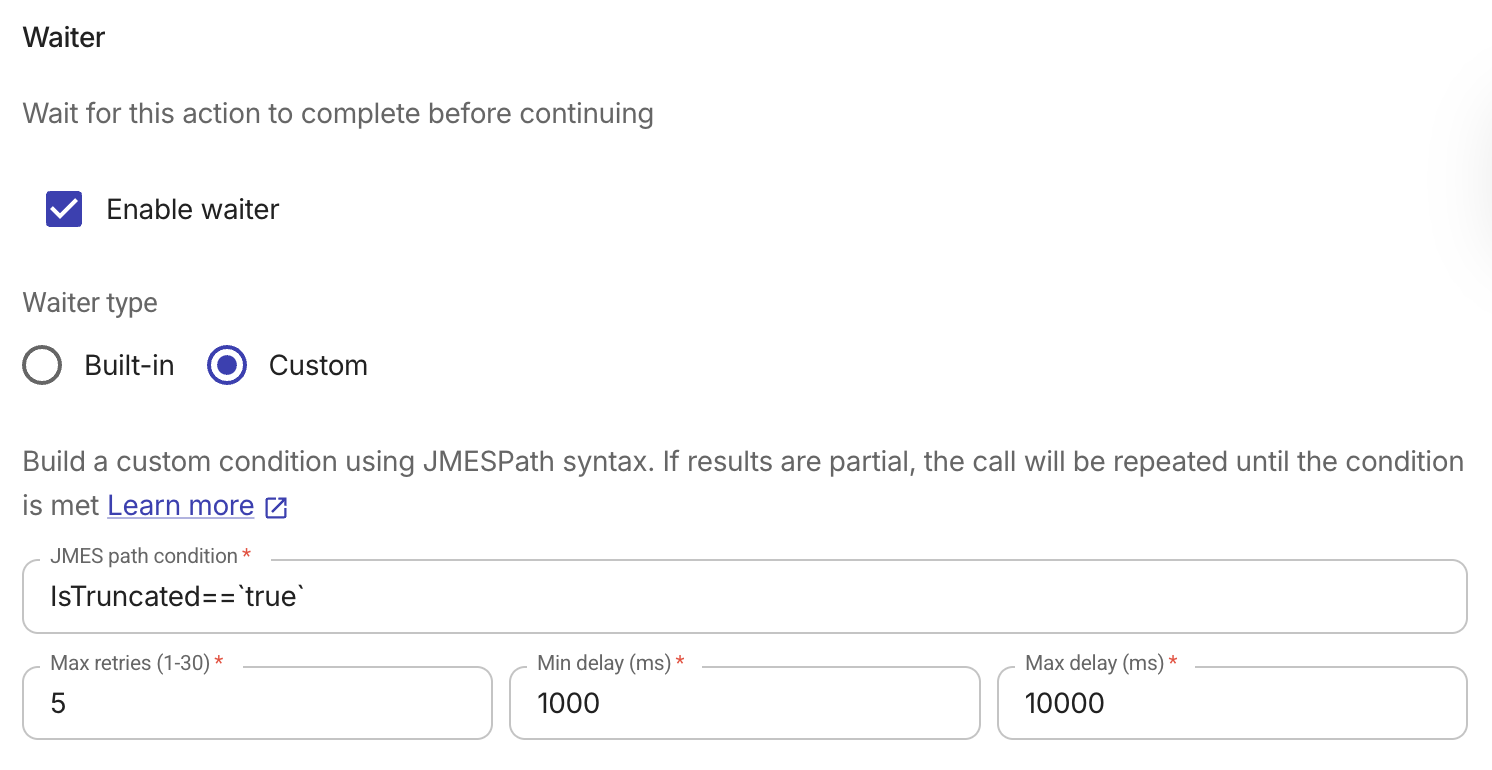
-
JMESPath condition: JMESPath 構文を使用して条件を定義します。この式はアクション結果に対して評価され、真偽値を返す必要があります。条件がまだ満たされない場合、一定の遅延の後にアクションが再度呼び出されます。これは条件が満たされるか最大リトライ回数に達するまで繰り返されます。例えば、
status == 'RUNNING'は、リソースがそのステータスを報告するまで待機します。 -
Max retries(1〜30): 失敗と見なす前にアクションを再実行する最大回数です。デフォルトは 5 回です。
-
Min delay (ms) / Max delay (ms): 試行間の遅延は、これらの範囲内で指数バックオフを使用します。Min delay のデフォルトは 1000 ms、Max delay のデフォルトは 10000 ms です。
ウェイターの例
一般的なパターンとしては、AWS アクションでリソースを作成し、そのリソースが準備完了になるまで待機してから、別のアクションや通知を続けて実行するというものです。
-
AWS ノード:リソースを作成または変更するアクション(例:EC2 RunInstances、S3 CreateBucket)を実行します。ウェイターを有効にし、適切な Wait until の値(例:InstanceRunning、BucketExists)を選択します。
-
次のノード:ノードの出力を Notification ノード、別の AWS アクション(例:インスタンス ID を使用してボリュームを添付)や、結果に基づき判断を行うための Branch ノード で使用します。
ウェイターを使用しない場合、次のノードがリソースがまだ保留状態の間に実行されてしまい、失敗したり不正に動作したりする可能性があります。ウェイターを使用すると、リソースが希望する状態に到達した後にのみフローが続行されます。
テスト
ノードをテストするには、Test を選択してください。