Datastore ノード
Datastore ノードを使用すると、管理されたデータストア内に構造化データを保存、取得、更新、および削除し、フロー内で利用できます。外部データベースに接続せずにフロー実行をまたいで情報を保持したい場合に便利です。たとえば、フローですでに処理したクラウドリソースを記録したり、AWS アカウント・Azure subscription・Google Cloud プロジェクト ID とその予算閾値のテーブルを保持したり、各クラウドターゲットやロケーションごとにスケジュールされたフローの最終実行時刻を追跡したりできます。作成したテーブルには、組織内のフローからのみアクセスできます。
テーブルの作成と管理
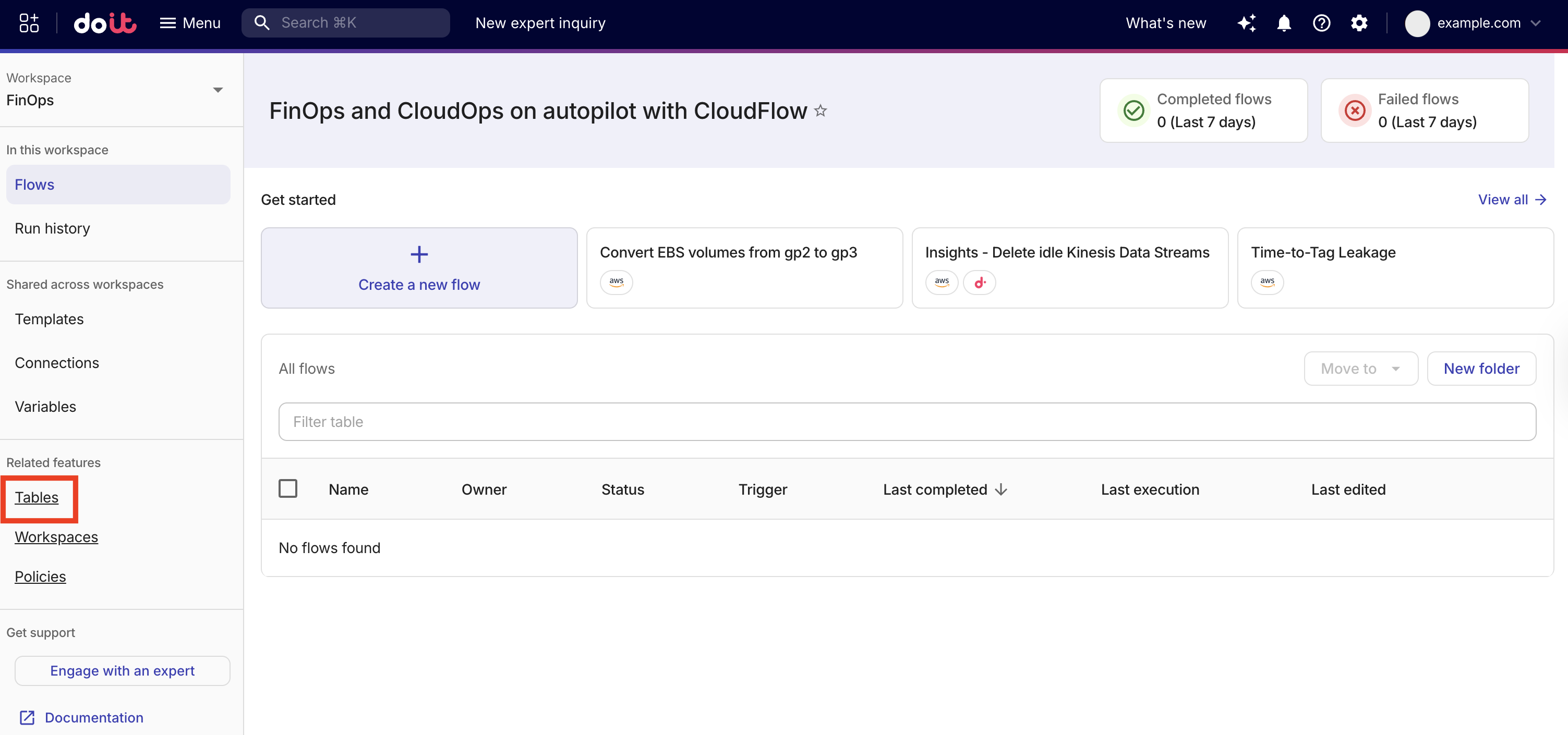
フローで Datastore ノードを使用する前に、データを保存するためのテーブルを 1 つ以上作成してください。CloudFlow のランディングページで Tables を選択し、Datastore タブを開いてテーブルを管理します。
テーブルを作成する
-
CloudFlow のランディングページで Tables を選択し、Datastore タブを開きます。
-
Create table を選択します。
-
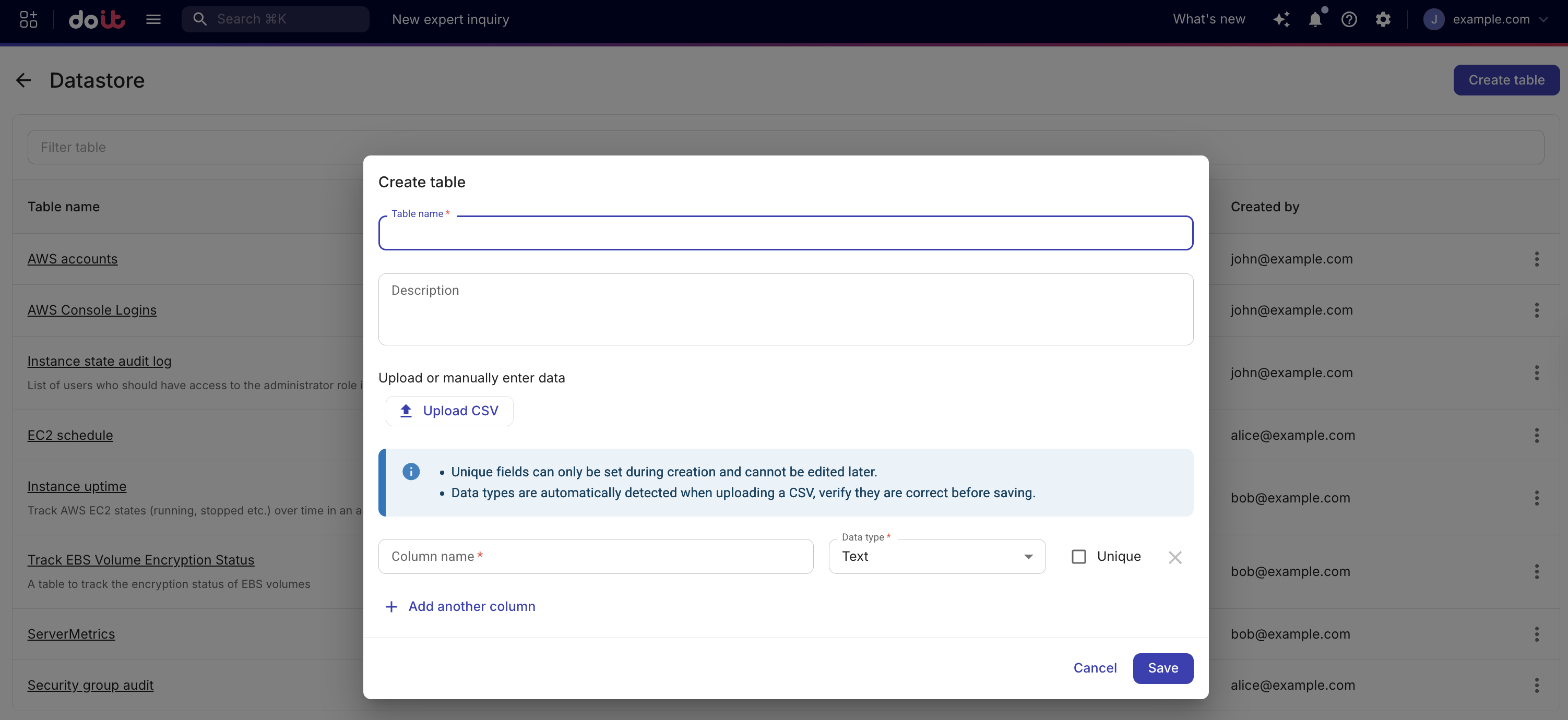
Table name にテーブル名を入力します。テーブル名は作成後に変更できません。
-
(任意)Description に、そのテーブルが保存する内容の簡単な説明を入力します。
-
列を手動で定義するか、CSV ファイルをアップロードします。
-
Manually define columns: 1 つ以上の列を名前とデータタイプ付きで定義します。列を Unique としてマークすると、その列で同じ値を持つレコードが 2 つ存在しないように強制できます。Upsert アクションを使用する予定がある場合は、少なくとも 1 つのユニーク列が必要です。Upsert キーとして使用できるのはユニーク列のみです。
-
CSV ingestion: Upload CSV を選択し、
.csvファイルを選択します。CSV ファイルの要件は以下のとおりです。-
最大ファイルサイズ 5 MB
-
最大 50 列
-
最大 5,000 行
-
CSV ファイルを圧縮しないでください(例: ZIP や GZ は不可)
-
先頭行にヘッダー行を使用します。新しいテーブルでは列の順序が保持されます。
-
列名は英字またはアンダースコアで始まり、その後に英数字またはアンダースコアを使用します。
-
重複する列名は不可
-
CSV をアップロードすると列のデータタイプは自動検出されます。テーブルを保存する前に、正しいかどうかを必ず確認してください。
-
日付およびタイムスタンプ値は RFC3339/ISO 8601 UTC format に従う必要があります(例: タイムスタンプは
YYYY-MM-DDTHH:MM:SSZ、日付のみのフィールドはYYYY-MM-DD)。
Save をクリックすると、最初にテーブルが作成され、その後に CSV の行が挿入されます。無効なデータや接続の問題などで挿入ステップが失敗した場合、テーブルはすでに存在するものの行が 1 つもない状態になり、エラーメッセージが表示される場合があります。CSV に機微情報や個人を特定できる情報(PII)が含まれる場合は、アップロード前に必ずマスキングまたは匿名化してください。
CSV の例(ヘッダー行とデータ行):
instance_id,state,last_updatedi-001,running,2026-01-15T10:00:00Zi-002,stopped,2026-01-14T09:30:00Z -
-
-
Save を選択します。
テーブルを編集する
テーブルの説明を更新したり、列を追加・削除したりできます。テーブル名は作成後に変更できず、既存の列名やデータタイプも変更できません。
既存のテーブルの更新には CSV ingestion は使用できません。
-
テーブルが持つ列を変更するには、Edit table を使用して列を追加または削除してください。
-
既存のテーブルに行を追加するには、Datastore タブの Add row か、Datastore の Insert または Upsert ノードを使用するフローを利用してください。
-
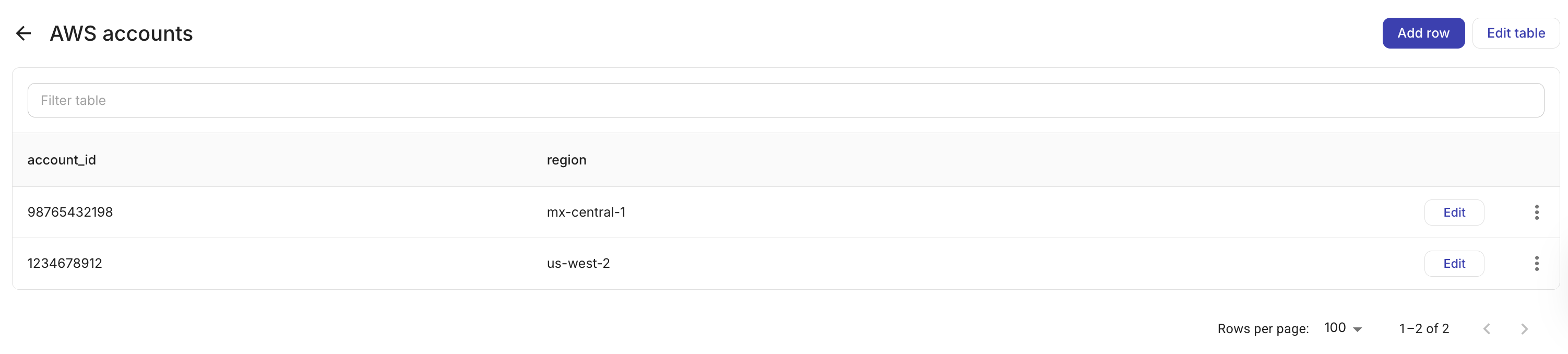
Datastore ブラウザからテーブルを開きます。
-
Edit table を選択します。
-
変更を行い、Save を選択します。
レコードの閲覧と管理
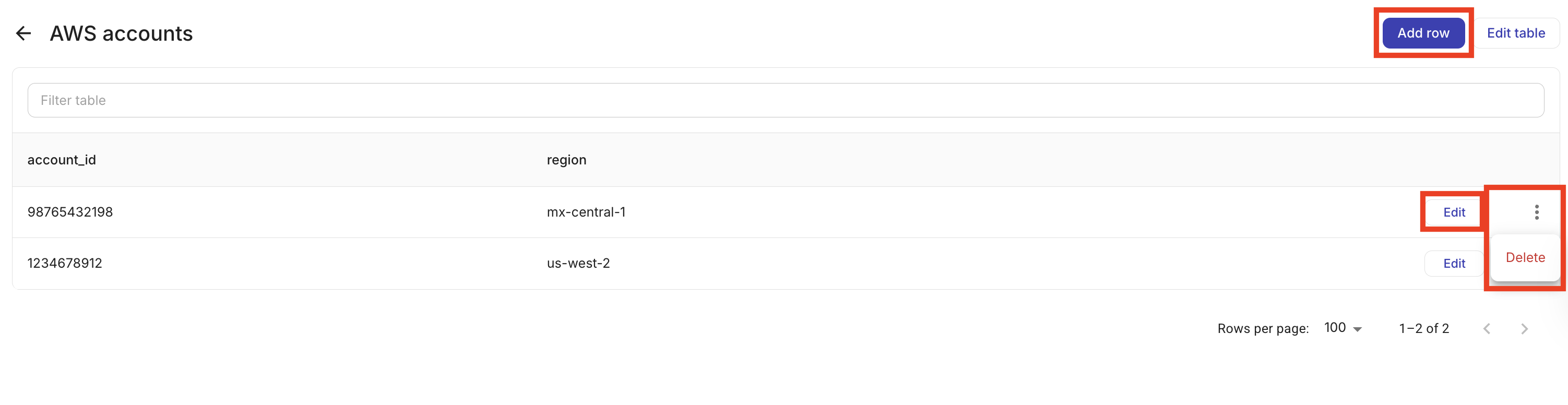
テーブルを開くと、そのレコードを表示できます。テーブル詳細ビューから次の操作が可能です。
-
レコードを追加: Add row を選択し、列の値を入力します。
-
レコードを編集: 行を選択して値を更新します。
-
レコードを削除: 1 行以上を選択して削除します。
レコードはページ分割され、任意の列でソートできます。
テーブルを削除する
テーブルを削除すると、そのテーブル内のすべてのレコードが完全に削除されます。テーブルが 1 つ以上のフローで使用されている場合でも削除できます。コンソールは、そのテーブルを使用している公開済みフローをすべて非公開にし、ドラフトフローからはテーブルを削除します。これらのフローは、更新されるまで(別のテーブルを選択する、または Datastore ノードを削除するなど)実行時に失敗する可能性があります。フローの破損を避けるには、そのテーブルを使用している各フローで Datastore ノードを削除または再設定してからテーブルを削除してください。
テーブルを削除するには、Datastore タブで削除したいテーブルの右端にあるケバブメニュー(⋮)を選択し、Delete を選択します。

アクション
フロー内で Datastore ノードを設定する際、+ ボタンを使用してパラメータに前のノードからの値を参照できます。詳細は Node parameters を参照してください。次のいずれかのアクションを選択します。
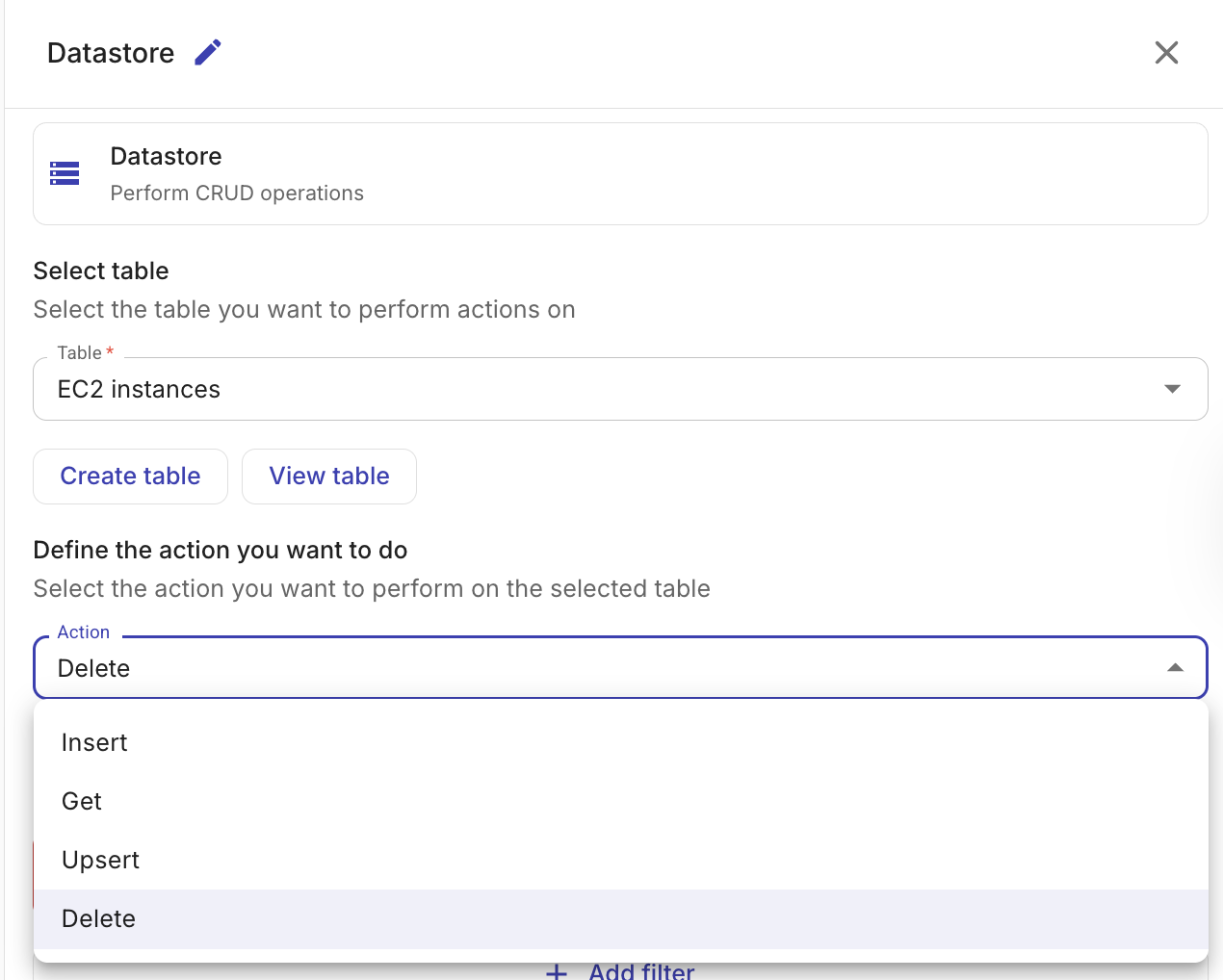
Get records
テーブルからレコードを取得します。返されるレコードと含まれるデータを制御できます。
-
Table: クエリ対象のテーブル。
-
(任意)Columns: 結果に含める特定の列を選択します。列を選択しない場合、すべての列が返されます。
-
(任意)Filters: 結果を絞り込む条件を定義します。フィルターグループ内の条件は AND ロジックで組み合わされ、複数のフィルターグループは OR ロジックで組み合わされます。
使用可能なフィルター演算子は次のとおりです。
Operator 説明 ==等しい !=等しくない >より大きい >=以上 <より小さい <=以下または等しい フィルター値には、フロー内の前のノードの出力を参照できます。
-
(任意)Limit: 返されるレコードの最大数(1–5,000)。
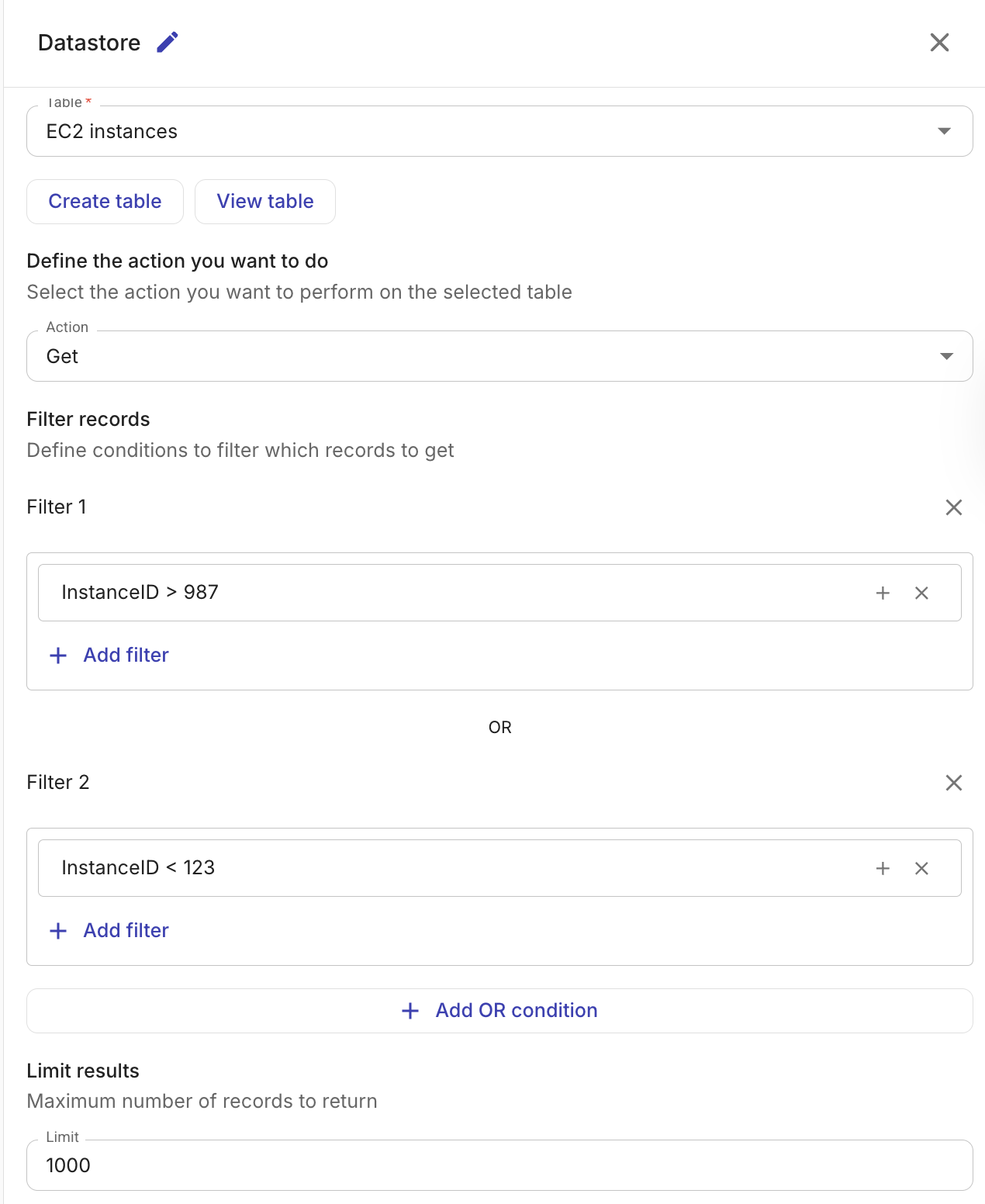
Get records アクションの出力は、一致したレコードの配列であり、フロー内の後続ノードから参照できます。
Insert records
1 件以上のレコードをテーブルに挿入します。
-
Table: レコードの挿入先となるテーブル。
-
Column mappings: 各列を値にマッピングします。値は固定値でも、前のノードの出力を参照することもできます。
前のノードの出力に複数のアイテム(例: EC2 インスタンスのリスト)が含まれている場合、Datastore ノードはアイテムごとに 1 件のレコードを自動的に作成します。
レコードは最大 1,000 行のバッチで挿入されます。挿入はバッチ単位でアトミックに行われ、バッチ内のいずれかのレコードが検証に失敗した場合、そのバッチ内のレコードは 1 件も挿入されません。
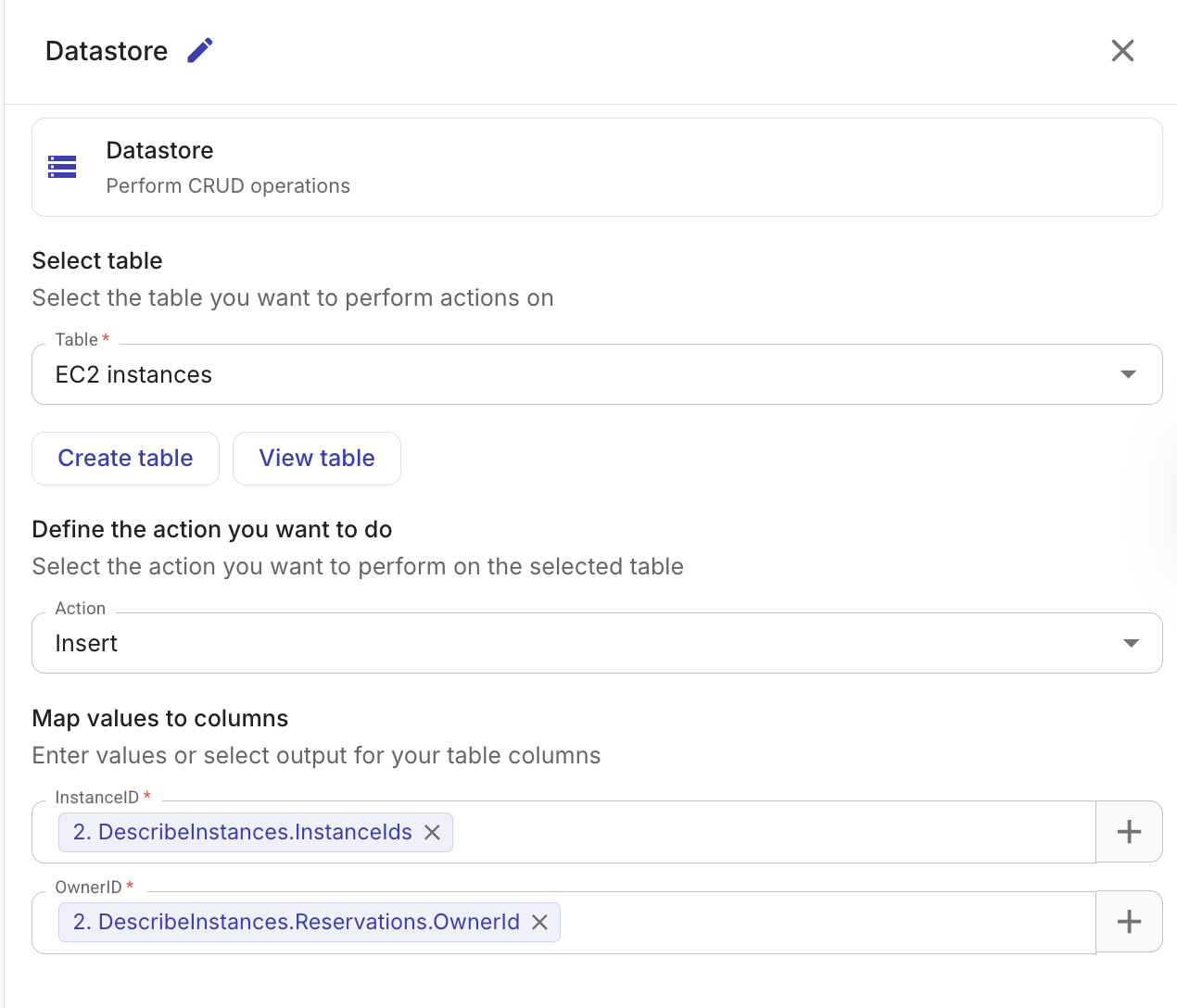
出力には、挿入されたレコードの ID と、挿入された合計行数が含まれます。
Upsert records
ユニークキー列に基づいて、新しいレコードの挿入または既存レコードの更新を行います。外部データソースとテーブルの内容を重複なしで同期したい場合に便利です。
-
Table: Upsert を行う対象テーブル。
-
Upsert key: レコードがすでに存在するかどうかを判定するために使用する列。キー値が同じレコードが存在する場合は更新し、存在しない場合は新しいレコードを挿入します。Upsert キーの列は、テーブル作成時に unique としてマークしておく必要があります。
-
Column mappings: Insert records と同様に、各列を値にマッピングします。
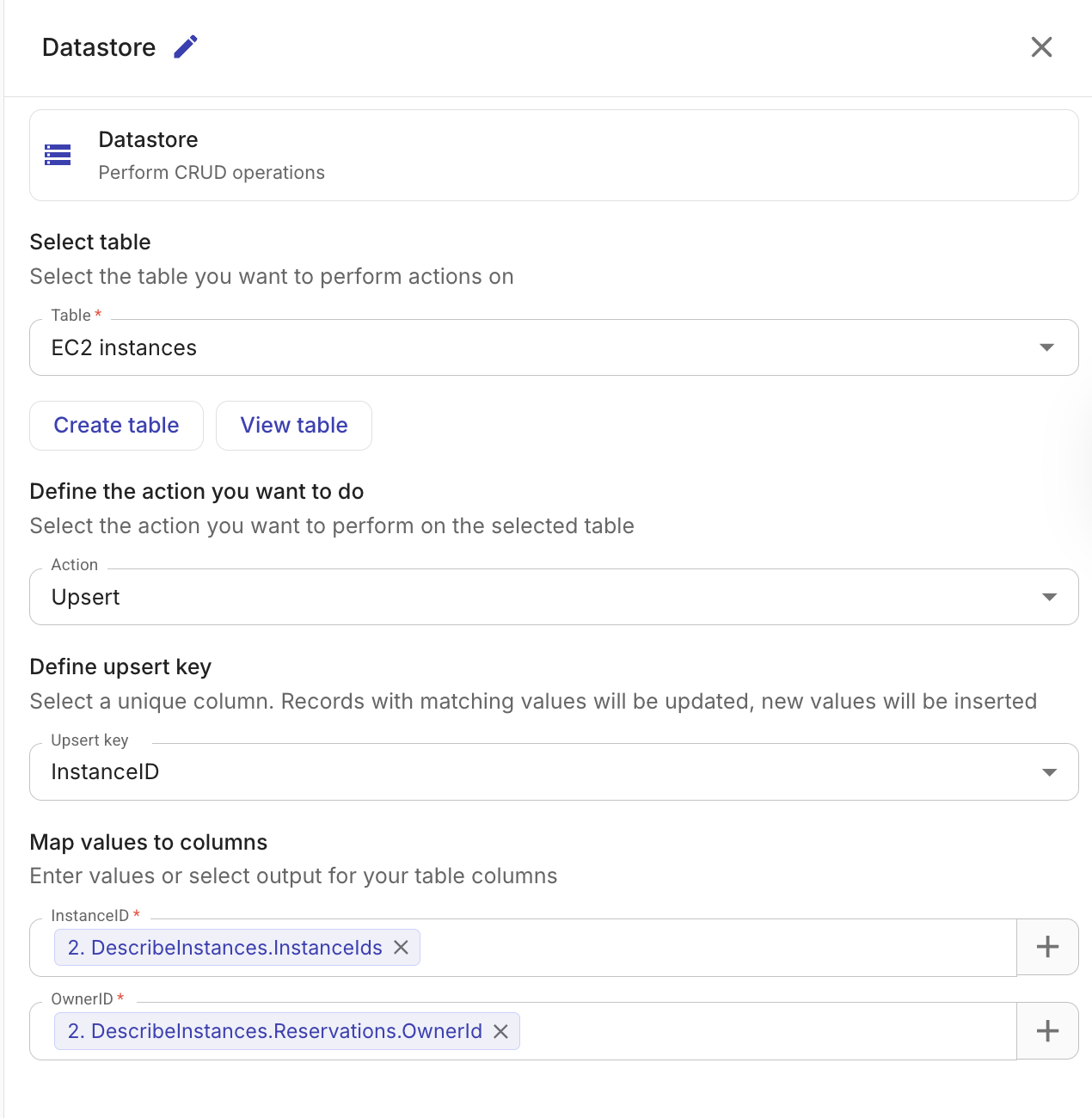
出力には、挿入および更新されたレコードの件数と ID が含まれます。
Delete records
指定したフィルター条件に一致するレコードをテーブルから削除します。
-
Table: レコードを削除する対象テーブル。
-
Filters: 削除対象のレコードを特定する条件を定義します。フィルターグループ内の条件は AND ロジックで組み合わされ、複数のフィルターグループは OR ロジックで組み合わされます。テーブル全体を誤って削除しないように、少なくとも 1 つのフィルター条件が必須です。
使用できるフィルター演算子は Get records と同じで、
==、!=、>、>=、<、<=です。フィルター値には、フロー内の前のノードの出力を参照できます。
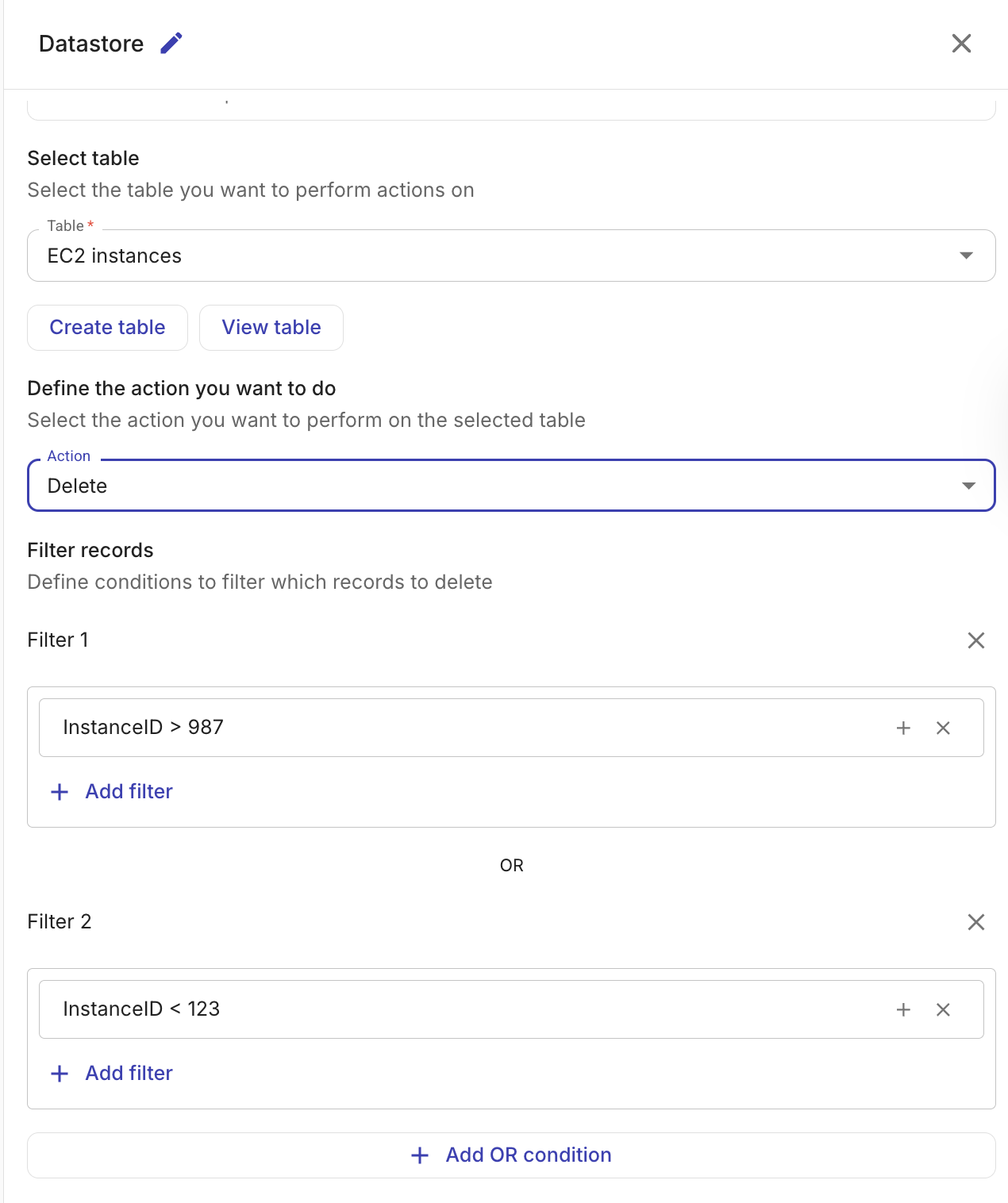
出力には、削除されたレコード数(deletedCount)とテーブル ID が含まれます。
SQL の実行
Datastore のテーブルに対して PostgreSQL 文を実行します。行をまたぐ集計・2 つのテーブルの結合・当日の値と過去のベースラインとの比較・フロー自身によるテーブルの作成と維持など、他のアクションでは表現できない処理を行いたい場合に使用します。
-
Statement: 実行する SQL。エディタは入力中にステートメントを検証し、行を返すステートメントの場合は Output schema を表示して、フローが一度も実行されていない段階でも後続ノードが列名で各列を参照できるようにします。
-
(オプション)Bind parameters: ステートメント内で使用している各
:parameterに名前を付け、静的な値または前のノードの出力にマッピングします。
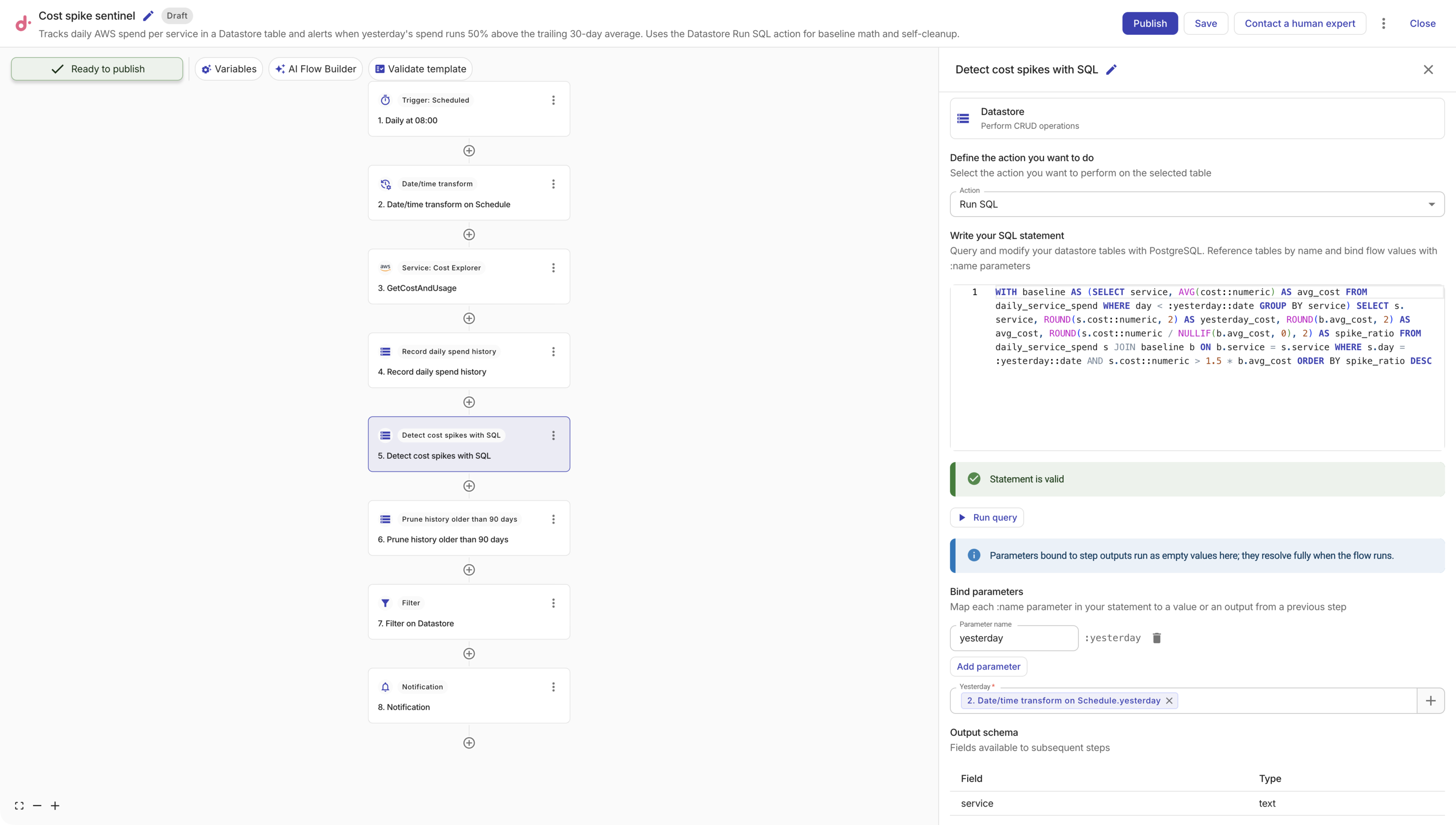
ステートメントを試すには Run query を選択してください。データを変更するステートメントの場合、CloudFlow は実行前に確認を求めます。なぜならステートメントはライブテーブルに対して即座に実行されるためです。前のノードの出力にマッピングされたパラメータは、そのノードの保存済みテストデータに解決されるため、プレビューは実際の値に対して実行されます。ノードにテストデータがない場合、パラメータはエディタ内では空の値に解決され、フロー実行時にはライブの値に解決されます。
構文の仕組み
テーブルはプレーンな名前で参照します。 テーブル名は Tables タブに表示されているとおりに、スキーマ接頭辞なしで記述します。名前は大文字小文字を区別し、スペースやその他の特殊文字を含む名前には二重引用符が必要です。
SELECT service, cost FROM daily_service_spend
SELECT * FROM "monthly budget owners"
すべてのテーブルには、ユーザー定義の列に加えて自動的に id 列が付きます。そのため SELECT * には id も含まれます。
値は :name パラメータで渡します。 値をステートメントに連結してはいけません。パラメータを宣言し、Bind parameters でマッピングし、先頭にコロンを付けて参照します。位置パラメータ($1)はサポートされません。宣言したパラメータはすべて使用する必要があり、使用するパラメータはすべて宣言されている必要があります。
SELECT service, cost
FROM daily_service_spend
WHERE day = :day AND cost::numeric > :threshold
パラメータが運ぶのは値であり、識別子や SQL の断片ではありません。:table をテーブル名の代わりに使うことはできず、ORDER BY :column も機能しません。
列の型が計算に合わない場合はキャストします。 これは特に、クラウド API から文字列として届く値で重要です。SQL 内でキャストすることで、Insert ノードをシンプルに保てます。
SELECT service, ROUND(AVG(cost::numeric), 2) AS avg_cost
FROM daily_service_spend
GROUP BY service
1 ノードにつき 1 ステートメントです。 セミコロンで区切られたバッチは拒否されます。複数のことを行う場合は、複数の Datastore ノードを順番に使用してください。
読み取りと集計
SELECT では想定どおりの SQL が利用できます。結合・GROUP BY・HAVING・ウィンドウ関数・WITH 句などです。共通テーブル式は読み取り専用である必要があります。
各サービスの 30 日間の移動平均に対して、前日の支出をランク付けし、外れ値のみを返します。ベースラインウィンドウの両端をバインドしておかないと、テーブルに履歴が蓄積されるにつれて平均が暗黙のうちに広がってしまいます。
WITH baseline AS (
  SELECT service, AVG(cost::numeric) AS avg_cost
  FROM daily_service_spend
  WHERE day < :yesterday::date
    AND day >= :yesterday::date - 30
  GROUP BY service
)
SELECT s.service,
       ROUND(s.cost::numeric, 2) AS yesterday_cost,
       ROUND(b.avg_cost, 2) AS avg_cost,
       ROUND(s.cost::numeric / NULLIF(b.avg_cost, 0), 2) AS spike_ratio
FROM daily_service_spend s
JOIN baseline b ON b.service = s.service
WHERE s.day = :yesterday::date
  AND s.cost::numeric > 1.5 * b.avg_cost
ORDER BY spike_ratio DESC
メトリクステーブルをアカウントごとの閾値テーブルに結合し、アカウントごとに専用のリミットを持たせます。
SELECT m.account_id, m.spend, t.monthly_limit
FROM monthly_spend m
JOIN account_thresholds t ON t.account_id = m.account_id
WHERE m.month = :month AND m.spend::numeric > t.monthly_limit::numeric
ウィンドウ関数を使用して、アカウントごとに日次の増加幅が最大の日を特定します。
SELECT account_id, day, spend::numeric - LAG(spend::numeric) OVER (
         PARTITION BY account_id ORDER BY day
       ) AS delta
FROM daily_account_spend
WHERE day >= :since::date
ORDER BY delta DESC NULLS LAST
データの書き込みと維持管理
INSERT、UPDATE、DELETE、MERGE がすべて利用可能です。データに影響が及ぶ前にミスを検出するための 3 つのルールがあります。
-
INSERTでは列を明示的に列挙する必要があります。INSERT INTO t VALUES (...)は拒否されます。INSERT INTO t (day, service, cost) VALUES (...)のように記述してください。 -
UPDATEとDELETEにはWHERE句が必須です。これにより条件の書き忘れによるテーブル全体の書き換えや削除を防ぎます。本当に全行を対象とする場合はWHERE trueと記述してください。 -
id列は自動で管理され、挿入・更新・削除はできません。
影響を受けた行数だけでなく、その行自体をノードの出力として取得したい場合は RETURNING を追加します。
UPDATE account_thresholds
SET monthly_limit = :new_limit
WHERE account_id = :account_id
RETURNING account_id, monthly_limit
スケジュールに従って古い行を削除することでテーブルのサイズを抑えます。これにより履歴テーブルへ継続的に追記しても安全になります。
DELETE FROM daily_service_spend WHERE day < :today::date - 90
テーブル間で行を 1 つのステートメントでコピーします。例えば、削除前にアーカイブする用途です。
INSERT INTO spend_archive (day, service, cost)
SELECT day, service, cost FROM daily_service_spend WHERE day < :cutoff::date
テーブルの作成と変更
フローは自身のスキーマを管理できます。CREATE TABLE では Tables タブと同じ型(text、integer、numeric、boolean、date、timestamp、json)および UNIQUE 列制約が指定できます。
CREATE TABLE daily_service_spend (
  day date,
  service text,
  cost text
)
CREATE TABLE ... AS SELECT は、クエリ結果を新しいテーブルとしてマテリアライズします。各式列には必ず別名を付け、サポートされている列型以外の型を持つものはキャストしてください。
CREATE TABLE service_baselines AS
SELECT service, ROUND(AVG(cost::numeric), 2)::numeric AS avg_cost
FROM daily_service_spend
GROUP BY service
ALTER TABLE では列の追加・削除、および単一列に対する UNIQUE 制約の追加・削除がサポートされています。
ALTER TABLE daily_service_spend ADD COLUMN account_id text
ALTER TABLE account_thresholds ADD CONSTRAINT account_id_unique UNIQUE (account_id)
列の型を変更するには、その列を削除して新しい型で再度追加してください。型のインプレース変更はサポートされておらず、列を削除するとそのデータも失われます。
制限とガードレール
-
サポートされるステートメントは
SELECT、INSERT、UPDATE、DELETE、MERGE、CREATE TABLE、CREATE TABLE ... AS、ALTER TABLE、DROP TABLEで、1 ノードにつき 1 ステートメントです。 -
ステートメントは、所属組織自身のテーブルにしかアクセスできない制限付きのデータベースロールで実行され、ステートメントタイムアウトは 30 秒です。
-
行を返すステートメントは最大 5,000 行または 1 MB のデータのいずれかに達した時点で打ち切られます。結果が途中で打ち切られた場合、出力には切り詰められたことがフラグとして示されるため、生の行をフローに返すのではなく、SQL 内で集計するようにしてください。
-
管理系・ファイルシステム系の関数(例:
pg_sleep()、pg_read_file()、dblink()、シーケンスやアドバイザリロック関連の関数)は拒否されます。 -
自動の
id列は削除・挿入・更新できず、CREATE TABLE ... ASの結果として独自のidを定義することもできません。 -
SELECT INTO、TEMPおよびUNLOGGEDテーブル、スキーマ修飾名、WITH句内のデータ変更ステートメントはすべて拒否されます。 -
DROP TABLEは 1 ステートメントあたり 1 テーブルのみを対象とし、CASCADEはサポートしません。フローがまだ使用しているテーブルを削除すると、そのフローは動作しなくなります。
これらの多くを 1 つのフローで組み合わせた実例については、Detect AWS cost spikes with SQL を参照してください。
サポートされている列型
Datastore でテーブルを作成する際、次の列型が利用できます。
| Type | 説明 | 例 |
|---|---|---|
| Text | 可変長文字列 | us-east-1 |
| Integer | 整数 | 42 |
| Numeric | 小数を含む数値 | 3.14 |
| Boolean | 真偽値 | true |
| Date | カレンダ日付 (yyyy-MM-dd) | 2026-01-15 |
| Timestamp | タイムゾーン付き日時 | 2026-01-15T10:30:00Z |
| JSON | 構造化された JSON データ | {"key": "value"} |
例: EC2 インスタンスのステータス変更を追跡する
Datastore ノードの一般的なユースケースは、クラウドリソースの状態を経時的に追跡するルックアップテーブルを維持することです。例えば、次のようなフローを構築できます。
- AWS node を使用して EC2 インスタンスを一覧取得する。
- Datastore ノードの Upsert アクションを使用し、インスタンス ID を Upsert キーとして各インスタンスの現在の状態でテーブルを更新する。
- 2 つ目の Datastore ノードで Get records アクションを使用し、7 日以上停止しているインスタンスをテーブルからクエリーする。
- 長期間停止しているインスタンスの一覧を、関連するチームに Notification として送信する。
Upsert アクションは重複レコードを作成するのではなく既存レコードを更新するため、テーブルは常に各インスタンスの最新状態を反映します。
テスト
ノードをテストするには Test を選択してください。