SQL node
A SQL node is used to execute SQL queries in your flow using the SQL node editor. You can type queries directly into the SQL node and perform actions based on the results. This is useful for introducing data-driven conditional logic into your flow, making it easier to make complex decisions based on your billing data stored in Cloud Intelligence. For example, you could query AWS, Azure, or Google Cloud billing data from aws_dci, azure_dci, or gcp_dci, then filter the output to identify your most expensive services and notify your stakeholders.
You can also attach a Google Cloud connection to a SQL node so you can query external BigQuery datasets alongside your DoiT billing data, for example, to join cost with your own usage or project tables in one query. You cannot reference DoiT billing data and external BigQuery tables in the same SQL query. You must use two SQL nodes in your flow, one to query DoiT billing data and one to query external BigQuery datasets using a Google Cloud connection.
When you use two SQL nodes in the same flow, connect them in sequence. The output of the first SQL node is available to subsequent nodes in the flow—for example, you can filter on it in a Filter node, branch on it in a Branch node, or include it in a Notification node. Define a Query Output Schema so downstream nodes can reference the fields you need.
Query DoiT billing data
You can use the SQL node to query your billing data stored in Cloud Intelligence.
SQL query example
Below is an example of a SQL query that helps you perform cost optimization and governance by finding the 20 most expensive AWS resources that are currently missing cost allocation tags over the last seven days.
WITH recent AS (
  SELECT
    resource_id,
    service_description,
    SUM(cost) AS untagged_cost_7d
  FROM `aws_dci`
  WHERE usage_start_time >= TIMESTAMP_SUB(CURRENT_TIMESTAMP(), INTERVAL 7 DAY)
    AND (labels IS NULL OR ARRAY_LENGTH(labels) = 0)
  GROUP BY resource_id, service_description
)
SELECT
  resource_id,
  service_description,
  ROUND(untagged_cost_7d, 2) AS untagged_cost_7d
FROM recent
WHERE untagged_cost_7d > 5
ORDER BY untagged_cost_7d DESC
LIMIT 20;
Below is an example of a resulting table that provides a prioritized list of AWS resources that need immediate attention.
| resource_id | service_description | untagged_cost_7d |
|---|---|---|
| i-0f23ab91c5d4ef123 | Amazon Elastic Compute Cloud | 142.37 |
| vol-03bc1198a7e9d7812 | Amazon Elastic Block Store | 58.12 |
| arn:aws:lambda:...func1 | AWS Lambda | 27.44 |
| bucket-analytics-prod | Amazon S3 | 12.91 |
Configure a SQL node
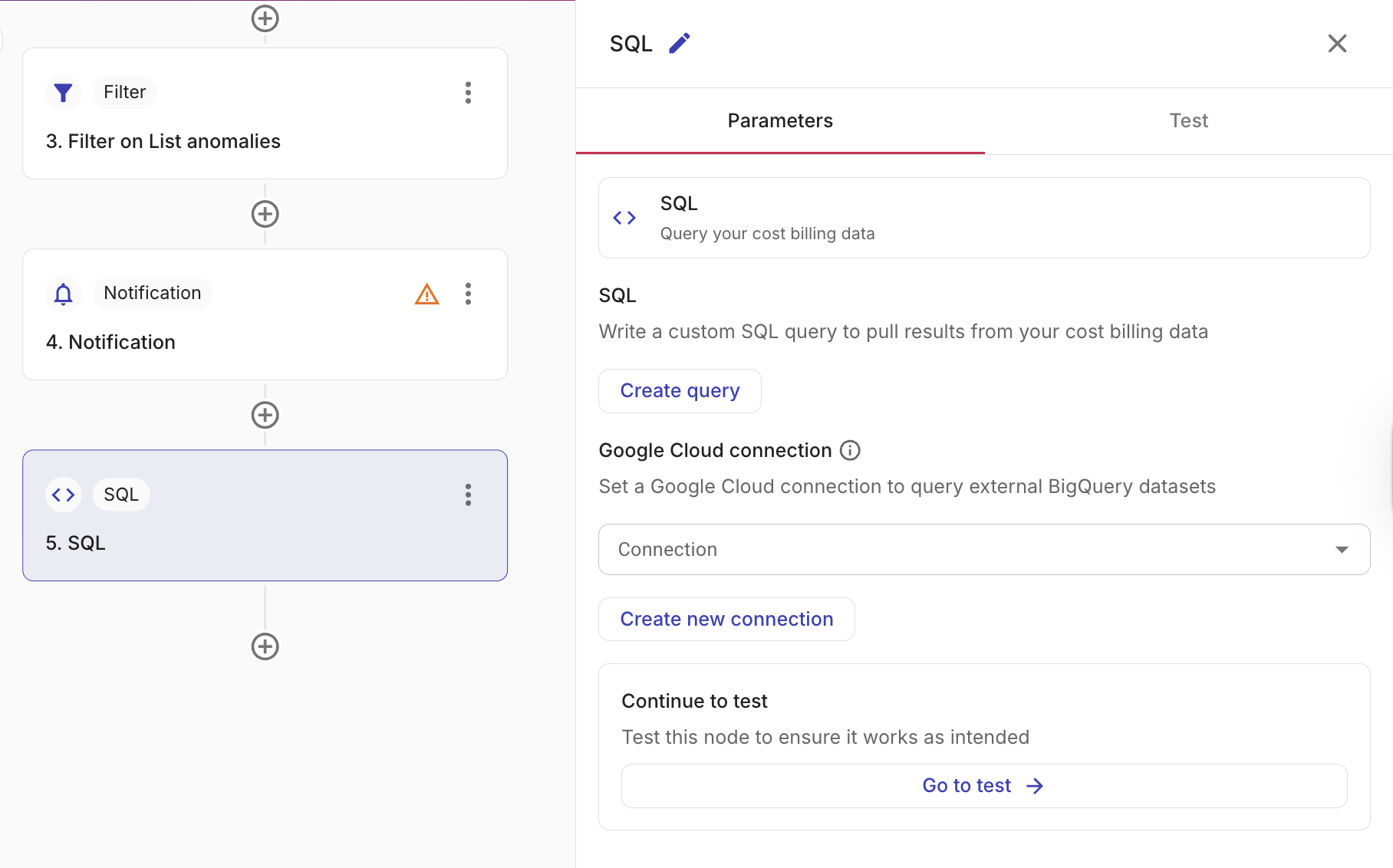
To configure a SQL node, create and test your query, then view the expected output for the fields you can reference in subsequent nodes.
-
Select Create query. The Create a SQL query window appears, where you can write and test your SQL query.
-
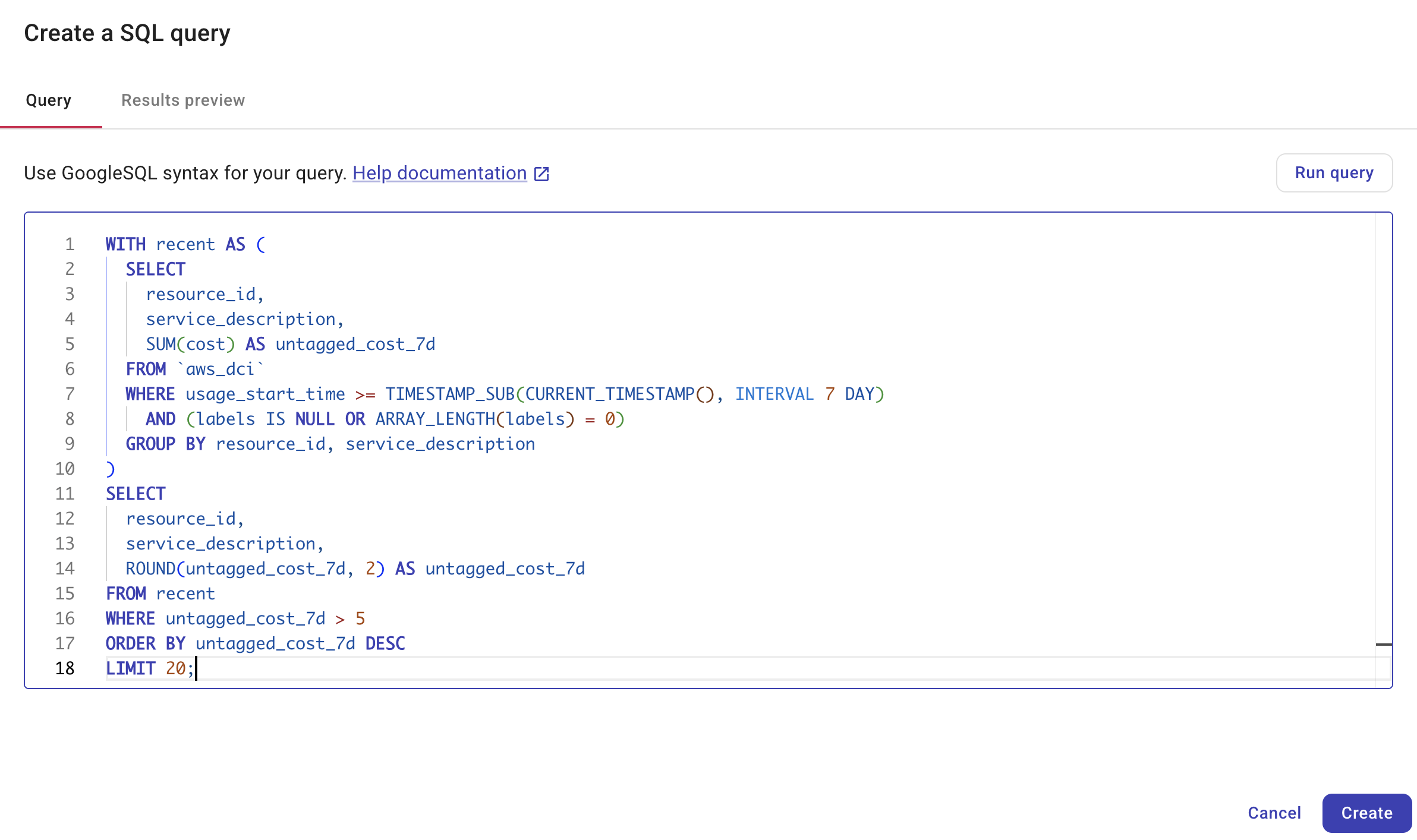
In the Query tab, write your SQL query. The SQL node uses GoogleSQL. As you write, Cloud Intelligence validates your SQL query, instantly highlighting any syntax errors or other potential issues.
TipUse Format to automatically indent and line-break your SQL so it is easier to read and edit.
NoteThe SQL query editor automatically saves your query as a draft while you type, preventing data loss if you navigate away. Drafts are stored for 24 hours and are not synced across devices. Selecting Save commits your changes to the flow and clears the local draft. If a draft expires, CloudFlow reverts to the last saved version.
-
Select Run query to test your query. The SQL node editor requires the query to execute successfully before you can create it, ensuring only validated queries are created.
-
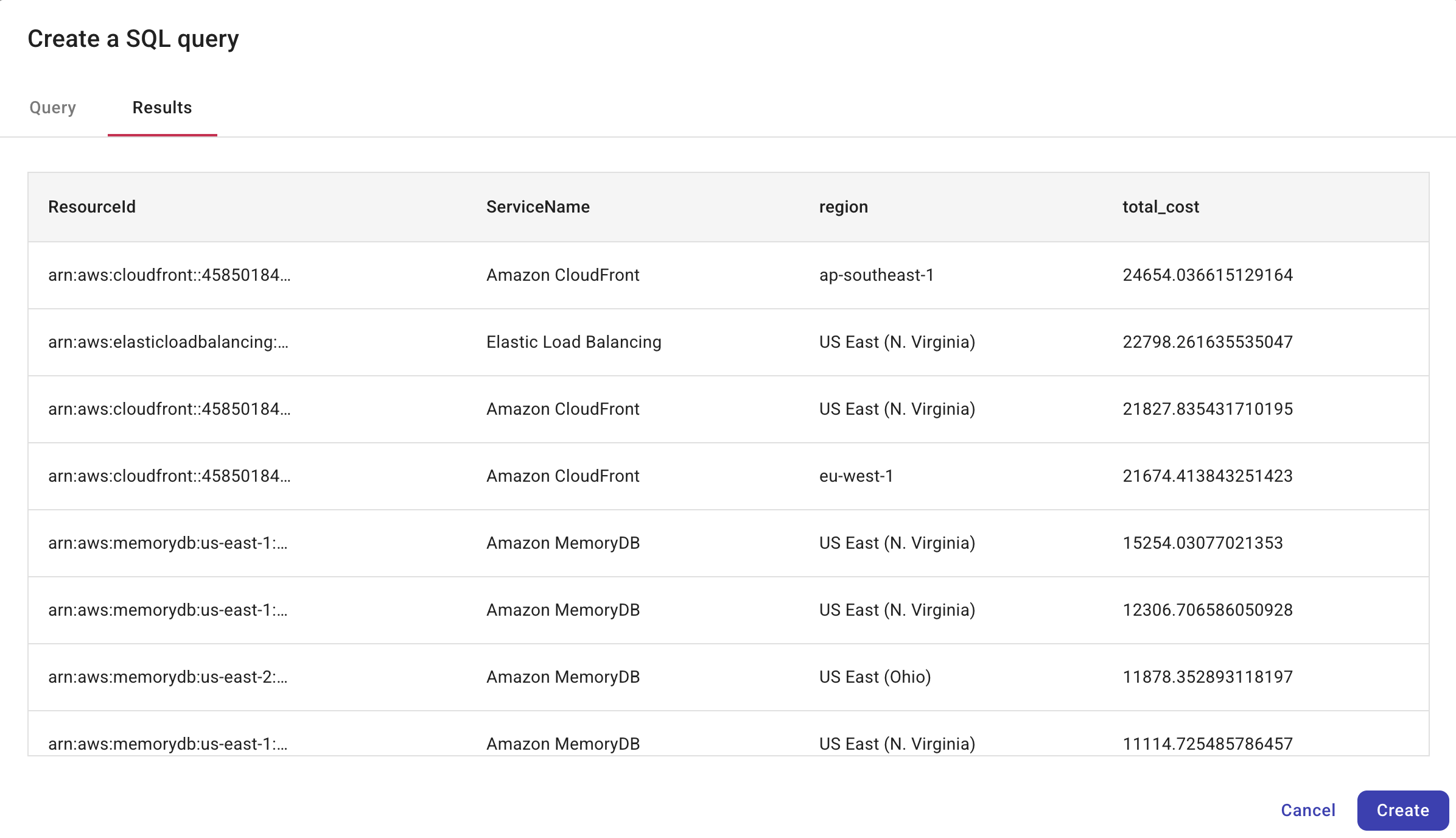
When you select Run, the results are displayed in the Results tab, allowing you to validate the query's logic, efficiency, and data output. The output schema adheres to the DoiT billing data schema.
-
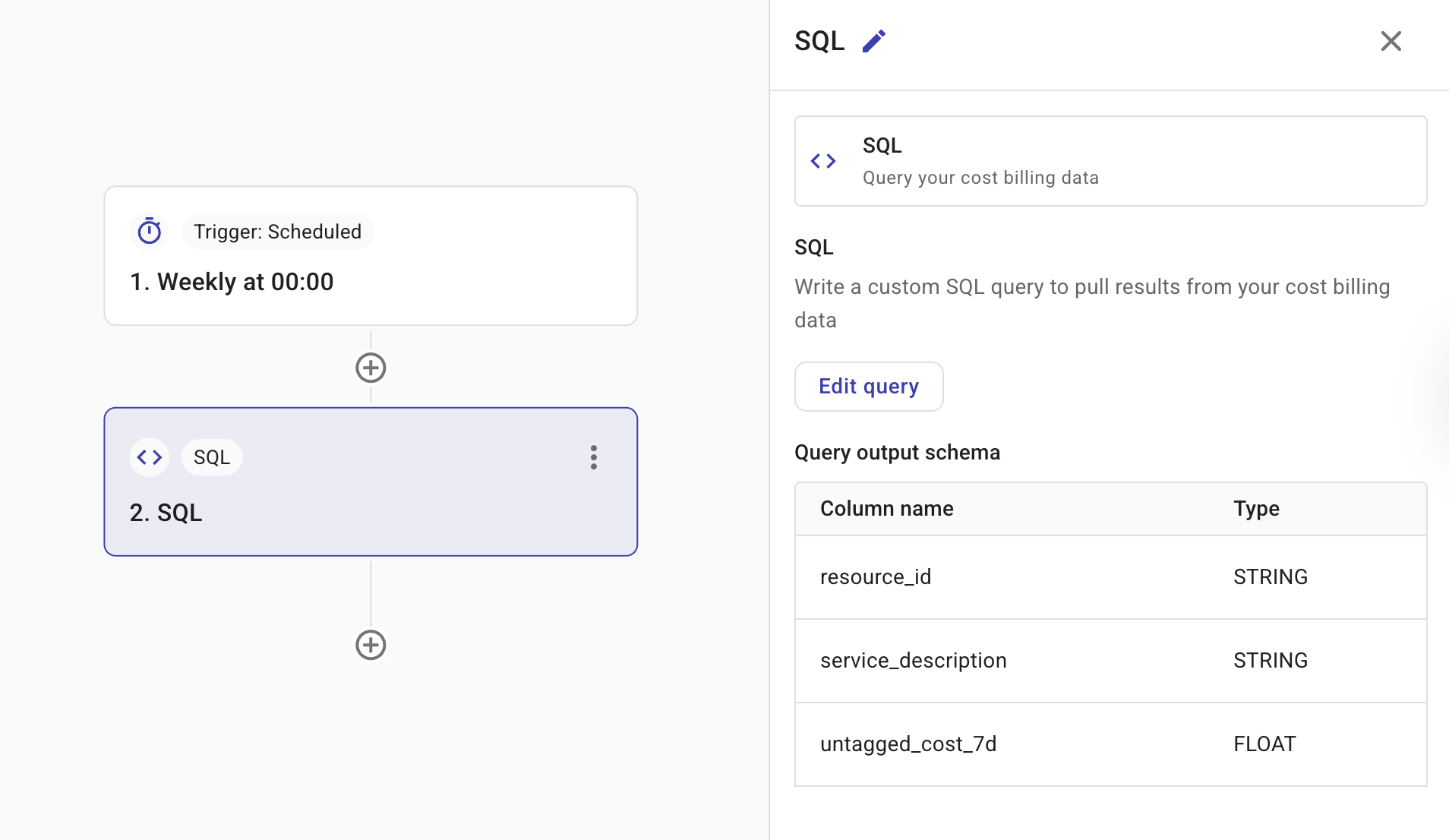
The Query Output Schema shows the expected output from the query. These are the fields that you can reference in subsequent nodes (for example, via the + button). See Node parameters.
Query external BigQuery datasets
You can optionally attach a Google Cloud connection to a SQL node to query BigQuery datasets that exist outside of Cloud Intelligence, for example, tables in your own Google Cloud project.
Connection permissions
To use a connection in a SQL node, you must have access to that connection (Owner, Editor, or User). If you do not have access, the node displays an error and the Run query button is disabled until you select a connection you are authorized to use.
SQL query example
This example joins two external tables to analyze project-specific usage.
SELECT
  u.user_email,
  p.project_name,
  SUM(u.compute_hours) as total_hours
FROM `my-project.usage_data.daily_usage` AS u
JOIN `my-project.inventory.projects` AS p
  ON u.project_id = p.id
WHERE u.usage_date >= DATE_SUB(CURRENT_DATE(), INTERVAL 30 DAY)
GROUP BY 1, 2
ORDER BY total_hours DESC;
Below is an example of a resulting table that shows total compute hours per user and project over the last 30 days.
| user_email | project_name | total_hours |
|---|---|---|
| [email protected] | production-web | 124.5 |
| [email protected] | analytics-prod | 89.2 |
| [email protected] | staging | 42.0 |
| [email protected] | production-web | 31.8 |
Use backticks (`) for any table name that contains a hyphen, such as external datasets (for example, `bigquery-public-data.bbc_news.fulltext`).
Configure a SQL node
To set up an external connection:
-
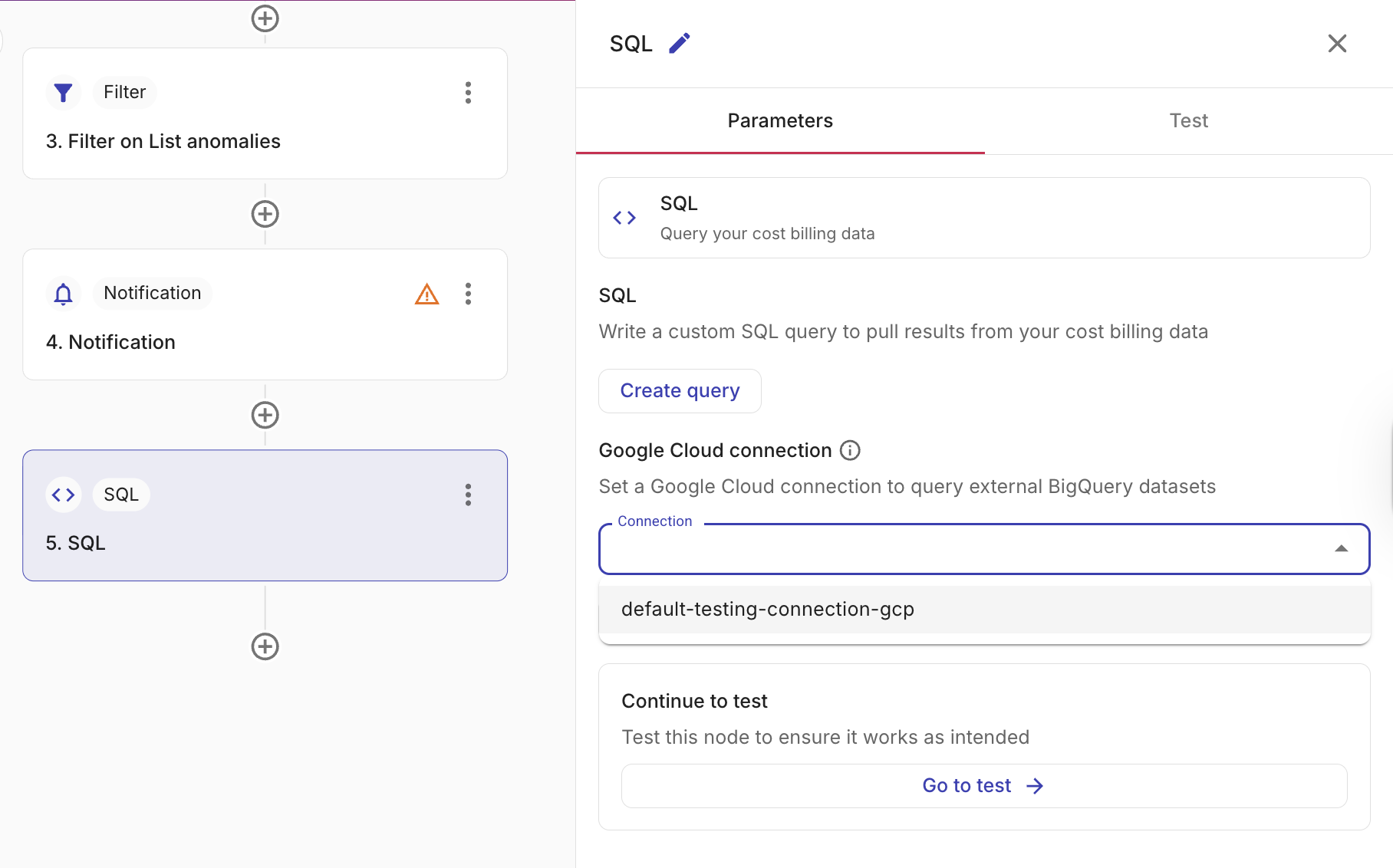
In the SQL node's Parameters tab, scroll to the Google Cloud connection section.
-
From the Connection dropdown, select an existing GCP connection. Only connections you have access to are available.
-
If no suitable connection exists, select Create new to set up a new GCP connection.
After a connection is selected, the SQL node includes tables from the connected Google Cloud project alongside your DoiT billing data aliases.
-
Select Create query. On the Query tab in the Create a SQL query window, write and test your query using fully qualified table names for external datasets (for example,
`my-project.my_dataset.my_table`). As you write, Cloud Intelligence validates your SQL query, instantly highlighting any syntax errors or other potential issues.TipUse Format to automatically indent and line-break your SQL so it is easier to read and edit.
NoteThe SQL query editor automatically saves your query as a draft while you type, preventing data loss if you navigate away. Drafts are stored for 24 hours and are not synced across devices. Selecting Save commits your changes to the flow and clears the local draft. If a draft expires, CloudFlow reverts to the last saved version.
-
Select Run query to test your query. The SQL node editor requires the query to execute successfully before you can create it, ensuring only validated queries are created.
Test
Select Test to test the node.