Google Cloud
In the DoiT console, use the Google Cloud card to create, import, or connect Google Cloud accounts, manage billing accounts and projects, and enable features on Google Cloud resources.
Google Cloud accounts
To create, import, or connect Google Cloud accounts:
-
Navigate to the integrations catalog dashboard.
-
On the Google Cloud card, select the action shown:
-
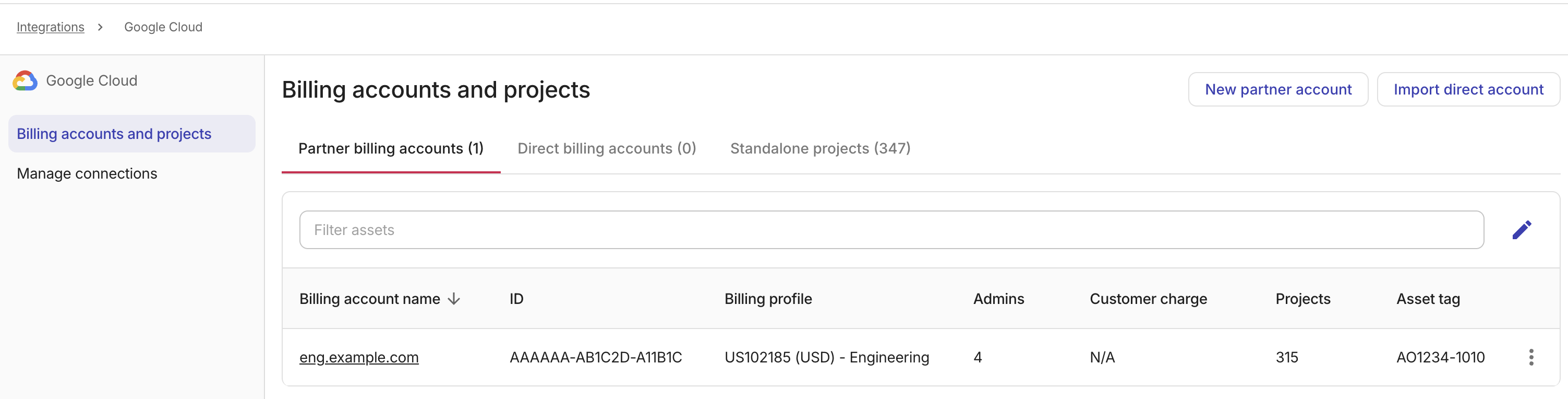
If Details appears, select Details to open Billing accounts and projects. Choose an action to perform:
-
New partner account: Create a subaccount of DoiT's Cloud Billing account.
-
Import direct account: Import historical billing data of Google Cloud projects that have been transferred to a DoiT billing account.
-
Link self-service account: Connect a Google Cloud Billing account that does not purchase cloud services from DoiT. Select the Direct billing accounts or Standalone projects tab to see this option.
-
-
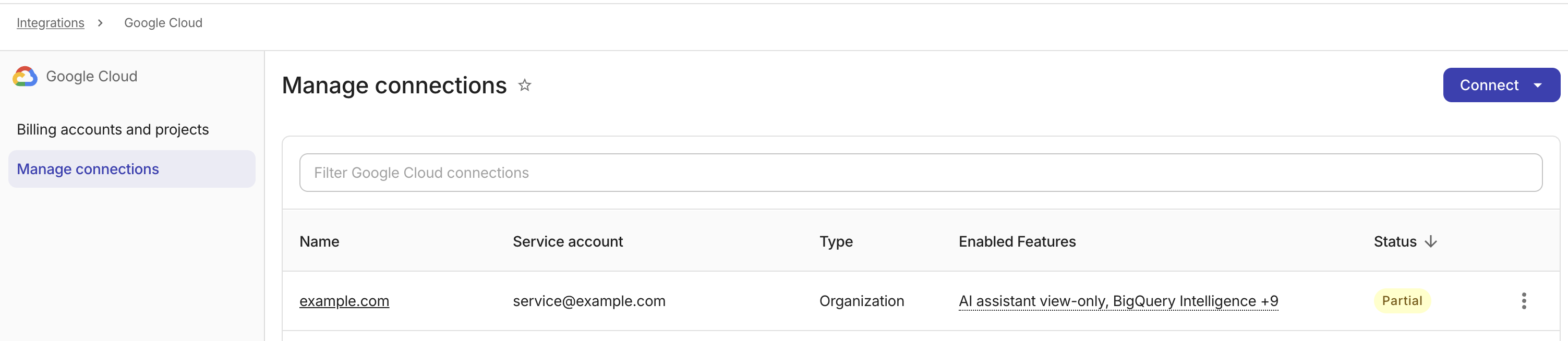
If Connect appears, select Connect to open Manage connections. Continue with Enable features for Google Cloud resources.
-
Google Cloud assets
Google Cloud assets include Google Cloud Billing accounts and Google Cloud projects.
-
On the Google Cloud card, select Details.
-
Locate the asset of interest. You can perform the following assets management tasks:
-
Assign a billing profile: Update the billing profile of a Google Cloud asset.
-
Select the asset name from the assets list to open the asset settings window.
-
Select the target billing profile from the drop-down list.
-
Save your changes.
-
-
Tag asset: Add a tag to a Google Cloud asset.
-
Enable features for Google Cloud resources
To unlock advanced functionalities for your Google Cloud resources:
-
On Google Cloud, open Manage connections:
-
If Connect appears, select Connect. Manage connections opens directly.
-
If Details appears, select Details, and then select Manage connections.
-
-
Select the type of resource from the Connect list. See Connect Google Cloud resources for details.