Tag assets
You can tag an asset for classification purposes.
-
Only one tag is allowed per asset.
-
Tags are on a global tag list and available for use across asset types.
-
Currently, you can't tag Looker assets in the console.
Required permission
- Assets Manager
Tag an asset
To tag an asset:
-
Sign in to the DoiT console, select Data ingestion and integrations > Integrations from the top navigation mega menu.
-
Find the integration of interest.
-
Amazon Web Services and Google Cloud assets:
-
Select the asset name from the assets list or use the kebab menu (⋮) at the rightmost end of the asset entry to open the asset settings window.
-
In the Asset tag field, enter a new tag or select an existing one from the list.
-
Save your changes.
-
-
Oracle Cloud assets:
-
Select the asset name from the assets list.
-
In the Tag field at the bottom of the page, enter a new tag or select an existing one from the list.
-
Save your changes.
-
-
Microsoft Azure, Google Workspace, and Microsoft 365 assets:
-
Select the kebab menu (⋮) in the upper-right corner of the asset card, and then select Tag Asset.
-
Enter a new tag or select an existing one from the list.
-
Save your changes.
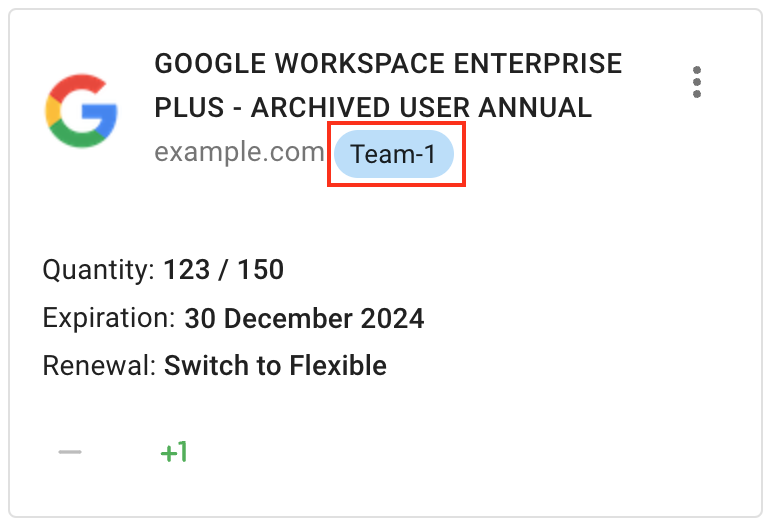
The tag will appear under the asset name.
-
-
Example invoice
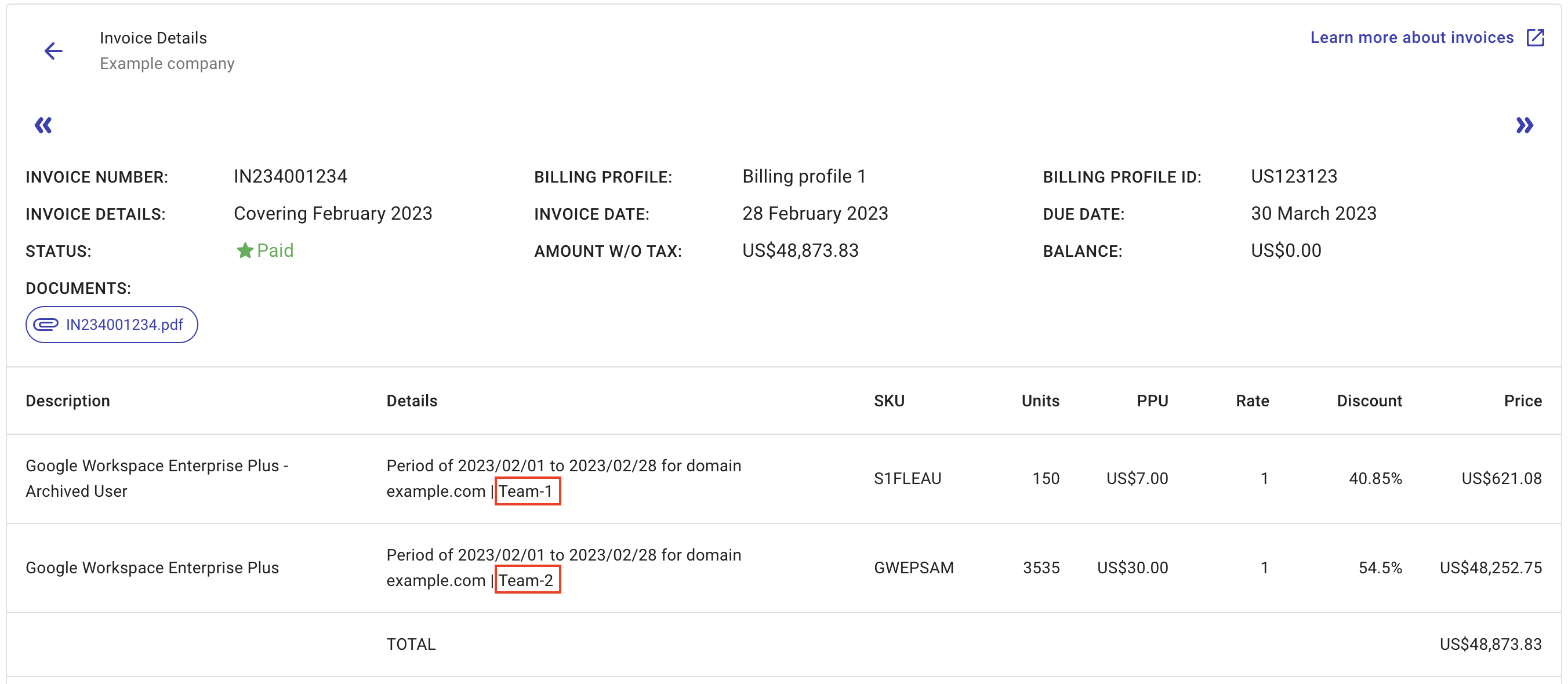
Tags appear on monthly invoices in the Details field, separated from the description by a vertical bar ( | ).
Below is an example invoice issued on a fictitious customer's Google Workspace subscriptions.