Connect Anthropic - Claude.ai
DoiT's Anthropic Analytics API integration uses Claude Enterprise Analytics API to import your Claude Enterprise organization's engagement, adoption, and cost data into Cloud Intelligence. Cost and usage data is available only for usage-based Enterprise plans. Seat-based plans will see data for additional usage charges only.
DoiT offers a separate integration for Claude Console organizations (platform.claude.com). See Anthropic connection types for more information.
Required permissions
-
Your DoiT account must have the Billing Profiles Admin permission.
-
You must be the Claude Enterprise organization's
primary owner.
Generate an Analytics API key
The Claude Enterprise Analytics API requires an Analytics API key created in claude.ai.
-
Sign in to claude.ai as a Primary Owner of your Claude Enterprise organization.
-
Follow the Claude API Docs to create an Analytics API key for your Claude Enterprise organization. Make sure to select the scope
read:analytics. -
Copy the displayed secret (starting with
sk-ant-api01-) before closing the browser window. The full secret is shown only once.CautionTreat the API key like a password. Anyone with the key can read your organization's analytics data.
Connect your Anthropic account
-
Sign in to Cloud Intelligence, select Data ingestion and integrations > Integrations from the top navigation mega menu.
-
Find the Anthropic - Claude.ai integration card.
-
Select Connect + if you're adding the first account; or select Manage and then select Connect Anthropic (Analytics API).
-
Enter your credentials: the Organization Label and the Analytics API Key.
-
Organization Label: A free-form slug that identifies this Anthropic organization in DoiT (e.g.
my-org). Used to distinguish multiple connections. You can choose any stable identifier; it is not validated against Anthropic. -
Analytics API Key: API key with the
read:analyticsscope.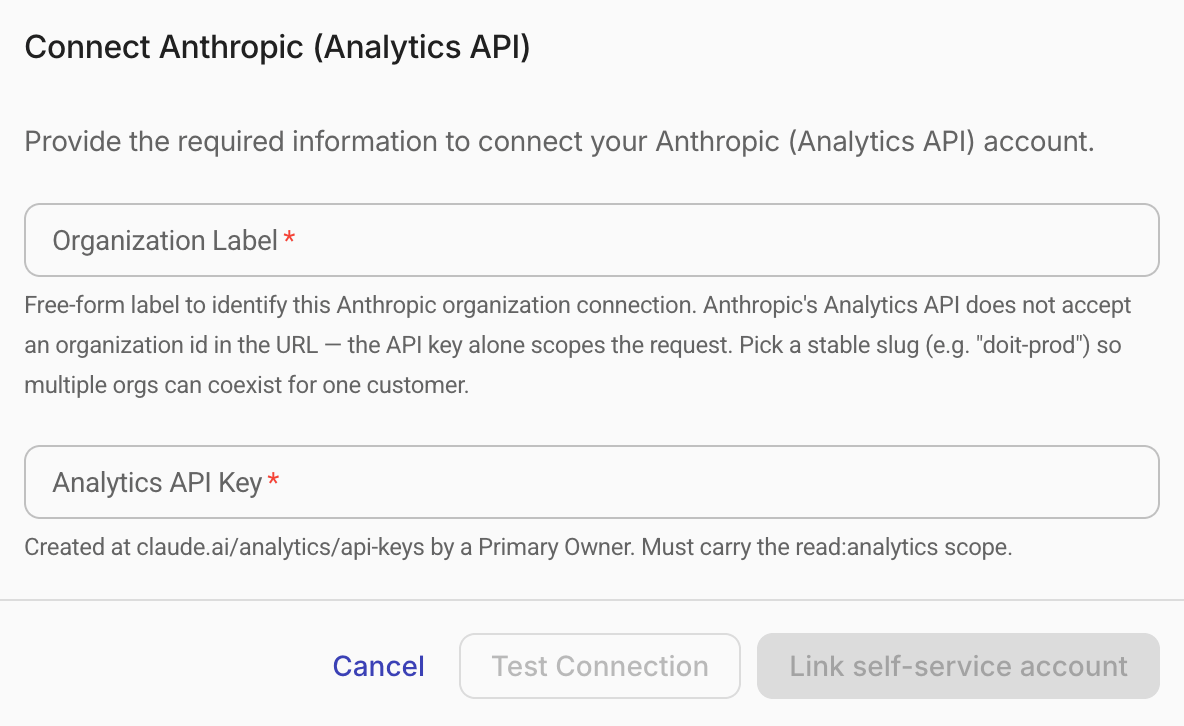
-
-
Select Test connection to verify DoiT can access your data.
-
If the test is successful, select Save to complete the setup.
If the test fails or you need further assistance, please open an expert inquiry.
Upon initial connection, DoiT ingests up to 90 days of historical usage and cost data. The import process can take a few hours.
Data refresh
DoiT refreshes your Anthropic data every 6 hours. Cost and usage data is typically available within 24 hours; engagement metrics (active users, project usage, skills) are aggregated daily and available for dates at least 3 days in the past.
GenAI Intelligence
Once your Anthropic data is ingested into Cloud Intelligence, it automatically feeds the GenAI Intelligence dashboards. These widgets give you a pre-built view of your AI spend, token consumption, active users, and model usage trends.
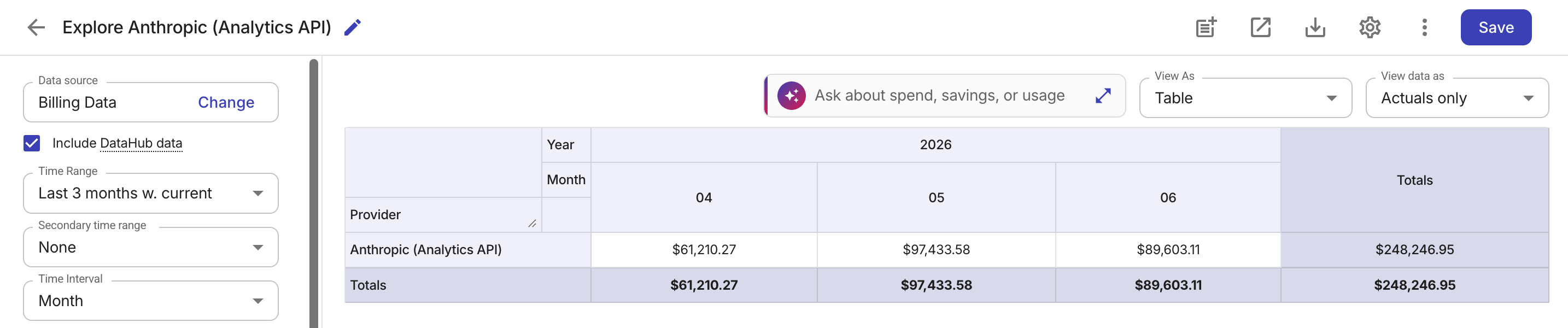
You can also select Analyze on the Anthropic - Claude.ai integration card or on the integration's detail page to open a Cloud Analytics report pre-filtered to your Claude Enterprise organization's dataset.
Reporting dimensions
Once connected, Anthropic data maps to the following standard Cloud Analytics dimensions:
| Cloud Analytics dimension | Anthropic value | Example |
|---|---|---|
| Provider | Anthropic (Analytics API) | Anthropic (Analytics API) |
| Billing Account | Organization Label | my-org |
| Project/Account ID | User ID | user_abc123 |
| Service | Claude product | claude_code, chat, cowork |
| SKU | Model ID | claude-sonnet-4-6 |
Anthropic-specific labels are found in the GenAI section in Cloud Analytics.
Delete your Anthropic connection
-
Sign in to Cloud Intelligence, select Data ingestion and integrations > Integrations from the top navigation mega menu.
-
Find the Anthropic - Claude.ai integration card.
-
Select Manage on the integration card.
-
Select the kebab menu (⋮) at the rightmost end of the account you want to remove and select Disconnect.
-
Select the kebab menu (⋮) again and select Delete to remove the connection.