Notify owners of AWS Health scheduled maintenance
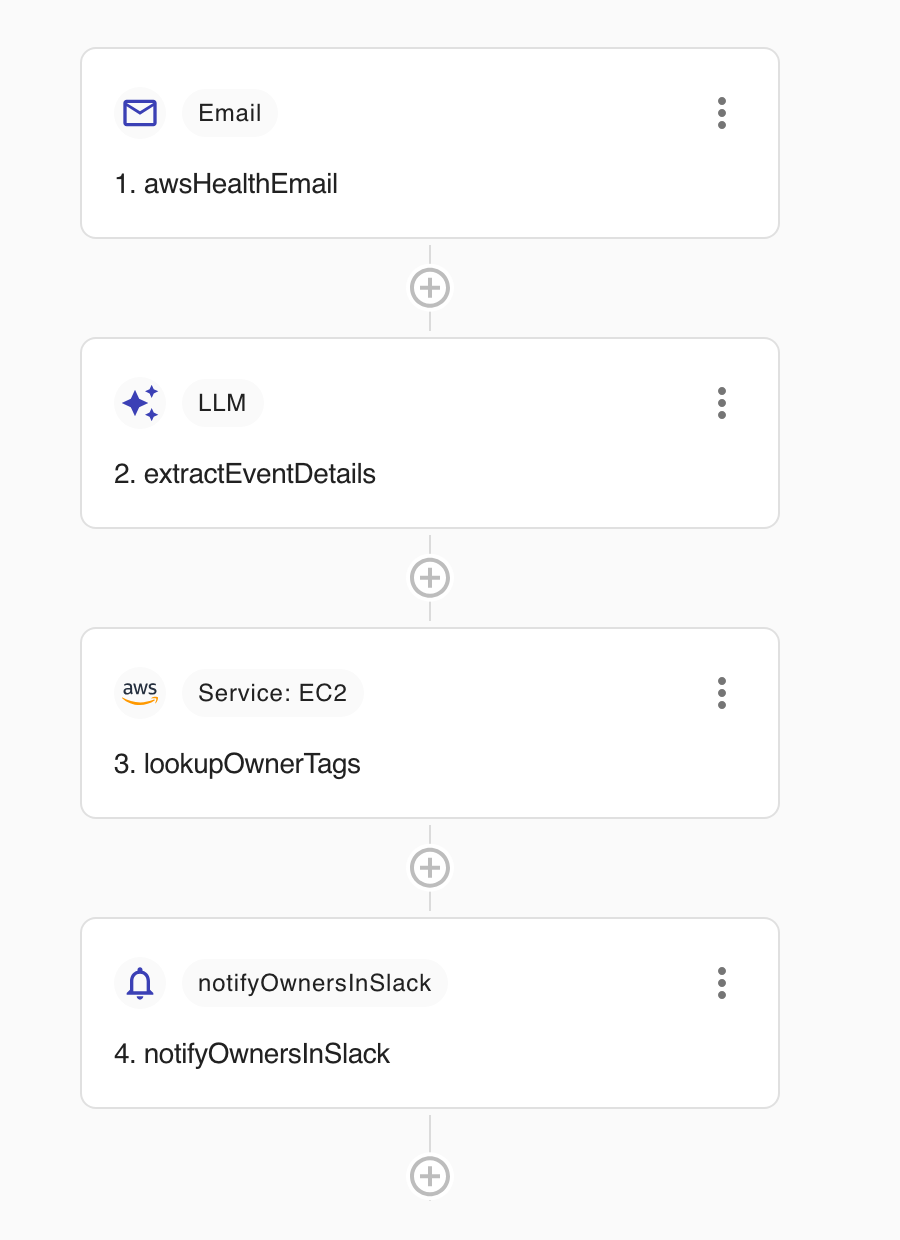
This tutorial uses a CloudFlow template that turns AWS Health notification emails into actionable Slack alerts. An Email trigger receives the AWS Health email, an LLM node extracts the affected account, region, instance IDs, and action deadline, an AWS node looks up each instance's owner tags with DescribeTags, and a Notification node posts the result to Slack.
Goal and objectives
-
Goal: Get a Slack alert with the affected instances, their owner tags, and the action deadline whenever AWS schedules maintenance (for example, an instance retirement or reboot) — without anyone reading the AWS Health mailbox.
-
Objectives: In this tutorial, you'll learn how to:
-
Start a flow from an inbound email with sender restrictions.
-
Use an LLM node to extract structured fields from an email body.
-
Reference the extracted fields in an AWS action and a Slack message.
-
Route AWS Health notifications to the flow's inbound address.
-
Below is the complete flow:
The flow only reads tags (ec2:DescribeTags) and sends a Slack message. It never modifies your AWS resources.
Before you begin
-
Make sure your DoiT account has the CloudFlow Editor or CloudFlow Manager permission. See CloudFlow permissions.
-
Create an AWS CloudFlow connection for the accounts that receive AWS Health events. The role needs the
ec2:DescribeTagspermission. -
Connect Slack and identify the channel that should receive the alerts.
-
Decide which tag keys identify the owner of an instance in your organization (for example,
OwnerorTeam).
Create the flow from the template
-
Sign in to the DoiT console, select Automation and operations from the top navigation mega menu, and then select CloudFlow.
-
Select Templates, then select Notify owners of AWS Health scheduled maintenance.
The flow opens in the editor with four preconfigured nodes. The following sections walk through each node.
Review the email trigger
-
Open the
awsHealthEmailtrigger. -
Under Sender restrictions, keep
[email protected]— the address AWS Health uses for its notifications. With this restriction, emails from any other sender are ignored. -
Keep Require verified sender enabled. It rejects emails that fail SPF/DKIM authentication for the sender's domain, so spoofed emails can't start the flow.
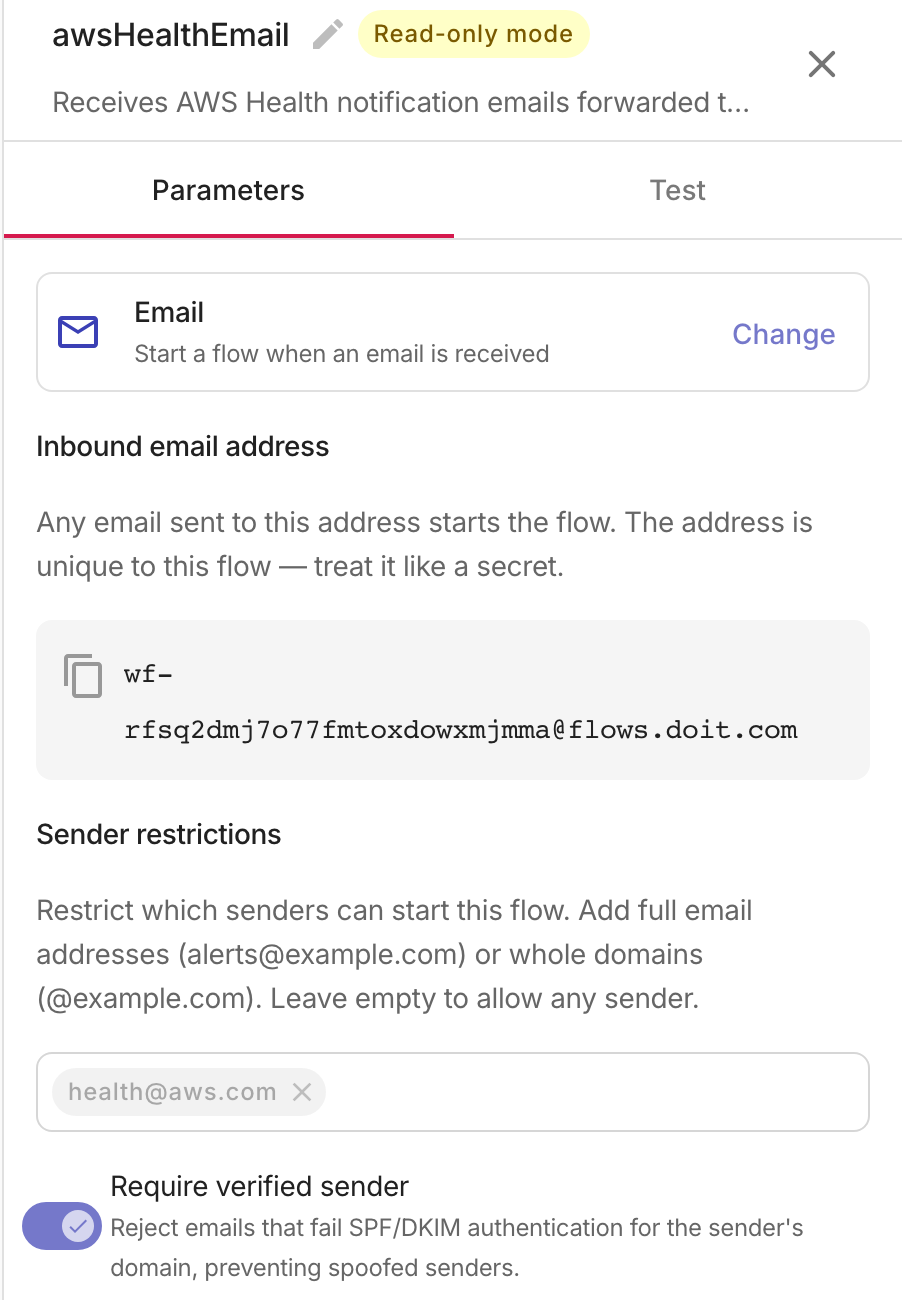
The Inbound email address is issued when you publish the flow. Any email sent to that address starts a run, so treat the address like a secret.
Review the LLM extraction
The extractEventDetails node reads the email subject and plain-text body (referenced from the trigger's triggerPayload) and returns one structured result.
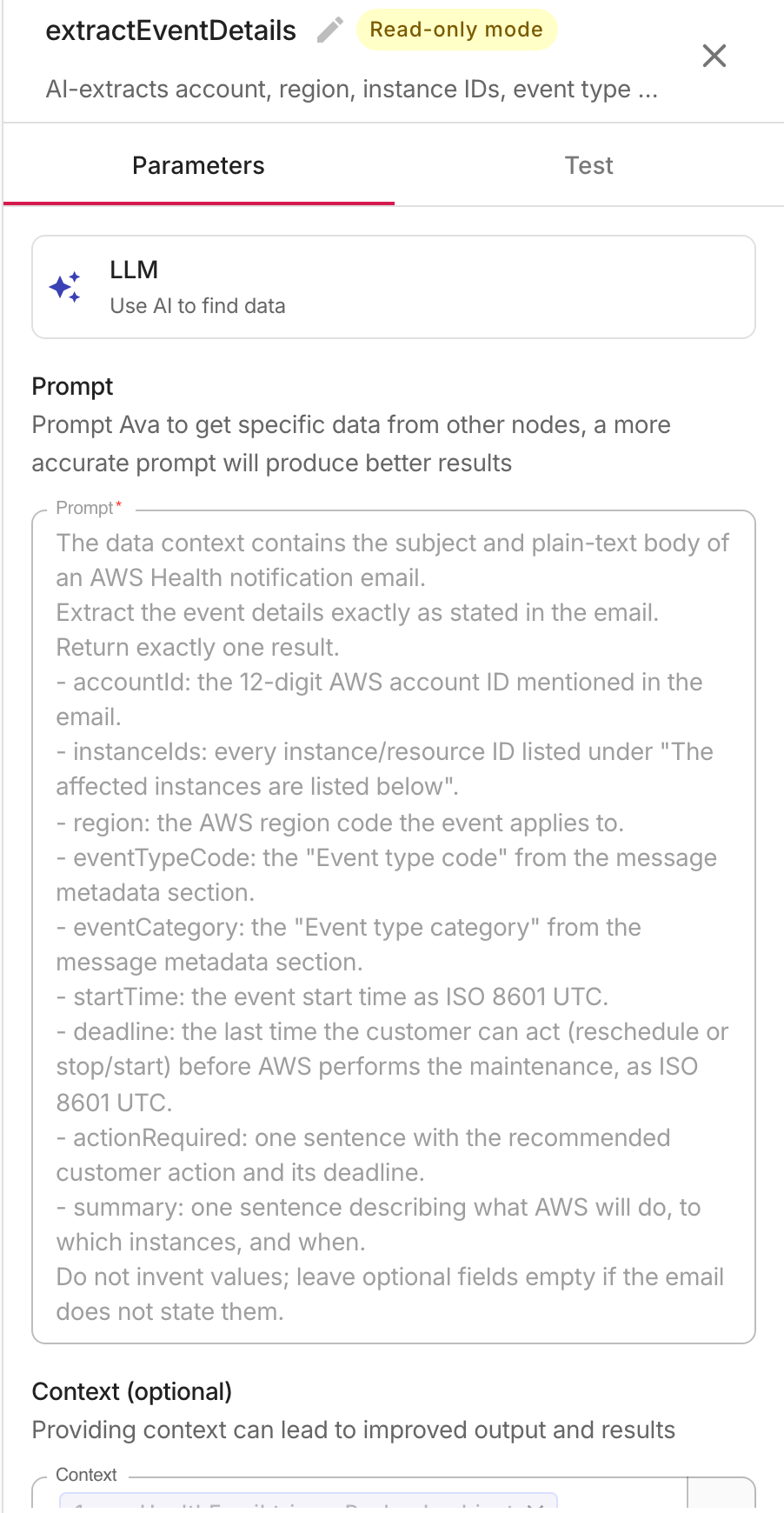
The node uses the Advanced schema mode so that downstream nodes can reference typed fields:
-
accountId,region,service— where the event applies. -
eventTypeCode,eventCategory— for example,AWS_EC2_INSTANCE_STOP_SCHEDULEDandscheduledChange. -
instanceIds— every affected instance listed in the email. -
startTime,deadline— the maintenance window and the last time you can act before AWS does. -
actionRequired,summary— one-sentence descriptions used in the Slack message.
The prompt instructs the model to extract values exactly as stated in the email and to leave optional fields empty rather than invent them. AWS Health emails follow a stable structure, but the LLM extraction also tolerates wording differences between event types (retirement, reboot, network maintenance, and so on).
Review the owner lookup
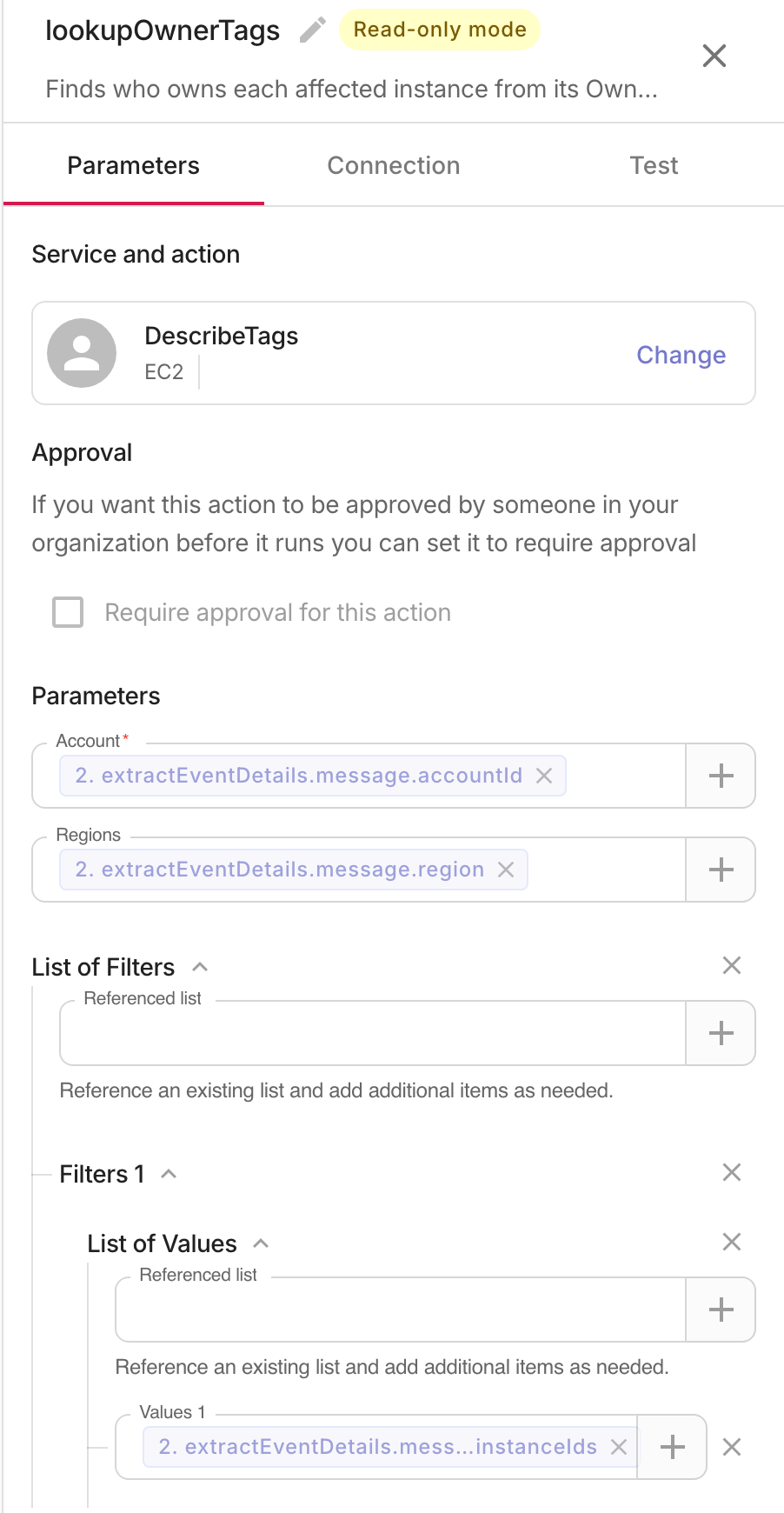
The lookupOwnerTags node calls the EC2 DescribeTags operation using values extracted by the previous step:
-
Account and Regions reference
extractEventDetails.message.accountIdand.region, so the lookup always runs in the account and region named in the email. -
The first filter,
resource-id, referencesextractEventDetails.message.instanceIds— the list of affected instances. -
The second filter,
key, restricts results to identifying tags:Owner,owner,Team, andName. Adjust the list to match your organization's tagging convention. -
On the Connection tab, select your AWS connection.
Review the Slack notification
The notifyOwnersInSlack node posts one message per event:
-
In Slack channel, select the channel that should receive the alerts.
-
The Message combines the extracted fields with a
<table>block that renders one row per matching tag, so each affected instance appears with its owner: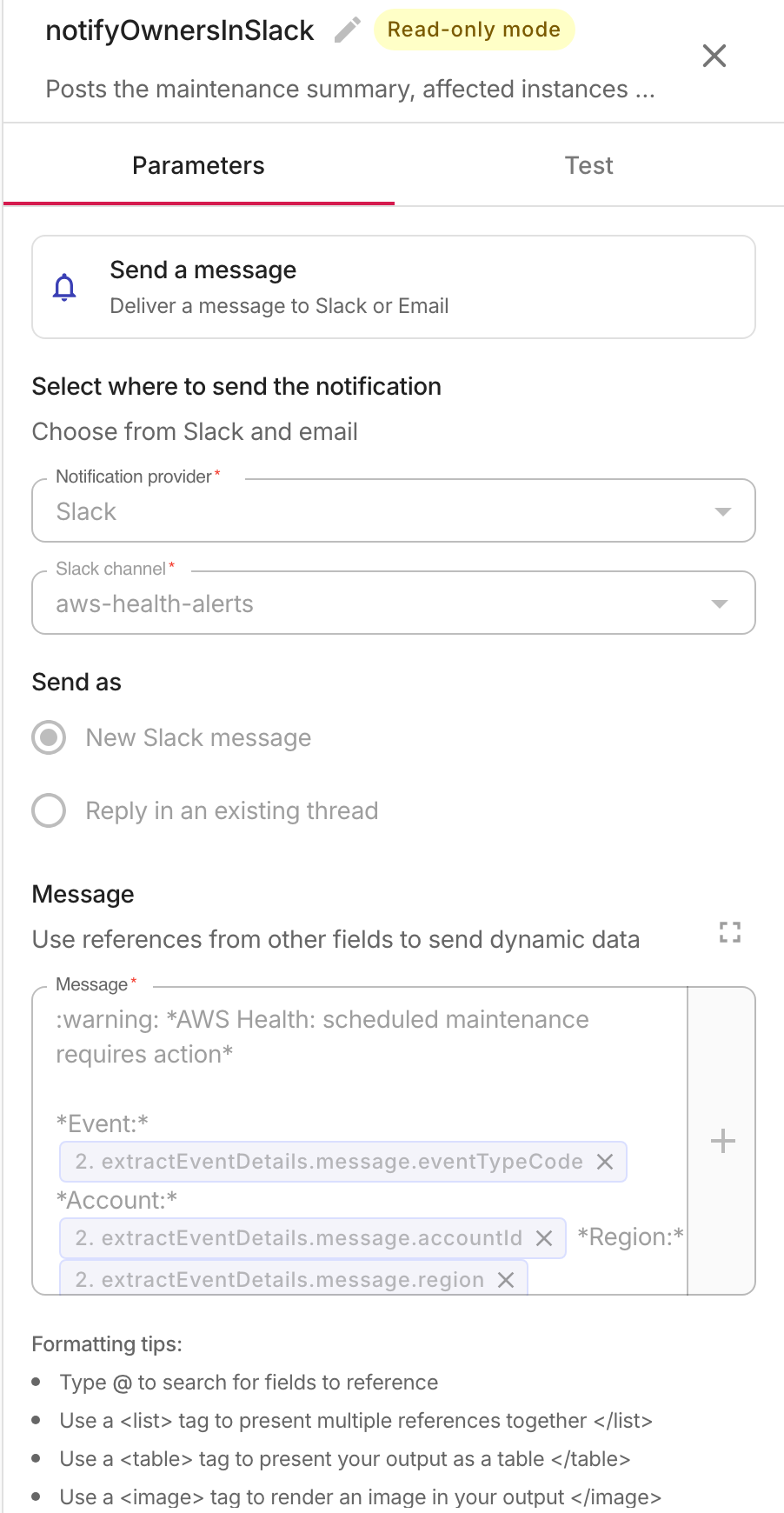
If an instance has no matching tags, the table is empty but the alert still reports the event, account, region, and deadline.
Publish and route AWS Health emails
-
Select Publish. CloudFlow issues the flow's unique inbound address (
[email protected]), shown on the trigger's Parameters tab. -
Route AWS Health notifications to that address using either option:
-
In the AWS console, open User Notifications and add the flow's inbound address as an email delivery channel for AWS Health notifications.
-
Or add a forwarding rule in your mail system that forwards emails from
[email protected]to the flow's inbound address.
-
-
To verify the setup, forward a recent AWS Health email to the inbound address from an address on your allowlist, or wait for the next real event.
Email-triggered flows can't be run manually with the Run button — a run starts when an email arrives. Duplicate deliveries of the same email (same Message-ID) are ignored for four days.
Monitor the flow
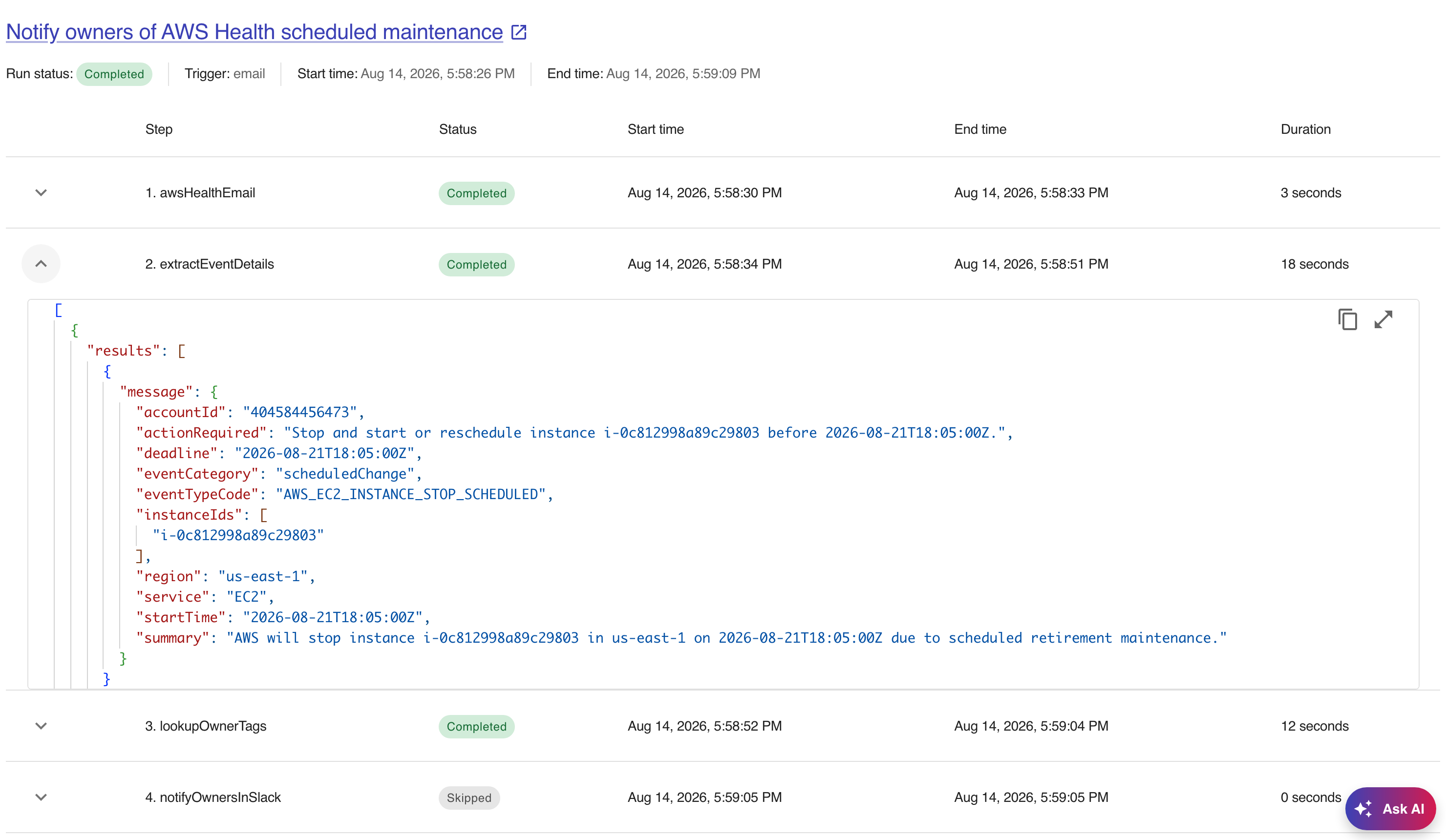
On the Run history page, open a run and expand each step to inspect its input and output. The extractEventDetails step shows the structured fields parsed from the email: