Disable Anthropic API keys over spend threshold
This tutorial walks you through building a flow that deactivates Anthropic API keys when their attributed spend exceeds a per-key USD threshold stored in CloudFlow Datastore. Along the way you'll learn how to combine Anthropic Cost and Usage actions with Date/time transform, Datastore, Code, and Notification nodes.
Anthropic Admin API actions are available under early preview. To request access, submit a support request.
Goal and objectives
-
Goal: To create a workflow that loads per-key spend thresholds from Datastore, measures spend over a shared rolling lookback window, deactivates keys that exceed their threshold, emails a notice, and records an enforcement event.
-
Objectives: In this tutorial, you'll learn how to:
-
Build a UTC day-aligned reporting window with a date/time transform node.
-
Store configurable thresholds in Datastore and load only enabled rows.
-
Call Anthropic Cost and Usage Admin API actions from the same flow.
-
Use a code node to attribute organization USD spend to API keys by token share.
-
Deactivate keys with
updateApiKeyand notify recipients with referenced fields.
-
Below is the complete flow you'll build:
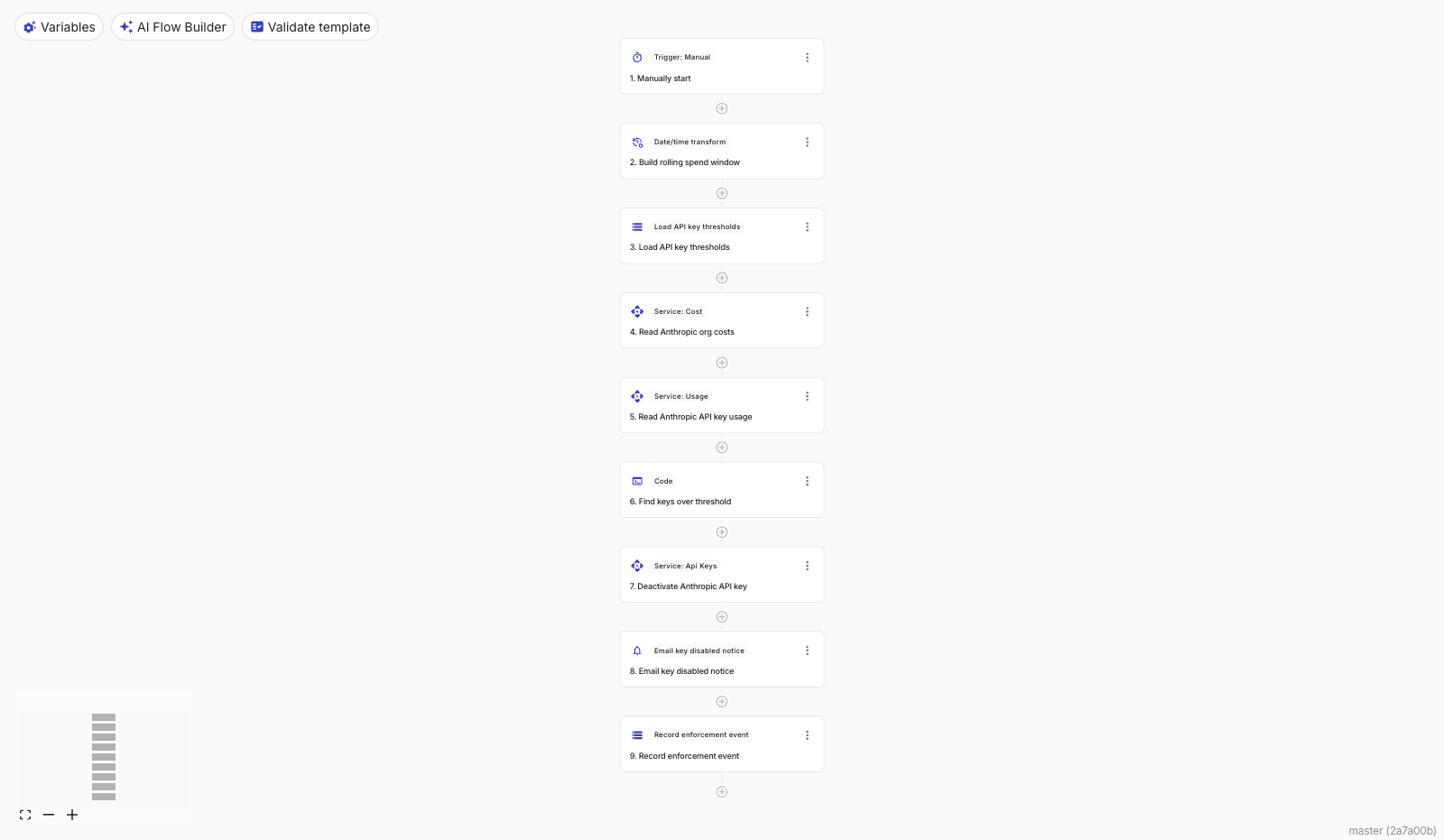
How the spend check works
Anthropic's Cost API returns organization spend in USD, but it cannot group results by api_key_id. The Messages Usage API can group by API key, but it returns token counts rather than dollars.
This flow therefore:
-
Reads organization cost for the lookback window.
-
Reads Messages usage grouped by
api_key_idfor the same window. -
Attributes organization USD to each key in proportion to that key's token share.
-
Compares each enabled Datastore threshold to the attributed amount.
Daily Cost buckets also require UTC midnight bounds. Afternoon timestamps can snap to an empty range and fail the Cost request, so the date/time node truncates to the start of the day.
Before you begin
-
Create an Anthropic Admin API connection with an Admin API key that can list and update API keys and read cost and usage reports.
-
In CloudFlow Datastore, create two tables:
-
Anthropic API Key Spend Thresholds with fields:
-
apiKeyId(text, unique) -
apiKeyName(text) -
thresholdUsd(numeric) -
notifyEmail(text) -
enabled(boolean)
-
-
Anthropic API Key Spend Enforcement Events with fields:
-
eventKey(text, unique) -
apiKeyId,apiKeyName,notifyEmail,action(text) -
spendUsd,thresholdUsd(numeric) -
lookbackDays(integer) -
periodStart,periodEnd,enforcedAt(timestamp)
-
-
-
Add at least one threshold row. Leave
enabledset tofalseuntil you are ready to enforce, and replaceapiKeyIdwith a real Anthropic API key ID from the Claude Console or alistApiKeysaction.
Start building
-
Sign in to the DoiT console, select Automation and operations from the top navigation mega menu, and then select CloudFlow.
-
Select Create CloudFlow.
Step 1: Add a trigger
In the What should start your flow block, select Manually start. You can switch to a custom schedule later — for example, to run the check daily — but a manual trigger is easier while you build and test.
Step 2: Build the rolling spend window
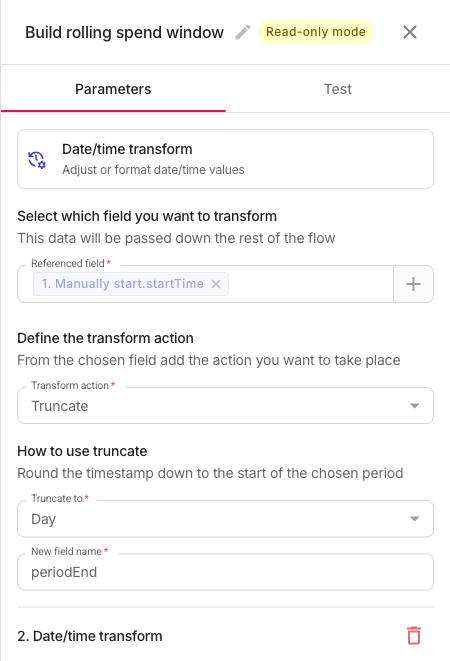
Anthropic Cost reports with bucket_width=1d expect UTC midnight bounds. Configure a date/time transform on the manual trigger's startTime field:
-
Add a Date/time transform node and name it
Build rolling spend window. -
Select
1. Manually start.startTimeas the field to transform. -
Add these transforms in order:
-
Truncate to Day, new field
periodEnd. -
Format
periodEndas ISO 8601, new fieldperiodEndIso. -
Truncate
1. Manually start.startTimeto Day again, new fielddayStart. -
Subtract
1Days fromdayStart, new fieldperiodStart. Change the subtract value later to widen the shared lookback. -
Format
periodStartas ISO 8601, new fieldperiodStartIso.
-
With a subtract value of 1, the window is yesterday 00:00 UTC through today 00:00 UTC — one complete daily Cost bucket. Today's incomplete day is not included, which matches Anthropic's daily aggregation behavior.
Date/time steps that reference the same node can only use the previous step's new field. After you format periodEnd into a string, truncate the trigger startTime again before subtracting.
Step 3: Load enabled thresholds
-
Add a Datastore node and name it
Load API key thresholds. -
Select the Anthropic API Key Spend Thresholds table.
-
Set Action to Get.
-
Add a filter:
enabled == true.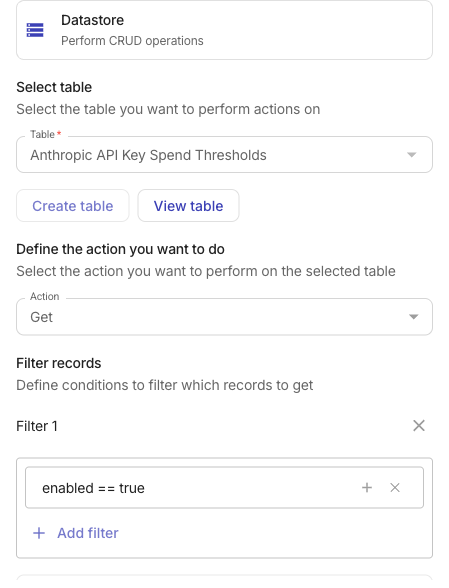
Keeping thresholds in Datastore lets you change limits, recipients, and which keys are enforced without editing the flow.
Step 4: Read organization costs
-
Add an Anthropic Perform an action node and name it
Read Anthropic org costs. -
Select the
getCostReportaction from the Cost service. -
On the Connection tab, select your Anthropic Admin API connection.
-
On the Parameters tab, set:
-
Starting_at:
2. Build rolling spend window.periodStartIso -
Ending_at:
2. Build rolling spend window.periodEndIso -
Bucket_width:
1d -
Limit:
31
Do not add
group_by[]=api_key_id. The Cost API rejects that dimension.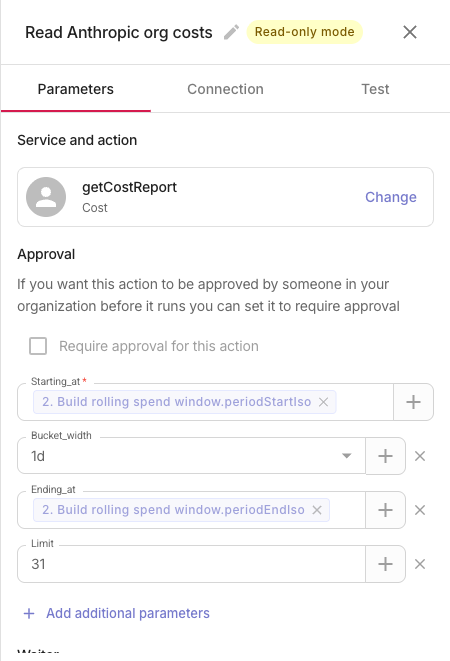
-
Cost amounts are returned in lowest currency units as decimal strings. For USD, divide by 100 to get dollars.
Step 5: Read usage by API key
-
Add another Anthropic action node and name it
Read Anthropic API key usage. -
Select the
getMessagesUsageReportaction from the Usage service. -
Use the same connection and the same
periodStartIso/periodEndIsoreferences. -
Set Bucket_width to
1dand Limit to31. -
Select Add additional parameters, choose group_by[], and set the value to
api_key_id.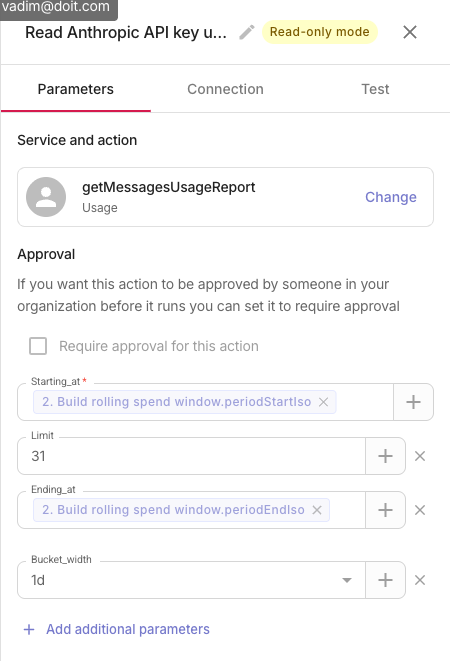
Step 6: Find keys over threshold
Stock nodes can load thresholds and call Anthropic, but summing daily buckets, converting cents to USD, attributing spend by token share, and emitting one violation record per over-limit key is clearest in a code node.
-
Add a Code node and name it
Find keys over threshold. -
Use an advanced schema for an array of objects with fields such as
eventKey,apiKeyId,apiKeyName,spendUsd,thresholdUsd,lookbackDays,periodStart,periodEnd,notifyEmail,action, andenforcedAt. -
In the code editor, aggregate Cost amounts into organization USD, sum Usage tokens per
api_key_id, attribute spend by token share, and return only keys whose attributed spend meets or exceedsthresholdUsd.The comparison logic looks like this:
const keyTokens = tokensByKey.get(apiKeyId) ?? 0;const spendUsd =totalTokens > 0? Number(((orgSpendUsd * keyTokens) / totalTokens).toFixed(6)): 0;if (spendUsd < thresholdUsd) continue;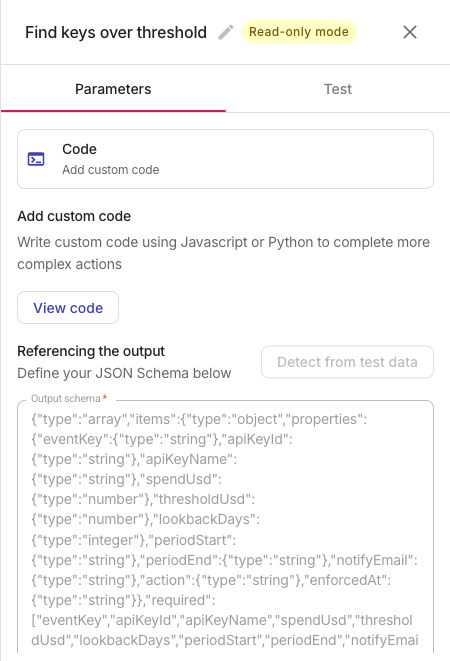
Skip placeholder rows and disabled thresholds so a draft Datastore seed cannot deactivate the wrong key.
Step 7: Deactivate over-limit keys
-
Add an Anthropic action node and name it
Deactivate Anthropic API key. -
Select
updateApiKeyfrom the Api Keys service. -
Set api_key_id to
6. Find keys over threshold.message.apiKeyIdand status toinactive.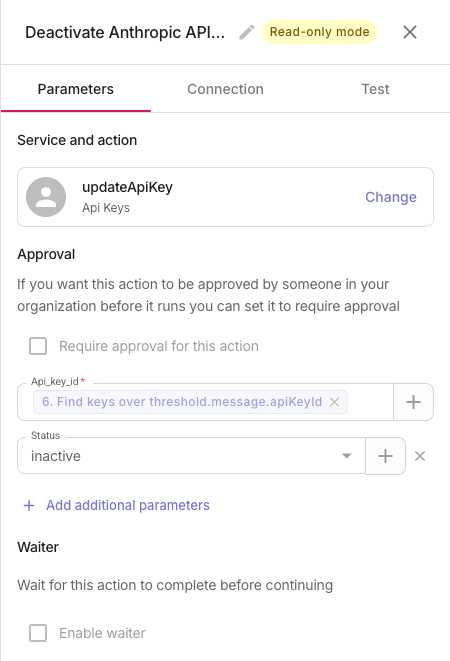
CloudFlow runs this action once per violation record returned by the code node.
Step 8: Email a notice
-
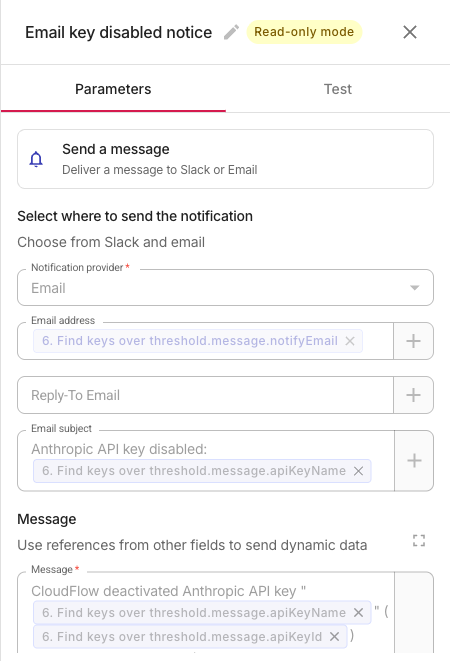
Add a Send a message node and name it
Email key disabled notice. -
Set Notification provider to Email.
-
Set the recipient to
6. Find keys over threshold.message.notifyEmail. -
Build a subject and message from referenced fields such as
apiKeyName,apiKeyId,spendUsd,thresholdUsd, andlookbackDays. Useformat(..., "#,##0.00")for currency values when your notification templates support it. -
Enable Don't send notification if no results so empty runs stay quiet.
Step 9: Record enforcement events
-
Add a Datastore node and name it
Record enforcement event. -
Select the Anthropic API Key Spend Enforcement Events table.
-
Set Action to Upsert with upsert key
eventKey. -
Map columns from
6. Find keys over threshold.message— for exampleeventKey,apiKeyId,spendUsd,thresholdUsd,periodStart,periodEnd, andenforcedAt.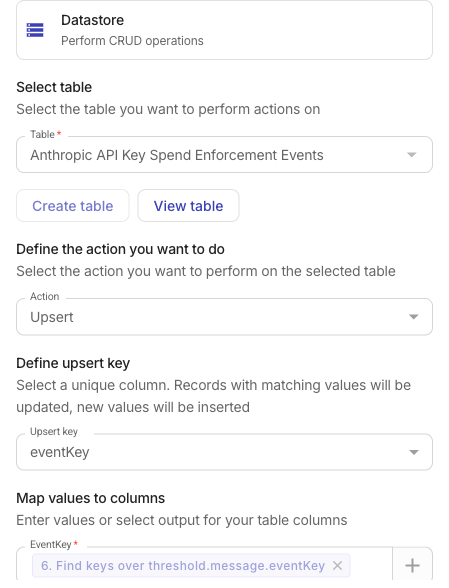
Using apiKeyId:periodStart:periodEnd as eventKey keeps one audit row per key per reporting window.
Publish and run the flow
-
In Datastore, set a real
apiKeyId, choose athresholdUsdthat matches the behavior you want to verify, setnotifyEmail, and flipenabledtotrueonly when you are ready for the flow to deactivate keys. -
Select Publish, then select Run.
-
On the Run history page, expand each step to inspect outputs. A successful dry run with no enabled over-limit keys completes every step and upserts zero enforcement rows.
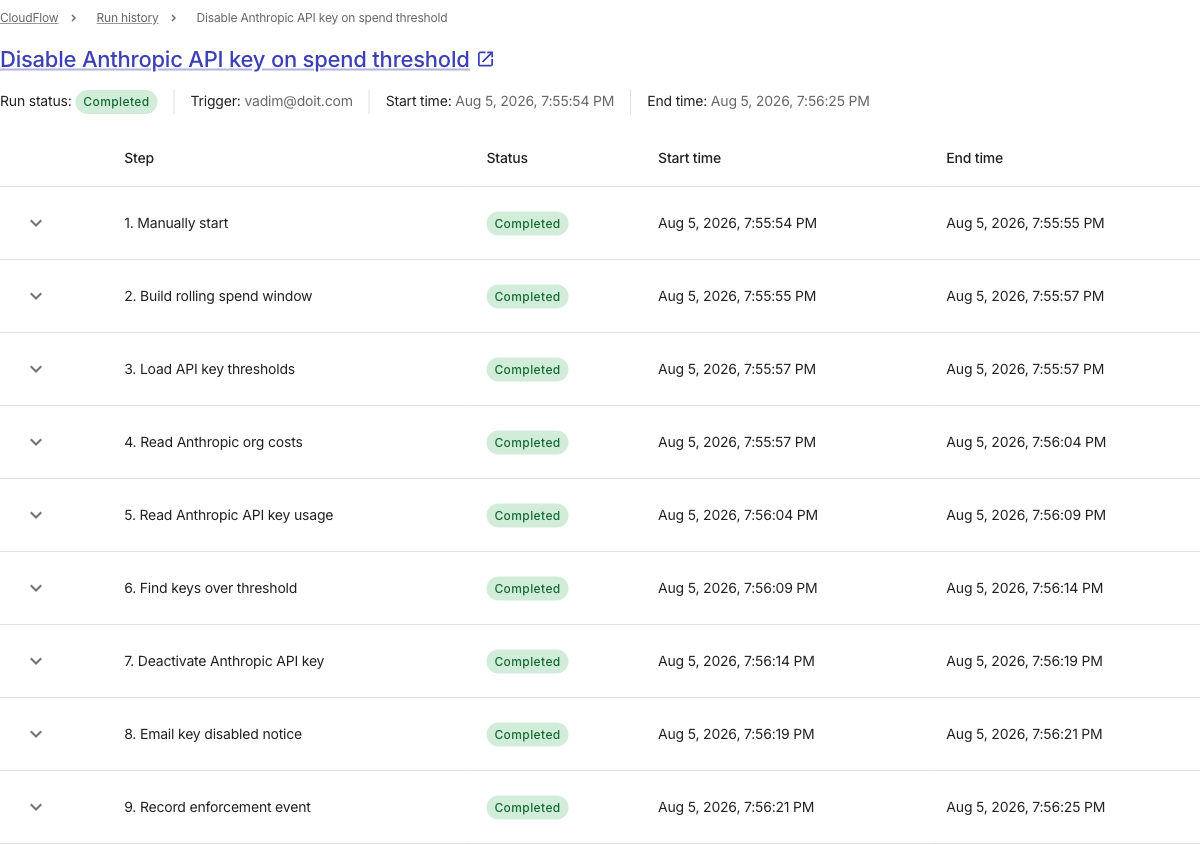
When a key is over threshold, the flow deactivates it, emails the configured recipient, and writes an enforcement event you can review later in Datastore or on a dashboard widget.