AWS Health のスケジュール済みメンテナンスを所有者に通知する
このチュートリアルでは、AWS Health からの通知メールを、実際に対応可能な Slack アラートに変換する CloudFlow テンプレートを使用します。Email trigger が AWS Health のメールを受信し、LLM node が影響を受けるアカウント・地域・インスタンス ID・対応期限を抽出し、AWS node が DescribeTags を使用して各インスタンスの所有者タグを取得し、Notification node が結果を Slack に投稿します。
Goal and objectives
-
Goal: AWS がメンテナンスをスケジュールしたとき(例: インスタンスのリタイアや再起動)に、誰かが AWS Health のメールボックスを読むことなく、影響を受けるインスタンスとその所有者タグ、対応期限を含む Slack アラートを受け取れるようにすること。
-
Objectives: このチュートリアルでは、次の内容を学びます。
-
送信者制限付きの受信メールからフローを開始する方法。
-
メール本文から構造化されたフィールドを抽出するために LLM node を使用する方法。
-
抽出されたフィールドを AWS アクションおよび Slack メッセージで参照する方法。
-
AWS Health の通知をフローの受信アドレスにルーティングする方法。
-
以下がフロー全体です。
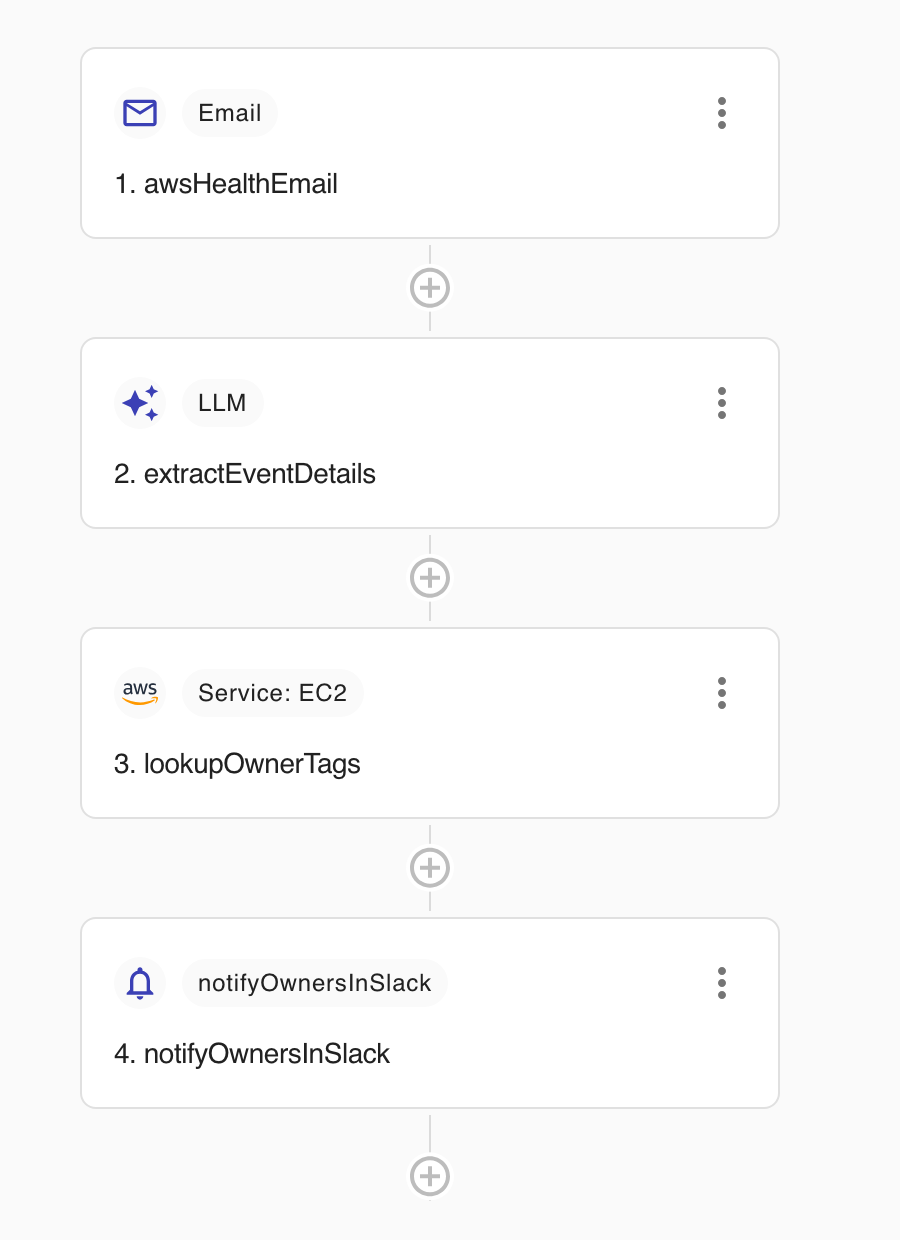
このフローはタグ(ec2:DescribeTags)を読み取り、Slack メッセージを送信するだけです。AWS リソースを変更することはありません。
Before you begin
-
DoiT アカウントに CloudFlow Editor または CloudFlow Manager 権限が付与されていることを確認してください。CloudFlow permissions を参照してください。
-
AWS Health イベントを受信するアカウント向けに、AWS CloudFlow connection を作成してください。ロールには
ec2:DescribeTags権限が必要です。 -
Slack を接続し、アラートを受信するチャンネルを特定してください。
-
組織内でインスタンスの所有者を識別するタグキー(例:
OwnerやTeam)を決めてください。
Create the flow from the template
-
DoiT コンソールにサインインし、上部ナビゲーションのメガメニューから Automation and operations を選択し、CloudFlow を選択します。
-
Templates を選択し、Notify owners of AWS Health scheduled maintenance を選択します。
エディタで 4 つの事前設定済みノードを持つフローが開きます。以降のセクションで各ノードを順に確認します。
Review the email trigger
-
awsHealthEmailトリガーを開きます。 -
Sender restrictions では、
[email protected]をそのまま保持します。これは AWS Health が通知に使用するアドレスです。この制限により、それ以外の送信者からのメールは無視されます。 -
Require verified sender は有効のままにします。送信者ドメインに対する SPF/DKIM 認証に失敗したメールを拒否するため、なりすましメールでフローが開始されることはありません。
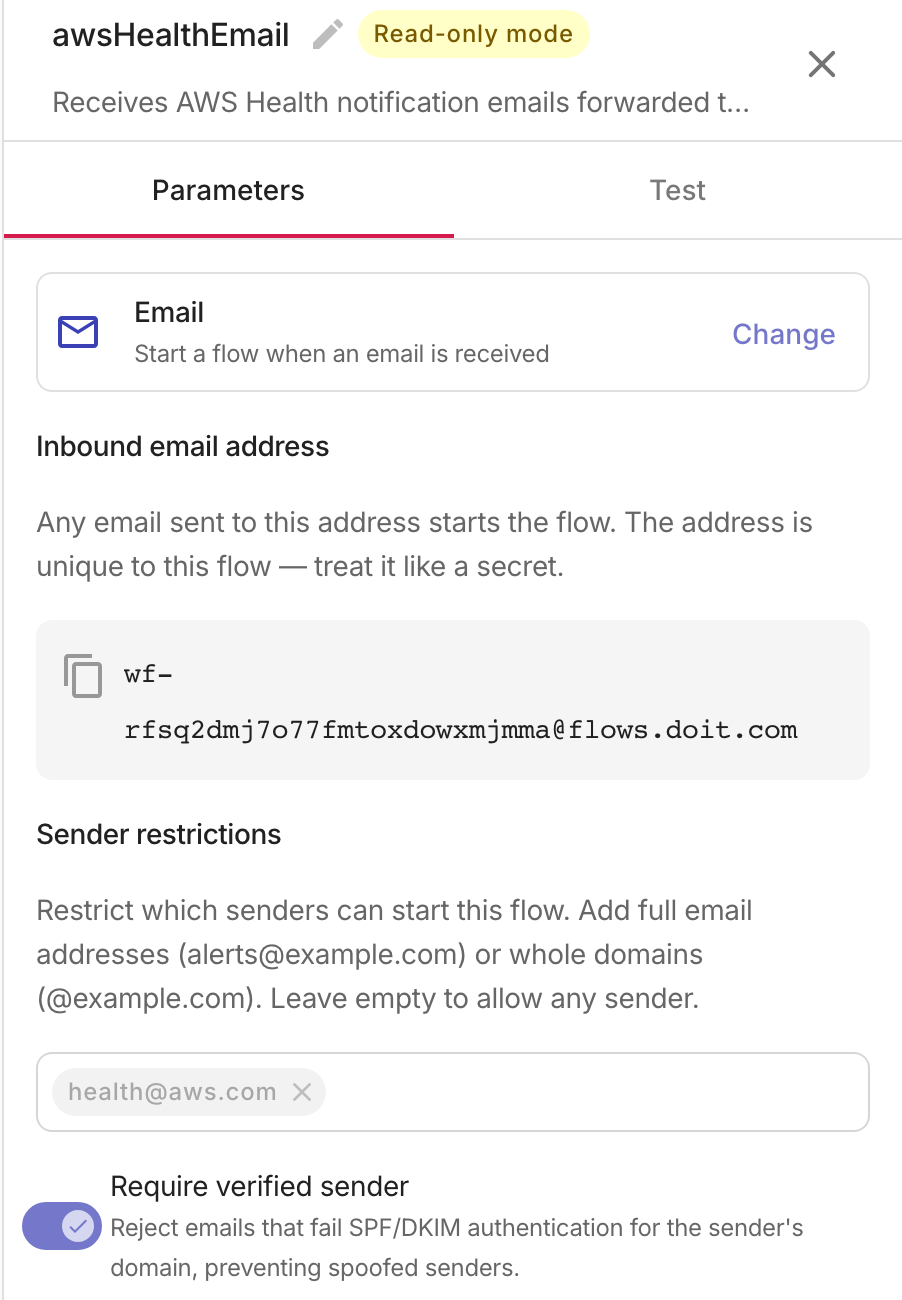
Inbound email address はフローを公開したときに発行されます。そのアドレスに送信されたメールはすべて実行を開始するため、このアドレスはシークレットとして扱ってください。
Review the LLM extraction
extractEventDetails ノードは、メールの件名とプレーンテキスト本文(トリガーの triggerPayload から参照)を読み取り、1 つの構造化された結果を返します。
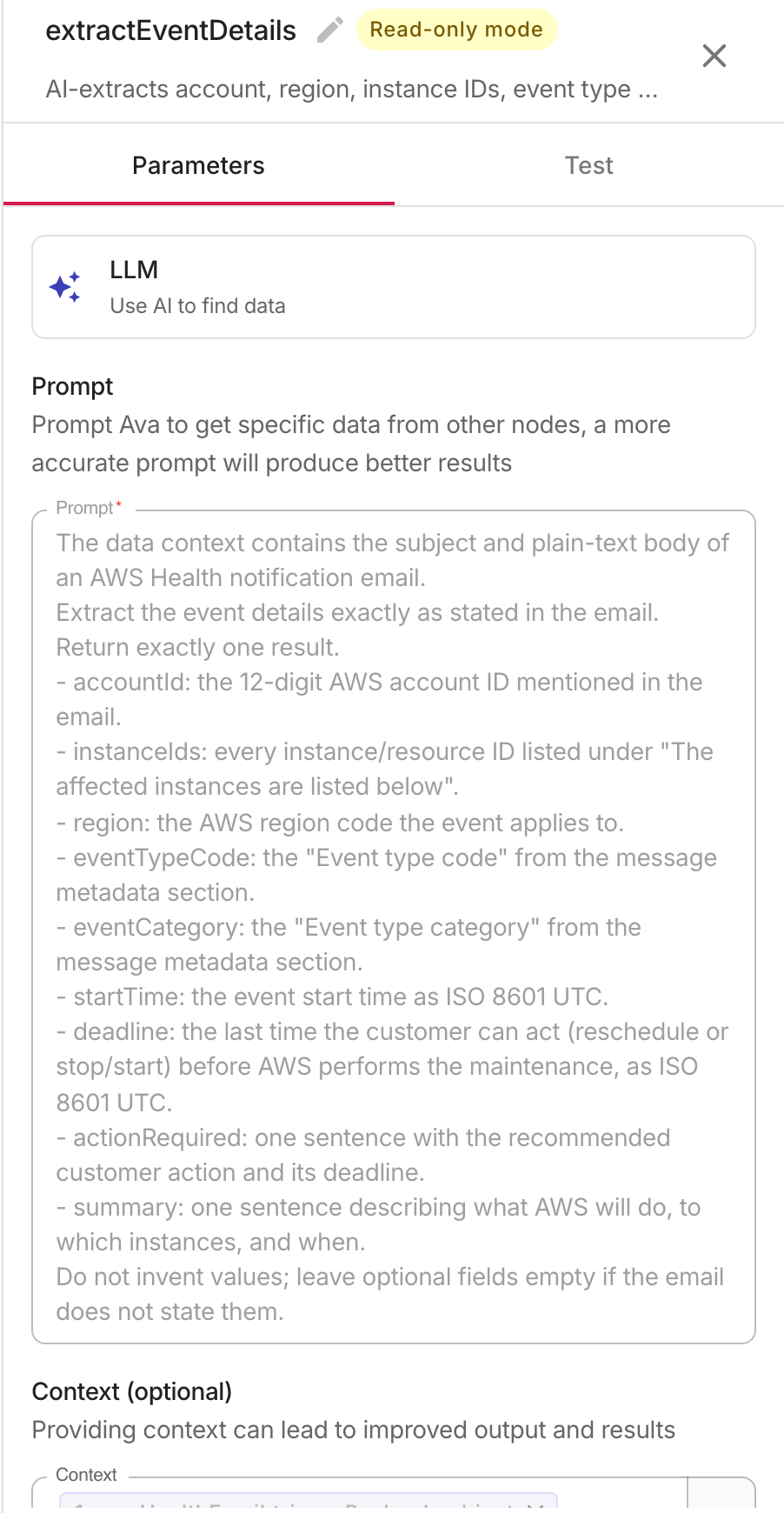
このノードは Advanced スキーマモードを使用しており、後続のノードが型付きフィールドを参照できます。
-
accountId,region,service— イベントの対象となる場所。 -
eventTypeCode,eventCategory— 例:AWS_EC2_INSTANCE_STOP_SCHEDULEDおよびscheduledChange。 -
instanceIds— メールに記載されている影響を受けるすべてのインスタンス。 -
startTime,deadline— メンテナンスウィンドウと、AWS が実施する前に対応できる最終時刻。 -
actionRequired,summary— Slack メッセージで使用する 1 文の説明。
プロンプトでは、メールに記載されている値を正確に抽出し、任意フィールドは作り出すのではなく空のままにするようモデルに指示しています。AWS Health のメールは安定した構造に従っていますが、この LLM による抽出は、イベント種別(リタイア、再起動、ネットワークメンテナンスなど)による表現の違いにも対応できます。
Review the owner lookup
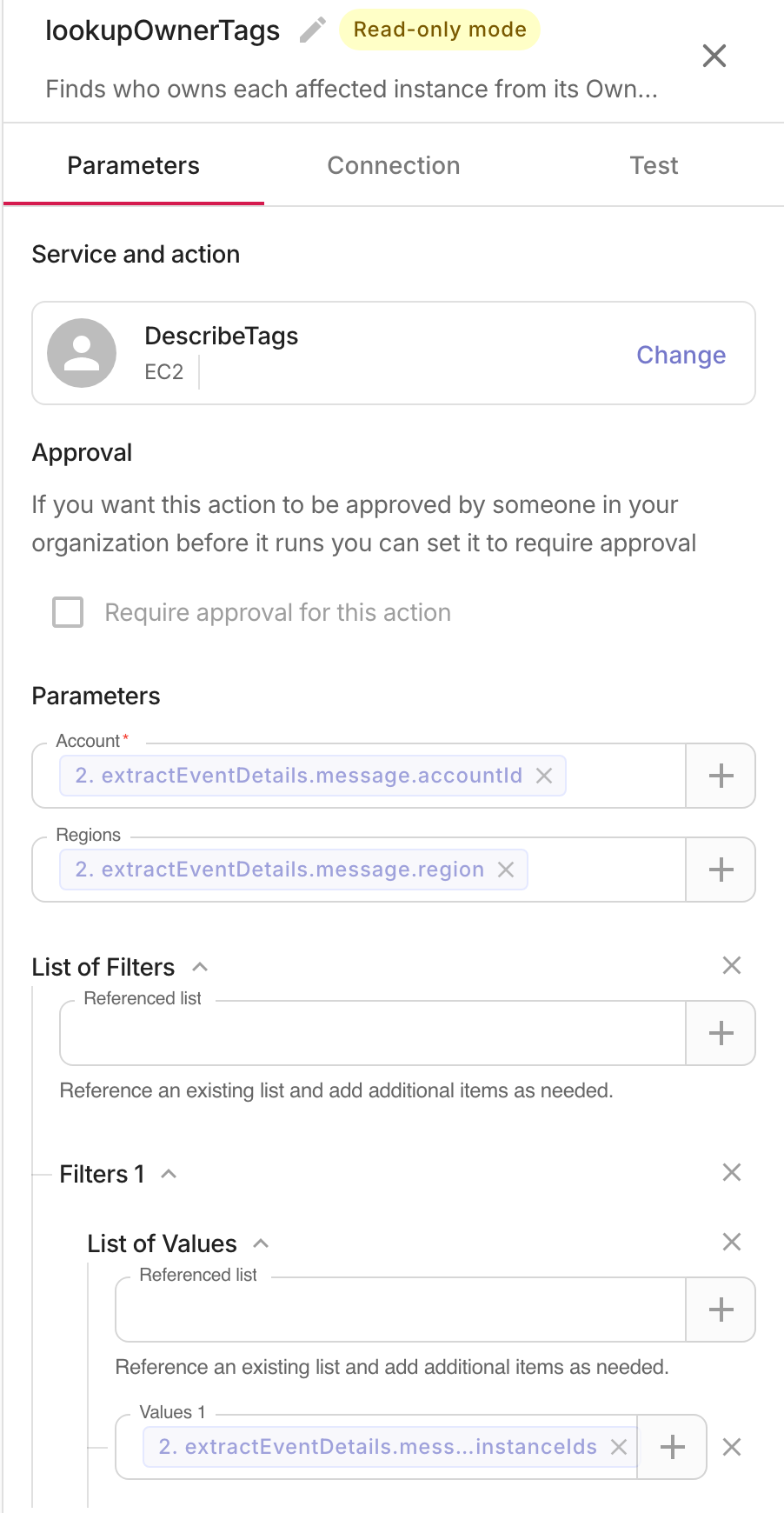
lookupOwnerTags ノードは、前のステップで抽出された値を使って EC2 の DescribeTags オペレーションを呼び出します。
-
Account と Regions は
extractEventDetails.message.accountIdと.regionを参照するため、常にメールに記載されたアカウントとリージョンで検索が行われます。 -
最初のフィルター
resource-idは、影響を受けるインスタンスの一覧であるextractEventDetails.message.instanceIdsを参照します。 -
2 つ目のフィルター
keyは、識別用タグに結果を絞り込みます。Owner、owner、Team、Nameです。組織のタグ付けルールに合わせてこの一覧を調整してください。 -
Connection タブで、使用する AWS connection を選択します。
Review the Slack notification
notifyOwnersInSlack ノードは、イベントごとに 1 件のメッセージを投稿します。
-
Slack channel で、アラートを受信するチャンネルを選択します。
-
Message では、抽出されたフィールドを、マッチしたタグごとに 1 行をレンダリングする
<table>ブロックと組み合わせているため、影響を受ける各インスタンスが所有者と一緒に表示されます。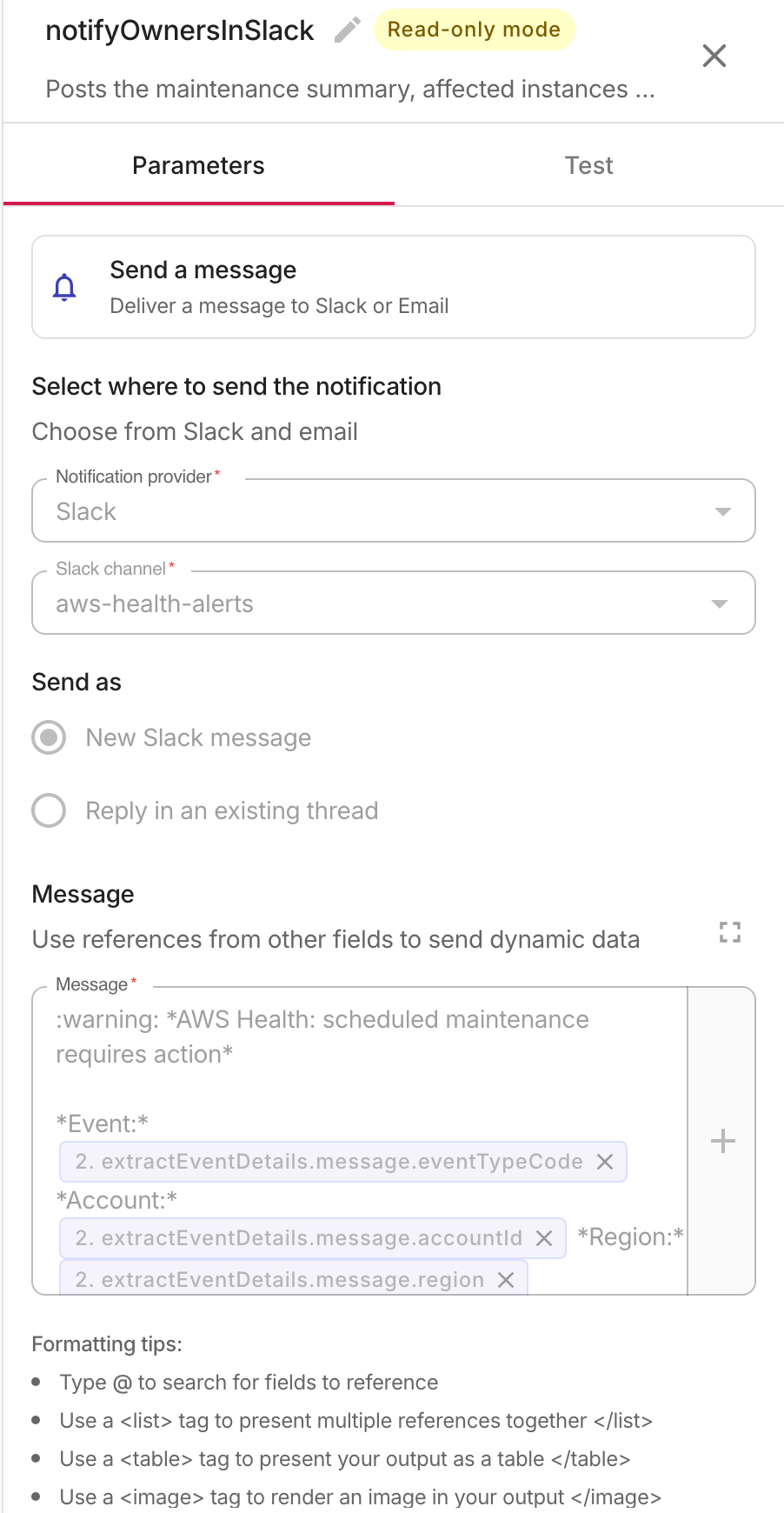
インスタンスに一致するタグがない場合、テーブルは空になりますが、アラートにはイベント、アカウント、リージョン、および期限が引き続き報告されます。
Publish and route AWS Health emails
-
Publish を選択します。CloudFlow により、そのフロー固有の受信アドレス(
[email protected])が発行され、トリガーの Parameters タブに表示されます。 -
次のいずれかの方法で、AWS Health の通知をそのアドレスにルーティングします。
-
AWS コンソールで User Notifications を開き、AWS Health 通知のメール配信チャネルとしてフローの受信アドレスを追加します。
-
または、メールシステムで転送ルールを追加し、
[email protected]からのメールをフローの受信アドレスに転送します。
-
-
セットアップを検証するには、許可リストに登録されているアドレスから最近の AWS Health メールを受信アドレスに転送するか、次の実際のイベントを待ちます。
Email トリガーを使用するフローは、Run ボタンで手動実行することはできません。実行はメール到着時に開始されます。同一メール(同じ Message-ID)の重複配信は 4 日間は無視されます。
Monitor the flow
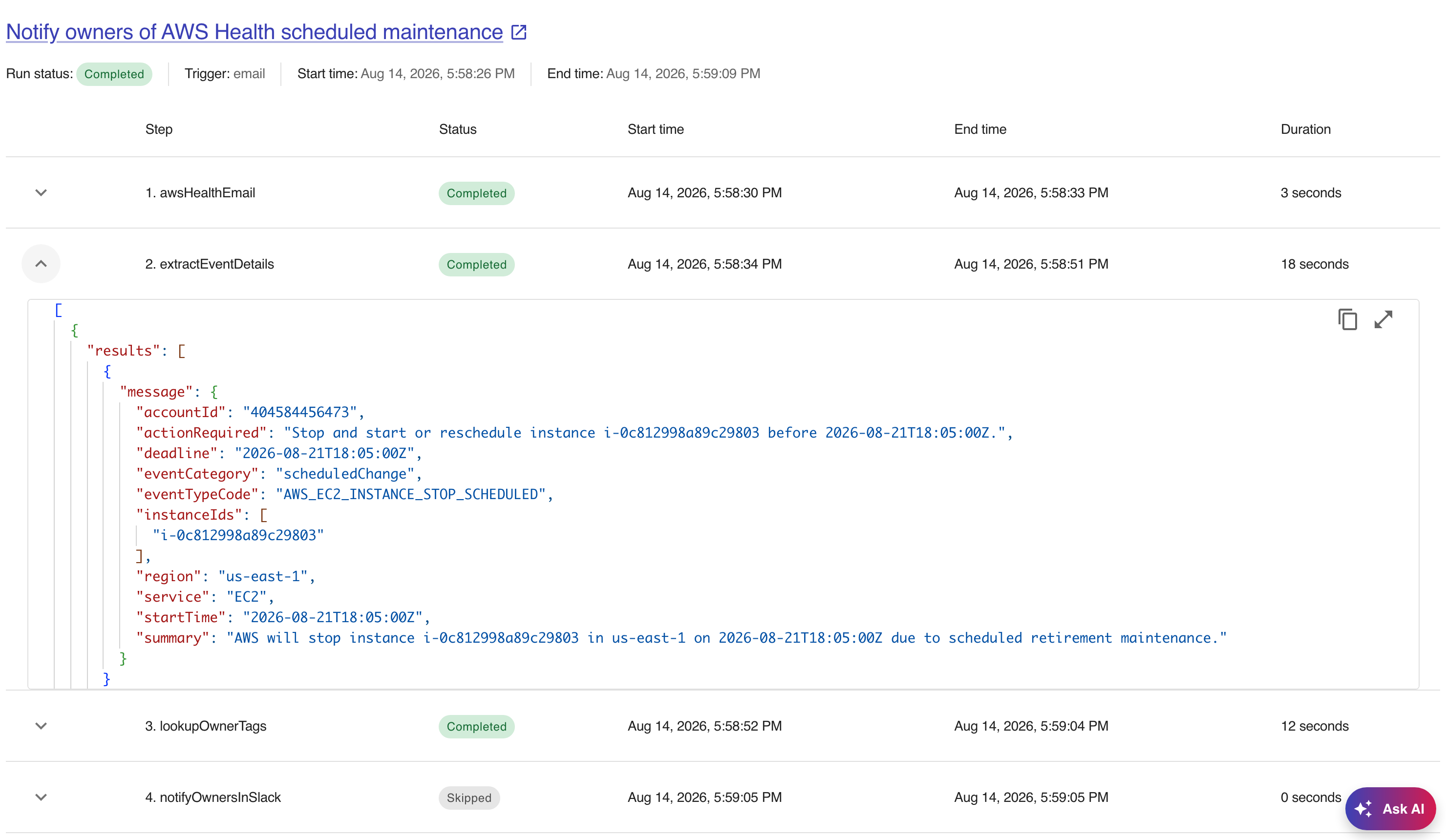
Run history ページで任意の実行を開き、各ステップを展開して入力と出力を確認します。extractEventDetails ステップには、メールから解析された構造化フィールドが表示されます。