Connect Anthropic - Claude Platform
This page mainly explains the connection with Claude Console organizations.
Anthropic connection types
Anthropic exposes cost and usage data through different APIs. Depending on which Claude product your organization uses, choose the type of your Anthropic connection:
-
Claude Console (
platform.claude.com): Connect Anthropic - Claude Platform. This connection helps you track and allocate the API spend (token consumption and cost by model, workspace, and service tier) of your developers who build applications on the Claude API. -
Claude Enterprise (
claude.ai): Connect Anthropic - Claude.ai. This connection gives you visibility into how members in your organization use Claude Enterprise for conversational Claude experience in their day-to-day work.
The two connection types are independent: they use different API keys, created by different roles in different places, and surface different kinds of data. Each connection reports independently and appears under its own Provider value in Cloud Analytics.
Required permissions
-
Your DoiT account must have the Billing Profiles Admin permission.
-
You must be a member with the
adminrole of the Claude Console organization.
Connect Claude Console organization
The console provides a wizard to connect Claude Console organizations.
Launch the wizard
To launch the wizard:
-
Select Data ingestion and integrations > Integrations from the top navigation mega menu.
-
Find the Anthropic - Claude Platform integration card:
-
Select Connect +, if you're connecting the first Claude Console organization.
-
Select Manage and then select Connect new organization, if you're setting up an additional organization.
-
Configure and test connection
-
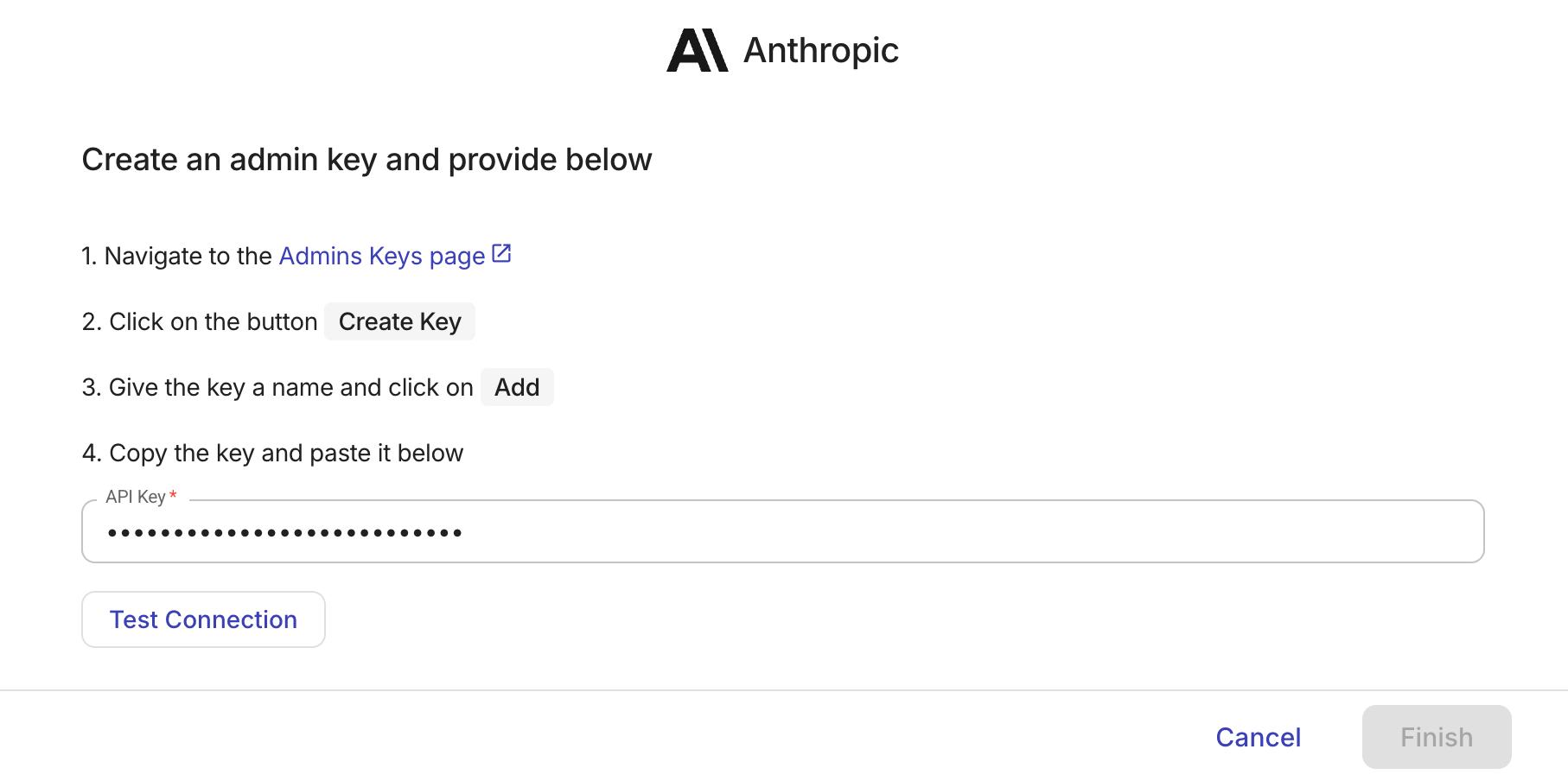
Follow the Claude API Docs to create an Admin API key for your Claude Console organization.
-
Copy the displayed secret (starting with
sk-ant-admin01-) before closing the browser window. The full secret is shown only once. -
In the DoiT console, paste the API key you created above.
-
Select Test connection. This should take a couple of seconds.
-
If successful, select Finish.
-
If the test fails, please open an expert inquiry if you need assistance.
-
After you successfully connect your Claude Console organization, we start importing your Anthropic billing and usage data. Upon initial connection, DoiT ingests the last 6 months of historical billing and usage data for each connected organization. The process can take a few hours. You'll receive an email when the data is available for Cloud Analytics and other DoiT features.
Delete an organization
To delete a Claude Console organization:
-
Select Data ingestion and integrations > Integrations from the top navigation mega menu.
-
Find the Anthropic - Claude Platform integration card:
-
Select Manage.
-
Locate the organization you want to delete.
-
Select the kebab menu (⋮) at the rightmost end of the row and select Delete organization.
-
Select Delete to confirm the deletion.