Organize reports
Organizing reports effectively ensures that you spend less time searching. Depending on whether you want to organize reports for yourself or your entire team, choose one or more approaches listed below:
-
Folders: High-level structure that mimics a traditional file system. Visible to everyone in your organization.
-
Labels: Labels can be applied to reports and are often used for categorization and team collaboration. Visible to everyone in your organization.
-
Favorites: A private curated list of reports visible only to you.
Folders
DoiT supports a folder hierarchy that allows you to organize custom reports effectively, keeping your workspace manageable and easy to navigate.
This hierarchy is shared across three entity types: reports, allocations, and metrics. Any folder operation, such as creating, editing, moving, or deleting, performed on one entity type will automatically apply to the others.
Required permissions
-
To view folders, you need the Cloud Analytics User permission.
-
To create, edit, and delete folders, you need the Cloud Analytics Admin permission.
-
To move items between folders, you need the Cloud Analytics User or Cloud Analytics Admin permission.
Users with the Cloud Analytics Admin permission can move any item between folders, regardless of item ownership. Users with the Cloud Analytics User permission can only move items they own or have editor access to.
Create a folder
To create a folder, navigate to the main Reports screen, select New folder.

Folder names are case-insensitive and must be unique within the same parent folder. When creating a folder, you can add an optional description.
Edit, delete a folder
To edit or delete a folder:
-
Locate the folder of interest on the Reports list.
-
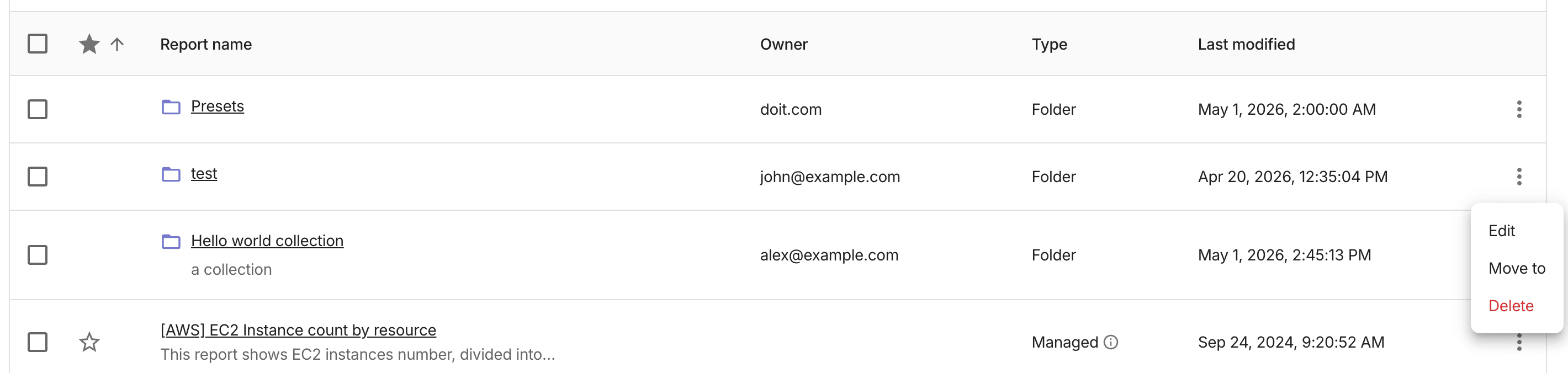
Select the kebab menu (⋮) from the folder row.
-
Choose the action to perform:
-
Edit: To change the folder name or description.
-
Delete: To delete the folder. You'll be asked to confirm before proceeding. You cannot undo once it's executed.
Deleting a folder also deletes its subfolders. Items inside the folder, regardless of their entity types, will be moved to the top level; they are not deleted.
-
Move folders and contents
To move a custom report or folder to a different position in the folder hierarchy, select Move to from the kebab menu (⋮) of the report or folder row, and then choose a destination.
Alternatively, select multiple reports and folders using their checkboxes, select Move to next to New folder, and then choose a destination.
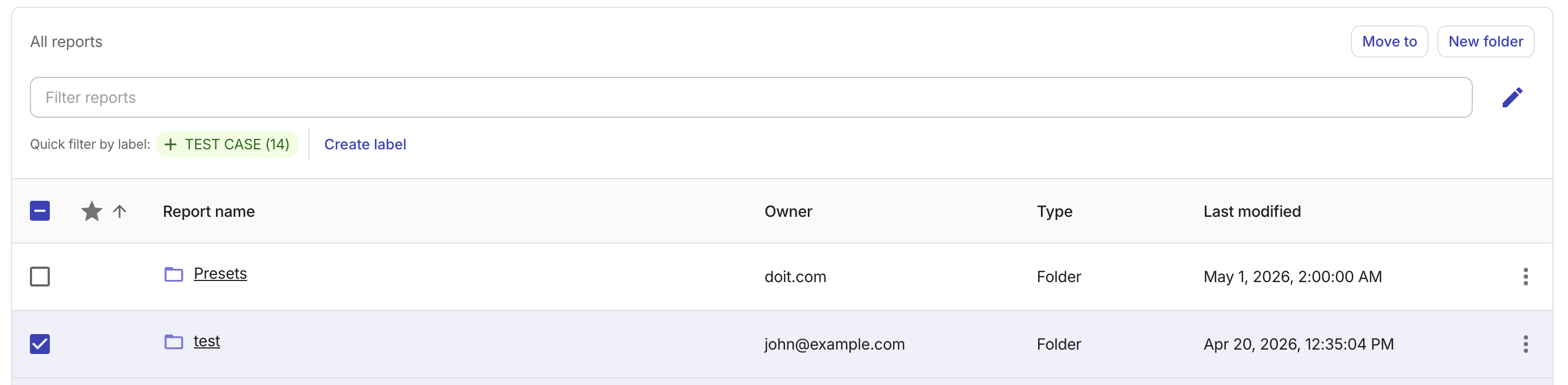
Contents within a folder will be moved together with the folder. To move to the root level, choose All reports as the destination.
If Move to is disabled for an item, you may not have the required permission for that item. Users with the Cloud Analytics Admin permission can move any item regardless of ownership.
The folder URL updates as you navigate, so you can bookmark or share that view.
Labels
Labels are ideal for categorizing reports, for example, by project, department, or status.
When you assign labels to a report, they are visible to all users with access to the console. With the improved visibility, labels help you enhance FinOps capabilities across your organization.
To filter reports by label, select the label in the quick-filter row or enter Label == <label name> in the filter bar.
Favorites
To quickly find your most important reports, select the Star icon (☆) of a report entry to mark the report as a favorite. Once you have marked reports as favorites, you can sort reports by the Star (☆) column or filter reports by whether they are Starred.
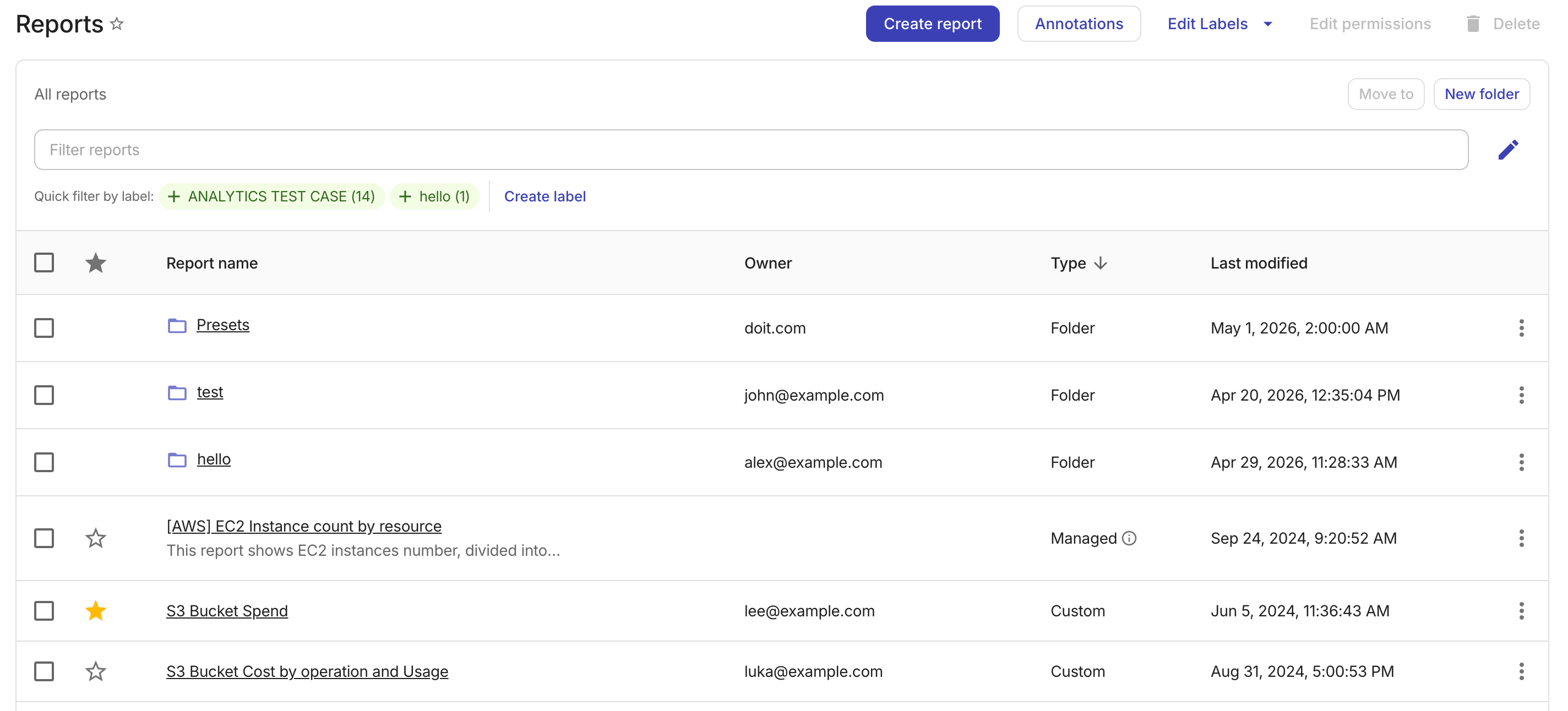
Unlike labels and folders, favorites are user-specific. They enable you to create a curated list of reports visible only to you.