Folders
Folders let you organize your flows in a hierarchy. For example, you can group flows by team, project, or environment. As the number of flows grows, folders help to keep flows manageable, making it easier to find and run the right flow.
Folders are containers for flows and for other folders. You can create folders at the root level or inside another folder. Each folder has a name and an optional description. Two folders under the same parent cannot share the same name.
For example, you might create a folder Production and another Sandbox. Place production flows in Production and experimental or template flows in Sandbox. Under Production, you could add a subfolder Cost alerts for flows that notify the team about cost anomalies. Flows that don’t need a folder can stay at the root.
Workspaces
Workspaces let you group related flows and folders together, making it easier to organize and manage automation across teams or projects. They help you separate concerns so you see only the flows and folders that matter to you. Each workspace (or Default) has its own flows and folders in All flows, and the Workspace menu in the CloudFlow sidebar controls which set you are viewing. Folders define the hierarchy inside a workspace.
Access folders
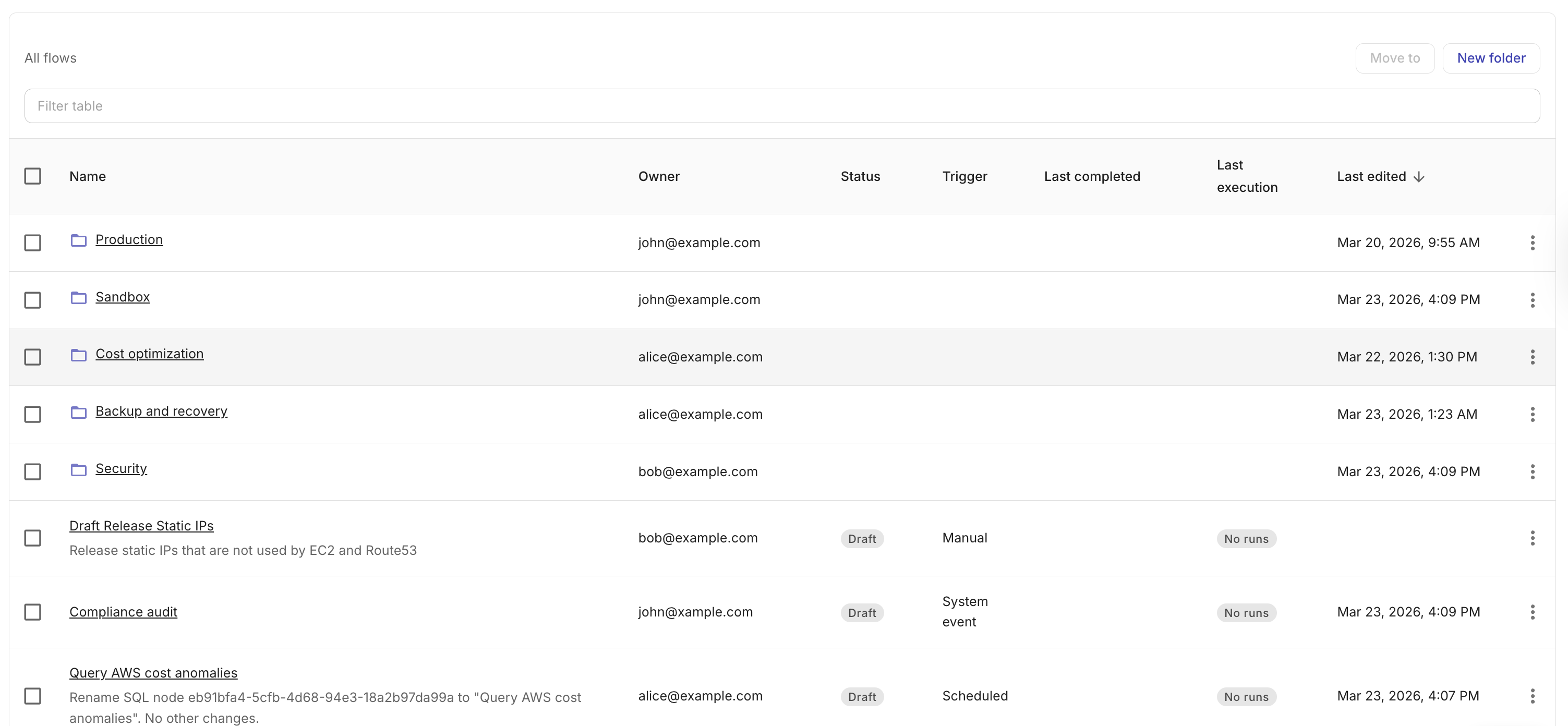
To access folders, sign in to the DoiT console, select Automation and operations from the top navigation mega menu, and then select CloudFlow. From the main CloudFlow page, flows and folders are shown in a folder view.
Search and filter
In All flows, search and filters apply to the flows and folders in the workspace you have open. Matching items can include folders within the folder you are viewing.
Navigate
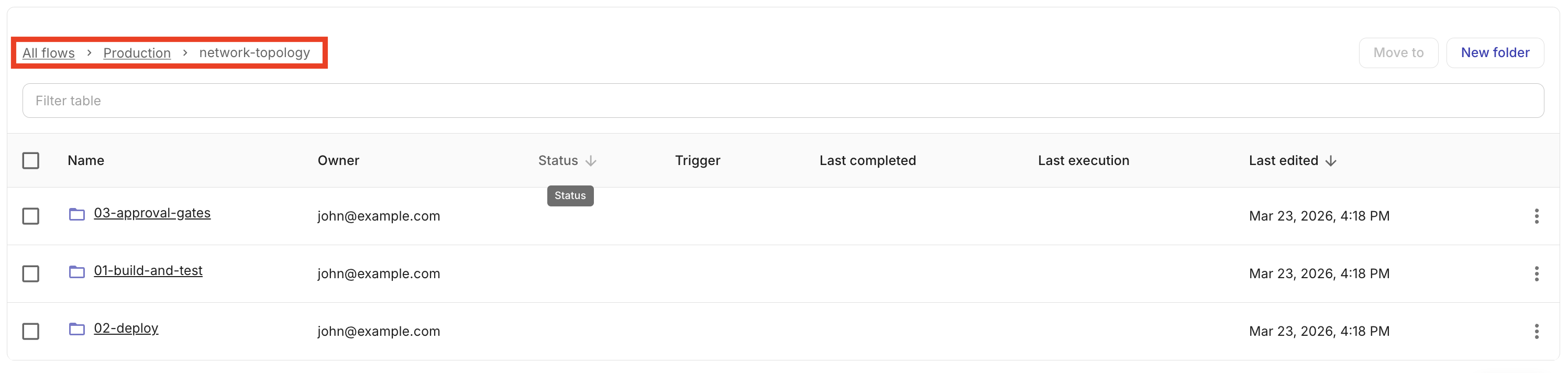
Breadcrumbs at the top show your current location. Select a breadcrumb to go to that folder. Select All flows to see all top-level folders and flows that are not inside a folder.
Create a folder
Before creating a folder you must decide where the folder should live.
-
In the CloudFlow sidebar, select Workspace to see a drop-down list of available workspaces.
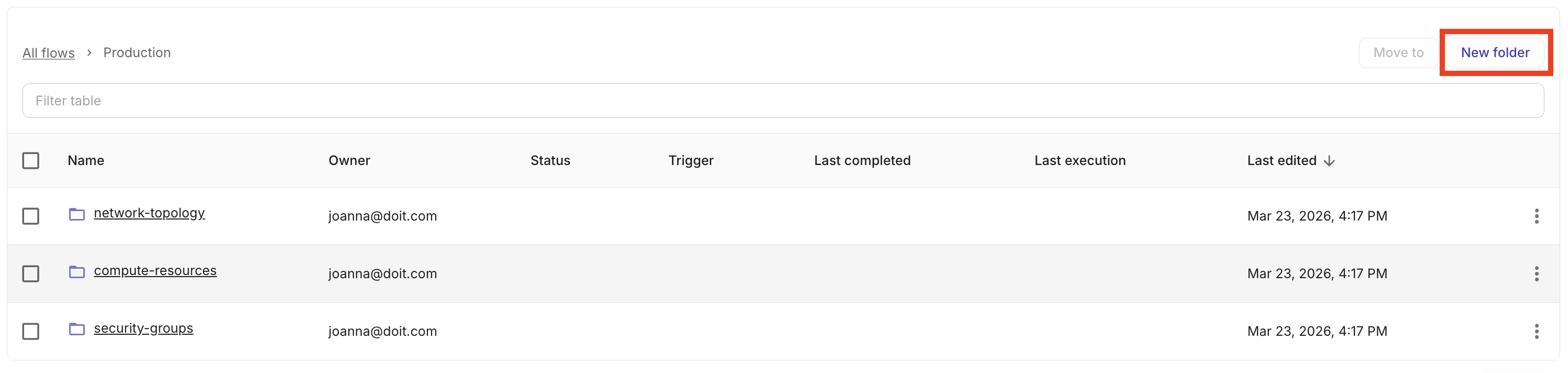
- To create a folder at the top level, stay at the root and select New folder.
-
Navigate to the workspace where you want to create the folder.
-
Then:
-
To stay at the root to create a folder at the top level and select New folder.
-
To create a folder inside an existing folder, navigate to that folder (either open it or use the breadcrumbs), then select New folder.
-
-
Enter a name and, if you want, a description.
-
Select Create.
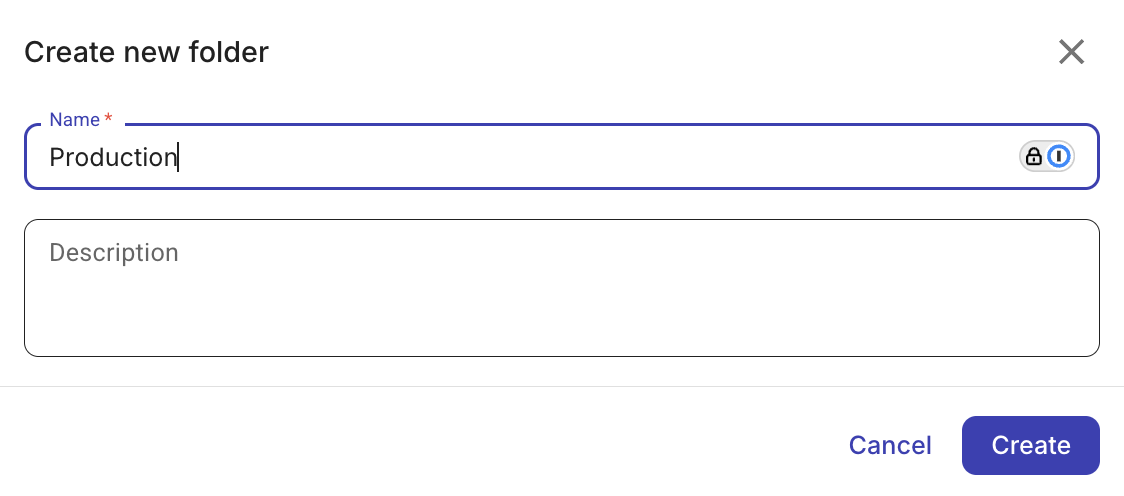
The new folder is created in your current location.
Edit a folder
To edit a folder:
-
Locate the folder of interest.
-
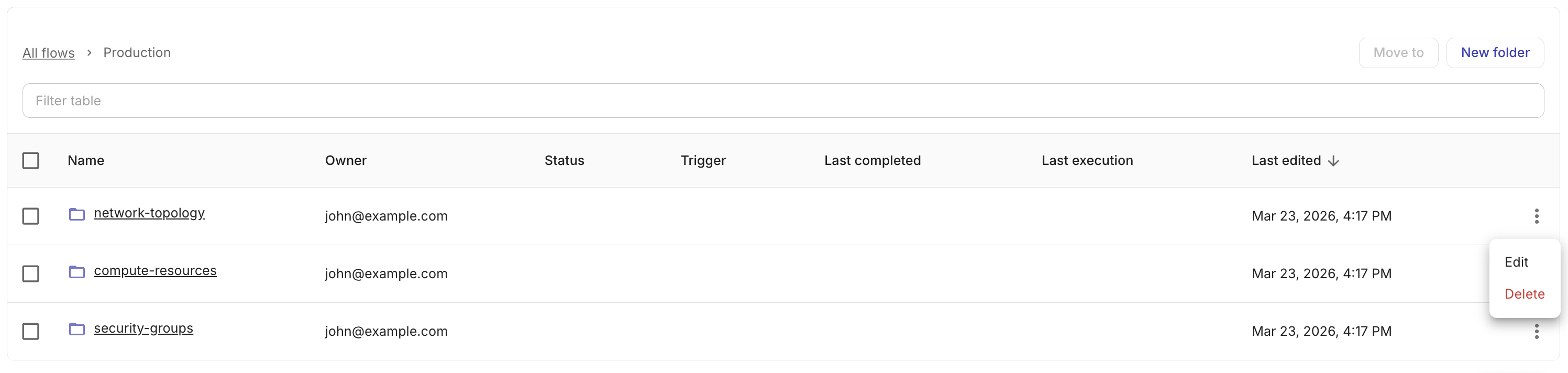
Select the kebab menu (⋮) at the rightmost end of the folder and then choose Edit.
-
Update the name or description.
-
Select Save. You cannot change the folder’s parent. You must use Move to folder to move it to another folder within the same workspace, or Move to workspace to relocate it to another workspace (see Move flows and folders).
Delete a folder
Deleting a folder removes that folder, all of its subfolders, and every flow stored in that tree. Templates (blueprints) in that tree are not deleted.
You must have the correct permissions.
-
You have permission to change the folder (for example, you created it and you are a CloudFlow manager).
-
You have owner or editor of every flow in the folder and its subfolders, unless your role can manage all CloudFlow flows.
-
None of the flows in that folder tree is currently running or waiting to run (for example, pending approval or sleeping as part of a run).
To delete a folder:
-
Locate the folder of interest.
-
Select the kebab menu (⋮) at the rightmost end of the folder and then choose Delete.
-
If the folder and its subfolders contain no flows, the folder is removed immediately.
-
If the folder or any subfolder contains flows, a Delete folder and contents dialog opens. Select Delete to confirm or Cancel to keep the folder.
-
Move flows and folders
From All flows, you can move one or more flows and folders to another folder in the same workspace or to another workspace.