サブフローノード
サブフローノードを使用すると、フロー内から別のフローを呼び出すことができます。呼び出されるフロー自体は通常のフローであり、サブフローノードから呼び出されたときのみサブフローとして動作します。共有ロジックを再利用したり、複雑なフローを小さなフローに分割したり、単一の親フローから複数のフローをオーケストレーションしたりできます。例えば、親フローでどのクラウドターゲットとロケーションに対して処理を行うかを決定し、そのターゲットに対して同じクリーンアップやコンプライアンスチェックを実行するサブフローを呼び出すことで、アカウント・サブスクリプション・プロジェクトごとにロジックを複製するのではなく、1 つのサブフローを維持できます。サブフローは現在のフローの子として実行され、その出力は後続ノードで利用できます。
親フローとサブフローの両方がスケジュールトリガーを使用している場合、サブフロー側のスケジュールは無視されます。親フローがトリガーされると、実行がサブフローノードに到達したタイミングで、サブフローのスケジュール設定に関係なくサブフローが即座に呼び出されます。サブフローが他のフローから呼び出される場合、そのサブフローのスケジュールを無効化する必要はありません。
Input and output
入力: サブフローは、サブフローノードで設定した値を通じて親フローから入力を受け取ります。親フローが実行されると、これらの値はサブフローのローカル変数として渡されるため、サブフロー内のノードはそれらを他のフロー変数と同様に使用できます。
出力: Flow output ノード がない場合、サブフローは executionId を除き、親フローに渡せる出力データを持ちません。サブフロー内に Flow output ノードを追加して名前付き出力(例えば複数フィールドや特定の構造)を公開してください。親フローはそれらの出力を + ボタンやフィールドピッカーから参照できます。親フロー内の後続ノードは、サブフローノードの出力を他のノード出力と同様に使用できます。
Sub Flow ノードを設定する
-
呼び出したいサブフローを作成します。そのフロー内で、サブフローが呼び出される際に親フローから渡したい値ごとに、ローカル変数 を作成します。これらはサブフローノードを設定する前にサブフロー側で定義しておく必要があります。これらが親フロー側のサブフローノードにおける実行パラメータとなるため、定義されていないと親から渡せるものがありません。
親フロー側で、これらのパラメータに値を設定するかどうかは任意です。親フローは、サブフローの任意のローカル変数に対して、サブフローノードの設定時に値をセットできます。サブフローを作成して公開し、親フロー内のサブフローノードで選択できるようにしてください。公開されていない場合、親フローの実行がサブフローノードに到達したタイミングで CloudFlow はエラーをスローします。
-
親フローにサブフローノードを追加します。
-
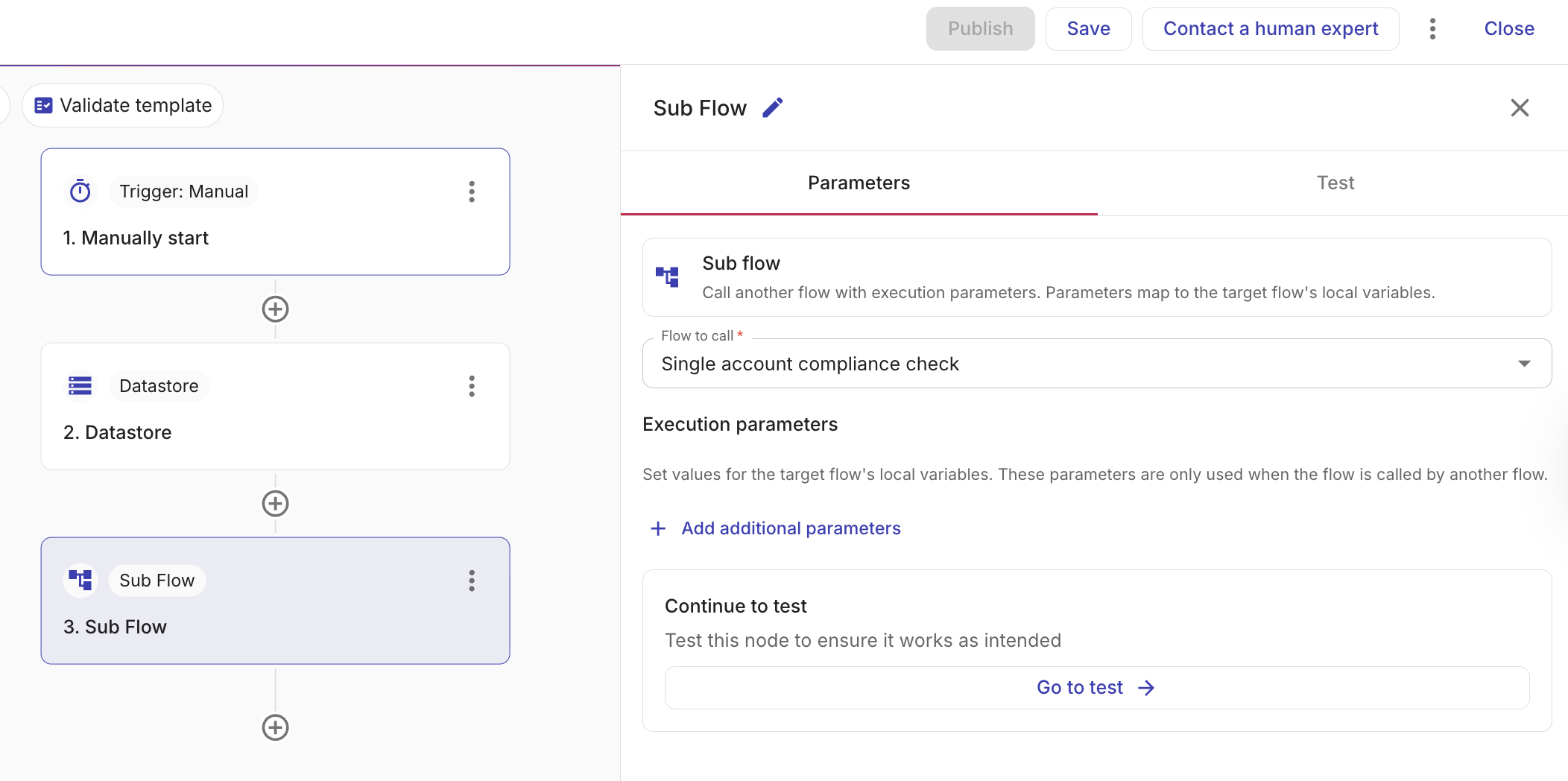
Flow to call で、呼び出したいサブフローを選択します。
-
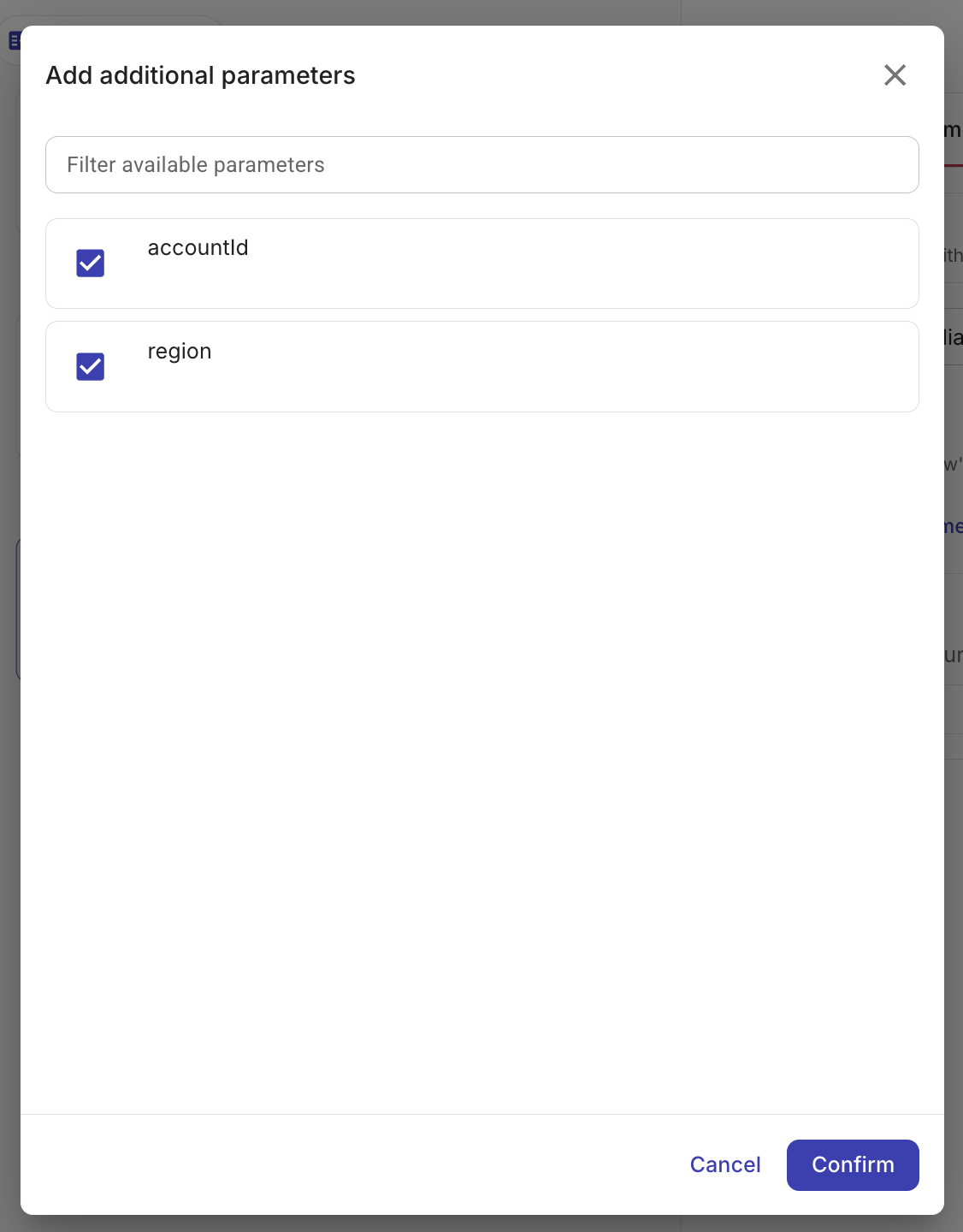
Flow to call でフローを選択した後、+Add additional parameters を選択して、サブフローに渡したいパラメータを追加します。これらは、そのサブフローのローカル変数(手順 1 でそのフロー内に定義したもの)です。
各パラメータに、親フローからの値(例えば、前のノードの出力や親フローのローカル変数・グローバル変数)を設定します。
親フローが実行されると、CloudFlow はこれらの値をサブフローに渡します。サブフローは、他のフローから呼び出されたときのみこれらのパラメータを使用します。サブフローが単体で実行される場合(例えば、自身のトリガーや手動実行)、その実行内でこれらの変数を設定し、親フローからの値は使用しません。
親フローが実行されると、選択したフローがサブフローとして実行されます。サブフローは親実行のコンテキスト内で動作するため、親からデータを渡し、サブフローの結果を親フローの後続ノードで使用できます。その結果はサブフローの出力です(Input and output を参照)。
サブフローの実行履歴
親フローの実行履歴では、各サブフローノードの実行に対応するサブフロー実行へのリンクが含まれているため、子実行を開いて、そのステップ・出力・タイミングを確認できます。
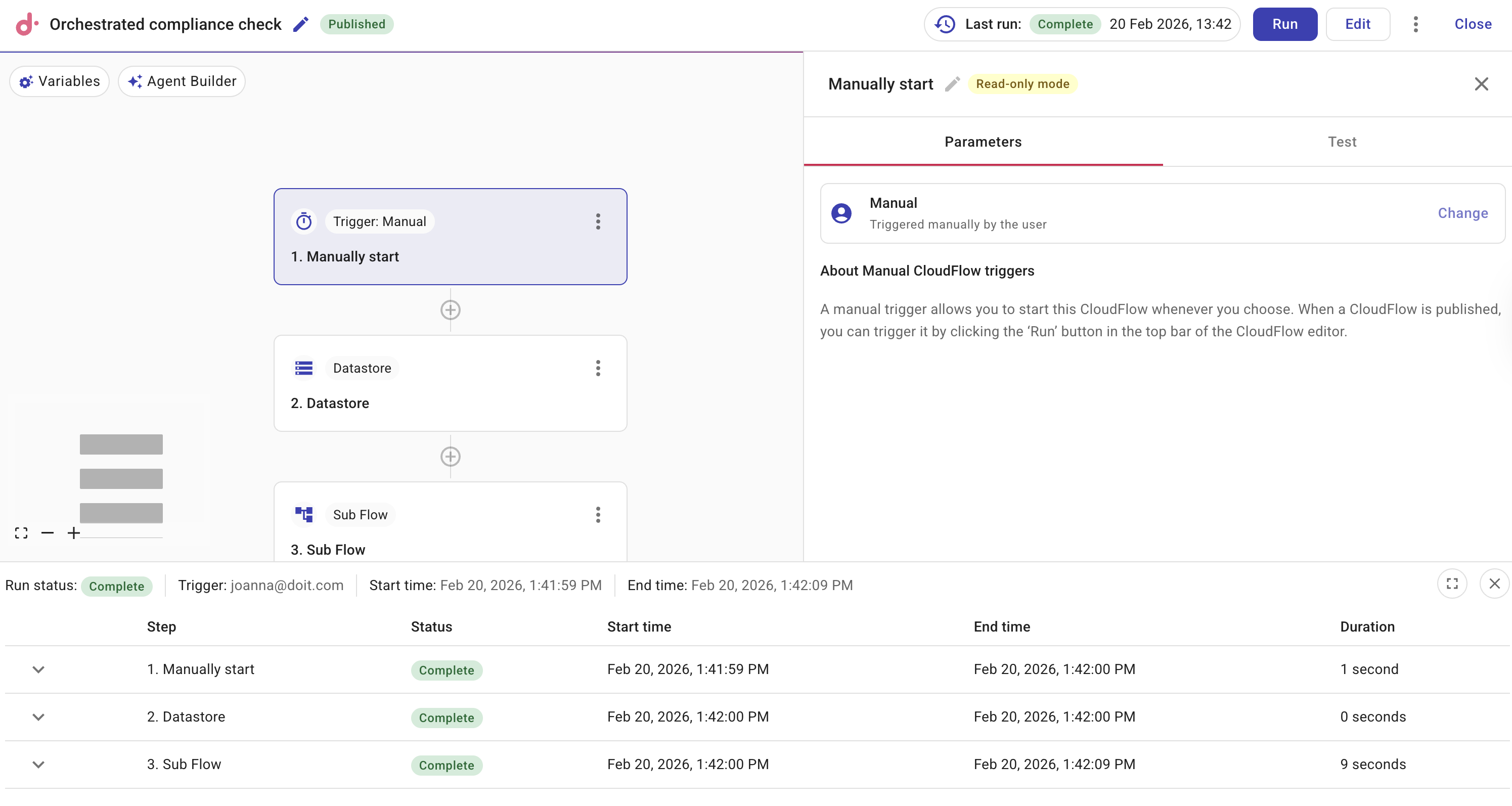
View subflow run を選択して、サブフローの実行履歴を表示します。
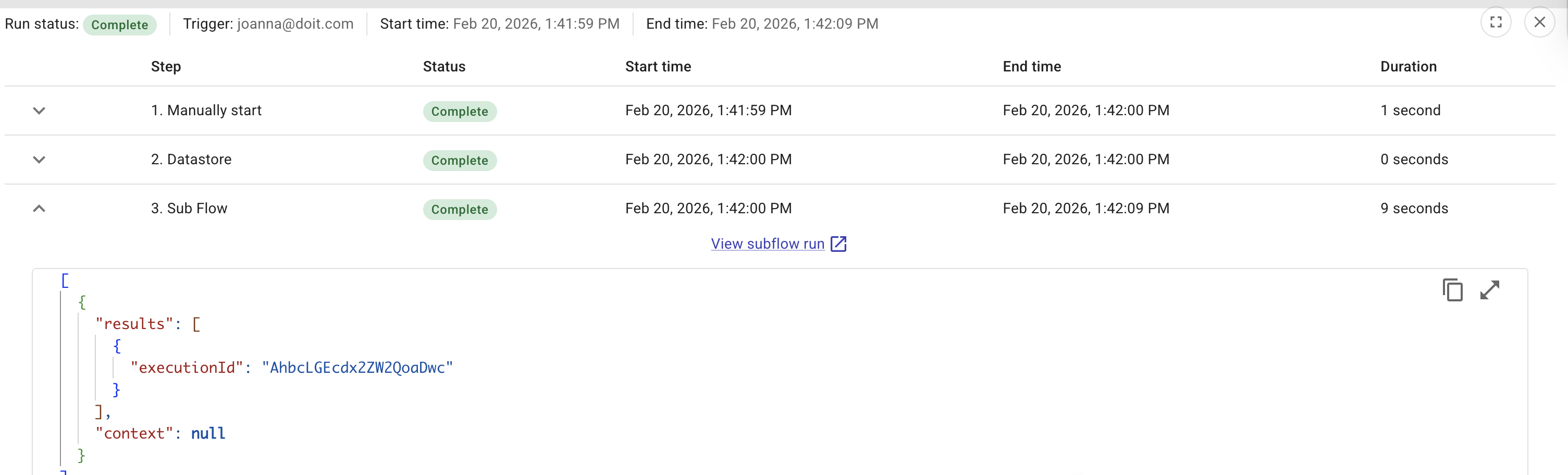
サブフローが失敗した場合、親フローはサブフローノードで失敗します。親フローの実行履歴では、そのノードに表示されるエラーはサブフロー内で失敗したノードからのエラー(どのノードがどのような理由で失敗したか)と同じです。そのため、サブフローの実行を開かなくても、何が問題だったのかを把握できます。詳細を確認するには、View subflow run を選択してサブフロー実行の全履歴を参照してください。
サブフロー内の承認
サブフローに承認が必要なノード(例えば、Require approval for this action を有効にした AWS ノード・Azure ノード・GCP ノード)が含まれている場合、承認が完了するまで親フローはサブフローノードで一時停止します。
承認者が承認すると、サブフローはそのまま継続し、サブフローが完了すると親フローは自動的に再開します。その際、親フローはサブフローの出力を受け取り、次のノードへ進みます。
承認者がアクションを 拒否 した場合や承認がタイムアウトした場合、その結果は親フローに伝播され、親フローはサブフローノードで失敗 します。実行履歴には、承認の拒否またはタイムアウトのエラーが表示されます。
例: オーケストレーションされたコンプライアンスチェック
次の設計では、親フローが再利用可能なサブフローを呼び出して、1 つのクラウド環境を評価することで、毎週のコンプライアンスチェックを実行します。サブフローは、自身のパラメータを使用して単体でも実行できます。
親フロー: 週次コンプライアンスオーケストレーション
- Schedule トリガー: フローを毎週実行します(例えば毎週月曜日)。
- Datastore ノード: どのクラウドターゲットと必要に応じてどのロケーションをチェックするかを、設定テーブルから読み込みます(例えば、週次実行に含める AWS アカウント・Azure サブスクリプション・Google Cloud プロジェクトの一覧)。単一ターゲット構成の場合は、固定値や 1 つのターゲットを返す Code ノードでも構いません。
- Sub Flow ノード: サブフロー Single-environment compliance check を呼び出し、ターゲット ID と必要なロケーションを前のノードから実行パラメータとして渡します。
- Branch ノード: サブフローの出力(例えば違反件数)を評価します。違反が存在する場合のパスと、クラウドターゲットが準拠している場合のパスを分けます。
- Notification ノード: Slack またはメールにサマリーを送信します(例: Compliance check completed for target X: 3 violations や No issues found)。
サブフロー: 単一環境のコンプライアンスチェック
サブフローでは、targetId という名前のローカル変数と、選択したアクションで必要な場合は location 変数を定義します。親フローから呼び出されると、サブフローノードがこれらの値を渡します。サブフローが単体で実行される場合(手動または自身のトリガー)、その実行内でこれらの変数を手動で設定します。
- AWS・Azure・GCP ノード: 指定されたアカウント・サブスクリプション・プロジェクトおよび必要なロケーション内のリソースを一覧取得します(例: S3 buckets・Azure managed disks・Compute Engine instances)。プロバイダ固有のターゲットや必要なロケーションのパラメータにフローのローカル変数を設定します。フローが単体で実行される場合とサブフローとして実行される場合で異なるのは、値の取得元だけです。
- Filter ノード: チェック対象となるリソースに絞り込みます(例: 特定のタグが付与されていないリソースや特定の状態にあるリソース)。
- Policy ノード: 絞り込んだリソースを policy に対して評価します(例: 「リソースにはコストアロケーションタグが必須」)。
- Transform ノード: Policy の結果からサマリーを作成します(例: 違反件数・リソース ID の一覧)。
- Flow output ノード: このサマリー(例: 違反件数)を公開し、親フローが利用できるようにします。このノードがない場合、サブフローは
executionIdを除き、親フローに渡せる出力データを持ちません。
その後、親フローは Branch ノードおよび Notification ノードでこのサマリーを使用します。Single-environment compliance check は、コンプライアンスロジックを重複させることなく、異なるスケジュールやトリガーを持つ他の親フローからも再利用できます。