Insight details
To learn more about a specific insight and take actions, navigate to its details page.
View insight details
To view the details of a DoiT-proprietary insight, select its name from the Insights table under the Insights view. (You can also open the insight details page when viewing a resource.)
The details page displays insight metadata and a table of affected resources.
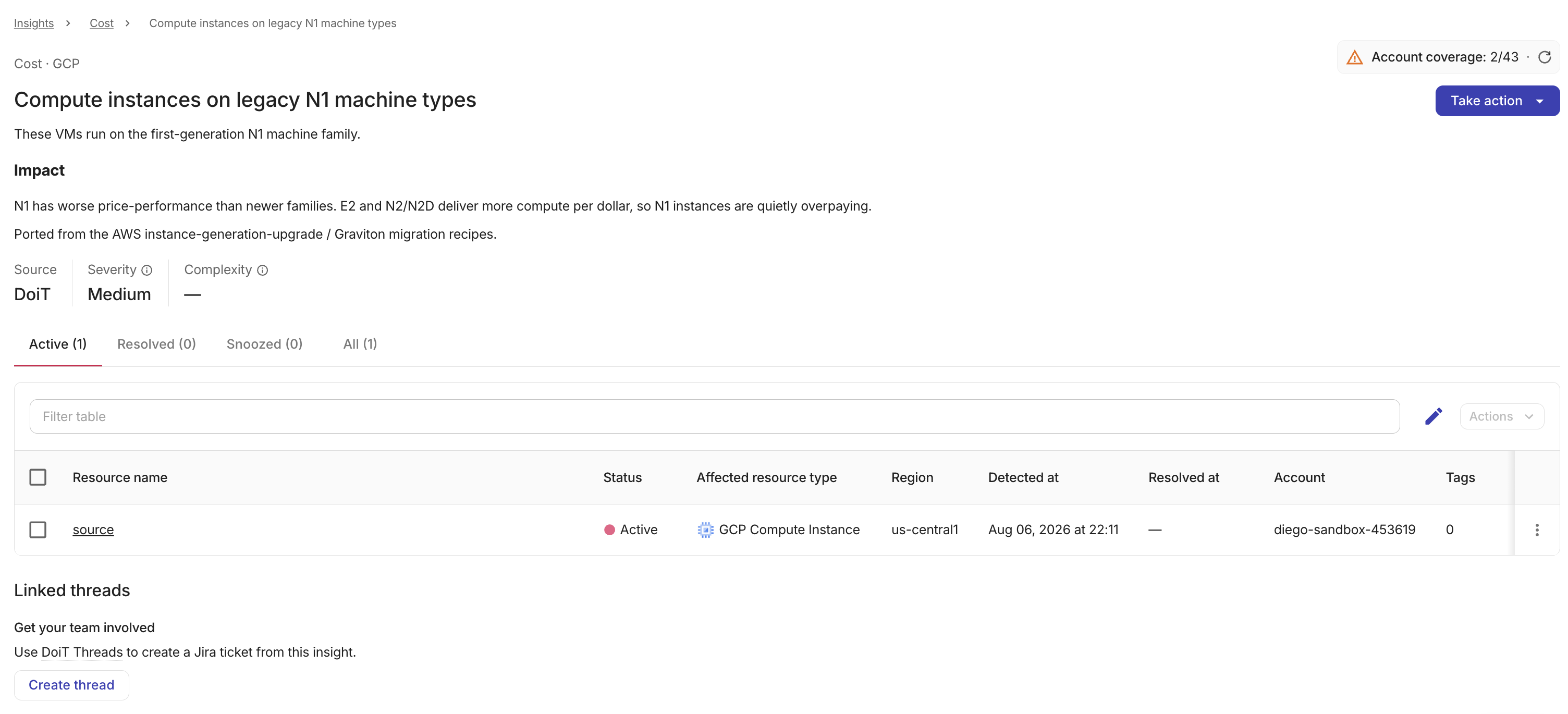
For cost insights, if one or more connected Composer accounts are not yet set up for billing, a warning icon appears on the Account coverage chip in the page header. Hover over the warning icon to see whether cost savings data is incomplete or unavailable, along with options to connect your accounts.
Metadata
In addition to the insight's pillar, cloud provider, and insight name, the insight details also show the following metadata:
-
Source: The system that generates the insight. This field always displays
DoiTfor DoiT-proprietary insights. -
Severity: The risk level of the insight based on its potential impact.
-
Complexity: The estimated effort to resolve the issue and an estimated fix time in minutes when available.
-
Potential savings: The estimated yearly cost savings across all active (non-snoozed, non-resolved) resources, converted to your organization's currency. This field is hidden when the insight is dismissed, when results are still loading, or when there are no active savings. See Cost insight financial metrics.
-
Potential cost avoidance: The estimated annualized savings from actions that prevent future cost increases. See Cost insight financial metrics.
-
Freed commitments: The annualized value of commitment coverage that would be freed when you act. See Cost insight financial metrics.
-
Avoidable commitments: The annualized value of commitments that could be downsized or not renewed based on current usage. See Cost insight financial metrics.
Hover any metric label for a brief definition. A dash (—) means savings for that metric could not be calculated. See Dashes and $0 and Tooltips.
The four cost metrics above are hidden when no connected Composer accounts have billing data available.
Affected resources
The resource table lists all resources affected by the insight, including resources from inactive or disconnected accounts, deleted resources, and resources that haven't been scanned yet. You can sort the table by selecting a column header, filter resources by property, or select the tabs to list resources by status:
-
Active: Resources with an active issue detected by the insight.
-
Resolved: Resources where the issue has been resolved. Resources from inactive accounts and deleted resources also appear under this tab, displayed with a Deleted status.
-
Snoozed: Resources that have been temporarily snoozed.
-
All: All resources regardless of status.
The resource table includes the following fields:
-
Resource name: The name of the affected resource. Select the name to open the resource details panel.
-
Status: The current status of the resource (Active, Resolved, Snoozed, or Deleted). Resources that have been deleted or belong to inactive accounts display a Deleted status.
-
Affected resource type: The type of cloud resource.
-
Region: The cloud region where the resource is deployed.
-
Detected at: The date and time when the issue was first detected.
-
Resolved at: The date and time when the issue was resolved, if applicable.
-
Deleted at: The date and time when the resource was deleted, if applicable. A dash (—) appears for resources that have not been deleted.
-
Account: The cloud account that owns the resource.
-
Tags: The number of tags associated with the resource.
-
Cost savings: The estimated yearly savings for this resource, displayed in your organization's currency. See Cost insight financial metrics.
-
Cost avoidance: The estimated yearly avoidable costs for this resource, displayed in your organization's currency. Select the column header to sort by this value. See Cost insight financial metrics.
-
Freed commitments: The yearly freed commitment value for this resource, displayed in your organization's currency. Select the column header to sort by this value. See Cost insight financial metrics.
-
Avoidable commitments: The yearly avoidable commitment value for this resource, displayed in your organization's currency. Select the column header to sort by this value. See Cost insight financial metrics.
The four cost columns above are hidden when no connected Composer accounts have billing data available.
When a resource shows a positive savings value, hover the value for an explanation of how that figure was calculated for that resource. A dash (—) means savings could not be calculated for that resource. See Tooltips.
Resources from inactive or disconnected accounts, and deleted resources whose issue was not resolved before deletion are read-only. Their row actions and selection checkboxes are disabled because these resources can't be acted upon (for example, snoozed or assigned to a thread).
Remediation details
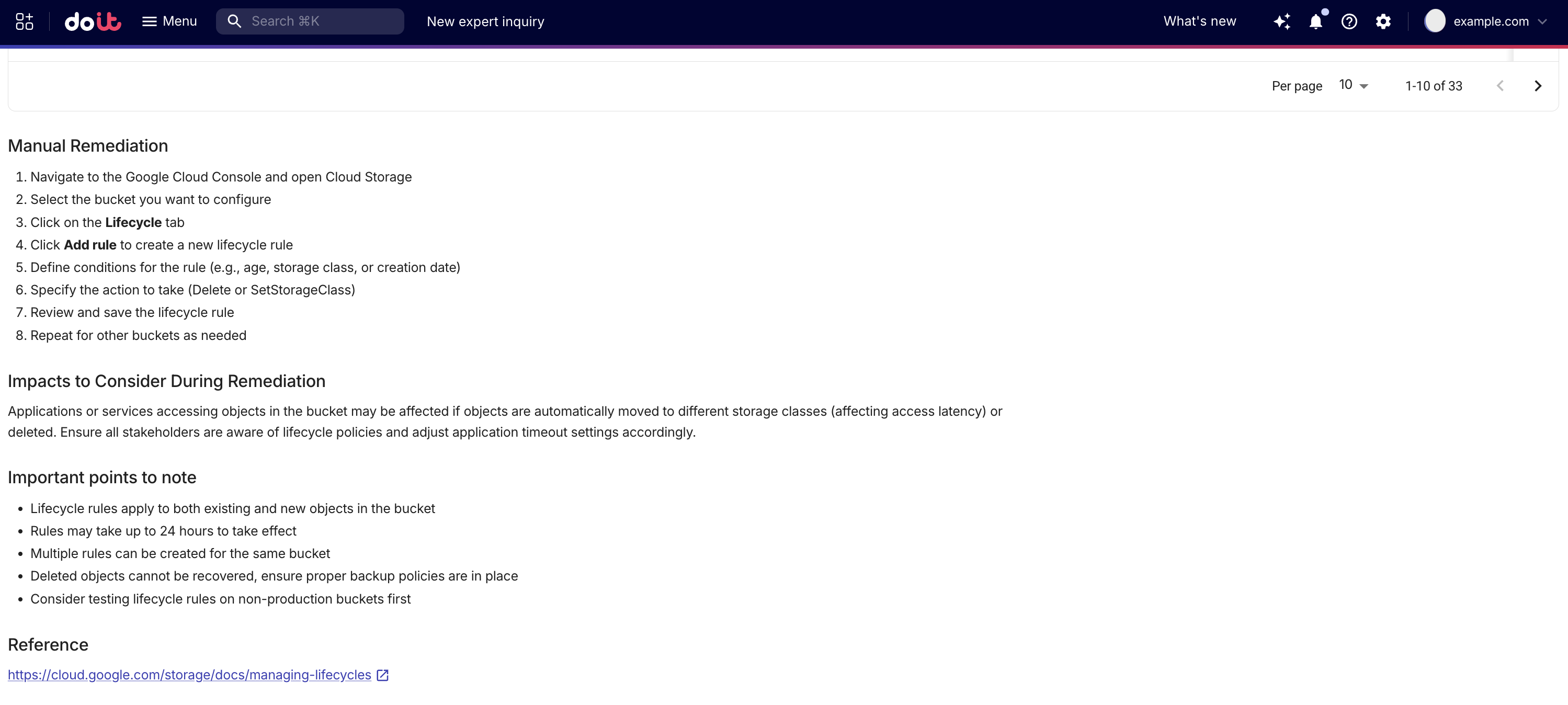
When remediation information is available for an insight, additional details appear below the resources table. These sections provide guidance on how to manually address the issue identified by the insight.
The following sections may appear depending on the data available for each insight:
-
Manual Remediation: Step-by-step instructions for resolving the issue manually.
-
Impacts to Consider During Remediation: An explanation of potential side effects or consequences that may result from applying the remediation steps.
-
Important points to note: Additional considerations to keep in mind when remediating the issue.
-
Reference: A link to external documentation with more information about the issue or remediation approach. The link opens in a new browser tab.
Each section only appears when the corresponding information is available for the insight. Not all insights include remediation details.
Take action
On the insight details page, you can take actions on the insight itself or on the resources related to it.
Insight
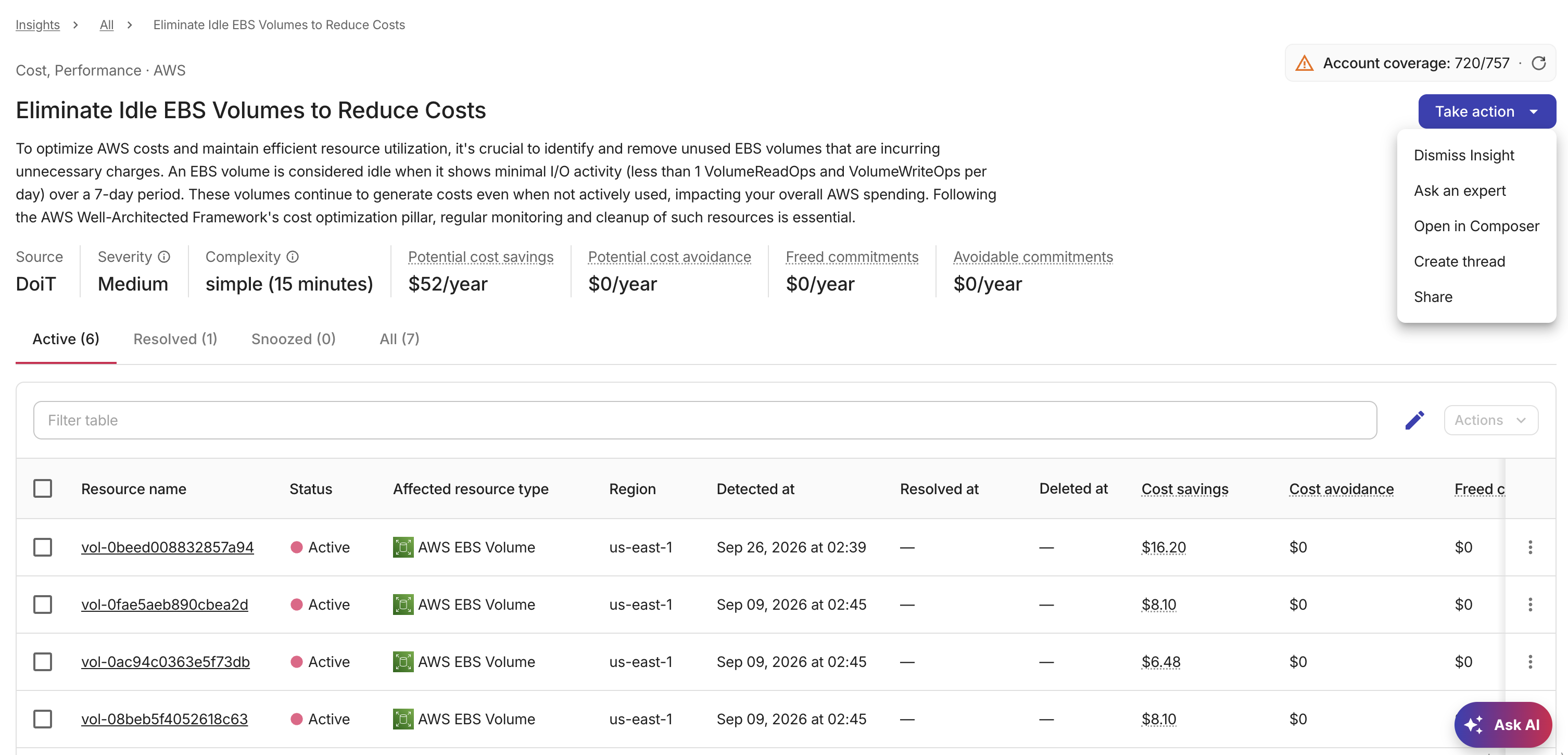
For the insight, select Take action in the upper-right corner:
-
Dismiss this Insight: Opens a dialog where you need to specify a reason and optionally add a comment to dismiss the current insight.
-
Enable this Insight: Re-enables a previously dismissed insight.
-
Ask an expert: Opens an expert inquiry for further guidance.
-
Open in Composer: Opens the corresponding Composer recipe so you can adjust the recipe's rules and parameters.
-
Create thread: Creates a thread to track work on this insight in Jira or Linear. If no integration is connected, you'll be prompted to connect your integration.
-
Share: Opens a dialog to share the insight to a Slack channel. The dialog displays your connected Slack workspace and provides a link to manage the connection in your Slack settings. Select a channel, optionally add a note (up to 500 characters), and select Post. The insight's title, description, severity, cloud provider, and financial metrics are included in the Slack message. A success confirmation means the message has been accepted for delivery. You can also copy a direct link to the insight from the same dialog.
Resource
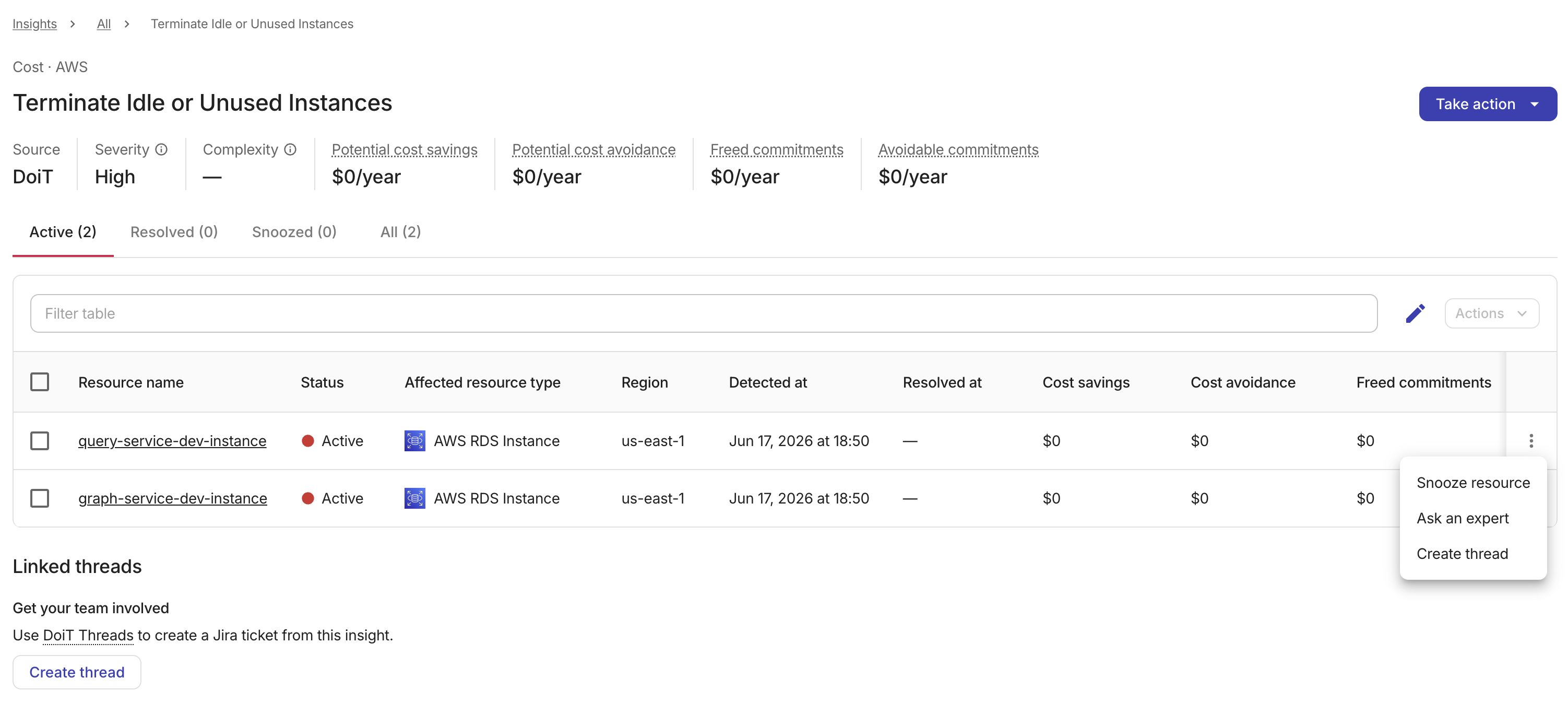
For a resource, select the kebab menu (⋮) at the rightmost end of the resource row:
-
Snooze resource: Snoozes the resource for the current insight. You need to specify the snooze duration and provide a reason. This action does not affect other resources related to the insight, nor other insights related to this resource.
TipYou can snooze a resource either from the insight details page or from the Insights tab in the Recipe builder.
Alternatively, select multiple resources using the checkboxes, select Actions next to the filter bar, and then select Snooze resources to snooze the chosen resources.
-
Ask an expert: Opens an expert inquiry for further guidance.
-
Create thread: Creates a thread for the insight from the resource row.
Linked threads
Linked threads displays any threads that have been created for the insight. When threads exist, the count of linked threads is displayed.
For each linked thread you can view details such as the thread name, status, and the connected ITSM tool (Jira or Linear). You can also manage threads using the options in each thread's kebab menu (⋮).
If no threads have been created yet, you can select Create thread to create the first thread.