Insights dashboard
The Insights dashboard provides a centralized view of insights.
Required permission
- Insights Manager
To list recipes and findings from a flow instead of the dashboard, see Composer Insights in CloudFlow.
Access the dashboard
In the DoiT console, there are two ways to access the Insights dashboard:
-
Select Workload optimization > Insights from the top navigation mega menu.
-
Select Automation and operations > Composer from the top navigation mega menu, and then select View all insights on the Composer page.
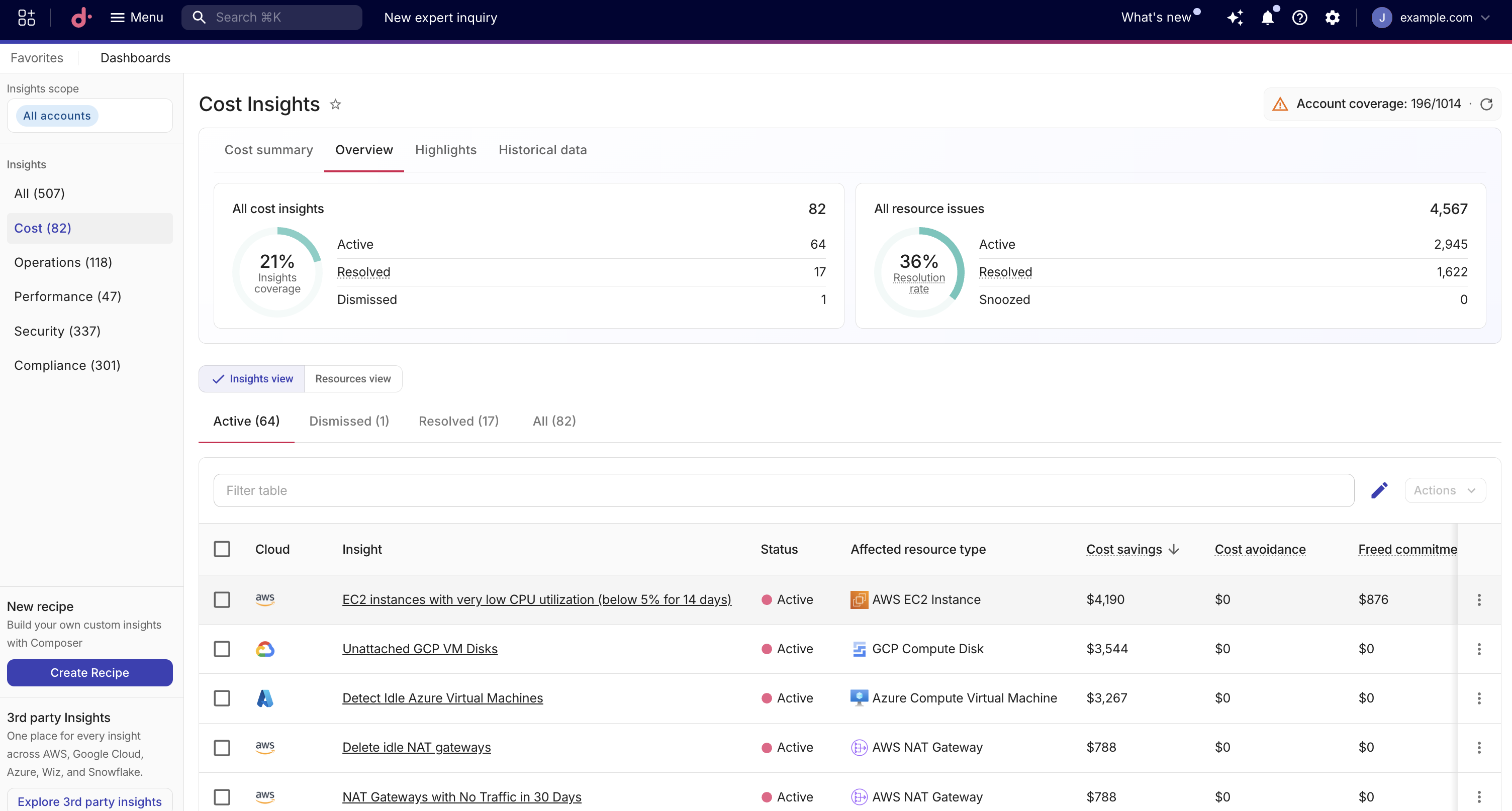
The Insights dashboard consists of sidebar options, Account coverage in the page header, dashboard tabs, and a way to switch between insights and resources views.
Sidebar options
The sidebar on the left side provides the following options:
-
Insights scope: Narrows down the insights scope by the selected cloud accounts.
-
Insights: Filters insights and resources by category.
-
Create recipe: Navigates to the Composer recipe creation page to build custom insights.
-
Explore 3rd party insights: Launches the dashboard of third-party insights. For end customers on a PartnerOps plan, this option reads Explore AWS insights.
Insights notifications
You can configure your Insights notification settings without leaving the Insights page.
-
On the Insights page, select Insights notifications.
-
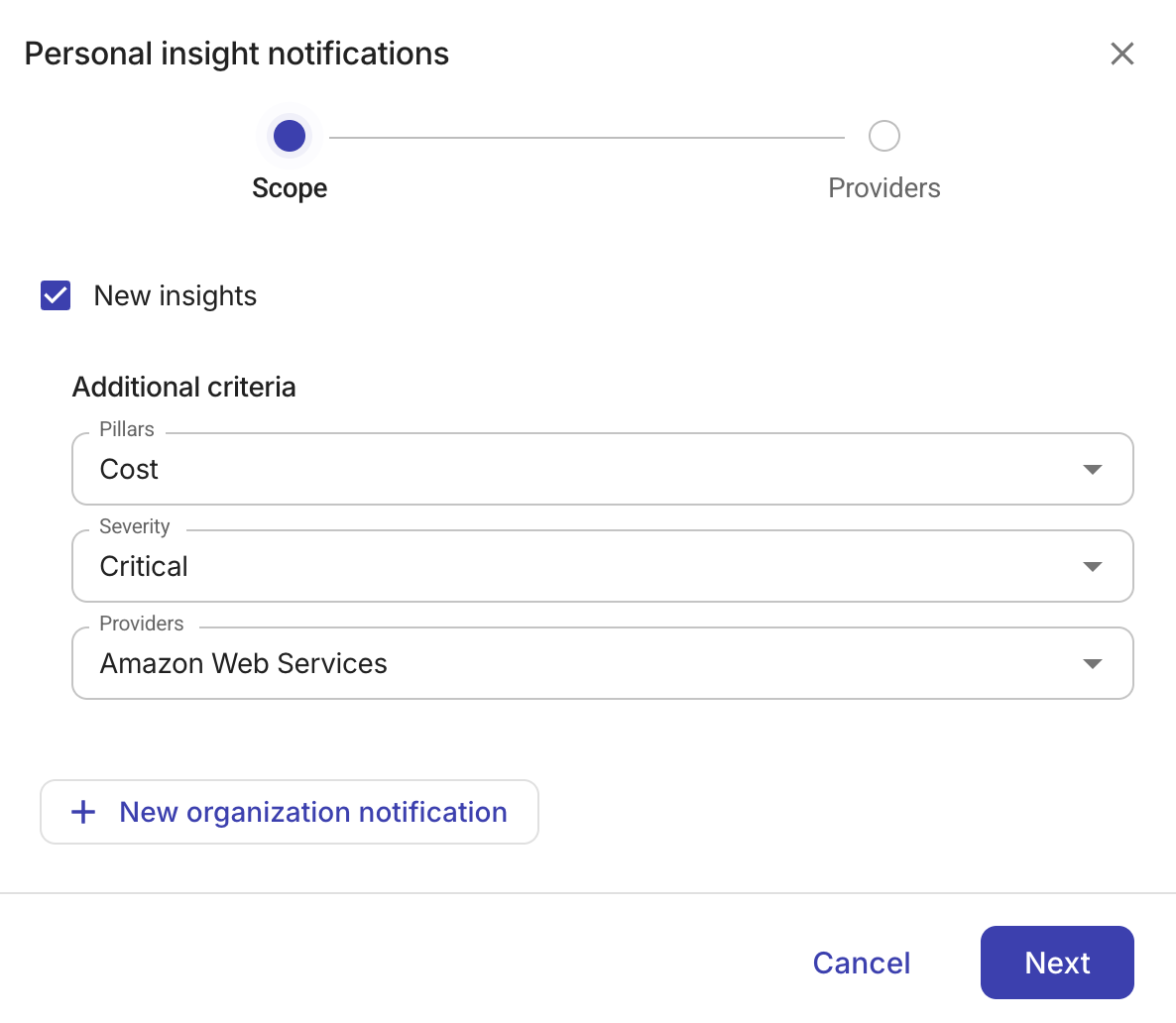
On Scope, enable New insights to receive notifications when new insights are identified. Disable it to stop these notifications.
-
If New insights is enabled, you can optionally filter notifications by Pillars (insight category), Severity, and Providers. For a description of each pillar, see Insights categories.
-
Select Next.
-
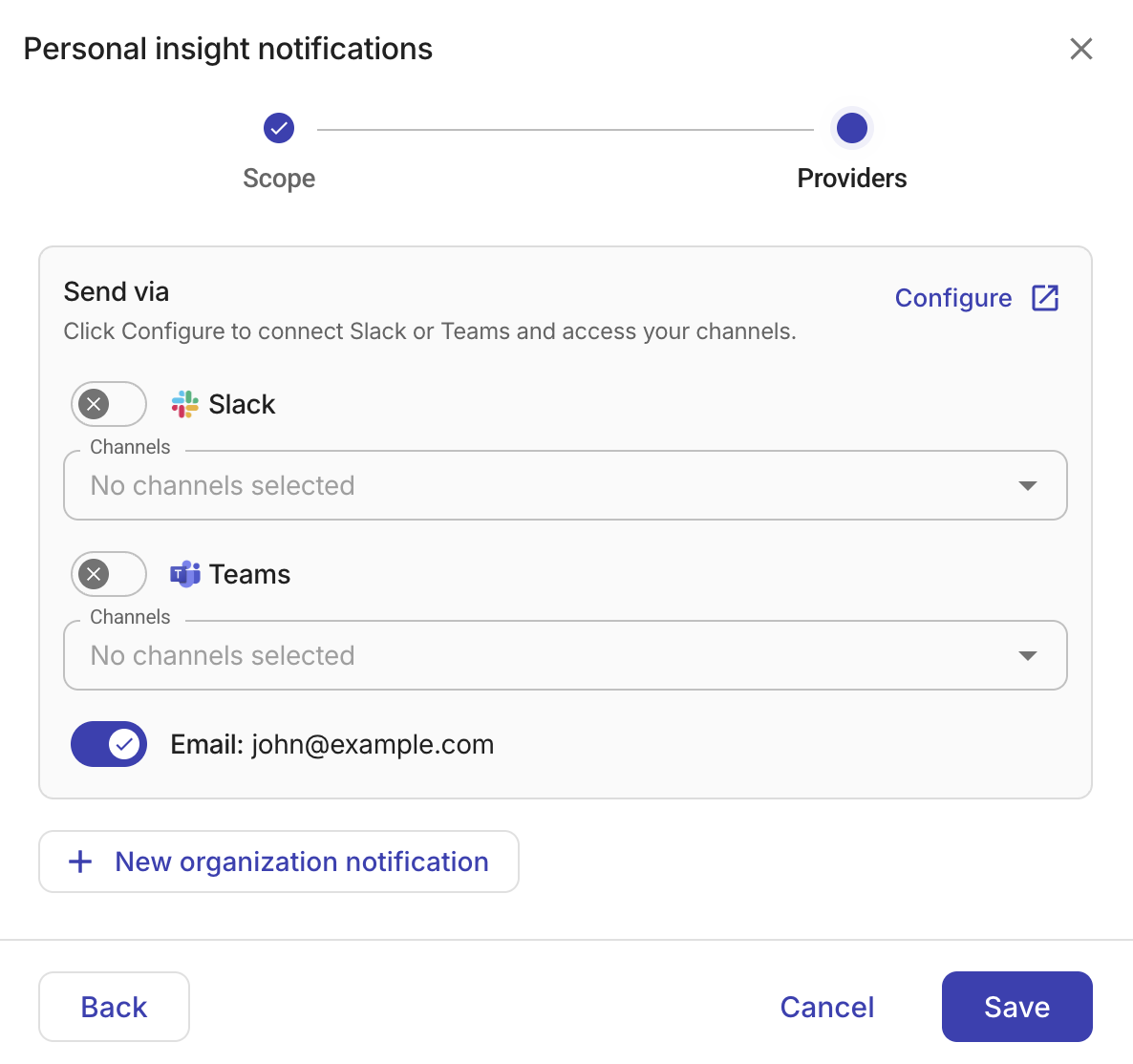
In Providers, choose how you receive notifications. Select the delivery channels available for your organization, such as email, Slack, or Microsoft Teams.
-
To configure Slack channels, Teams conversations, or other delivery settings, select Configure to open the delivery settings in a new tab. See Configure default delivery channels.
-
Select Save to apply your changes.
If you have the Manage settings permission, you can also select New organization notification on Providers. See Create an organization notification.
Create an organization notification
Organization notifications send new insights to shared recipients, such as a team's email addresses, a Slack channel, or a Microsoft Teams conversation, so the people responsible for acting on them are informed directly. You need the Manage settings permission to create one.
-
On the Insights page, select Insights notifications.
-
On Scope, enable New insights, and select Next.
-
On Providers, select New organization notification.
-
On Scope, enable New insights to receive notifications when new insights are identified. Disable it to stop these notifications.
-
If New insights is enabled, you can optionally filter notifications by Pillars (insight category), Severity, and Providers. For a description of each pillar, see Insights categories.
-
Select Next.
-
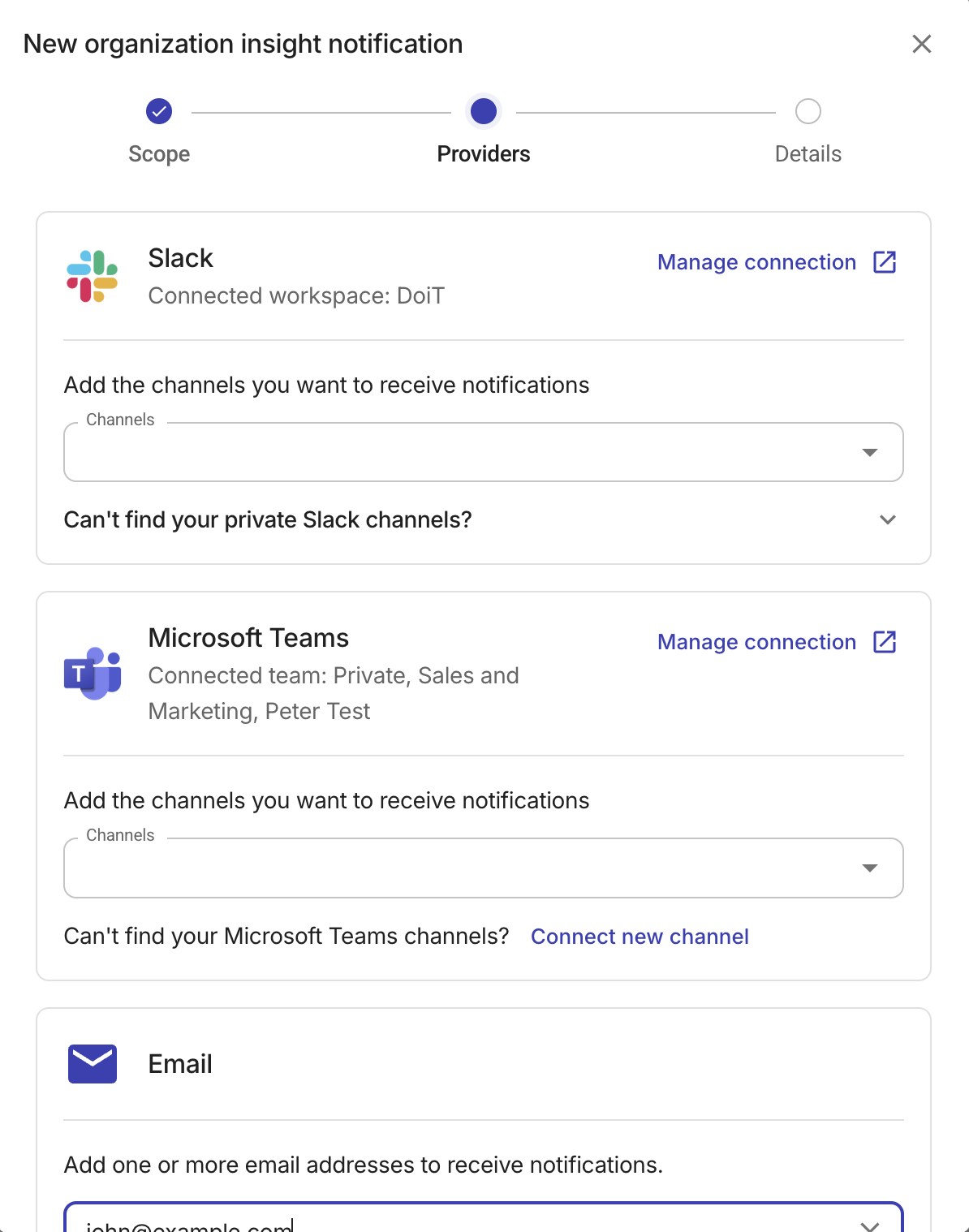
In Providers, add email addresses, select a Slack channel, or select a Microsoft Teams conversation.
-
If Slack or Teams isn't connected yet, select Connect to open the integration page.
-
Select Next.
-
In Details, enter a name for the notification.
-
Select Save. The dialog returns to your personal notification settings, and the new notification appears under Settings > Notifications > Organization.
Account coverage and scan status
When viewing proprietary insights, Account coverage in the page header shows:
-
The coverage percentage of onboarded accounts.
-
The count of onboarded accounts out of the total eligible accounts (for example,
3/5). -
The date and time of the last scan. Hover over Refresh to see it.
If one or more account scans have errors, or if connected Composer accounts are not yet set up for billing, a warning icon appears on the chip instead of the coverage percentage. Hover over the warning icon to see details about scan errors and billing status, including options to connect your accounts. See Connect your cloud.
Select Account coverage to open Composer & Insights coverage and Account scan status.
Dashboard tabs
The insights dashboard has four tabs: Cost summary, Overview, Highlights, and Historical data. The Cost summary tab is the default tab when you view the Cost or All categories. The selected tab is preserved in the URL, so you can bookmark or share a link to a specific view.
Cost summary
The Cost summary tab displays four cards for DoiT-proprietary cost insights:
-
Cost savings: Estimated savings from actions that reduce your current spend. See Cost insight financial metrics.
-
Cost avoidance: Estimated savings from actions that prevent future cost increases. See Cost insight financial metrics.
-
Freed commitments: The value of commitment coverage that would be freed when you act. See Cost insight financial metrics.
-
Avoidable commitments: The value of commitments that could be downsized or not renewed. See Cost insight financial metrics.
Each card shows two figures:
-
A to-date amount — the cumulative impact already realized from resolved insights, converted to your organization's currency. This value is not annualized. The label is Saved to date, Avoided to date, or Freed to date, depending on the card.
-
Annual potential: The estimated annualized impact from active insights.
Hover a card title for a brief definition. A caption under the cards explains how to-date and annual potential figures are calculated. For dash values, $0, and the Unable to retrieve data. message, see Dashes and $0. For how all four financial metrics are calculated and how they work together, see Cost insight financial metrics.
When no connected Composer accounts have billing data, the Cost summary tab still appears but all card values display as dashes (—).
Overview
The Overview tab displays two summary charts of DoiT-proprietary insights and affected resources.
The overview includes the following charts:
-
Insights coverage: Shows the percentage of covered insights relative to all resources. The chart includes a breakdown by status: Active, Resolved, and Dismissed.
-
Resolution rate: Shows the percentage of resource issues resolved, averaged across selected accounts. The chart includes a breakdown by status: Active, Resolved, and Dismissed.
The charts reflect the currently selected cloud accounts and insights category. Adjusting the filters updates the charts to show only the relevant data.
Highlights
The Highlights tab displays two side-by-side panels that surface the most important findings at a glance.
-
Most affected resources: Lists cloud resources ranked by the number of active issues. Each row shows a resource-type icon, the resource name, and color-coded counts for each severity level. Select any row to open the resource details panel for that resource. Scroll down to progressively load more resources.
-
Recent insights: Lists recently detected active insights, ordered by most recent day first and then by severity within the same day. Insights are grouped by relative date, with date labels displayed in your configured app language. Each insight displays a clickable title that opens the insight detail page, along with a severity badge. Scroll down to progressively load more insights.
Both panels reflect the currently selected cloud accounts and insights category.
Historical data
The Historical data tab displays an Active and resolved issues chart that plots the number of active and resolved issues over time.
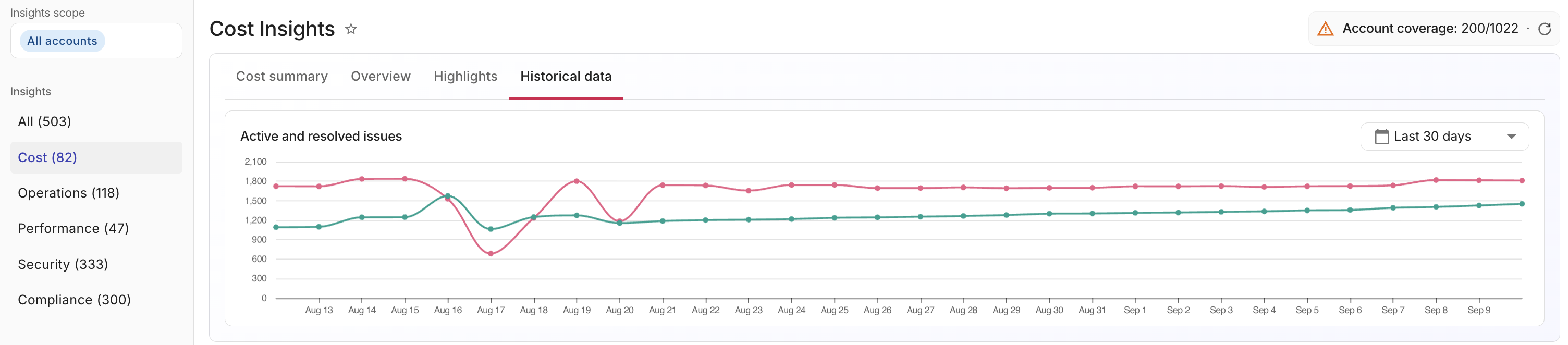
Use the time range selector in the top-right corner of the chart to adjust the displayed period:
-
Last 7 days: Shown in daily intervals.
-
Last 30 days (default): Shown in daily intervals.
-
Last 90 days: Shown in weekly intervals.
The chart updates to show data for the selected insights category in the sidebar, such as Cost, Security, or All, and the selected cloud accounts.
Hover a data point on the chart to see the number of active and resolved issues for that date. The cumulative realized savings under a To date header is also displayed, broken down into four currency values: Cost savings, Cost avoidance, Freed commitments, and Avoidable commitments. These amounts are converted to your organization's currency. For definitions of each metric, see Cost insight financial metrics.
Toggle between views
The Insights dashboard offers different views. You can switch between views using the toggle button at the top of the dashboard. The insights scope and category, if specified in the left sidebar, are preserved across views.
-
Insights View: Lists insights generated by Composer. Each insight is a recommendation based on recipe evaluations across your connected cloud accounts.
-
Resources View: Lists the individual cloud resources affected by active insights.
-
Compliance View: When the Compliance category is selected, a Compliance view option also appears in the toggle. Selecting it shows compliance framework results as cards.