Resources view
The Resources view helps you understand which specific resources in your environment have active insights, how severe the findings are, and how many issues are associated with each resource. You can also view recently resolved resources to track remediation progress.
Switch to the Resources view
On the Insights dashboard, select Resources View using the view toggle button.
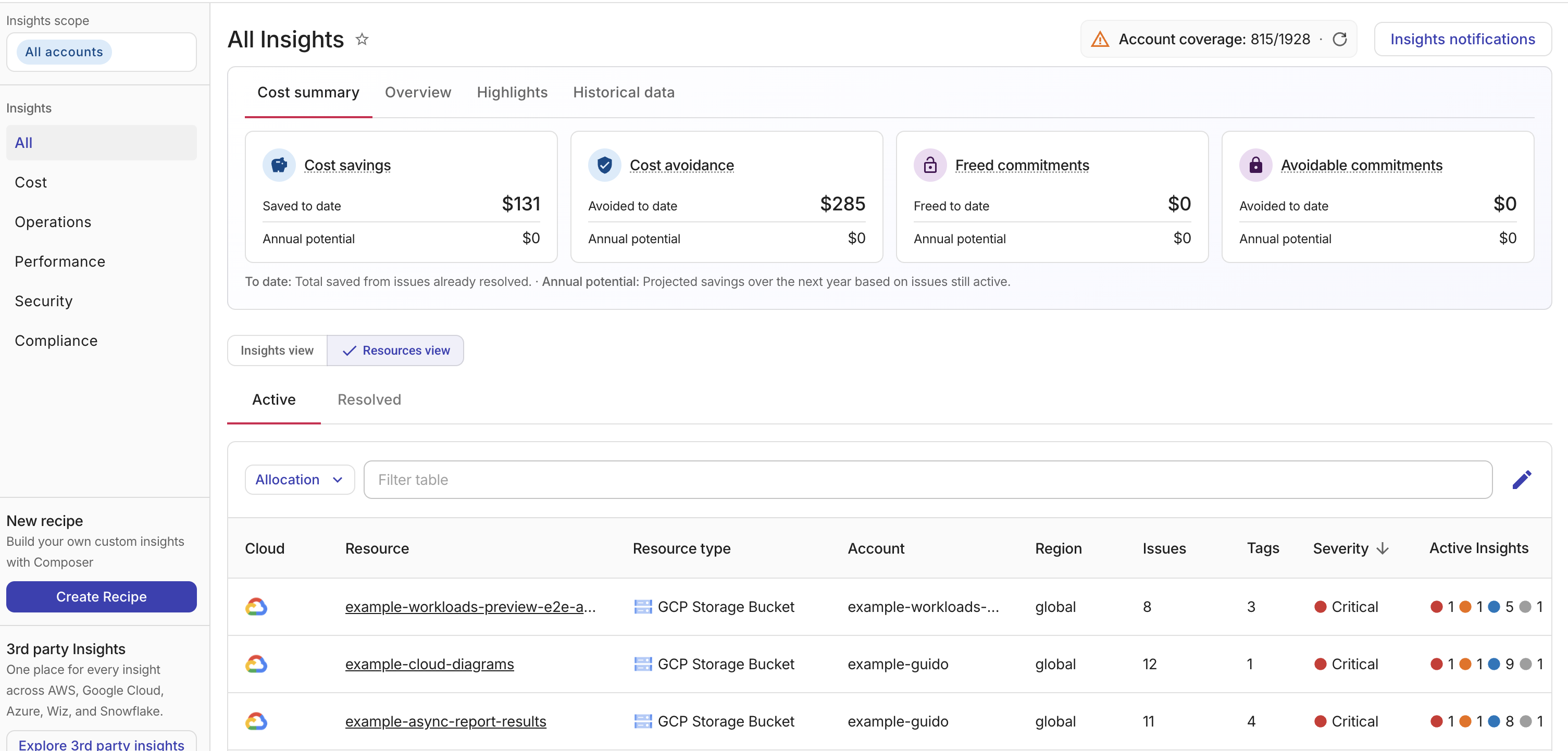
The Resources table has two sub-tabs:
-
Active (default): Shows resources that currently have one or more open issues.
-
Resolved: Shows resources whose issues have been resolved within the time frame selected on the Historical data tab. The default time frame is the last 30 days.
You can filter the table by the following properties:
-
Cloud: The cloud provider of the resource. For example, AWS, Google Cloud, or Azure.
-
Resource: The name of the affected resource. Select the resource name to view the resource details.
-
Resource type: The type of resource. For example, AWS EC2 Instance, GCP Storage Bucket.
-
Account: The cloud account ID that owns the resource.
-
Region: The cloud region where the resource is deployed.
-
Issues: The number of issues detected for the resource. This column is available only on the Active tab.
-
Tags: The number of tags associated with the resource. Sorting and filtering by Tags are not available when there are more than 5,000 results. Use other filters to narrow the results before sorting or filtering by Tags.
-
Severity: The highest severity level among the resource's active insights: Critical, High, Medium, or Low. This column is available only on the Active tab.
On the Active tab, Active Insights shows the number of active insights at each severity: Critical, High, Medium, and Low. On the Resolved tab, Resolved Insights shows how many insights were resolved in the selected time frame at each of those severities.
Filtering
You can narrow the Resources list with the Allocation button or the Filter table bar above the table. Both are preserved in the URL, so you can bookmark or share a link to the filtered list.
Filter by allocation
You can scope the Resources view to show only resources that belong to specific allocations. The allocation selection is shared with the Insights view, so the scope you set on either view is preserved when you switch between them.
To filter by allocation:
-
Select Allocation.
-
Use the Search allocations field to find allocations by name, then select the checkbox next to each allocation you want to include. You can select up to 10 allocations.
-
Select Apply.
Once a filter is applied, you can see the names of the selected allocations and the number of active allocations (for example, Allocation (3)).
You can:
-
Select Edit to change your current selections.
-
Select Clear to remove the filter and show all resources.
Changing the sort order, page, or category keeps the allocation filter.
Filter the table
Use the Filter table bar above the table to narrow the list by Cloud, Resource type, Account, Region, Issues, Tags, or Severity. For Issues and Tags, you can match a number that is equal to, greater than, or less than the value you enter.
Account scope
The Resources view respects the account selection in the sidebar. When you select specific accounts in the sidebar, the table shows only resources that belong to those accounts. If no accounts are explicitly selected, resources from all connected accounts are displayed.