Insights view
The Insights view is the default view of the Insights dashboard.
Filtering
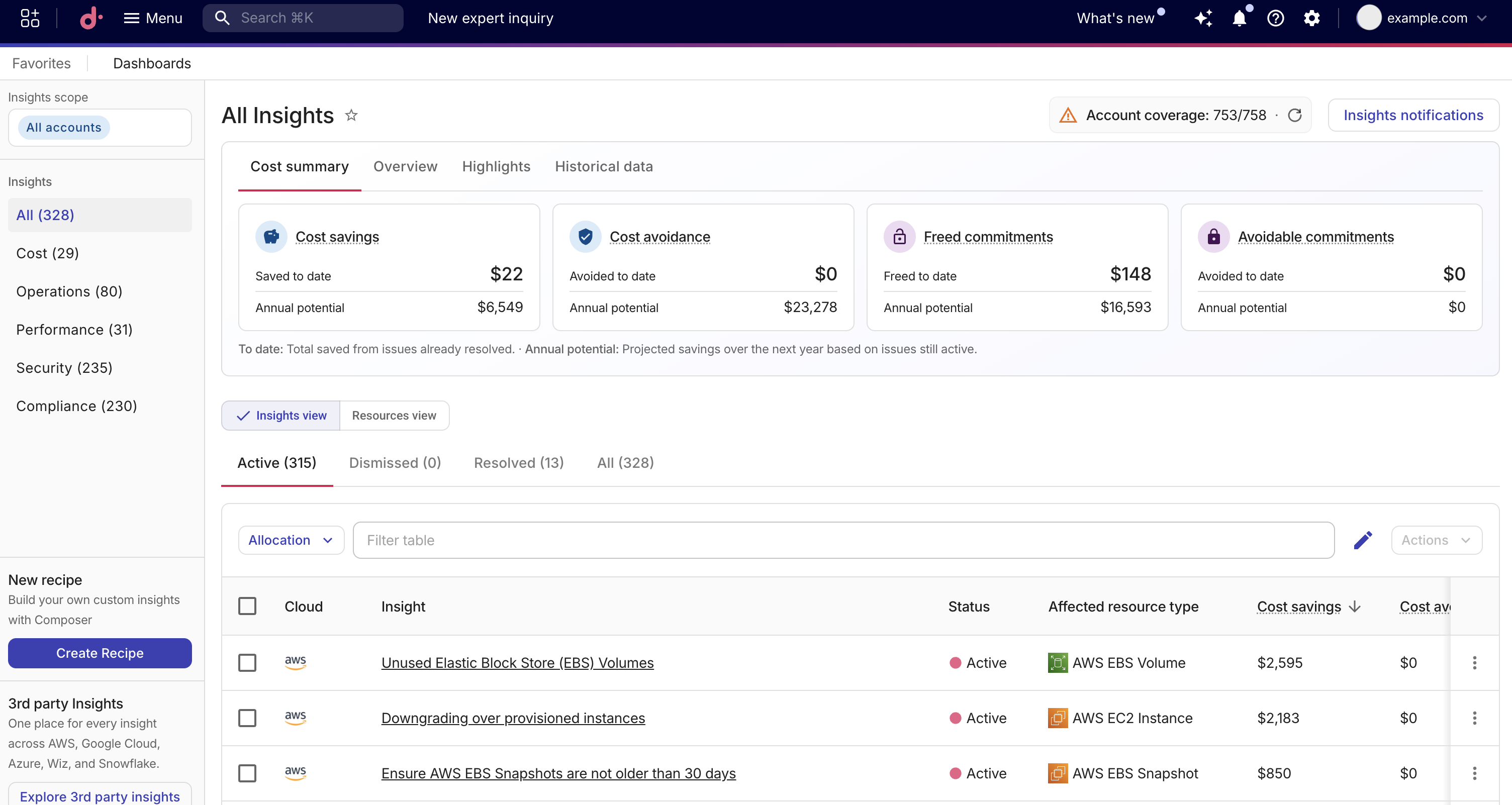
You can narrow the Insights list with the Allocation button or the Filter table bar above the table. Both are preserved in the URL, so you can bookmark or share a link to the filtered list.
Filter by allocation
You can scope the Insights list to show only insights whose affected resources belong to specific allocations. The allocation selection is shared with the Resources view, so the scope you set on either view is preserved when you switch between them.
To filter by allocation:
-
Select Allocation.
-
Use the Search allocations field to find allocations by name, then select the checkbox next to each allocation you want to include. You can select up to 10 allocations.
-
Select Apply.
Once a filter is applied, you can see the names of the selected allocations and the number of active allocations (for example, Allocation (3)).
You can:
-
Select Edit to change your current selections.
-
Select Clear to remove the filter and show all insights.
Changing the sort order, page, or category keeps the allocation filter.
Filter the table
Use the Filter table bar above the table to narrow the list by Cloud, Affected resource type, Severity, or Active resources. For Active resources, you can match a number that is equal to, greater than, or less than the value you enter. When viewing the Compliance category, you can also filter by Compliance frameworks. When a framework filter is active, matched frameworks appear first in each row.
Insights table
In the Insights view, the insights table displays the following columns:
The four savings columns appear only when viewing the Cost or All categories. The Compliance frameworks column appears only when viewing the Compliance category.
-
Cloud: The cloud provider associated with the insight. For example, AWS, Azure, or Google Cloud.
-
Insight: The insight name. Select the name to view insight details.
-
Compliance frameworks: The compliance frameworks associated with the insight, displayed as chips. Up to three frameworks are shown per row. If an insight is associated with more than three frameworks, select the +N more link to open a dialog listing all of them. Select a chip, or a framework name in the overflow dialog, to open that framework's details. A dash (—) means the insight has no associated frameworks.
-
Status: The current status of the insight: Active, Resolved, or Dismissed.
-
Cost savings: The estimated yearly savings from optimizing the affected resources, displayed in your organization's currency. See Cost insight financial metrics.
-
Cost avoidance: The estimated yearly savings from preventing future cost increases, displayed in your organization's currency. See Cost insight financial metrics.
-
Freed commitments: The yearly value of commitment coverage that would be freed when you act, displayed in your organization's currency. See Cost insight financial metrics.
-
Avoidable commitments: The yearly value of commitments that could be downsized or not renewed, displayed in your organization's currency. See Cost insight financial metrics.
A dash (—) in any savings column means savings for that metric could not be calculated. See Dashes and $0.
-
Affected resource type: The type of cloud resource affected by the insight.
-
Severity: The severity level: Critical, High, Medium, or Low.
-
Active resources: The number of active resources out of the total.
You can sort the table by selecting a column header, such as Cost savings, Severity, or Status. By default, the Cost and All categories sort by Cost savings in descending order, while the Security, Compliance, Operations, and Performance categories sort by Severity in descending order. Switching categories resets the sort to the new category's default.
You can select the editor icon next to the search bar to show the following columns of advisory information:
-
Fix complexity: The estimated complexity of resolving the insight: Simple, Intermediate, or Complex.
-
Fix time: The estimated time required to remediate the insight.
Insight actions
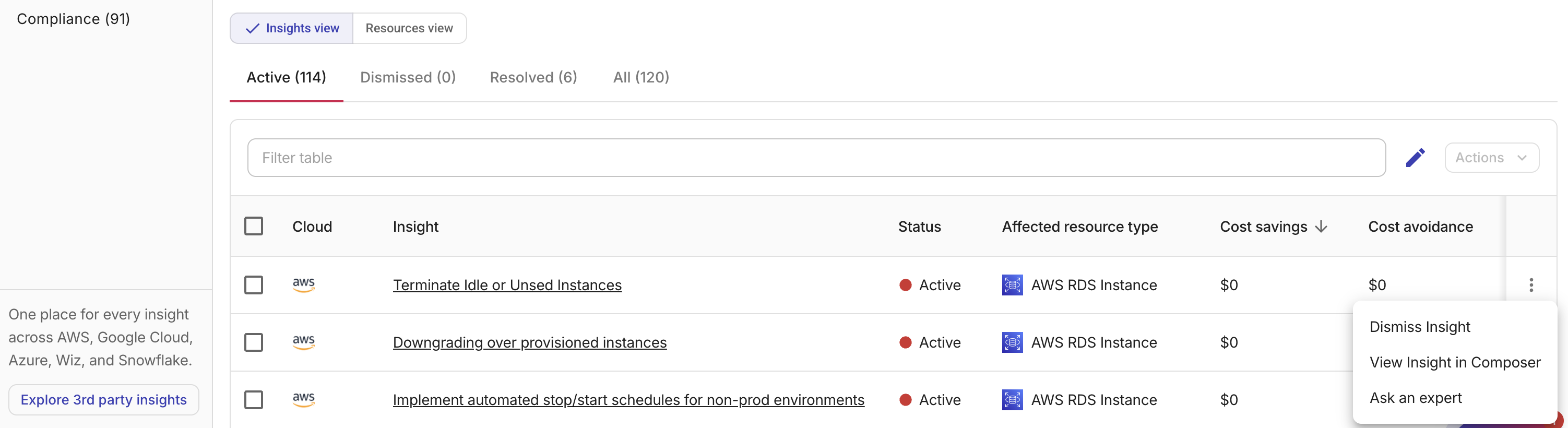
The kebab menu (⋮) at the rightmost end of each insight row provides more options:
View in Composer
Select View Insight in Composer to open the Composer recipe that generates the insight. You can view and customize the recipe in the Recipe builder.
Ask an expert
Select Ask an expert to open an expert inquiry for further guidance. The inquiry form opens pre-filled with the insight details.
Dismiss or enable insights
To dismiss an insight:
-
Locate the insight of interest, select the kebab menu (⋮) at the end of the row, and then select Dismiss this Insight.
Alternatively, select one or more insights using the checkboxes, select Actions next to the search bar, and then select Dismiss these insights.
-
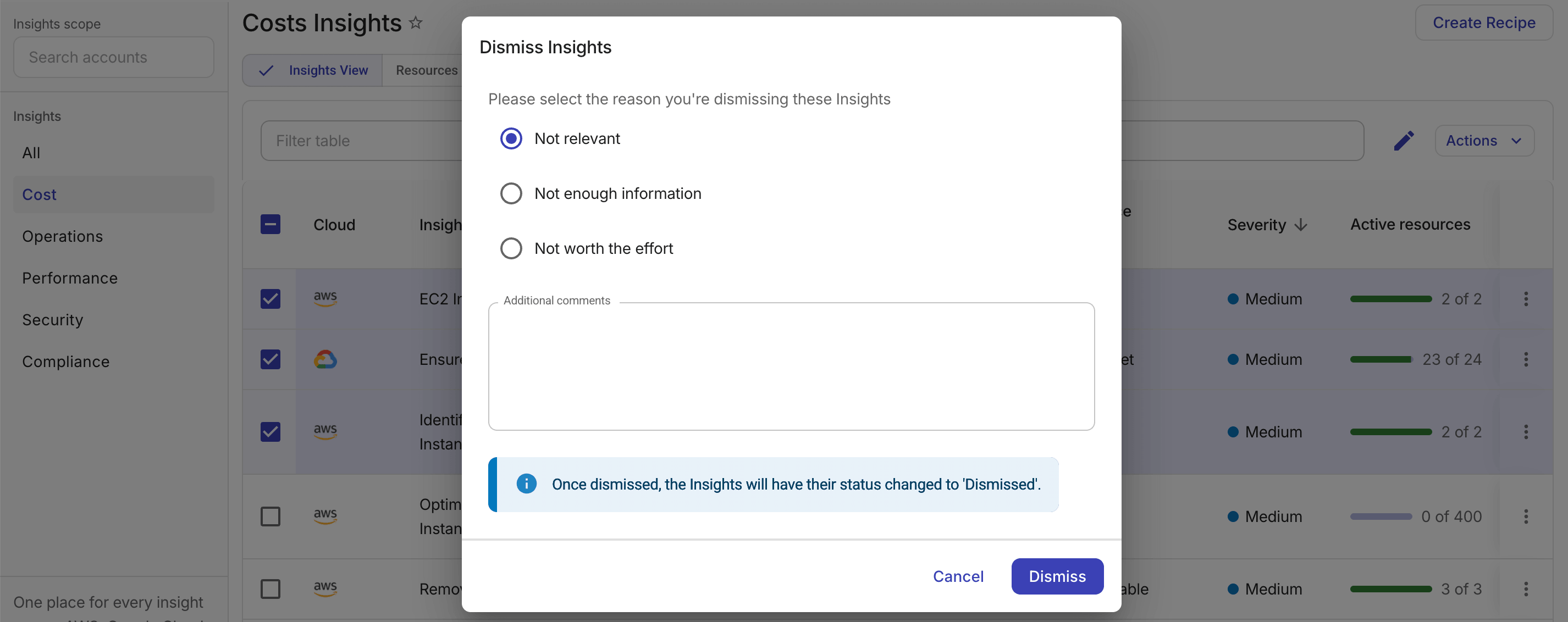
Choose a reason: Not relevant, Not enough information, or Not worth the effort.
You can also provide additional comments for context.
-
Select Dismiss to confirm.
To enable a previously dismissed insight, select Enable this Insight from the kebab menu (⋮) at the end of the insight row. Or, select one or more dismissed insights using the checkboxes, and then select Enable these insights from the Actions list next to the search bar.