Account coverage
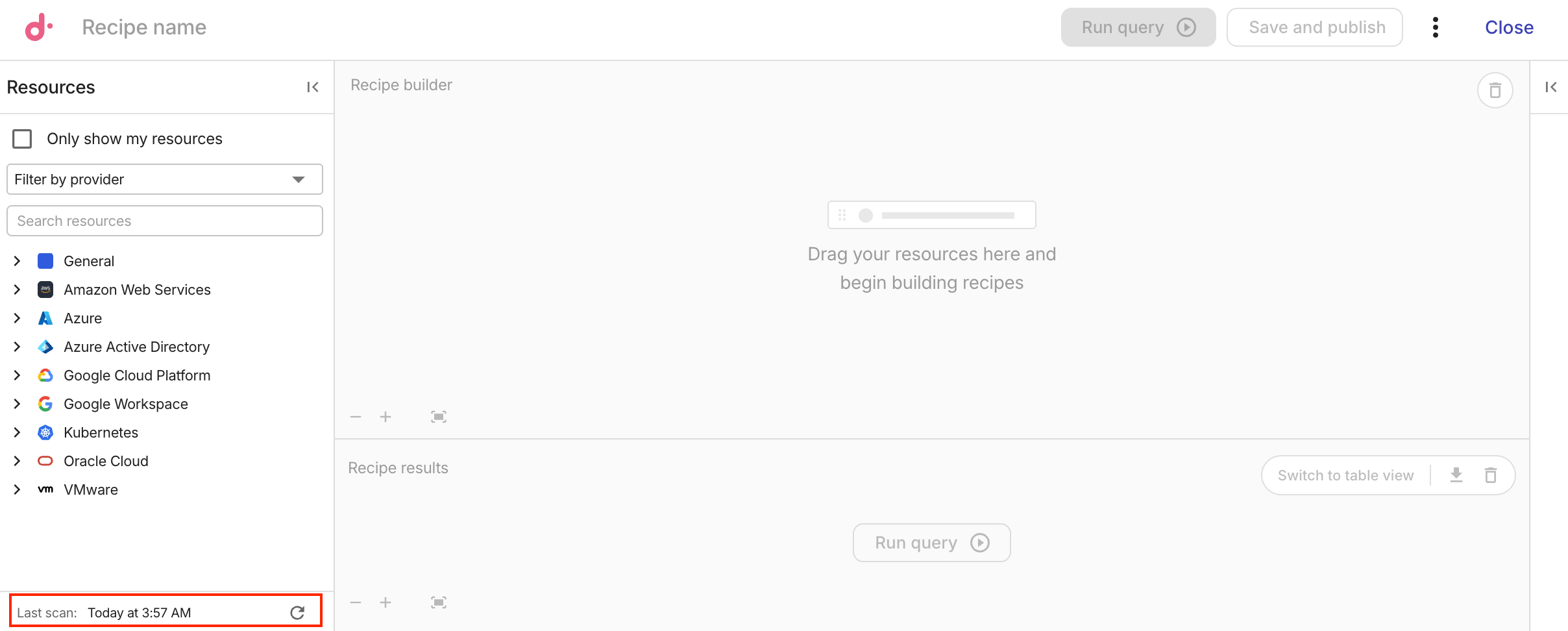
To keep your data current, Composer automatically and periodically scans any cloud account where the feature is enabled. Periodic syncing is not instantaneous. Newly created resources will only appear in your Composer queries and Insights findings after the next successful scan completes. Because of this, you may temporarily see older assets while newer ones remain hidden until the refresh is finalized. To check the status of your data, you can find the date and time of the most recent sync at the bottom of the recipe builder panel.
To view the account coverage details and trigger new scans, select the refresh icon (⟳) next to the last scan timestamp. If you need fresher data sooner, run a scan manually.
Account coverage also appears in the Insights dashboard page header and the Composer recipes toolbar. It shows the coverage percentage and the count of onboarded accounts out of the total (for example, 3/5). Hover over Refresh to see when the last scan ran. If one or more account scans have errors, a warning is shown instead of the coverage percentage. Select Account coverage to view details.
Composer & Insights coverage
The Composer & Insights coverage section shows permissions coverage by cloud provider.

For each provider with eligible accounts, a card displays:
-
The percentage of accounts with Composer permissions granted.
-
The count of onboarded accounts out of the total eligible accounts.
-
A link to the corresponding Cloud Connect page where you can enable the Composer feature. For AWS, the page is prepopulated with accounts that still need permissions.
Providers with no eligible accounts are not displayed.
Account scan status
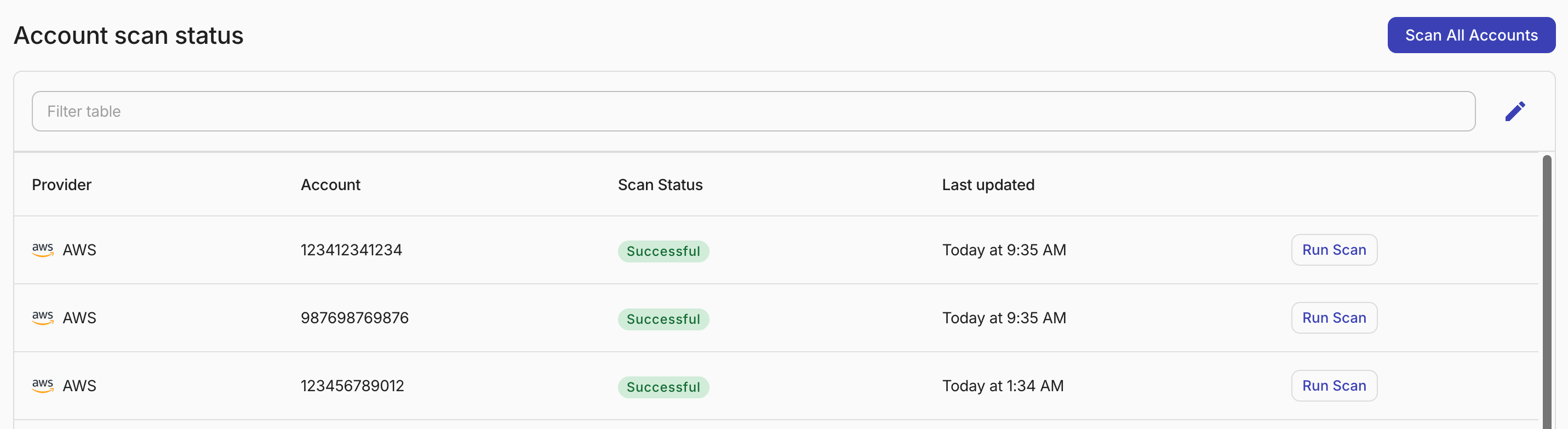
The Account scan status section displays detailed information of each account. You can filter and sort the table to find specific accounts.
-
Provider: The cloud provider. For example, AWS, GCP.
-
Account: The account identifier. For AWS, this is the 12-digit AWS account ID; For Google Cloud, this is the human-readable project name.
-
Scan Status: The current status of the scan.
Successful,Failed,Scanning. Accounts that have not enabled Composer are shown asDisconnected. -
Last updated: The date and time of the most recent scan for the account.
Run a scan
You can run a manual scan whenever you need real-time data before the next scheduled run. For example:
-
Immediately after creating new resources.
-
After you enable Composer on a new account.
-
Whenever the Last updated timestamp is older than the changes you want to view.
You can trigger account scans from the Account scan status section:
-
To scan a single account, select Run Scan next to the account.
-
To scan all accounts at once, select Scan All Accounts.
You cannot trigger a scan for Disconnected accounts. Enable Composer on such accounts first.
Once you enable Composer on an AWS account, resources typically appear in Composer queries and Insights findings within 30 to 90 minutes. For exceptionally large accounts, or if the feature is enabled immediately after a scheduled scan has passed, this process can take up to 2 hours.
For other cloud providers, timing varies based on account size and the scheduled scan window.
If your account has already been scanned and you need newly created resources to appear immediately, select Run scan to trigger an on-demand refresh.