Tutorial: Your first recipe
This tutorial walks you through creating a Cost-focused recipe for AWS EBS volumes by duplicating an existing recipe, adjusting the query, testing results, and publishing.
For concepts such as pillars, draft versus published, and when to duplicate, see Understanding recipes.
Goal and objectives
-
Goal: Create and publish a recipe that finds EBS volumes matching your cost criteria and can surface them as proprietary Insights.
-
Objectives: In this tutorial, you'll learn how to:
-
Duplicate an existing recipe instead of starting from a blank canvas.
-
Set pillars, severity, and Group results by fields.
-
Build and test a query with rules and groups.
-
Publish the recipe and open related Insights.
-
Prerequisites
Before you start:
-
Your organization is on an Enhanced or Enterprise Cloud Intelligence plan.
-
You have enabled Composer for at least one AWS account.
-
Account scans are successful for the accounts you want to evaluate. See Account coverage.
Start building
-
Sign in to the DoiT console, select Automation and operations from the top navigation mega menu, and then select Composer.
-
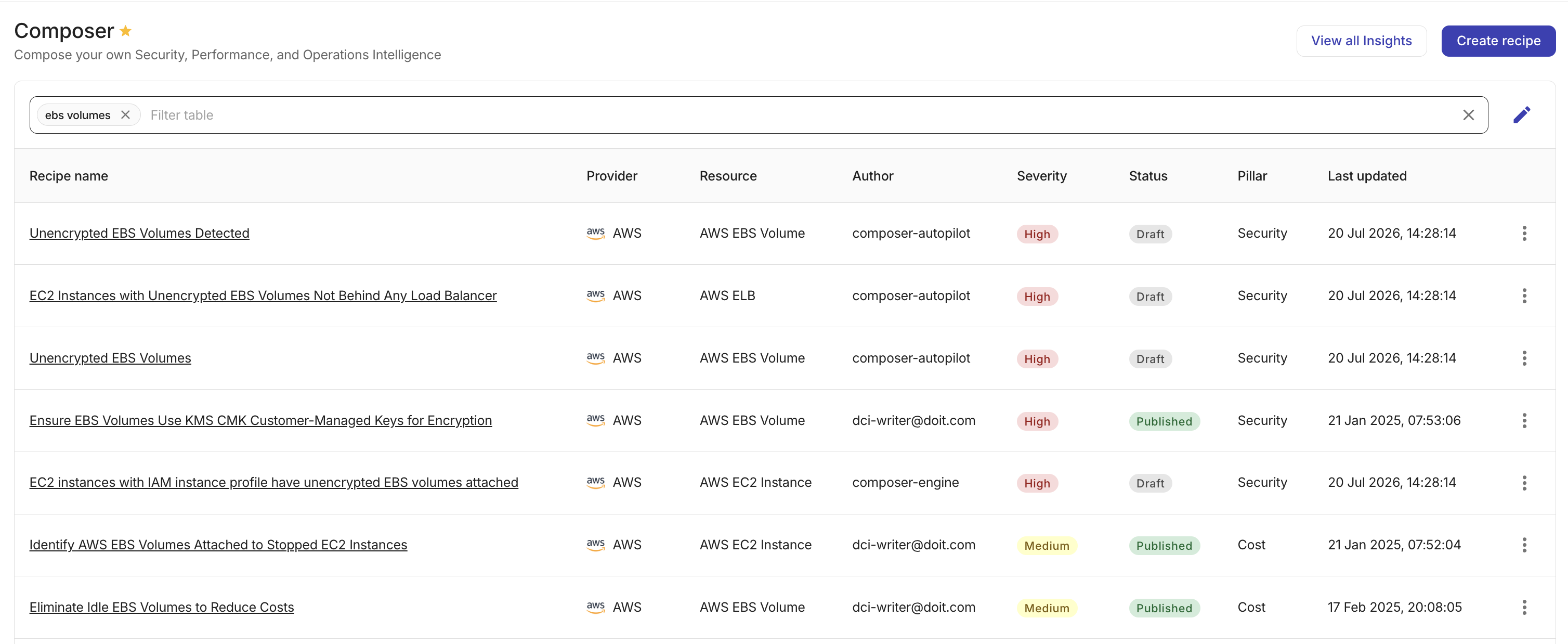
On the Composer dashboard, open a recipe that already targets EBS volumes or a similar idle/unused resource check (for example, an idle EC2 or unattached volume-style recipe if one is available).
-
In the Recipe builder, select the kebab menu (⋮) in the top bar, and then select Duplicate recipe.

You now have an editable copy. The remaining steps customize that copy into your recipe.
Step 1: Configure details
-
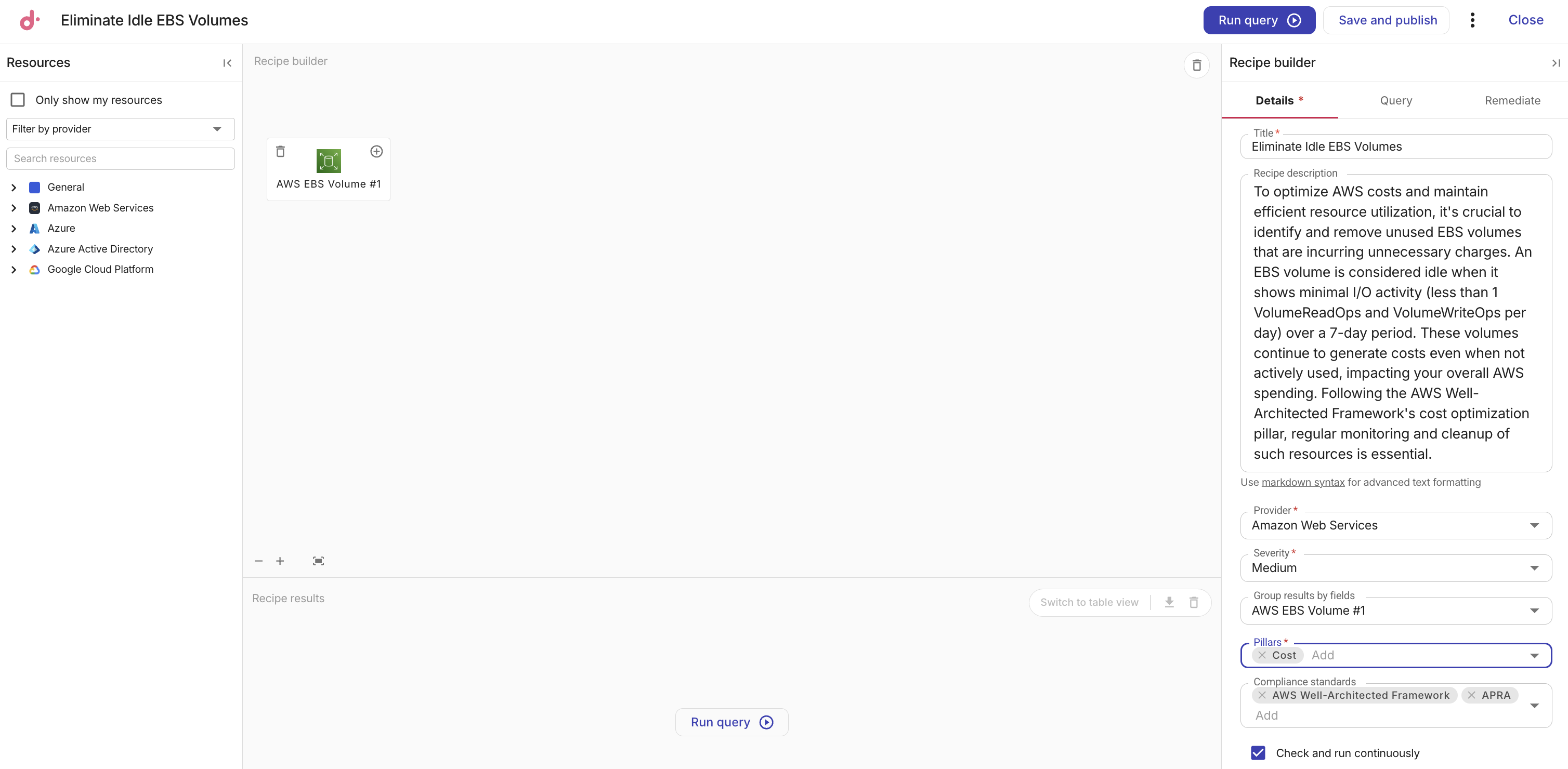
In the Recipe builder side panel, select the Details tab.
-
Update the Title and optional Description so the recipe is easy to recognize on the dashboard. We recommend a resource-first title that states the condition (for example,
EBS volumes with no attached instance) rather than an action. See Create and edit recipes. -
Set Severity (for example,
MediumorHigh). -
In Pillars, select Cost. You can select additional pillars if the check also applies to operations or another category. See Pillars.
-
If Cost is selected, choose a Cost function such as Resource deletion when the intended remediation is to remove unused volumes, so savings are classified correctly.
-
(Optional) Add Compliance standards if you want the related insights tagged for compliance filtering.
-
In Group results by fields, select the canvas resource that should be the issued resource for the insight (typically the EBS volume resource on the canvas). This controls which resource type the insight is raised against when the query matches.
Step 2: Review resources on the canvas
-
Confirm the canvas includes the AWS EBS volume resource (or drag EBS Volume from the Resources panel if needed).

-
(Optional) Select the Add icon (+) on the resource card to add a related resource when your query depends on a relation (for example, attachment to an instance).
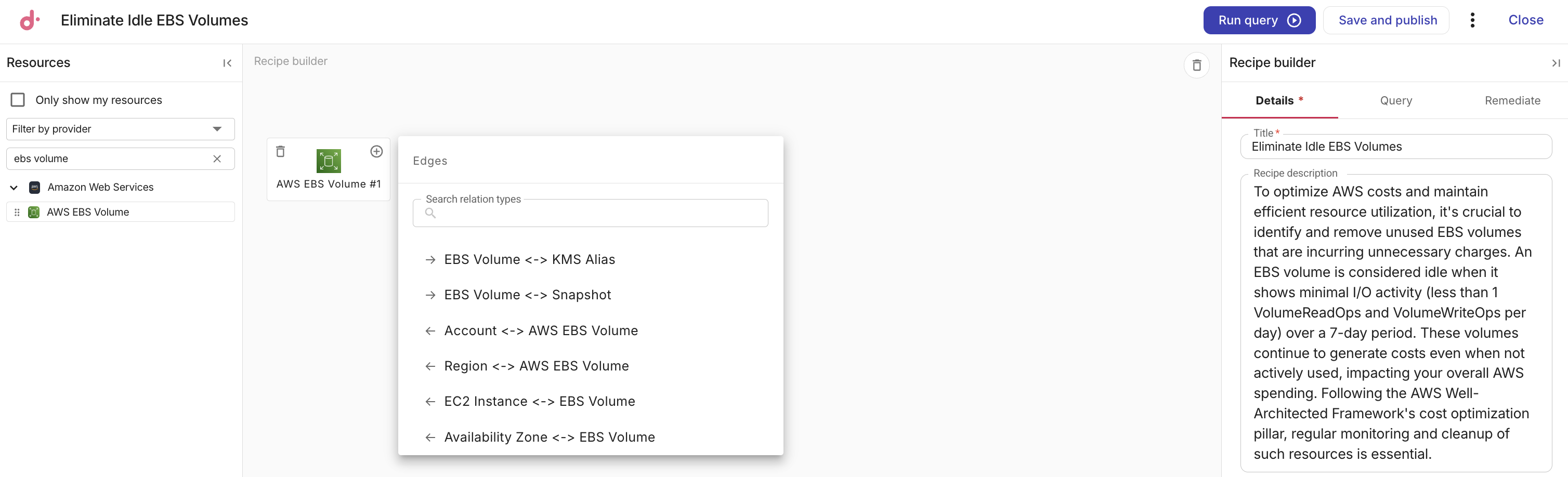
Select Only show my resources in the Resources panel to limit the list to providers and resource types connected to your organization.
Step 3: Build the query
-
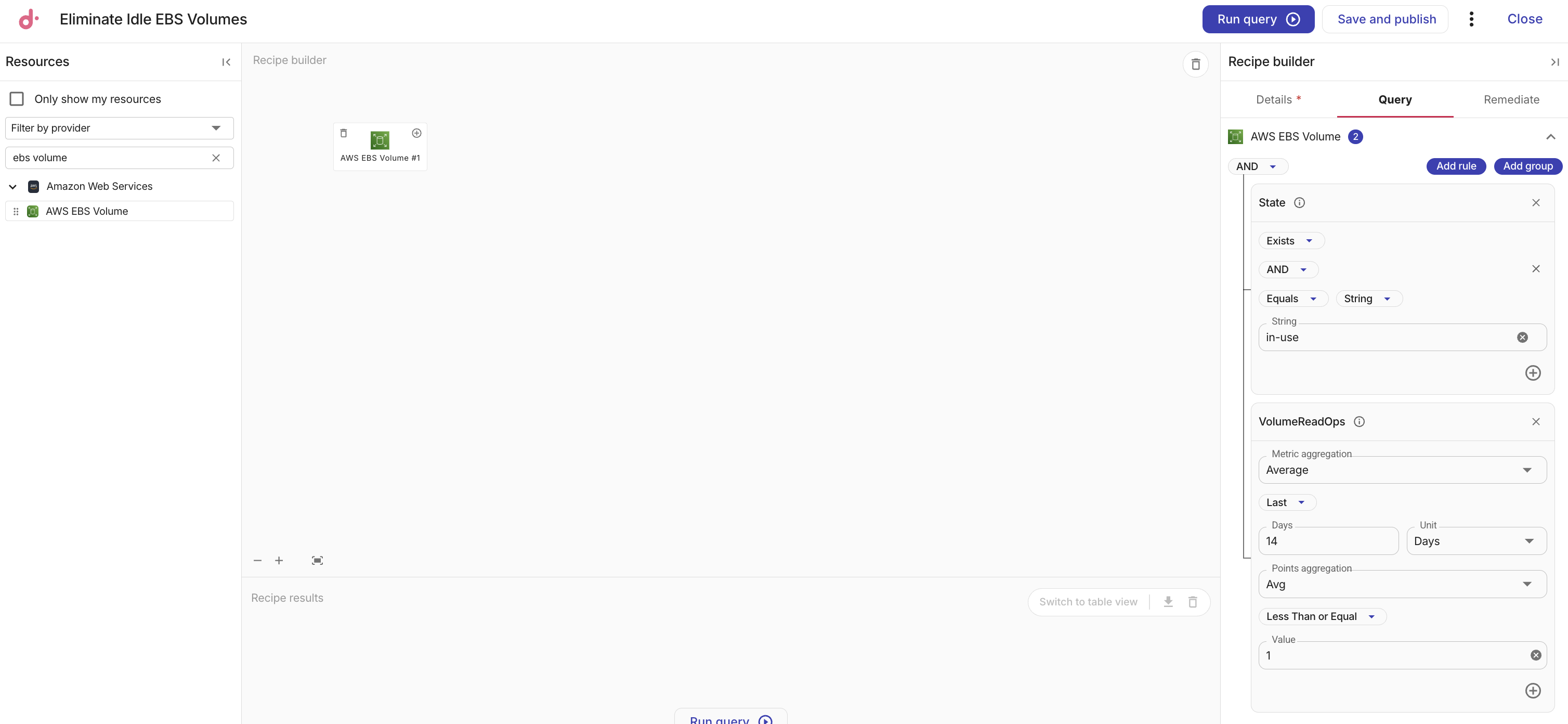
Select the Query tab.

-
Select Add rule to add a single condition. To combine several rules, select Add group, and then add rules inside the group.
-
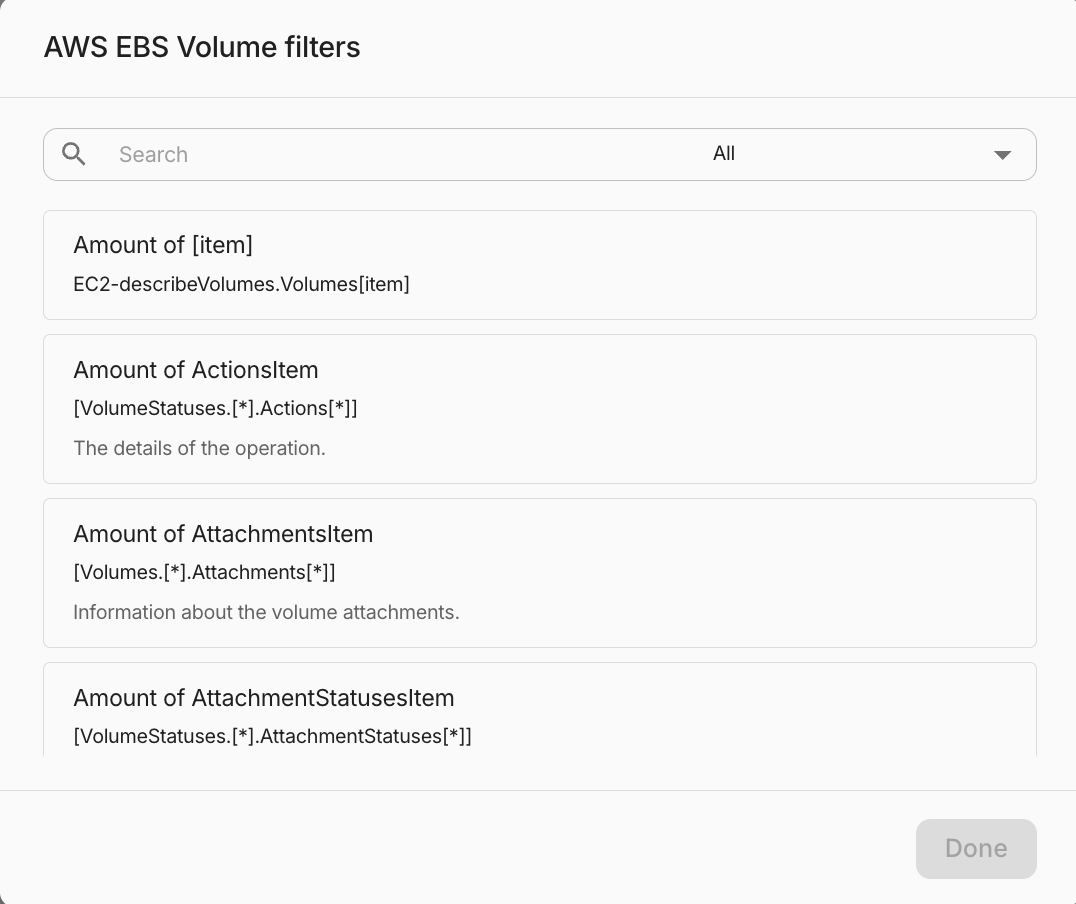
In the filters dialog, search for the property, tag, metric, or other field you need. You can narrow the list by Properties, Events, Cost, Metrics, Tags, Group by, IAM, or All.
-
Select Done, and then adjust operators and values on the rule as needed.
-
Select Run query to test the recipe against your scanned accounts.
Step 4: Review results
-
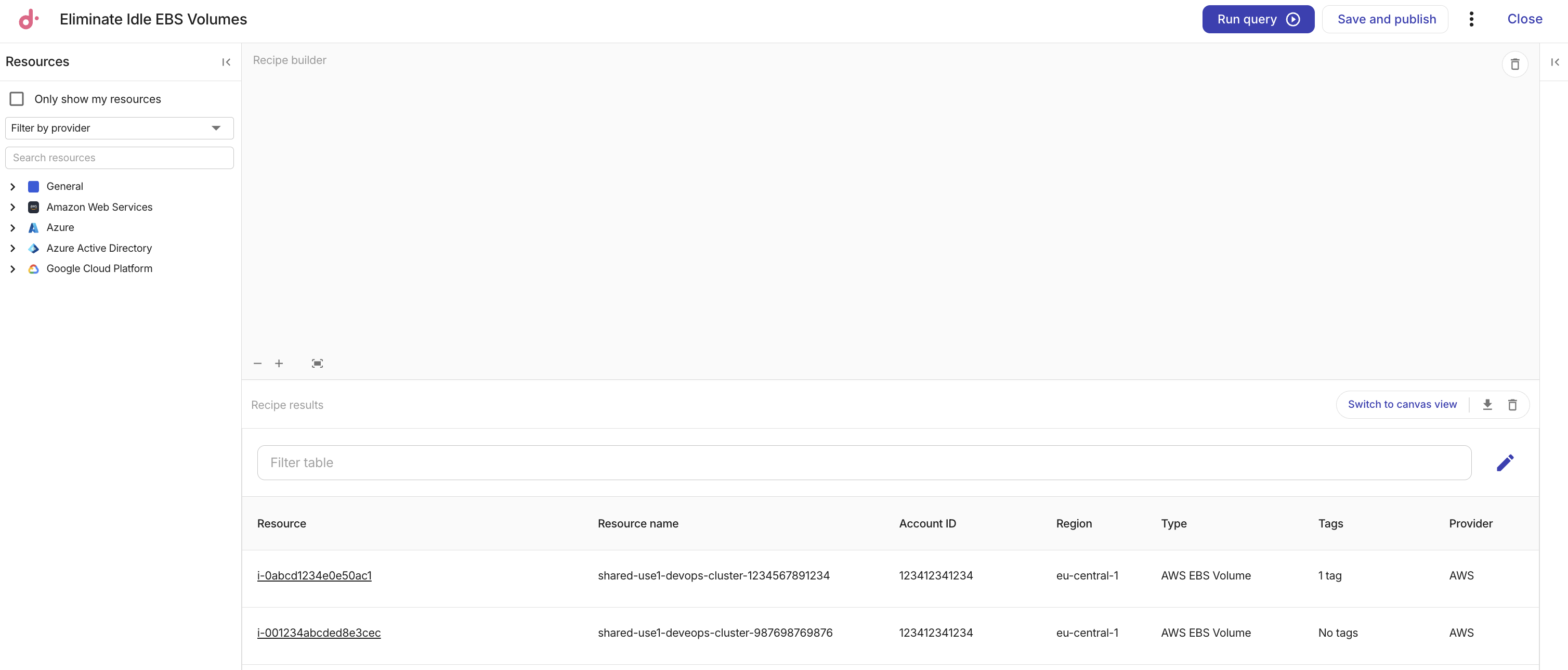
Inspect the recipe results. Switch to table view if you prefer a tabular list.
-
(Optional) Select a resource in the table view to open resource details and verify that the match is expected.
Step 5: Add remediation details (optional)
-
Select the Remediate tab and fill in any fields that help operators resolve findings (steps, impact, complexity, references, fix time).
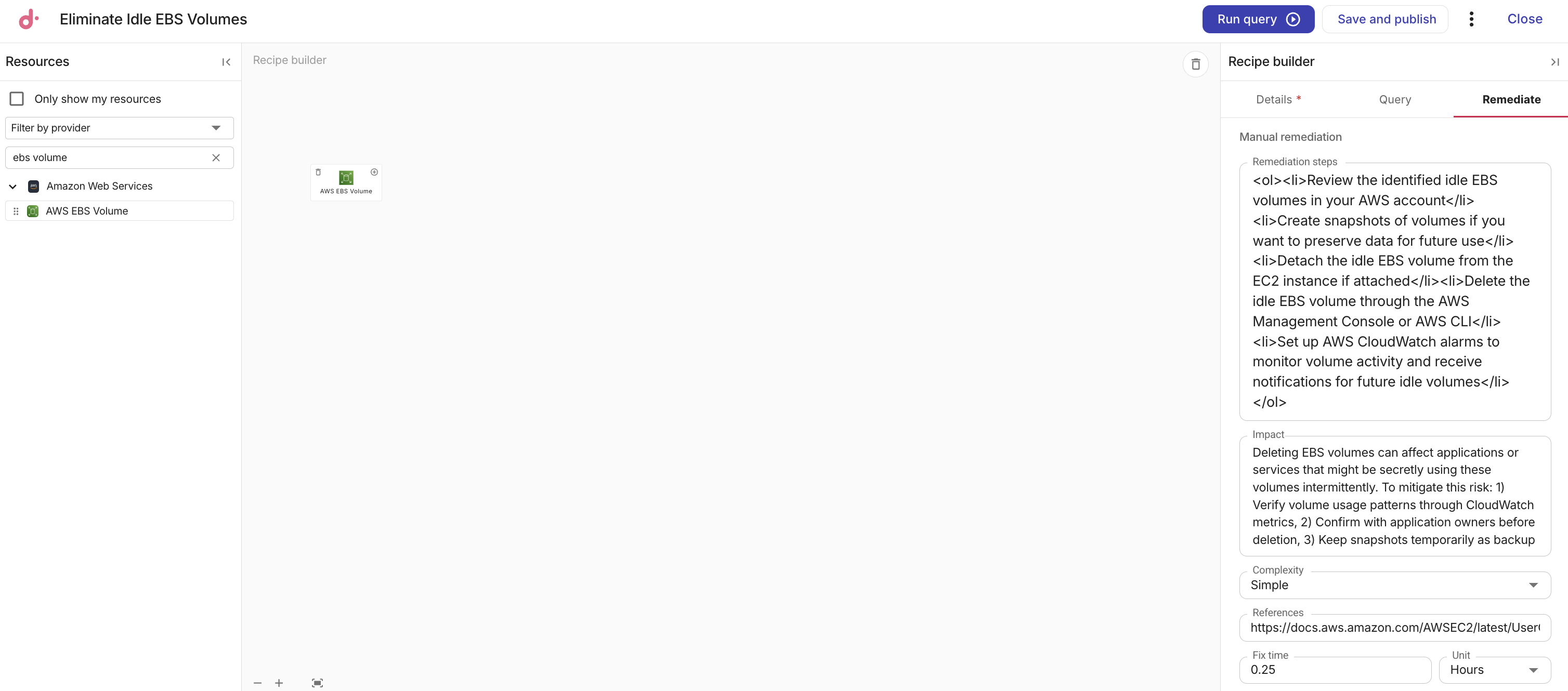
When the recipe is published, these fields appear on the related insight details page. See Add remediation details.
Step 6: Publish the recipe
Before you publish, search the Composer dashboard for a recipe that already targets the same resource and condition. Prefer customizing that recipe over publishing a near-duplicate Cost check, which can inflate savings totals.
-
On the Details tab, select Check and run continuously if you want Composer to keep evaluating matching resources after publish.
-
Select Save and publish.
-
Select Close to return to the Composer dashboard, or select View all insights to open the Insights dashboard.
Troubleshooting
-
No results after Run query: Confirm account coverage shows successful scans, that Composer is enabled on the accounts you expect, and that query filters are not too narrow. Also confirm Group results by fields points at the resource you intend to issue insights for.
-
Cannot save the recipe: You may be viewing a recipe your organization does not own. Duplicate the recipe first, then save the copy.
-
Unexpected matches: Review relations on the canvas and each rule's operators. Use resource details from the results table to inspect properties, tags, and related resources.