Execution history
This page explains how to check and troubleshoot CloudFlow execution by viewing run history from the main CloudFlow page or from the flow builder.
Access run history
You can view the run history in two ways:
-
From the main CloudFlow page:
-
In the CloudFlow sidebar, select Run history. The list is scoped to the workspace you currently have selected (including Default). In other words, you see runs for flows in that workspace, not every flow in the organization.
-
Select the kebab menu (⋮) at the rightmost end of a flow whose run history you want to view and select View run history.
-
-
From the flow builder
In the flow builder you can preview run history to check status and troubleshoot without leaving the editor.
-
Select Run. The flow runs and the run history is automatically displayed with the details of that run.
-
Select Last run to view the run history from the last time the flow was run.
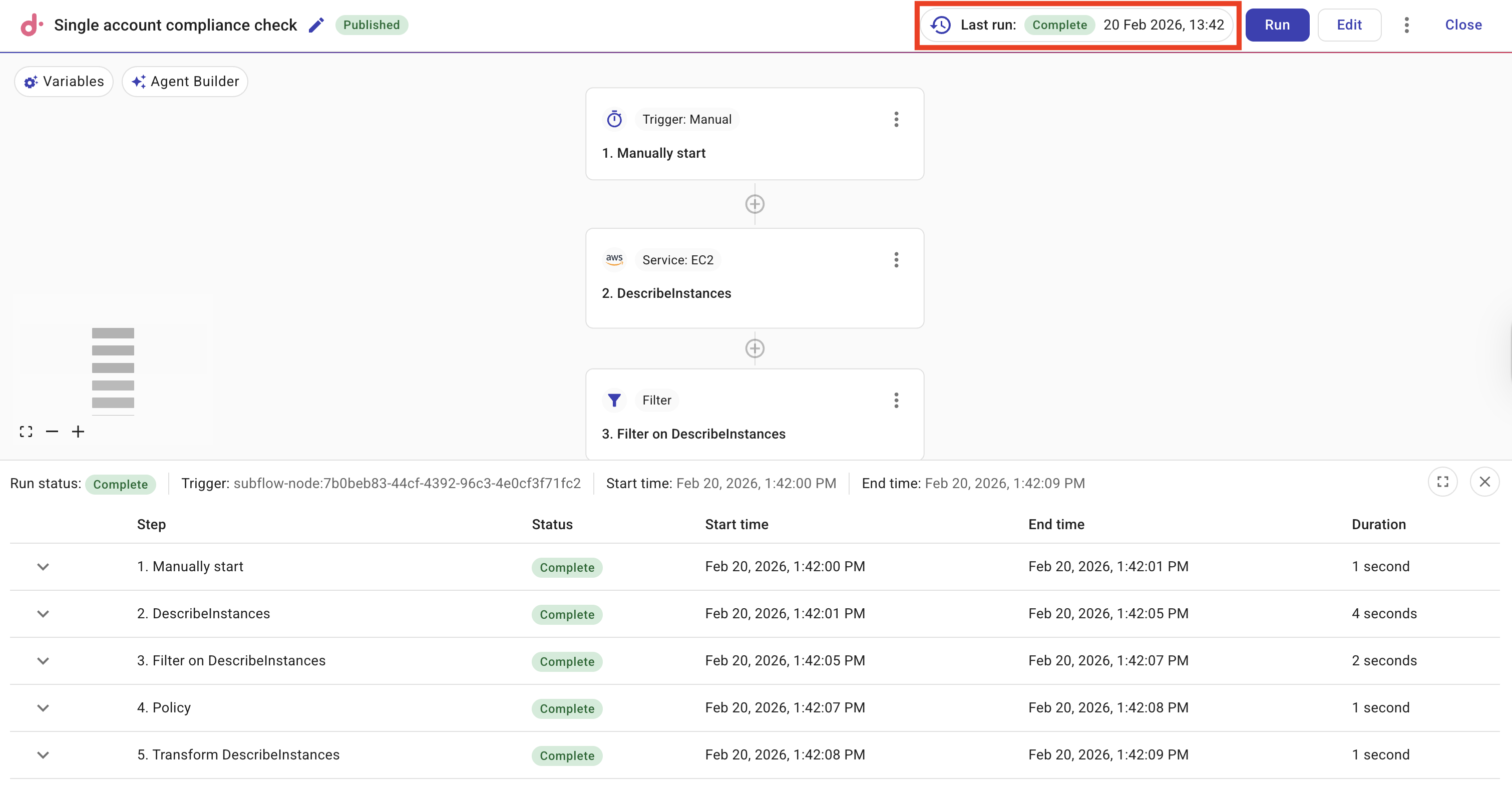
The same details, such as status, node-level view, and sub flow links, are available here as on the main CloudFlow run history page.
-
Run history details
The status of each flow is listed along with the time of completion and the duration. A single flow execution that runs for longer than 1 hour is automatically terminated. Once the flow has stopped, check the details of that run to see why it was terminated.
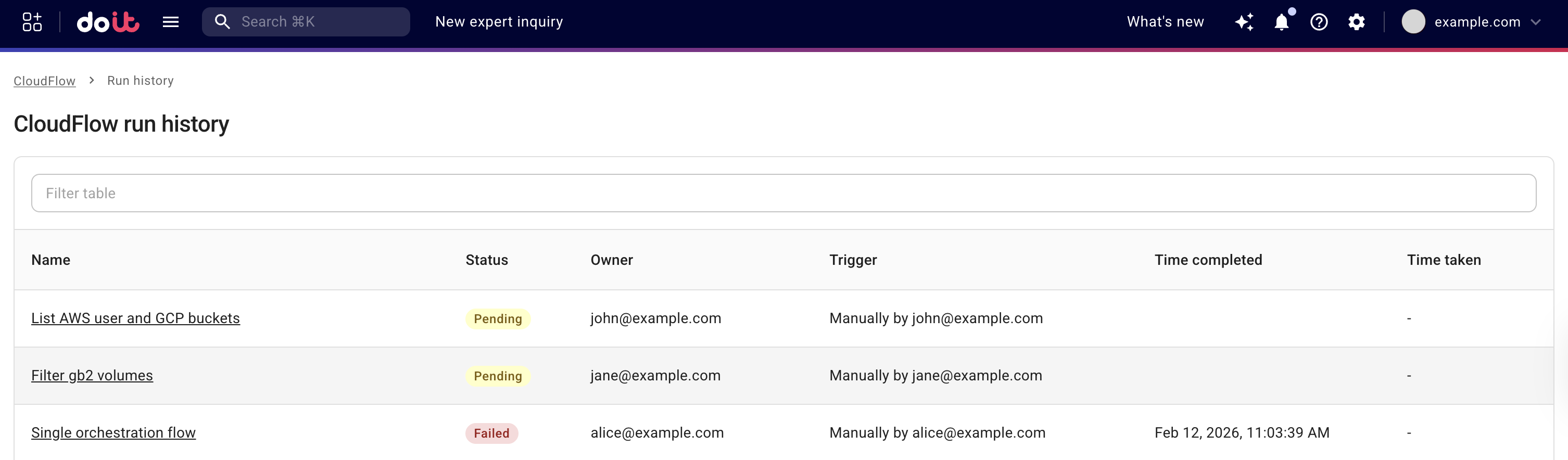
Possible status of a flow run:
-
Pending: The run is queued and waiting for CloudFlow to pick up the next node.
-
In progress: The flow has a node that is still running.
-
Completed: The flow has been executed successfully.
-
Failed: The flow has a failed node.
-
Awaiting approval: The flow is paused at an approval node until someone approves or rejects.
-
Sleeping: The flow has a Sleep node and is paused until the configured duration elapses; the run shows this status while waiting.
-
Stopped: The flow was manually stopped by a user before it finished. See Stopped runs.
View details of a single run
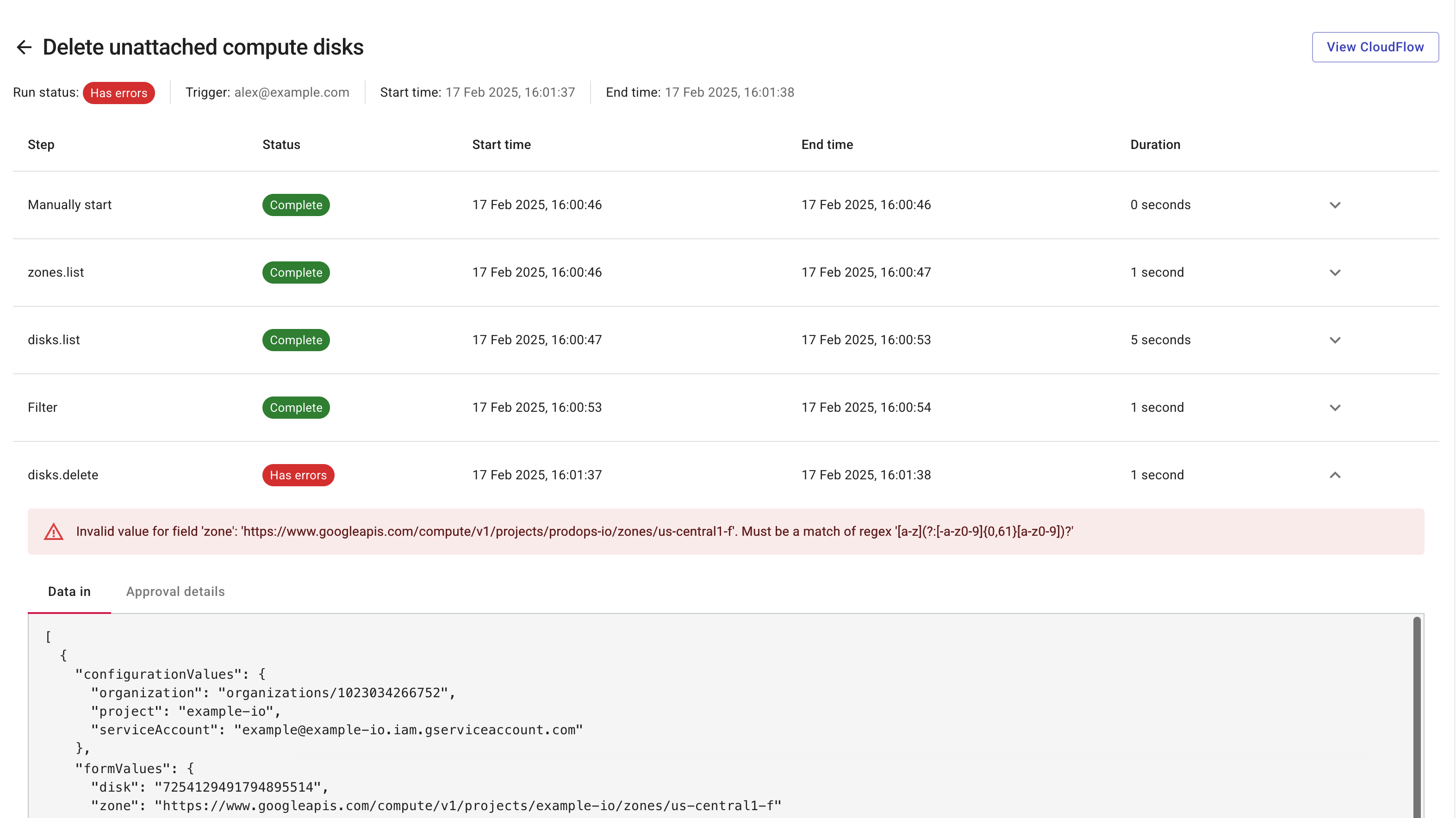
You can select the name of a flow to view the status of each step. This is often necessary when troubleshooting a failed flow.
In the example below, the flow failed due to incorrect syntax of a parameter.
Stopped runs
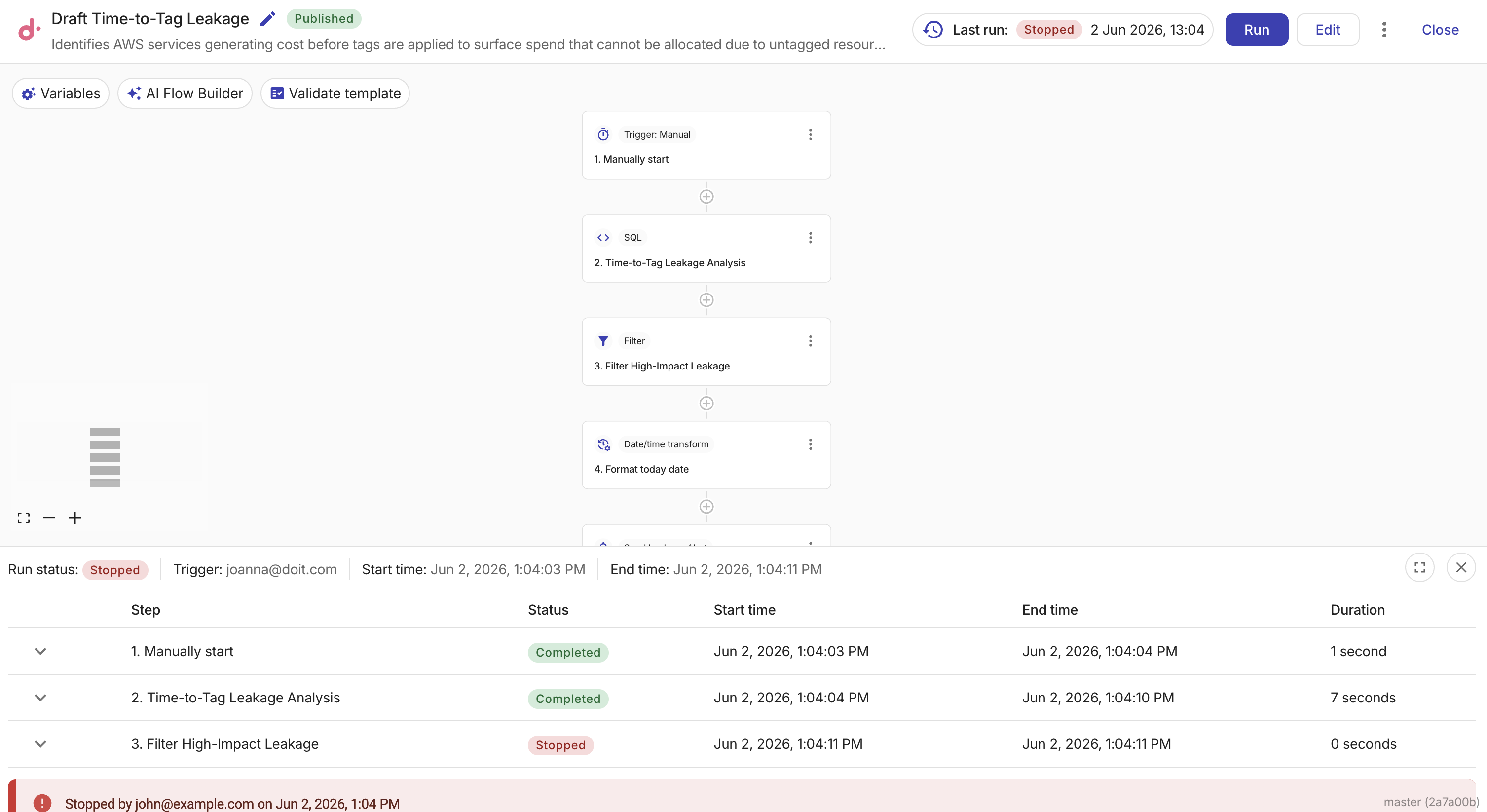
When a flow is stopped, the execution summary displays an alert indicating who stopped the flow and when.
Each stopped node shows a Stopped status, allowing you to see exactly where the flow was interrupted.
To stop a running flow, see Stop a running flow.
View sub flows run history
When a flow calls another flow using a Sub Flow node, the parent flow's run history shows each Sub Flow node run with a link to the corresponding sub flow run.
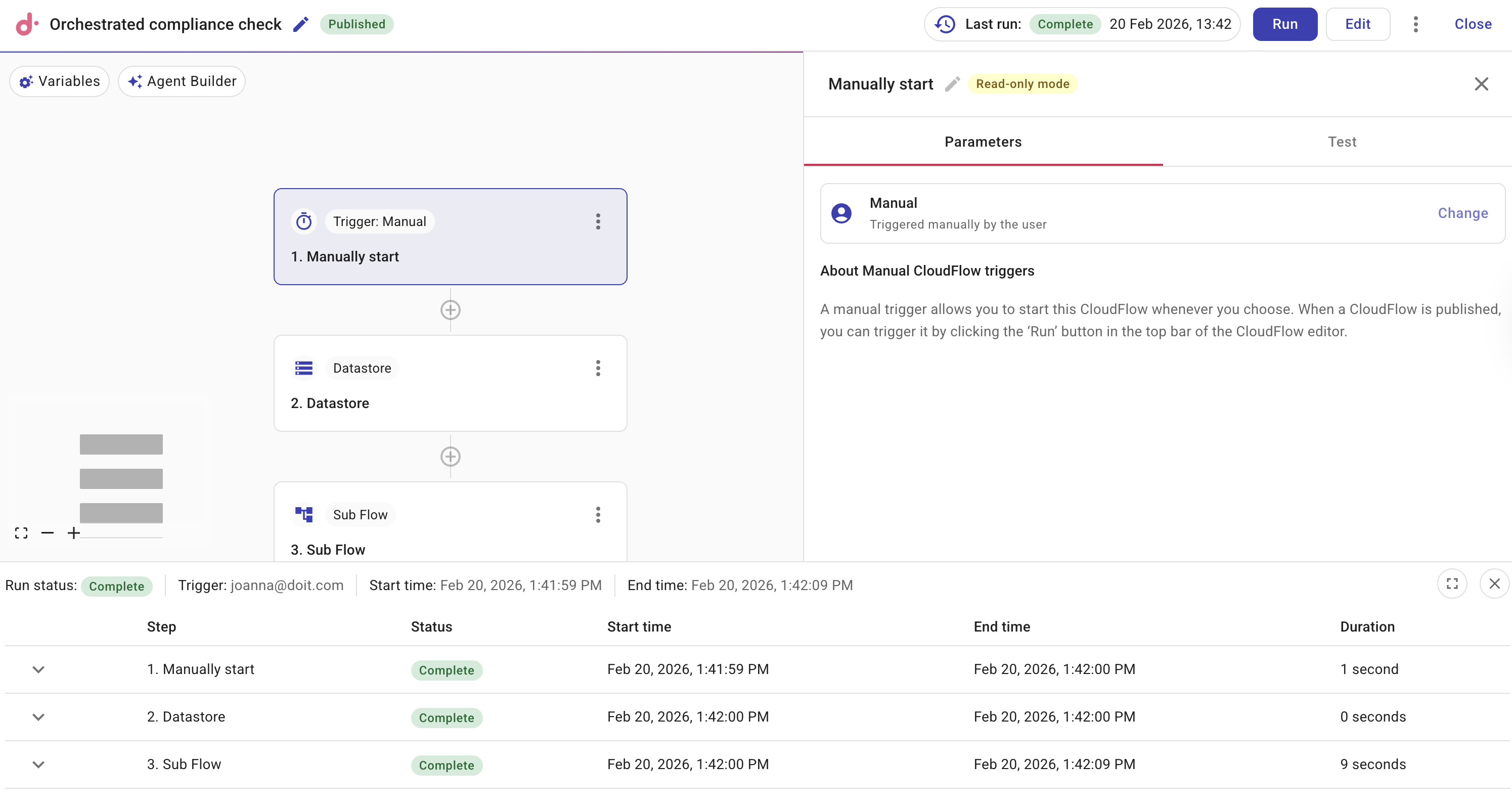
Select View subflow run to open the child run and inspect its steps, outputs, and timing.
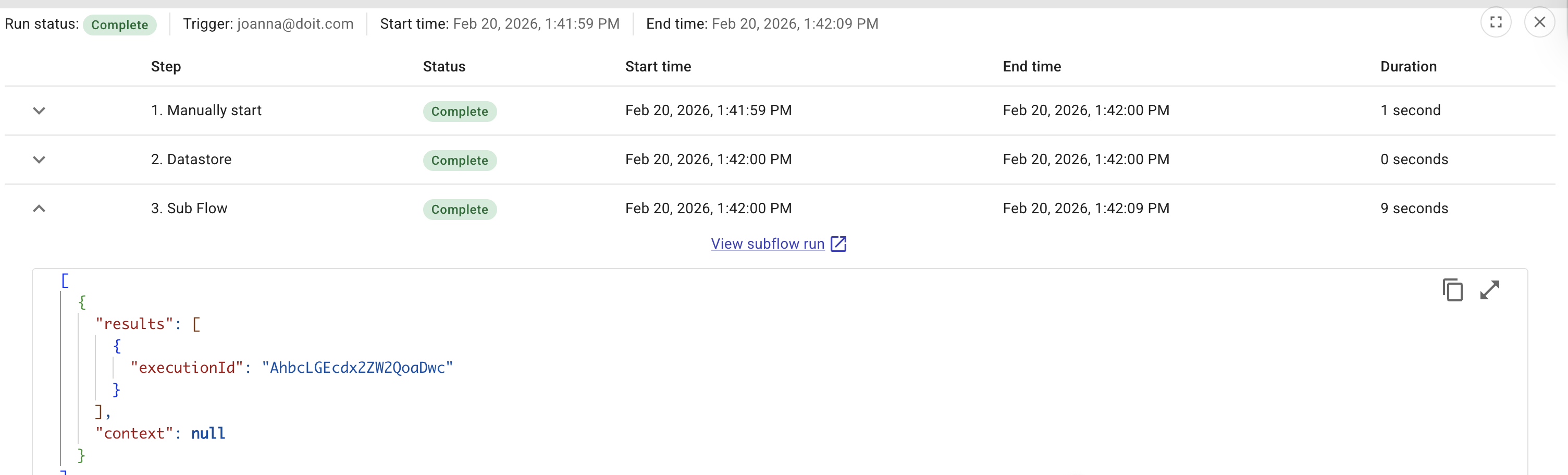
If a sub flow fails, the parent flow fails at the Sub Flow node. The error shown at that node in the parent run history is the same error from the failed node inside the sub flow (which node failed and why), so you can understand what went wrong without opening the sub flow run. Select View subflow run to inspect the sub flow's full run history.