Cloud Intelligence イベントトリガー
Cloud Intelligence イベントトリガーを使用して、Cloud Intelligence によって生成されたイベントをきっかけにフローを開始できます。これにより、プラットフォームイベントへの対応を自動化できます。たとえば、アラートが発火したとき、予算の閾値を超えたとき、またはコストアノマリーが検出されたときに、Slack へ投稿したり、チケットを作成したり、是正アクションを実行したりできます。
イベントには次の 5 つのカテゴリがあります。
-
Cloud Intelligence events: フローの開始に使用できる Cloud Intelligence のイベントです。
-
cost and usage alerts を使用している場合に適用されます。 Alerts: コストまたは使用量の alert 条件が満たされたとき、あるいは同じ期間(および任意の内訳)について後で解消されたときに発火します。
-
Budgets で notification thresholds を設定している場合に適用されます。 Cloud Analytics budgets: 支出が予算アラートの閾値を上方向に超えたときに発火します。これは、Alerts 上のメトリックとディメンションに基づくルールである cost and usage alerts とは別のものです。
-
AWS のみに適用されます。 AWS CloudTrail: AWS CloudTrail のイベントです。たとえば、EC2 インスタンスの起動や終了、RDS インスタンスの作成や変更などです。
-
anomaly detection(請求および/または real-time)が設定されている任意のクラウドで利用できます。 Cost anomaly detection: コストアノマリーが作成または更新されたときに発火します。
Cloud Intelligence events
Cloud Intelligence は、フローをトリガーするプラットフォームイベントを発行できます。Cloud Intelligence イベントを選択すると、フロー内で参照できるフィールドが Event payload details に表示されます。
Alerts
次のいずれかのアラートイベントが発生したときにフローをトリガーできます。これらは、条件が満たされたときまたは解消されたときに送信されるアラート通知(たとえばメールや Zapier)と同じ評価ロジックを使用します。
-
DoiT Alert Condition Satisfied: アラートの条件が満たされたときに発生します。たとえば、評価された期間でコスト閾値を超えた場合です。ディメンション単位(サービスごとなど)で評価されるアラートの場合、トリガーした各ディメンション値ごとにイベントが発行されることがあります。ペイロードには、その値、評価された期間、アラートの詳細(名前、閾値、メトリックなど)が含まれます。アラートが、総計だけでなくアイテム(各サービスや各プロジェクトなど)を 1 件ずつチェックすることもあります。この場合、
breakdownはどのアイテムがアラートをトリガーしたか(例:Compute Engine)、breakdownLabelはそのアイテムカテゴリ(例:Service)を示します。 -
DoiT Alert Condition Resolved: アラートが解消されたときに発生します。たとえば、同じ期間についてコストが閾値を下回った場合です。このアラートは DoiT Alert Condition Satisfied(同じアラート・期間・任意の内訳)と対応しているため、条件が満たされたときに開始したフォローアップアクションを停止したり、Jira チケットをクローズしたりするフローを組み合わせることができます。
Budgets
DoiT Budget Threshold Reached イベントが発生したときにフローをトリガーできます。このイベントは、評価された支出が初めて budget アラートの閾値(たとえば予算額の 50%、80%、100% など)を上方向に超えたときに発生します。ペイロードには、超えた閾値(thresholdPercentage)、現在の支出額と予算額、任意の予測日、閾値到達時刻(triggeredAt)、および予算のメタデータ(ID、名前、通貨、期間など)が含まれます。CloudFlow エディタでは、このイベントを選択すると Event payload details に正確なフィールド名が表示されます。複数の閾値を超えた場合、イベントには最も高い閾値のパーセンテージが反映されます。
このイベントが発生するようにするには、Budgets と Configure budget notifications を組み合わせて使用し、アラート閾値を設定してください。
Cost anomaly detection
次のいずれかのコストアノマリーイベントが発生したときにフローをトリガーできます。
- DoiT Cost Anomaly Acknowledged Changed: アノマリーが確認されたとき、または確認内容が編集されたときに発生します。
- DoiT Cost Anomaly Cost Changed: アクティブなアノマリーのコストが変更されたときに発生します。
- DoiT Cost Anomaly Created: 新しいコストアノマリーが検出されたときに発生します。
- DoiT Cost Anomaly Severity Changed: アノマリーの重大度が変更されたときに発生します。
- DoiT Cost Anomaly Status Changed: ステータスが変更されたとき(例:Active から Inactive)に発生します。
- DoiT Cost Anomaly Top SKUs Changed: アノマリーに最も寄与している SKU が変更されたときに発生します。
コストアノマリーに対してフローをトリガーするには、real-time cost anomaly detection を設定しておく必要があります。
-
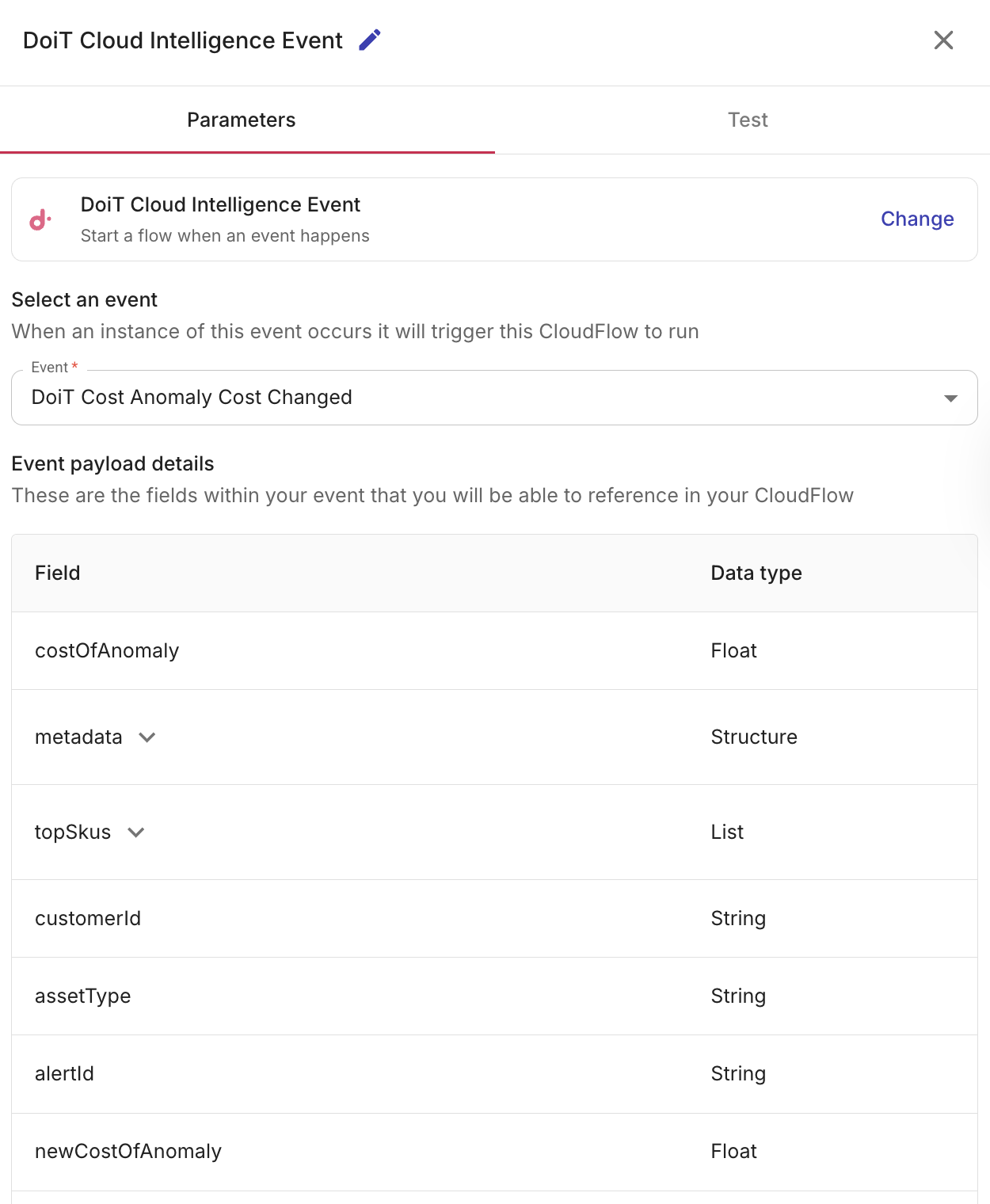
Select an event: 一覧から、フローをトリガーしたい Cloud Intelligence イベントを選択します。
-
Event payload details: 選択したイベント内で利用可能な参照フィールドの一覧が表示されます。これらはフロー内で参照できるフィールドです。
-
(任意)Event payload filter: ペイロードフィールドに条件を追加し、受信イベントが条件に一致する場合にのみフローが実行されるようにします。たとえば、特定のコストアノマリーの重大度、特定の AWS リソース ARN、選択した予算または予算閾値、その他イベントデータ内の値など、関連するケースに対してのみフローを開始するためにフィルターを使用できます。
Event payload filter
イベントペイロードに基づいて条件を追加することで、どのイベントがフローをトリガーするかをフィルタリングできます。1 つ以上のフィルター条件を定義すると、受信イベントがそれらの条件に一致する場合にのみフローが実行されます。これにより、特定のイベントにだけ反応できるようになります。たとえば、特定の重大度を持つコストアノマリーが発生したときや、AWS CloudTrail イベントが特定のリソースを対象としているときにのみトリガーするようにできます。
複数の条件を追加した場合、フローが継続するにはすべての条件が真である必要があります。CloudFlow は AND ロジックを使用するため、すべての要件が満たされない限りフローは先へ進みません。
1 つのフィールドに対して複数の値を一度にチェックするには、In や Not In などのオペレーターを使用してください。これにより、許可(または禁止)されたアイテムのリストを作成できます。詳しくは Filter operators を参照してください。
例:
-
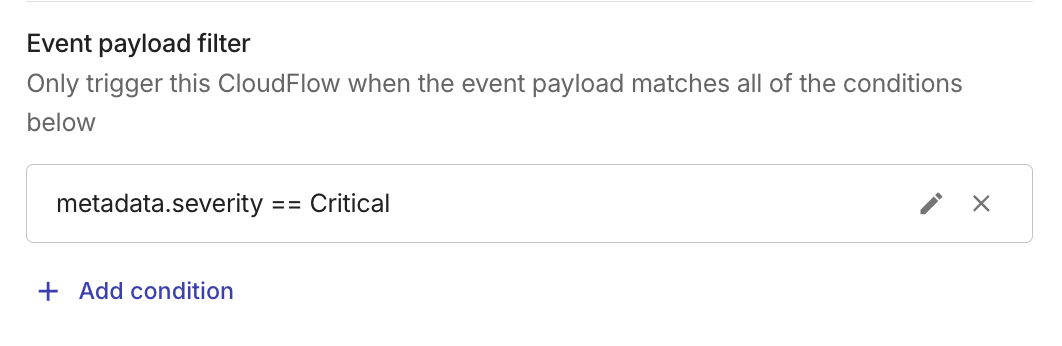
フローが DoiT Cost Anomaly Created をリッスンしているが、すべての新しいアノマリーではなく、重大度が Critical の場合にのみ実行したいとします。この場合、次の条件を追加できます。
-
Field:
severity -
Operator: Equal to (
==) -
Value:
Critical
-
-
AWS CloudTrail イベントの場合、
details.resourceArnフィールドに対して contains を使用し、本番環境の ARN の一部文字列でフィルタリングしたり、完全な ARN で Equal to (==) を使用したりして、API アクティビティがそのリソースを対象とする場合にのみフローが実行されるようにできます。 -
AWS CloudTrail のアクティビティを特定のクラウドフットプリントに絞り込むには、複数の条件 を追加し、すべて一致する必要があるようにします。たとえば、イベントが本番環境の AWS account かつ選択した Region で発生したときにのみフローを実行するには、次のようにします。
-
Field:
userIdentity.accountId— Operator: Equal to (==) — Value: 12 桁の AWS アカウント ID(例:111122223333) -
Field:
awsRegion— Operator: Equal to (==) — Value: 対象とする Region コード(例:eu-west-1)
選択したイベントに対して Event payload details に表示される名前を使用してください。ネストされたフィールドは、
userIdentity.accountIdのようにドット記法で表示されることがよくあります。 -
-
DoiT Budget Threshold Reached の場合、
budget.budgetIdでフィルタリングして特定の予算に対してのみフローを実行したり、thresholdPercentage(たとえば Equal to (==) で100)でフィルタリングして、特定の閾値でのみフローを開始したりできます。Event payload details に表示されるフィールド名を使用してください。予算に関するネストされたフィールドは、通常budget以下にあります。
フィルター条件を追加するには、次のようにします。
-
Event payload filter で + Add condition を選択します。
-
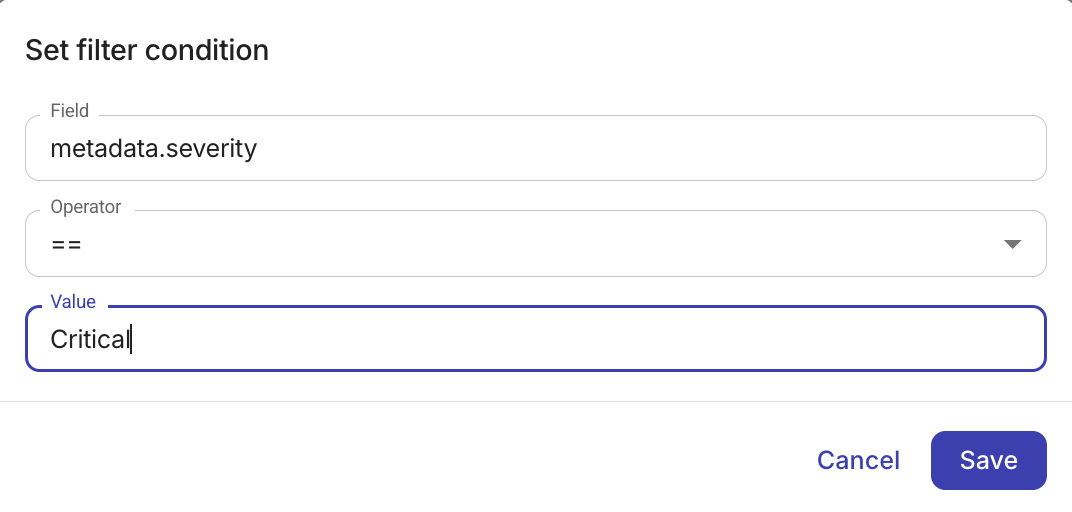
条件を設定します。
-
Field: フィールドを選択して利用可能なフィールド一覧から選ぶか、
severity、details.resourceArn、budget.budgetId、thresholdPercentageなどのフィールドを手動で入力します。表示されるフィールドは選択したイベントによって異なります。 -
Operator: 比較オペレーターを選択します。利用可能な Filter operators は、フィールドのデータタイプによって異なります。
-
Value: 比較対象となる値を入力します。タイムスタンプフィールドの場合、日時ピッカーが表示されます。is null および is not null オペレーターでは値入力は表示されません。
-
-
Save を選択します。
すべてが真でなければならない(AND)の複数の条件を追加するには、含めたい各条件ごとに + Add condition を選択してください。条件はいつでも編集または削除できます。
イベントへの対応を自動化する
フローが Cloud Intelligence イベントトリガー(Cloud Intelligence events・アラート・Cloud Analytics 予算・AWS CloudTrail・コストアノマリー検知)によって開始された場合、Slack への投稿、チケットの作成、是正措置の実行などの対応を自動化できます。下流ノードでは イベントペイロードの詳細 のフィールドを参照します。
-
チームにイベントの詳細を送信するには、Notification ノード を追加します。メッセージ内でペイロードフィールド(例:アラートイベントの場合はアラート名と値、DoiT Budget Threshold Reached の場合は予算名と
thresholdPercentage、コストのアノマリーの場合はアノマリー ID とコスト、AWS CloudTrail イベントの場合はリソース ARN)を使用します。 -
Branch ノード を使用して、そのイベントのペイロード内のフィールドに応じて異なる手順を実行します。例えば、コストアノマリーの重要度が高い場合のみ通知する、アラートのメトリクス値が任意の数値を超えた場合に通知する、目的の内容と一致する予算の閾値や
budget.budgetIdの場合にのみ処理する、あるいは breakdown やその他のディメンションフィールドが特定のプロジェクトやサービスと一致する場合にのみ処理するといったことが可能です。
イベントトリガーの例
トリガーからの対応を自動化し、例えば Slack への投稿、チケットの作成、是正措置の実行などを行うことができます。
例えば、DoiT Cost Anomaly Created をトリガーとするフローでは、Branch ノード を使用して、重要度が Critical のアノマリーのみを抽出できます。その後、Notification ノード により、アノマリー ID とコストを含むメッセージが送信されます。同様に、DoiT Alert Condition Satisfied をトリガーとするフローでは、アラート名・期間・値を含む通知をチャネルに送信できます。DoiT Budget Threshold Reached をトリガーとするフローでは、thresholdPercentage や budget.budgetId によって分岐し、予算名と現在の支出額を含む通知を送信できます。これらの値はトリガーノードの出力から取得され、任意の下流ノードにマッピングできます。