レポート表示をカスタマイズする
Cloud Analytics(クラウド分析)は、カラーテーマ、フォントサイズ、数値の書式設定など、レポート表示のカスタマイズをサポートしています。
表示設定
表示設定では、基になるデータを変更せずに Cloud Analytics レポートの見た目をコントロールできます。カラーテーマを適用したり、チャートラベルのフォントサイズを調整したり、数値の書式を選択したりできます。
表示設定はユーザーごとに保存されます。お客様の設定が他のユーザーに影響することはありません。
必要な権限
- Cloud Analytics User
レポートの表示設定を変更する
チャートレポートの表示設定を変更するには、次の手順に従ってください。
-
DoiT コンソール にサインインし、上部のナビゲーションメガメニューから レポートと分析 > レポート を選択します。
-
既存のレポートを開くか、新しいレポートを作成します。
-
チャート上で 表示設定(Display Settings) アイコン(
)を選択します。 -
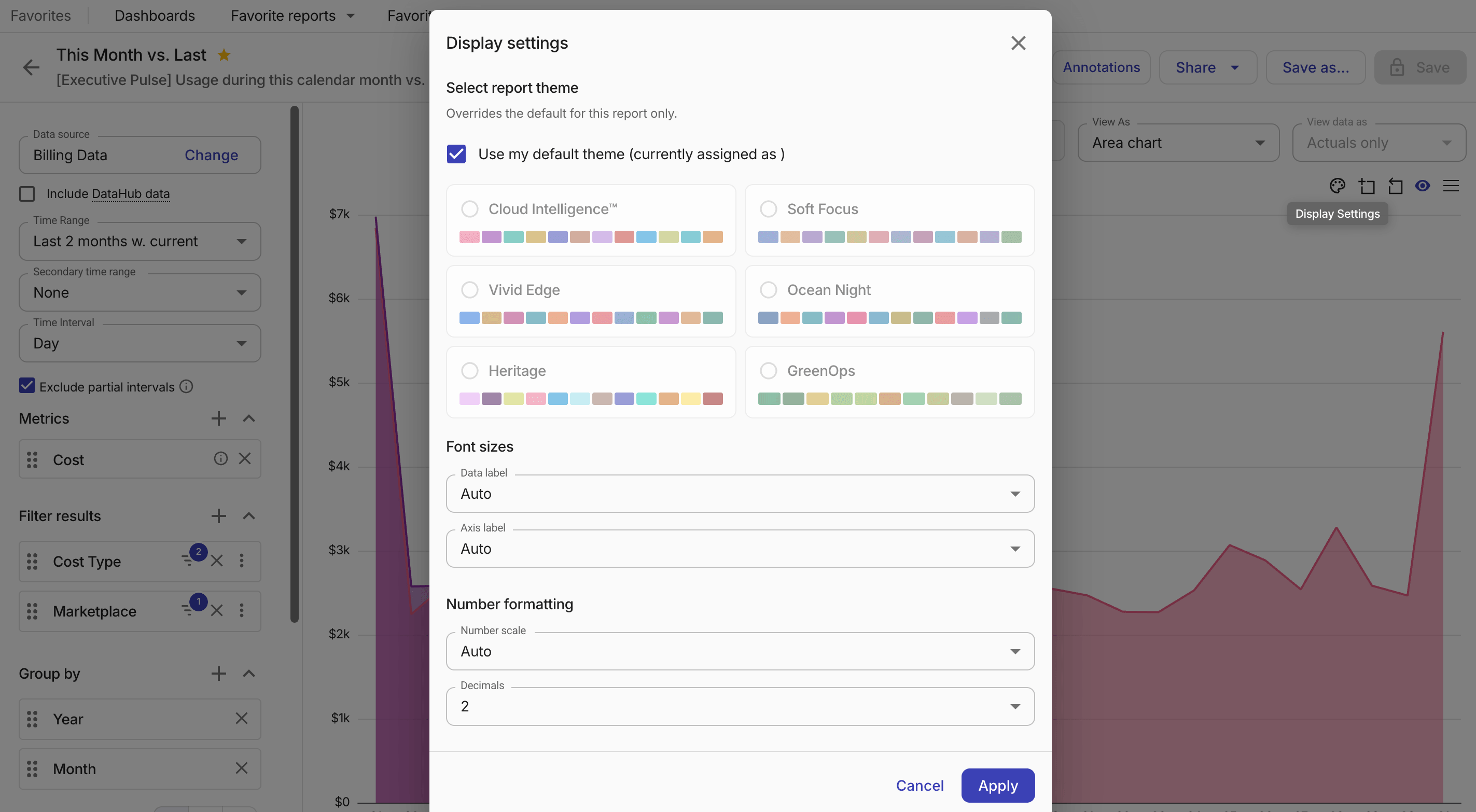
カラーテーマ、フォントサイズ、数値の書式設定を確認して調整します。
-
テーマを選択(Select report theme): チャート系列(棒・折れ線・エリアなどの視覚要素)のカラーテーマです。プリセットまたはカスタムテーマを選択できます。レポート単位で選択したテーマは、そのレポートに対してのみデフォルトテーマを上書きします。
-
プリセットテーマ: 各プリセットにはライトモードとダークモード用の個別のパレットがあり、コンソールテーマに基づき自動的に適用されます。
- Cloud Intelligence™: 色覚の多様性に配慮して設計されたデフォルトのカラーパレット。
- Heritage: 以前のデフォルトパレットで、従来の色を好むユーザー向けです。
- Soft Focus: 落ち着いた低コントラストのトーン。
- Vivid Edge: 彩度が高く大胆な色。
- Ocean Night: 深いブルーと暖色系のアクセントカラー。
-
カスタムテーマ: 組織内の自分または他のユーザーが作成したカラーテーマです。詳しくは「カスタムテーマを作成する」を参照してください。
-
-
フォントサイズ(Font sizes): データラベルおよび軸ラベルのフォントサイズです。
Auto(デフォルト): チャートの複雑さとビューポートに基づきコンソールがフォントサイズを自動で決定します。Small・Medium・Large: 固定のフォントサイズです。
-
数値の書式設定(Number formatting): テーブルおよびチャートラベルにおけるメトリクス値の表示方法です。
-
数値スケール(Number scale): 大きな数値の省略方法です。
Auto (default): データに最適なスケールを自動的に選択します。Thousands (K): 大きな数値を千単位に省略します(例: 45.2K)。Millions (M): 大きな数値を百万単位に省略します。Billions (B): 大きな数値を十億単位に省略します。Raw: 省略せずに完全な数値を表示します。
-
小数点以下桁数(Decimals): メトリクス値に表示する小数点以下の桁数です。指定可能な値は
0~8で、デフォルトは2です。
-
-
-
保存(Save) を選択して、新しい設定を適用します。
レポート設定(Report theme settings)
レポートテーマ設定では、すべての新しいレポートおよびダッシュボードウィジェットに適用されるデフォルトのカラーテーマを設定できます。アバターメニューからカスタムテーマを管理することもできます。
必要な権限
- Cloud Analytics Admin
デフォルトテーマを設定する
新しいレポートおよびダッシュボードウィジェットのデフォルトテーマを設定するには、次の手順に従ってください。
-
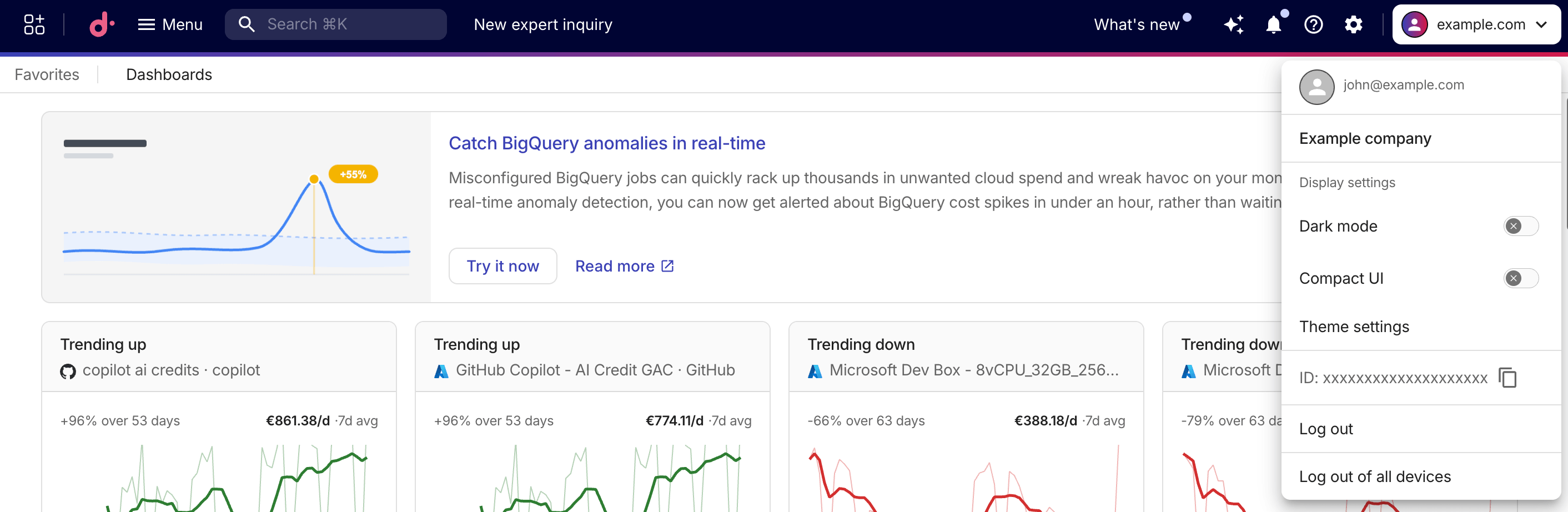
コンソール右上のアバターを選択してアバターメニューを開き、表示設定(Display settings) の下で テーマ設定(Theme settings) を選択します。
-
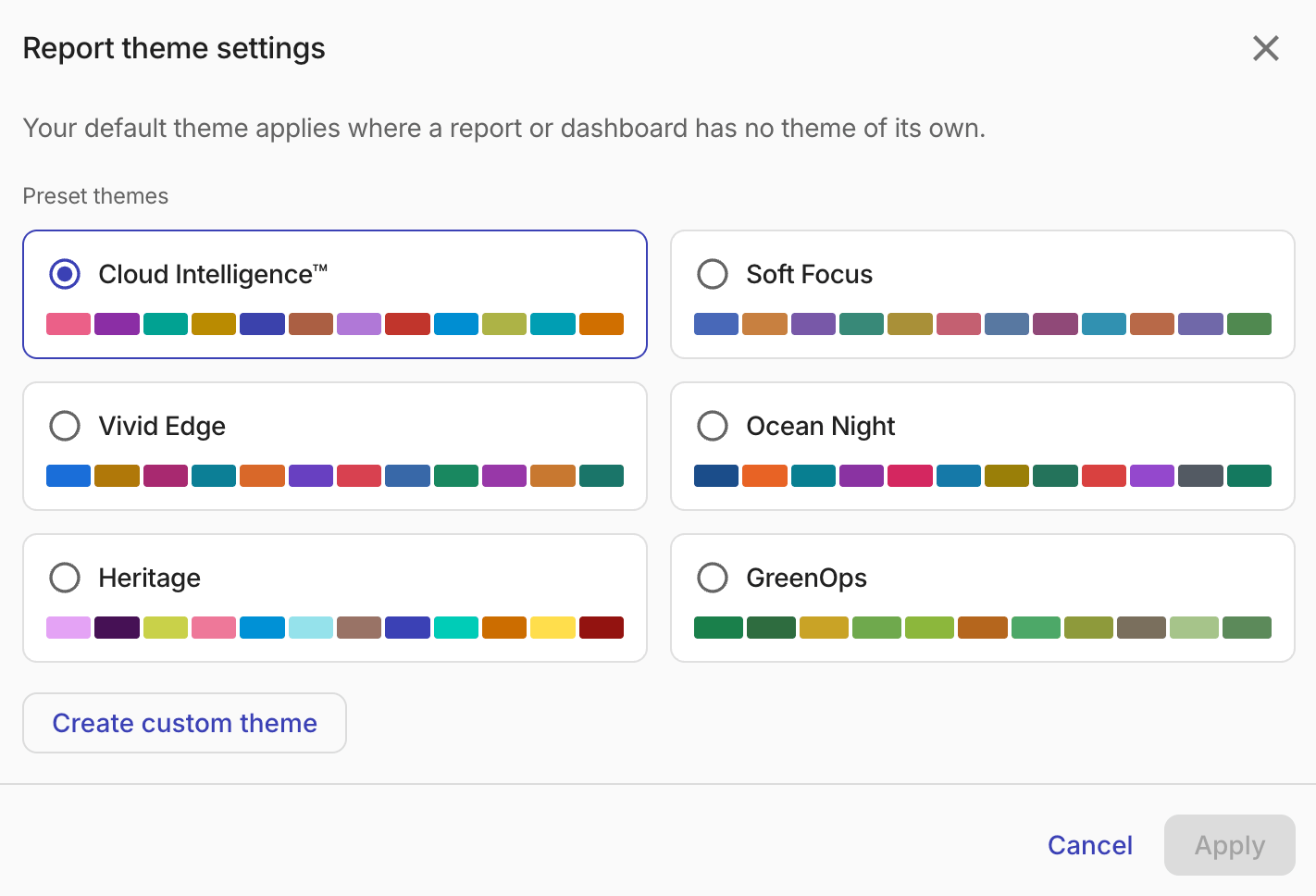
テーマを選択します。
ライブプレビューにより、選択したパレットが表示中のすべてのチャートに適用されるため、確定前に評価できます。レポート単位でのテーマ上書きは、プレビュー中も保持されます。
-
適用(Apply) を選択して新しいデフォルトを保存するか、キャンセル(Cancel) を選択して以前のテーマに戻します。
デフォルトテーマはユーザーごとに保存されます。お客様の設定が他のユーザーに影響することはありません。
カスタムテーマを作成する
カスタムテーマは組織レベルで保存され、組織内の他のユーザーにも表示されます。
カスタムテーマを作成するには、次の手順に従ってください。
-
コンソール右上のアバターを選択してアバターメニューを開き、表示設定(Display settings) の下で テーマ設定(Theme settings) を選択します。
-
カスタムテーマを作成(Create custom theme) を選択します。
-
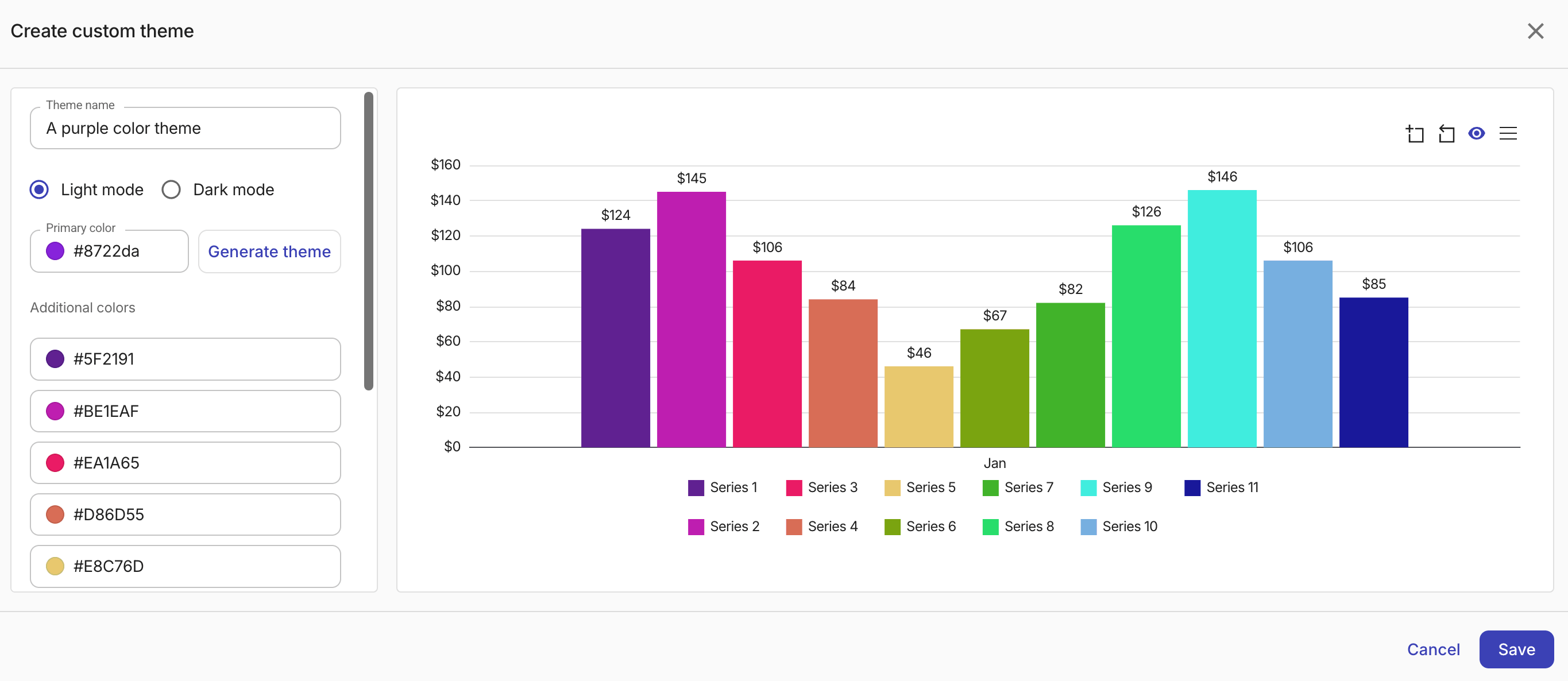
テーマを設定します。
-
テーマ名を入力します。
-
プライマリカラーを選択します。16 進数値を直接入力するか、カラーピッカーを使用できます。
-
テーマを生成(Generate theme) を選択し、選択したプライマリカラーに基づいて、ライトモード用とダークモード用の 2 つのパレットを作成します。
-
ライブチャートプレビューでパレットを確認し、必要に応じて各カラースウォッチを手動で調整します。
-
保存(Save) を選択してテーマを作成します。
-
カスタムテーマを編集または削除する
カスタムテーマを編集または削除するには、アバターメニューから テーマ設定(Theme settings) を開き、対象のテーマカード上の該当アイコンを選択してください。