Allocations
Allocation allows organizations to accurately attribute costs to relevant business units, applications, or projects, prompting financial accountability and laying a solid foundation for cloud financial management.
The FinOps Foundation lists three primary strategies for the Allocation capability: allocation strategy, tagging strategy, and shared cost strategy. The Cloud Intelligence Allocations feature mainly deals with allocation strategy and shared cost strategy.
Allocation strategy
An allocation strategy defines organizational groupings and terminology to describe them.
Allocation rules
In Cloud Intelligence, allocations are defined with allocation rules. Each rule identifies a grouping of cloud resources based on the applied dimensions, labels, and tags.
Depending on the number of rules included, allocations are categorized as single-rule and group allocations.
Single-rule allocations
A single-rule allocation defines a grouping of cloud resources. You can use single-rule allocations to:
-
Track usage and cost of a particular grouping using Cloud Analytics reports.
-
Measure indicators and operational data specific to your business by creating custom metrics.
-
Get notified of important events and conditions of a grouping via Alerts.
-
Define the scope of Budgets. For example, a budget for a team or a product.
-
Monitor cost anomalies in a subset of your overall cloud spend.
-
Receive daily or weekly email Digests on the spend of a grouping.
-
Provide a focused Cloud Analytics experience based on Organizations.
When creating an allocation rule, you can reference other allocation rules to build multi-level hierarchies.
Group allocations
Group allocations are used to segment shared data among multiple groupings. For example, to divide cost and usage data among teams or environments.
-
A group allocation always contains a pre-defined Unallocated rule, which captures data that cannot be attributed to specific members within the group.
-
In addition to the Unallocated rule, a group allocation must contain at least one other allocation rule.
-
Data shared by more than one grouping is assigned to the allocation rule that appears earlier in the group.
The diagram below illustrates the main concepts of group allocations.
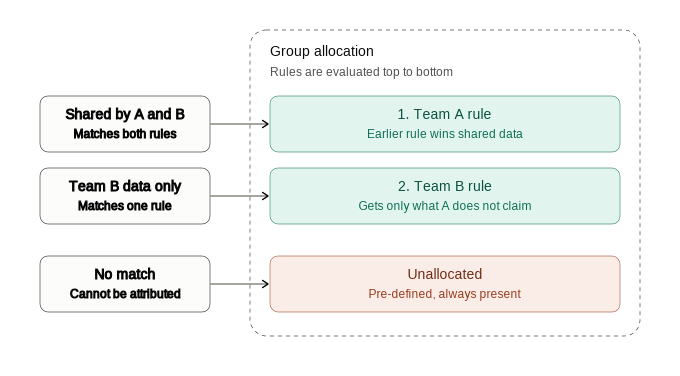
In the diagram:
-
Data is distributed among groupings defined by
Team A rule,Team B rule, andUnallocated. -
Data shared by
Team A ruleandTeam B rulegoes to the grouping defined byTeam A rule.
Shared cost strategy
A shared cost strategy defines the need and mechanism to share costs among allocation groupings.
The practice of distributing shared costs is also called cost splitting. Cloud Intelligence supports configuring cost splitting at two levels: allocation and report.
The following sections focus on allocation-level cost splitting.
Allocation-level splits
Allocation-level splits are defined in group allocations and apply across reports, budgets, and alerts.
You can redistribute two kinds of costs when setting up cost splits on allocation groups:
-
Shared cost: The cost of a grouping defined by a single allocation rule. Effective only within the group allocation.
-
Unallocated cost: The cost captured by the group's
Unallocatedrule.
Distribution methods
Cloud Intelligence supports the following distribution methods at allocation level:
-
Fixed percentages: Manually set each target rule's share.
-
The percentages total up to 100%. Any undistributed share stays in the source rule.
-
You can select Even split to distribute equally among the selected targets, or pin a rule's share and redistribute the remainder.
-
-
Proportional: Distribute the cost automatically in proportion to each target rule's metric value.
-
Supported metric types: Basic metrics, Extended metrics, DataHub metrics, and Custom metrics (both preset and user-defined).
- For DataHub metrics, you can ingest metric values via the DataHub API or sync from Datadog.
-
An allocation supports up to four distinct driver metrics across all of its splits.
-
The same metric shared by multiple splits counts as one.
-
The basic metric Cost (the default) does not count toward the cap.
-
-
If the chosen metric has no data or the required data source is unavailable, every target's share becomes zero and the source rule keeps its cost; a deleted custom metric returns an error.
-
Applying allocation-level splits
-
An allocation-level split runs before the group's own filter is applied; therefore, reports, budgets, and alerts that filter by specific allocation rules may show different totals than without the split.
-
The split applies regardless of whether the allocation group appears as a grouping or only as a filter. When the group serves only as a filter, the split adjusts the filtered totals.
-
When a report uses forecast mode, the forecast projection reflects the same allocation split percentages as the actual costs. Report-level splits do not affect forecast data.
-
Allocation-level splits are not supported in comparative mode.
-
Allocation-level splits are not applied when the report uses a report-level split. Remove the report split to restore the allocation splits.
How allocation-level splits work
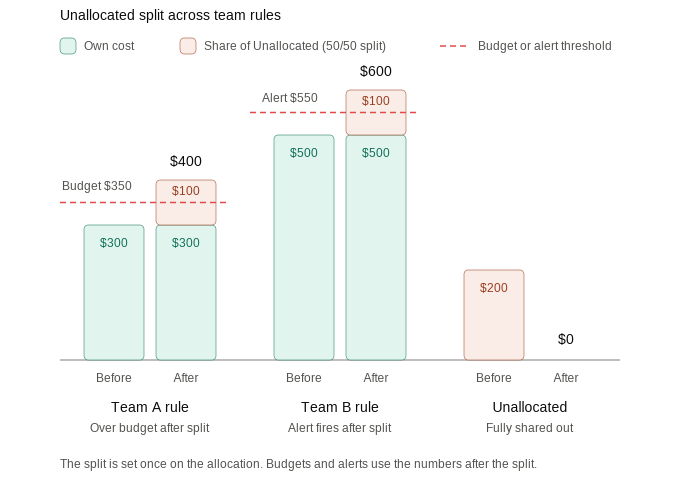
The diagram below demonstrates how allocation-level splits work in reports, budgets, and alerts.
Scenario: An allocation group contains two single rules (Team A and Team B) and an Unallocated rule that splits the unallocated cost evenly between Team A and Team B. For a specific period, Team A yields $300, Team B yields $500, and $200 in cost remains unallocated.
-
A report filtered to the two rules with the allocation group shows $1,000. Without the split, the same filter excludes the unallocated cost and shows $800.
-
A budget filtered to Team A with the allocation group triggers a notification at the $350 threshold because the split raises Team A's cost from $300 to $400. Without the split, the cost stays below the threshold.
-
An alert filtered to Team B with the allocation group fires at $550 because the split raises Team B's cost from $500 to $600. Without the split, the cost stays below the threshold.
See also examples for allocation-level splits.