Schedule tasks
You can automate recurring AI assistant prompts so that the AI assistant runs them on a set schedule without manual input. For example, you can schedule the AI assistant to summarize your weekly cloud spend every Monday or flag cost anomalies daily. Results are delivered to your chosen Slack channels and stored as conversations you can review in Chat history. Those conversations follow the same 90-day retention as other console conversations.
Each scheduled task has specific behavior, settings, and actions. The behavior is the prompt the AI assistant runs each time the task executes. Settings control how the task is configured, including its summary, Slack destinations, and frequency.
Actions let you control the task after it has been created. You can pause a task without deleting it, resume a paused task, run it immediately outside its regular schedule, or delete it permanently when you no longer need it.
Create a scheduled task
-
Sign in to the DoiT console.
-
Open the AI assistant.
-
Ask the AI assistant to create a scheduled task. For example:
Create a scheduled task that summarizes my AWS cost anomalies every Monday at 9 AM. -
Follow the AI assistant's prompts to confirm the task behavior, frequency, and Slack destinations.
The AI assistant saves the scheduled task after you confirm the details. You can update the scheduling and delivery settings at any time.
Open a scheduled task
-
Sign in to the DoiT console.
-
Open the AI assistant.
-
Select the menu icon (
) to expand the side panel. -
Expand Scheduled tasks.
-
Select the task you want to manage.
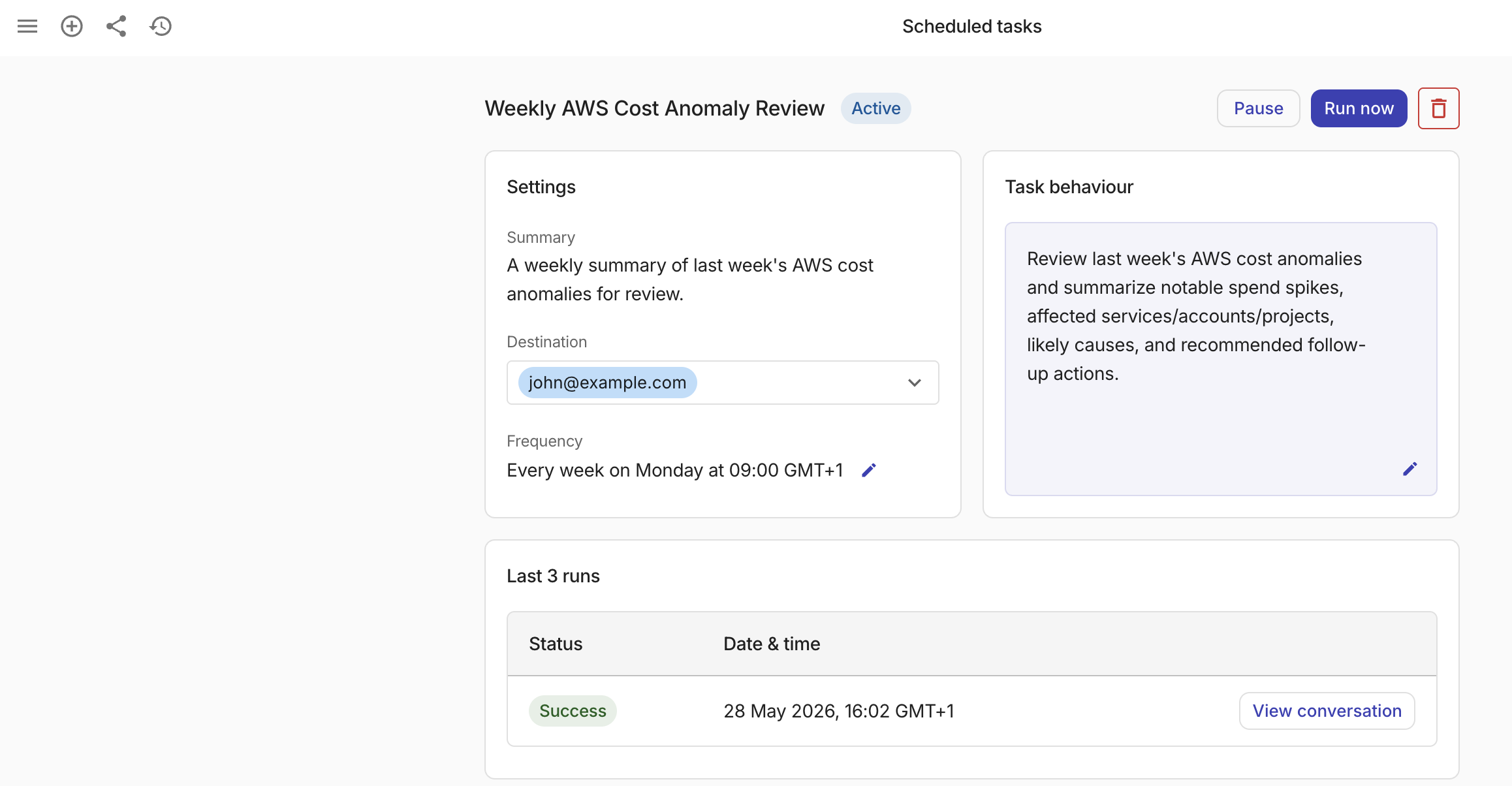
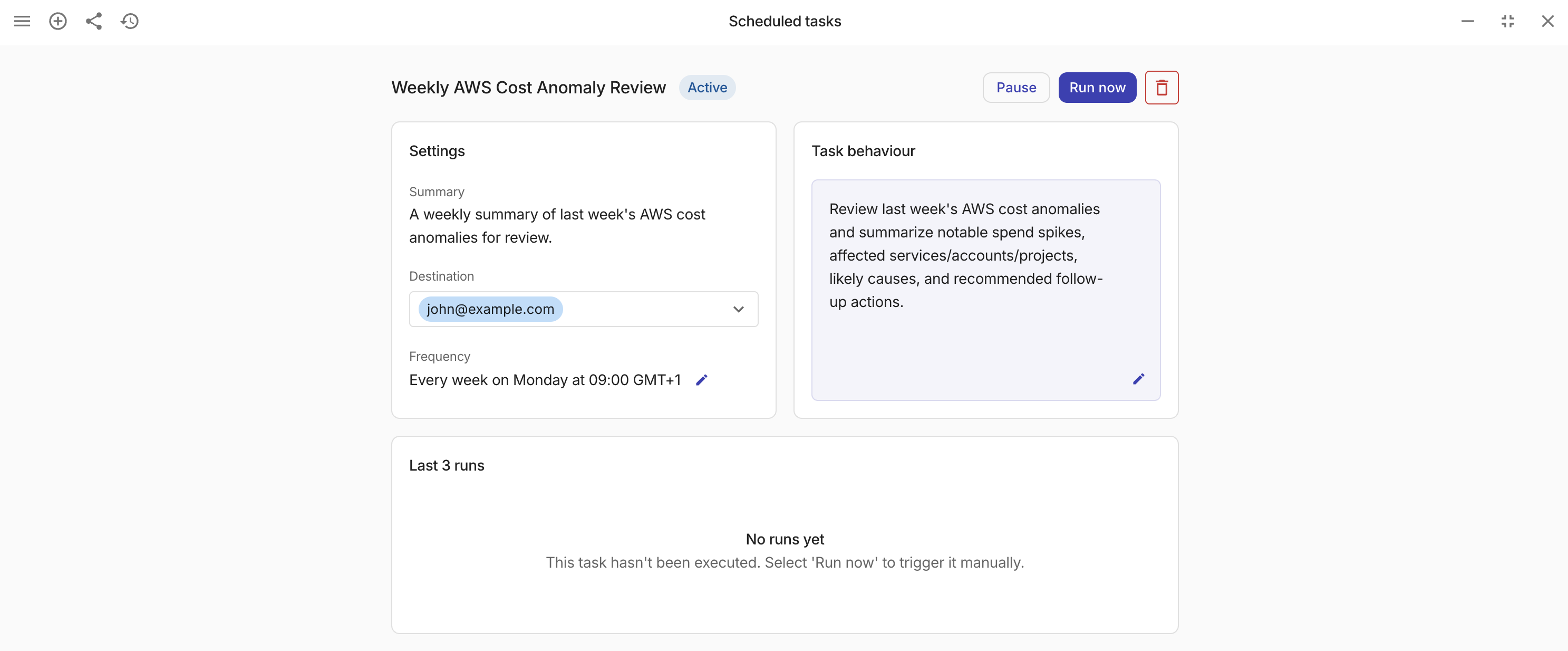
The task is opened showing the task's settings, behavior, and recent run history.
Task settings
Settings displays the task's configuration:
-
Summary: A brief description of what the task does.
-
Destination: The Slack channels where the AI assistant delivers the task results. If no destinations are configured, the results are only available in the AI assistant conversation history.
-
Frequency: How often the task runs (for example, daily, weekly, monthly, annually, or a custom interval).
Edit destinations
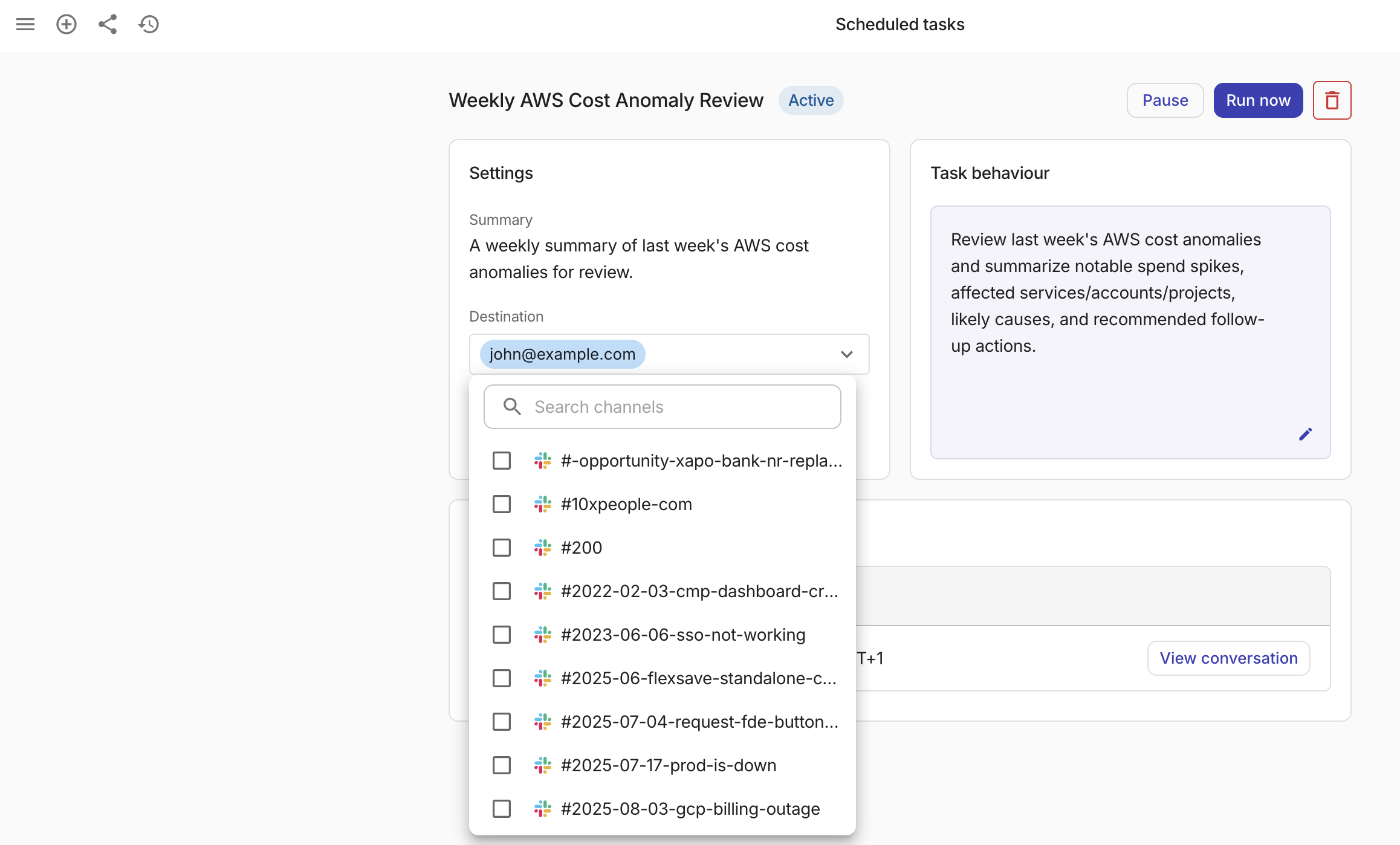
You can choose which Slack channels receive the task results.
-
In Settings, select Destination to open the destination list.
-
Search for or browse your available Slack channels.
-
Select or deselect channels to update the destinations.
Your changes are saved automatically.
Edit frequency
-
In Settings, select the pencil icon (
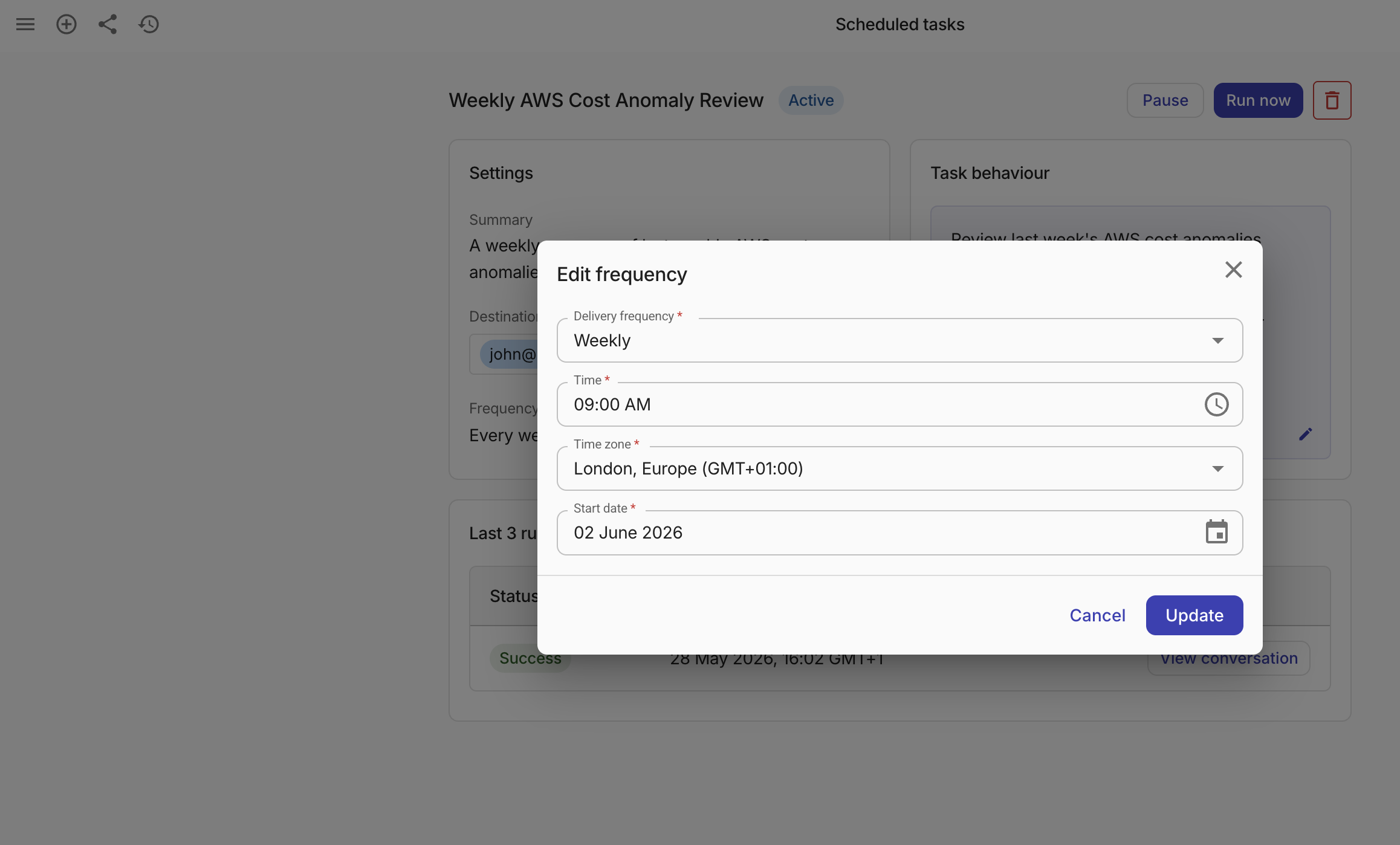
) next to Frequency. The Edit frequency dialog is displayed. -
In the Edit frequency dialog, choose a schedule:
-
Daily: Runs every day at the specified time.
-
Weekly: Runs every week on the specified day and time.
-
Monthly: Runs every month on the specified day and time.
-
Custom: Runs at a custom interval (for example, every 3 days or every 2 weeks).
-
-
Select Update to save.
Edit task behavior
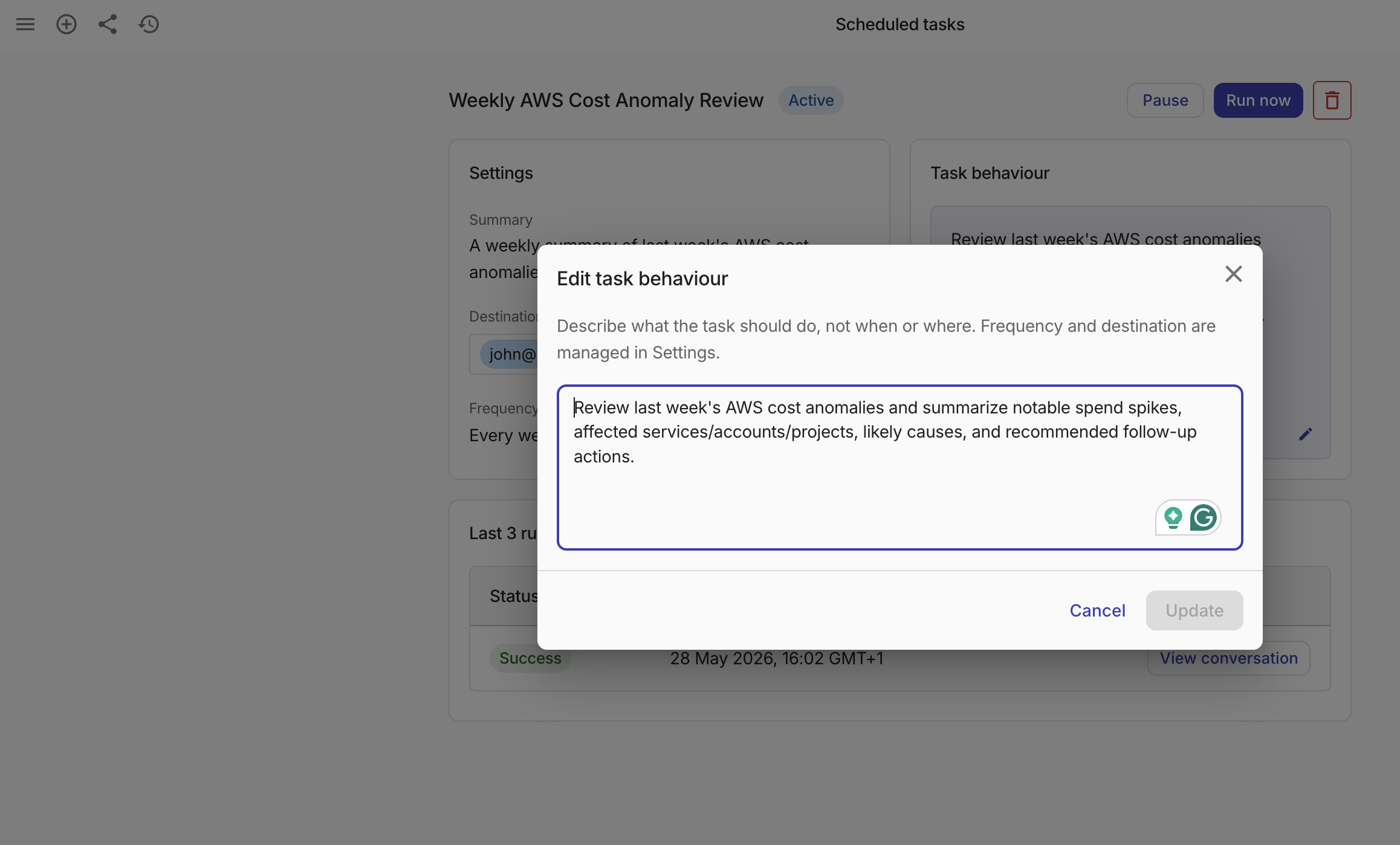
Task behavior shows the prompt that the AI assistant executes on each run. To change the task behavior:
-
In Task behavior, select the pencil icon (
). -
In the Edit task behavior dialog, update the prompt text.
-
Select Update to save.
The AI assistant validates the prompt to ensure it describes a FinOps or cloud cost management task. Prompts that include scheduling instructions, delivery instructions, or unrelated topics are rejected with guidance on how to correct them.
Task actions
The task provides actions for controlling the task.
Pause or resume a task
To temporarily stop a task from running, select Pause. The task status changes from Active to Paused, and the AI assistant skips all scheduled runs until you resume.
To start a paused task again, select Resume. The task returns to Active status and runs on its next scheduled time.
Run a task immediately
Select Run now to trigger the task outside its regular schedule. The run starts in the background, and a new entry appears in the Last runs section when complete.
Delete a task
-
Select Delete.
-
In the confirmation dialog, select Delete to confirm.
Deleting a scheduled task is permanent and cannot be undone. The AI assistant stops running the task immediately.
View run history
The Last runs section shows the most recent task executions, including:
| Column | Description |
|---|---|
| Status | Whether the run completed successfully or failed. |
| Date & time | When the run was executed. |
To view the full conversation for a completed run, select View conversation. The AI assistant opens the corresponding chat so you can review the results in detail.