Home page
The Home page serves as the central hub providing a holistic view of your cloud infrastructure.
-
Immediate cost visibility: Highlights your overspend and optimization opportunities via a consolidated view of your cost anomalies, insights, budgets, and commitments.
-
Strategic decision-making: Helps you identify and prioritize issues by surfacing important insights and alerts, leading to effective decision-making.
-
Collaboration and support: Expert inquiry (under Get advice) lets you get help from DoiT cloud specialists and track open requests. You can also enter TV mode (at the bottom of the page) to display key metrics in meeting rooms and shared spaces.
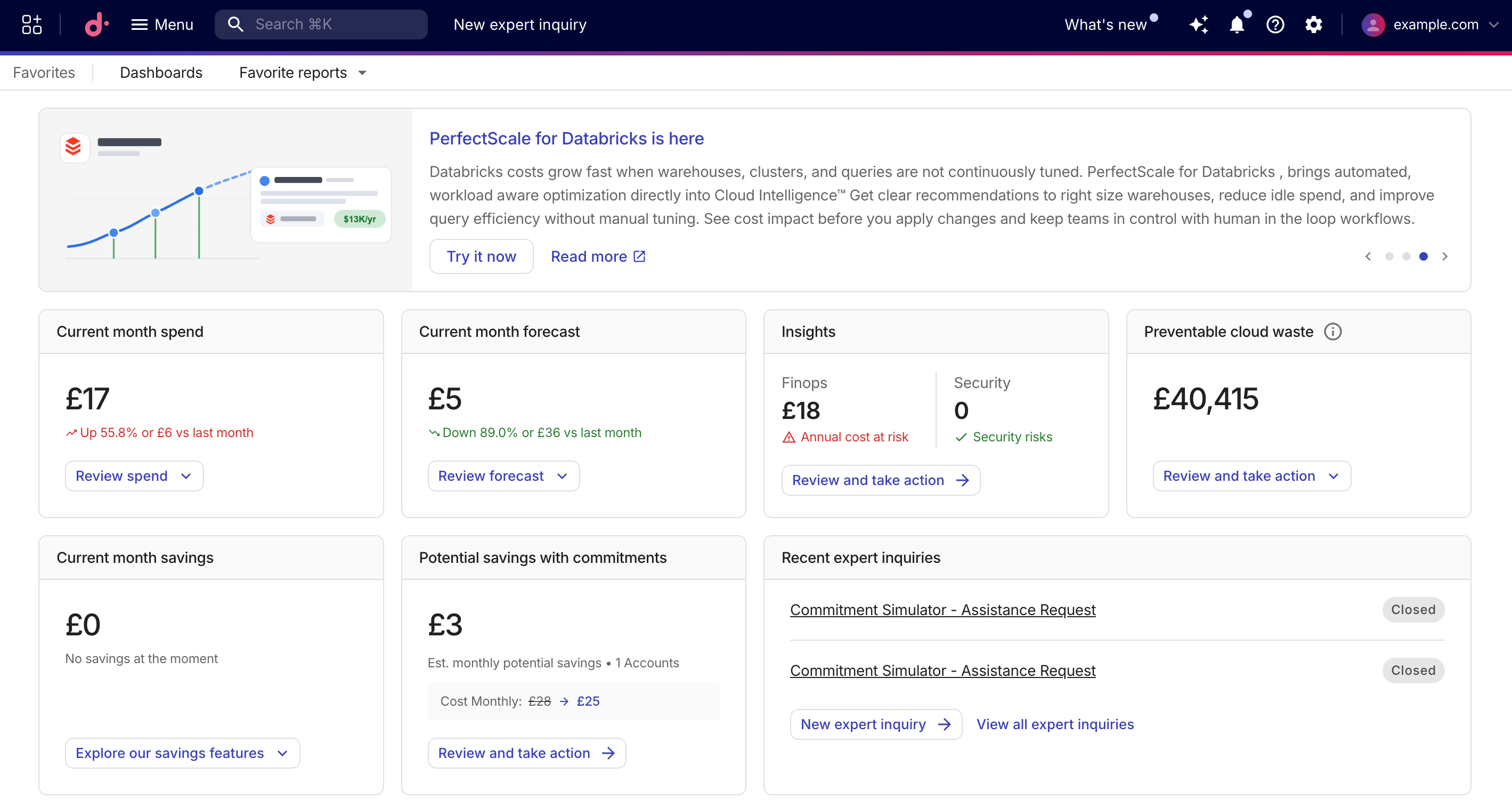
The Home page provides the latest product updates as well as easy access to key features and functionalities of the console, including:
-
Widgets that show critical insights related to your cloud infrastructure, based on your role and subscription plan.
-
An insights card that combines FinOps and Security findings in a single view.
-
A potential savings with commitments card showing estimated monthly commitment savings you could achieve with PerfectScale for Commitments.
-
Shortcuts to essential functions such as Cloud Diagrams, CloudFlow, and Insights.
-
Quick links to connecting your cloud data, if applicable.
-
Key contacts for your organization.
New Home page (early access)
The new Home page is available as an early access feature and replaces the widgets above with a page built around one question per block: whether you are on budget, where the money is going, what you can still save, what needs attention, and a block that depends on your role. Every number on the page is a link to the report, budget, insight, anomaly, or thread behind it.
-
Roles: Choose Finance, Engineering, or FinOps at the top of the page. The role changes the wording, the blocks shown, and where the actions lead. Your choice is saved per organization.
-
Layouts: The default Simple layout shows five blocks in a fixed order. The Advanced layout adds more blocks per role (trending services, AI spend, Threads, cloud incidents and diagrams, expert inquiries, optimization fixes, benchmarks, Kubernetes right-sizing, integrations) in a column you can reorder. Switch between layouts from the ⋯ menu, from the Simple layout pill in the advanced header, or with the a key.
-
Launcher: Press / or select the search bar under the greeting to jump to any report, dashboard, or budget, or to ask the AI assistant a question when nothing matches.
-
Customize sections (both layouts): Open the ⋯ menu and select Customize sections, or press l, to drag blocks into a new order, hide blocks you never read, or reset to the default order for your role. The same dialog can show the story switcher, which flips the page between Are we on budget? and Where is the money going?.
-
Your DoiT team (advanced layout): The pill at the right end of the role tabs lists your account team with their roles and email addresses.
-
Presence and comments (advanced layout): When your organization has the Page presence and Tenant comments early access features enabled, the greeting row shows who else is on the page and which block they are looking at, and a Comments panel (c) collects comment threads anchored to blocks. Blocks a teammate is viewing show an is here chip; blocks with open threads show a comment count.
-
Since you were last here (advanced layout): A banner summarizes spend added, budgets exceeded, new anomalies, and other changes since your previous visit. Select Mark as seen to move the baseline to now.
Home page keyboard shortcuts are listed under Home actions.
Early access features are made available before general release and are not part of the DoiT support SLA. Users with the Admin role can enable them from the Early access features page.