チュートリアル:最初のレシピ
このチュートリアルでは、既存のレシピを複製し、クエリーを調整して結果をテストし、公開することで、AWS EBS ボリューム向けのコスト重視のレシピを作成する手順を説明します。
ピラー、ドラフトと公開版の違い、いつ複製するべきかなどの概念については、レシピの概要を参照してください。
目標と目的
-
目標:コスト条件に合致する EBS ボリュームを検出し、独自の Insights として可視化できるレシピを作成・公開します。
-
目的:このチュートリアルでは、次の内容を学びます。
-
ゼロからではなく、既存のレシピを複製して開始する方法
-
ピラー、重大度、Group results by fields の設定方法
-
ルールとグループを使ったクエリーの作成とテスト方法
-
レシピを公開し、関連する Insights を開く方法
-
前提条件
開始する前に、次の条件を満たしていることを確認してください。
-
組織が Enhanced または Enterprise の Cloud Intelligence プランを利用していること
-
少なくとも 1 つの AWS アカウントについて、Composer を有効化していること
-
評価対象としたいアカウントでアカウントスキャンが正常に完了していること。Account coverageを参照してください。
構築を開始する
-
DoiT コンソール にサインインし、上部ナビゲーションのメガメニューから Automation and operations を選択し、Composer を選択します。
-
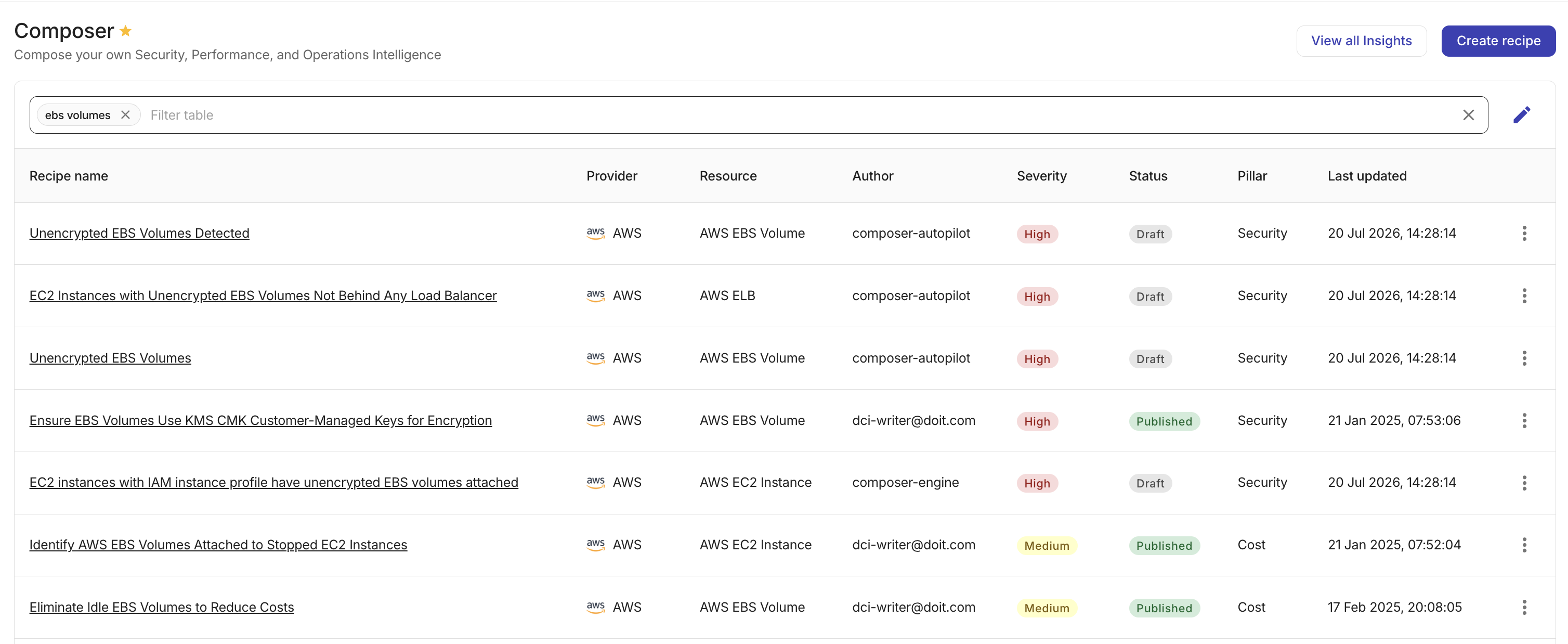
Composer ダッシュボードで、すでに EBS ボリュームを対象としているレシピ、または同様のアイドル/未使用リソースチェック(たとえば、アイドル状態の EC2 や未アタッチボリュームを検出するタイプのレシピ)があれば、そのレシピを開きます。
-
Recipe builder で、上部バーのケバブメニュー(⋮)を選択し、Duplicate recipe を選択します。

これで編集可能なコピーが作成されました。以降の手順では、このコピーをカスタマイズして独自のレシピにします。
ステップ 1:詳細を設定する
-
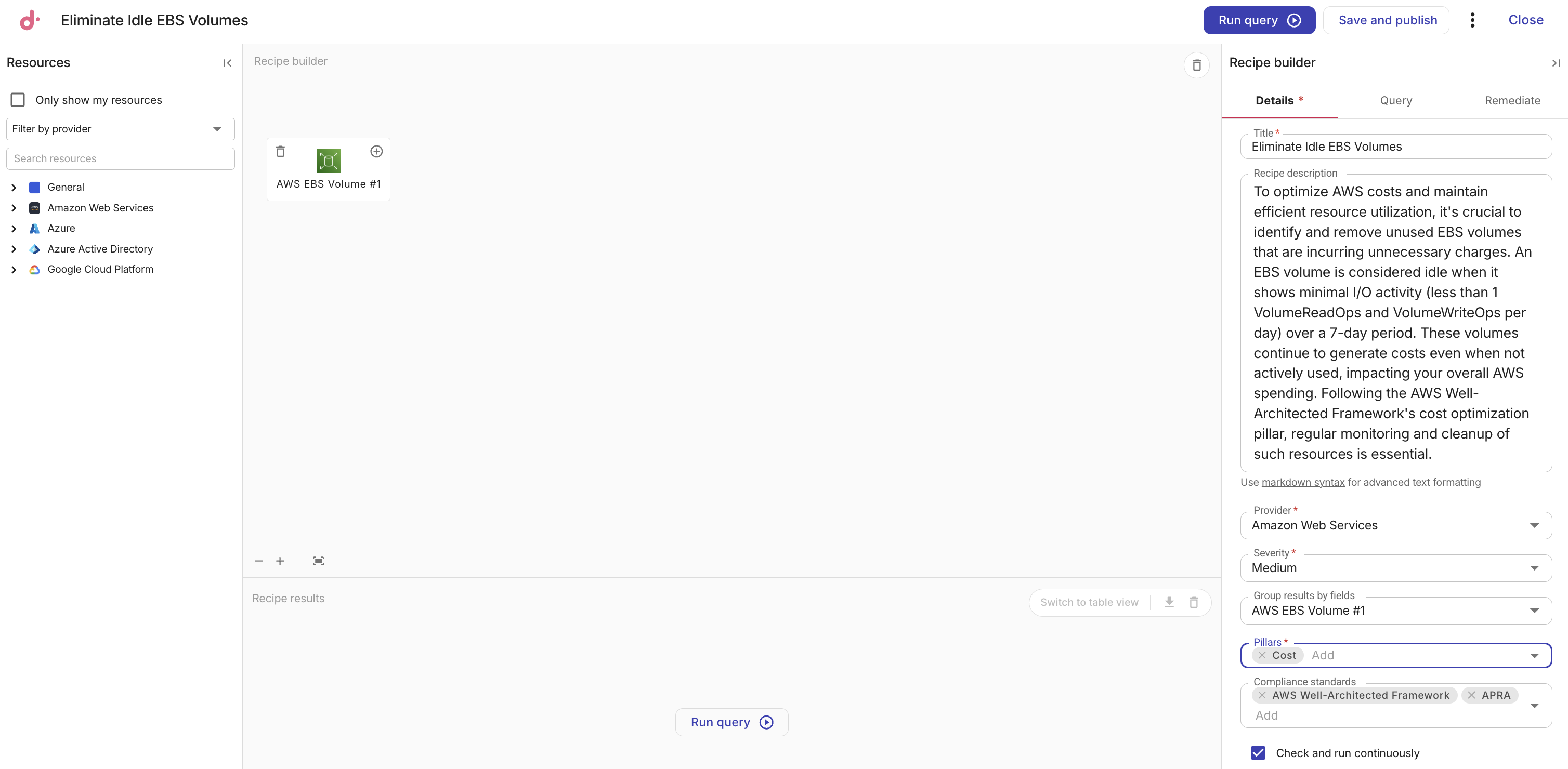
Recipe builder のサイドパネルで Details タブを選択します。
-
ダッシュボード上でレシピを見分けやすくするために、Title と任意の Description を更新します。アクションではなく条件を示す、リソースを先頭にしたタイトル(例:
EBS volumes with no attached instance)を推奨します。レシピの作成と編集を参照してください。 -
Severity を設定します(例:
MediumやHigh)。 -
Pillars で Cost を選択します。チェック内容が運用やその他のカテゴリにも該当する場合は、追加のピラーも選択できます。Pillarsを参照してください。
-
Cost が選択されている場合は、未使用ボリュームを削除することが想定される対処であれば Resource deletion などの Cost function を選択し、コスト削減が正しく分類されるようにします。
-
(任意)関連するインサイトをコンプライアンスフィルタリング用にタグ付けしたい場合は、Compliance standards を追加します。
-
Group results by fields で、インサイトの発行対象としたいキャンバスリソース(通常はキャンバス上の EBS ボリュームリソース)を選択します。これは、クエリーに一致した際に、どのリソースタイプに対してインサイトが起票されるかを制御します。
ステップ 2:キャンバス上のリソースを確認する
-
キャンバスに AWS EBS ボリュームリソースが含まれていることを確認します(含まれていない場合は、Resources パネルから EBS Volume をドラッグします)。

-
(任意)クエリーがリレーションに依存している場合(例:インスタンスへのアタッチ状況)、リソースカードの Add アイコン(+)を選択して関連リソースを追加します。
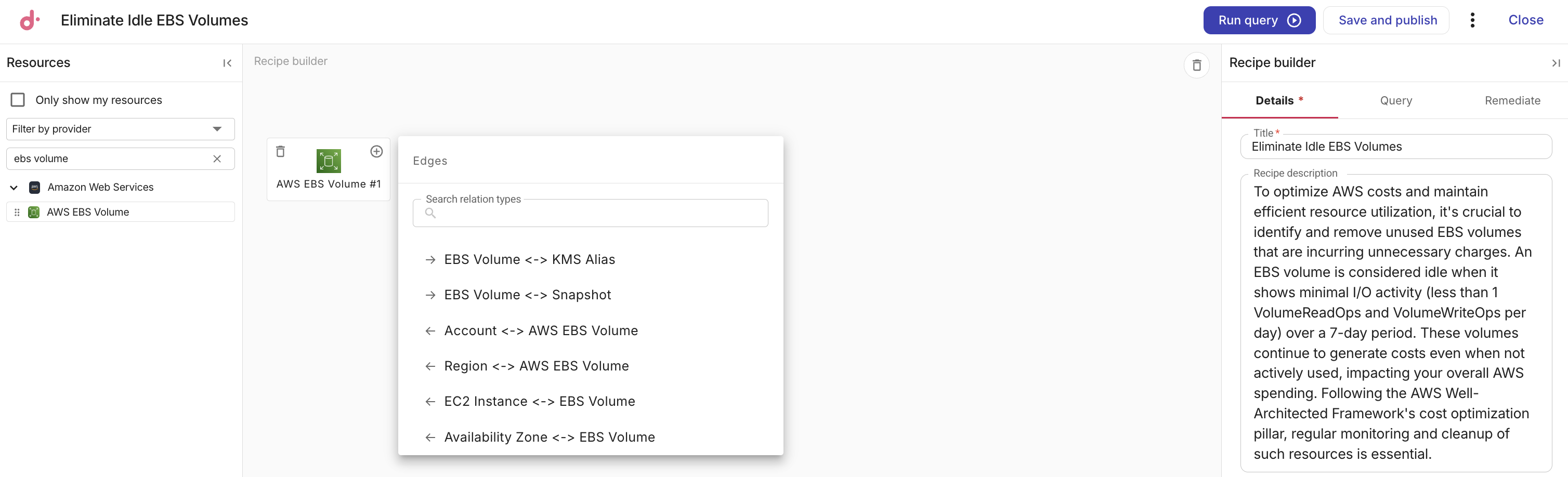
Resources パネルで Only show my resources を選択すると、組織に接続されているプロバイダーとリソースタイプのみにリストを絞り込めます。
ステップ 3:クエリーを構築する
-
Query タブを選択します。

-
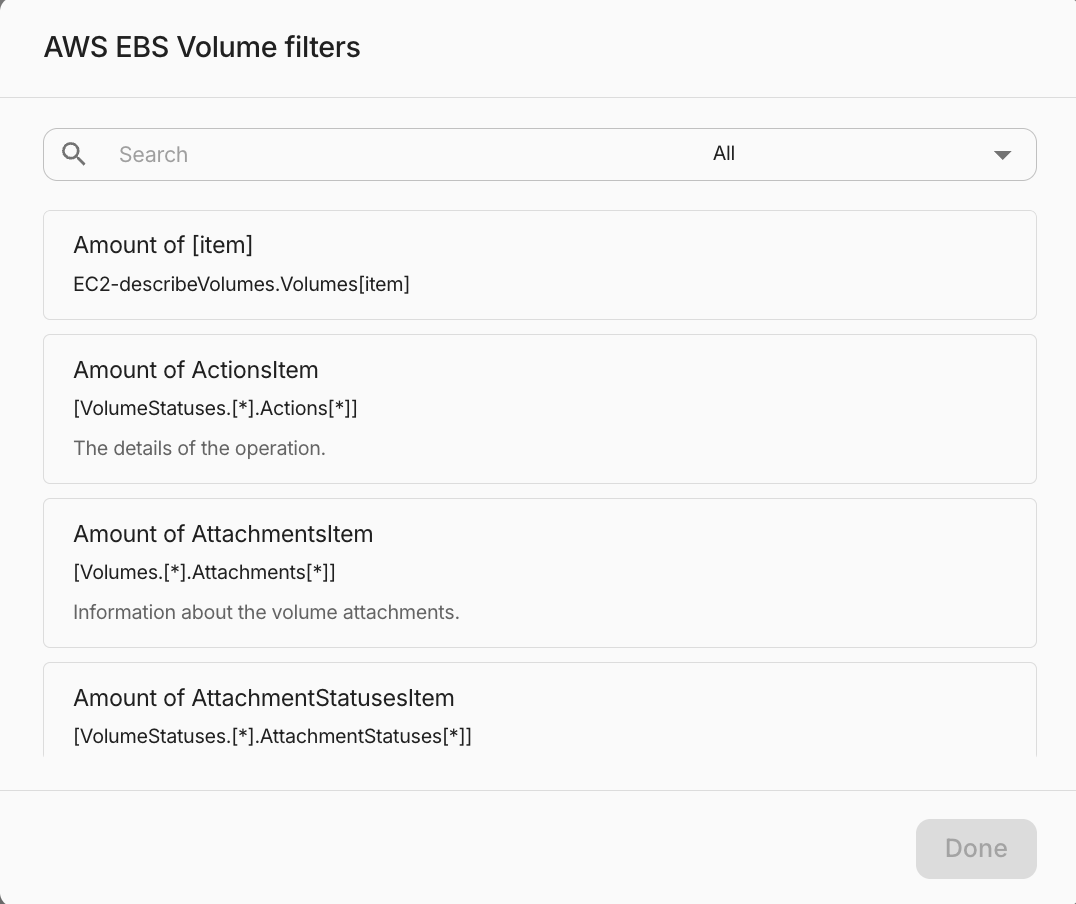
Add rule を選択して単一条件を追加します。複数のルールを組み合わせる場合は Add group を選択し、そのグループ内にルールを追加します。
-
フィルターダイアログで、必要なプロパティ、タグ、メトリクス、その他のフィールドを検索します。Properties、Events、Cost、Metrics、Tags、Group by、IAM、All でリストを絞り込むことができます。
-
Done を選択し、必要に応じてルールの演算子と値を調整します。
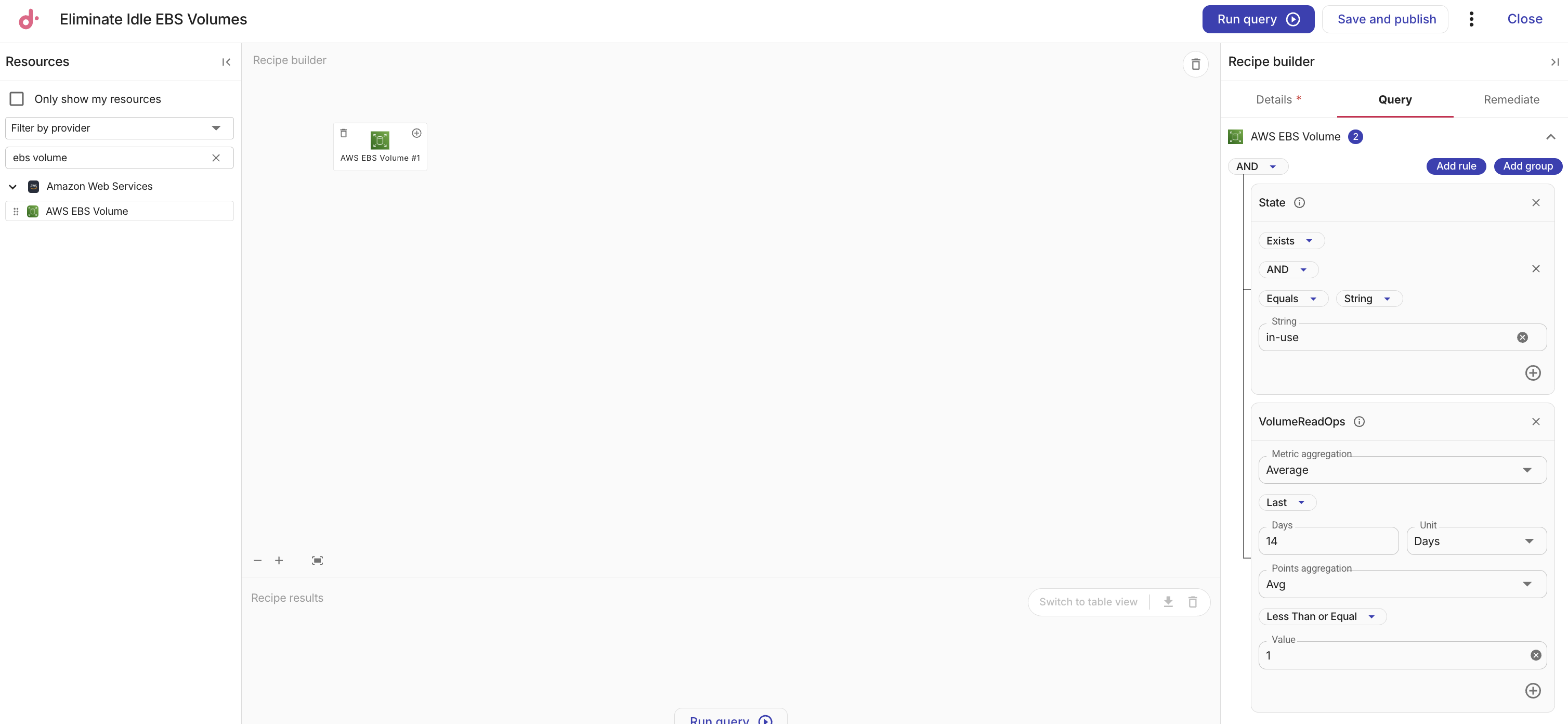
-
Run query を選択して、スキャン済みアカウントに対してレシピをテストします。
ステップ 4:結果を確認する
-
レシピの結果を確認します。表形式のリストがよい場合は、テーブルビューに切り替えます。
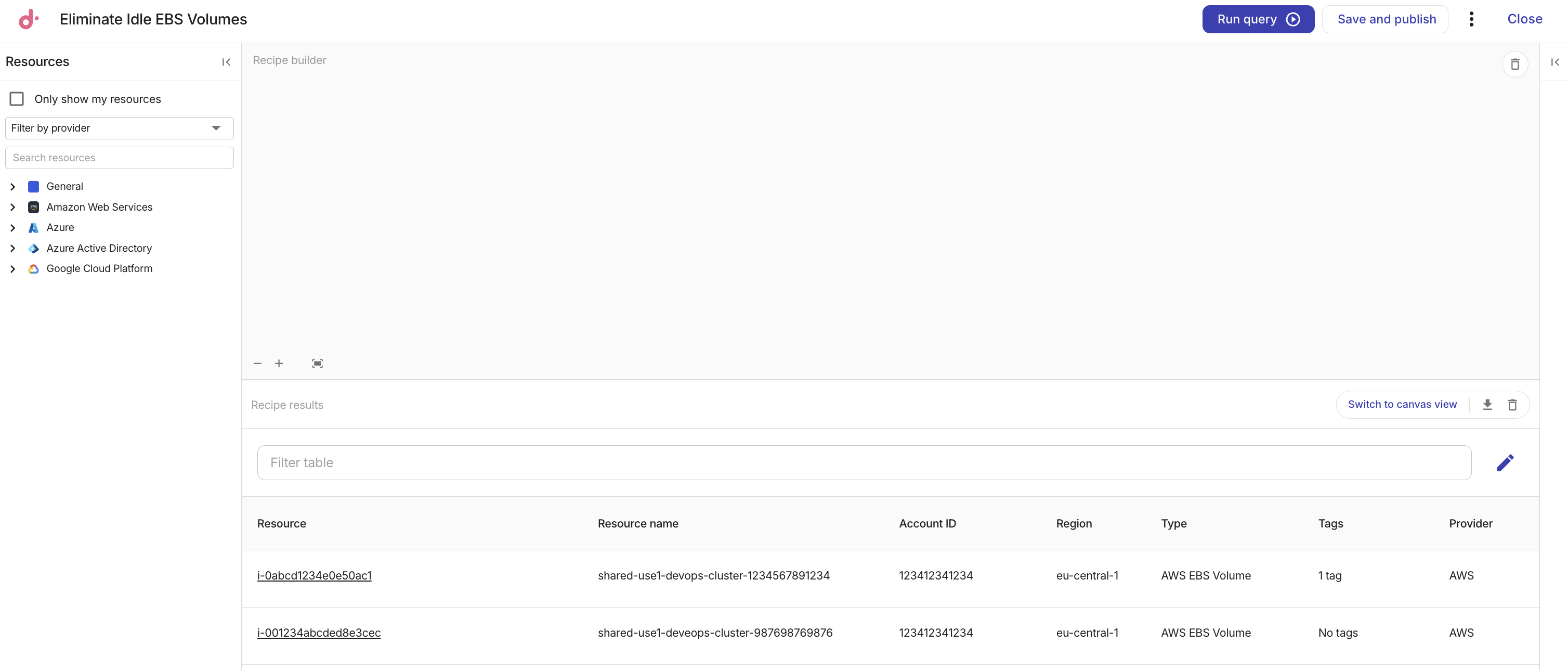
-
(任意)テーブルビューでリソースを選択し、resource details を開いて、一致結果が想定通りであることを確認します。
ステップ 5:是正措置の詳細を追加する(任意)
-
Remediate タブを選択し、オペレーターが検出内容を解決する際に役立つ項目(手順、影響、複雑さ、参照情報、修正所要時間など)を入力します。
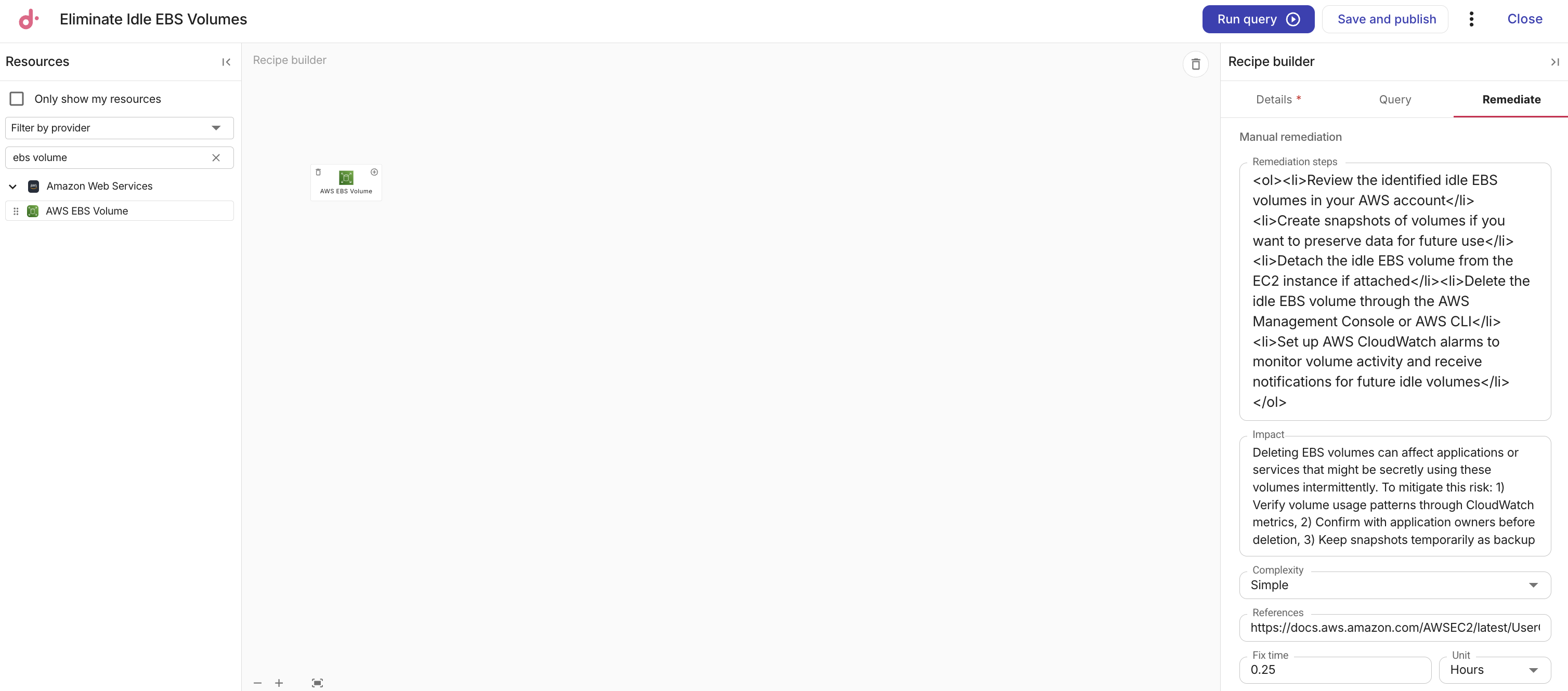
レシピが公開されると、これらのフィールドは関連インサイトの詳細ページに表示されます。Add remediation detailsを参照してください。
ステップ 6:レシピを公開する
公開する前に、Composer ダッシュボードで同じリソースと条件を対象とした既存のレシピがないか検索してください。コストチェックがほぼ重複するとコスト削減額が過大計上される可能性があるため、近い内容のレシピを新規公開するよりも、そのレシピをカスタマイズすることを優先してください。
-
Details タブで、公開後も Composer に一致するリソースの評価を継続させたい場合は、Check and run continuously を選択します。
-
Save and publish を選択します。
-
Close を選択して Composer ダッシュボードに戻るか、View all insights を選択して Insights ダッシュボード を開きます。
トラブルシューティング
-
Run query 実行後に結果が出ない場合: account coverage でスキャンが成功していること、Composer が想定しているアカウントで有効化されていること、クエリーフィルターが絞り込みすぎになっていないことを確認してください。また、Group results by fields がインサイトを発行したいリソースを指していることも確認してください。
-
レシピを保存できない場合:現在表示しているレシピは、組織が所有していないレシピである可能性があります。まずレシピを複製し、そのコピーを保存してください。
-
想定外の一致がある場合:キャンバス上のリレーションおよび各ルールの演算子を確認してください。結果テーブルのリソース詳細を使用して、プロパティ、タグ、関連リソースを調査してください。