Partner templates
Distributors and resellers in DoiT PartnerOps can publish their own flows as partner templates and distribute them to downstream tenants. Published partner templates appear alongside DoiT templates in each downstream tenant's template catalog, shown by a Partner: customer label showing the publishing tenant.
Downstream tenants can create a flow from a template or insert a template in a flow.
Required permissions
CloudFlow Templates Admin: Publish and manage partner templates, and browse the templates gallery. This permission is relevant only to distributor (Tier 1) and reseller (Tier 2) tenants of the DoiT PartnerOps service. See Roles and permissions.
Browse the templates gallery
Distributor (Tier 1) and reseller (Tier 2) users can browse a dedicated templates gallery.
To open the gallery, select Automation and operations from the top navigation mega menu, and then select CloudFlow templates.
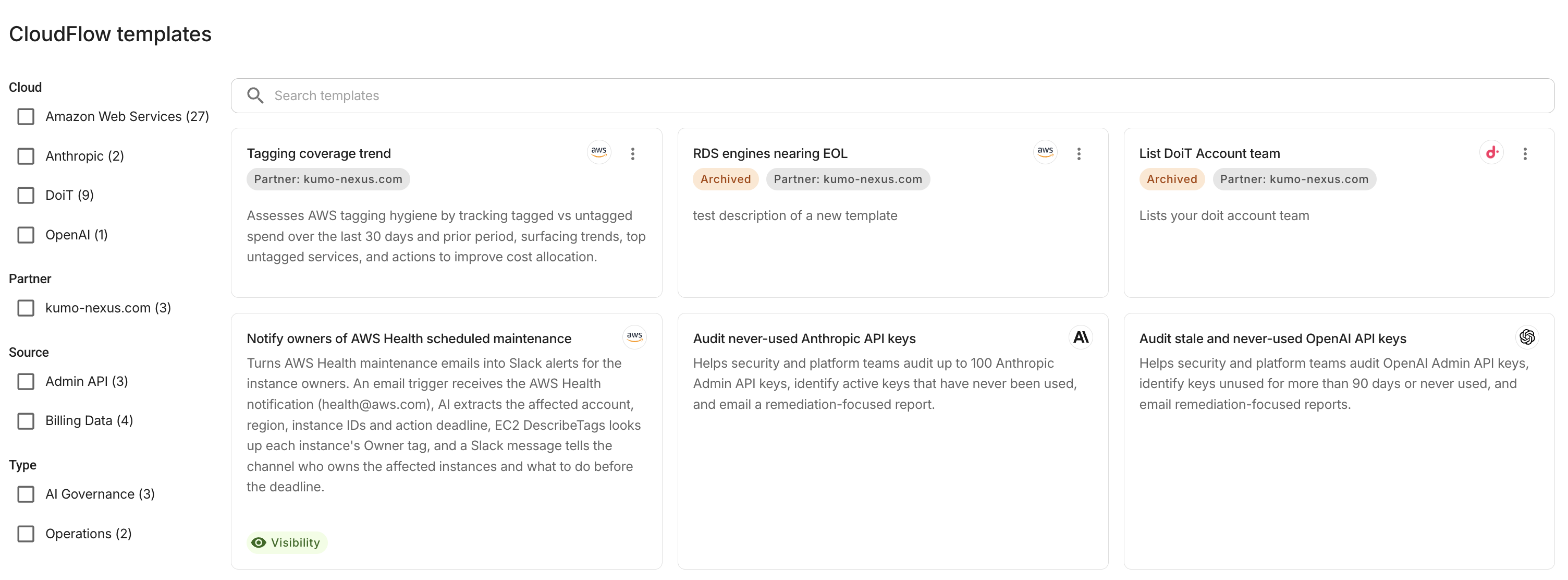
The gallery displays templates alongside any templates owned by your organization or its upstream tenant. Templates for cloud providers that your organization does not have access to are hidden automatically.
Use the sidebar filters to narrow the list by cloud provider or by partner. The Partner filter groups templates by the publishing tenant.
Template cards in the gallery are view-only. Selecting a card does not create a flow. On templates owned by your organization, select (⋮) for the action available for that template. See Manage partner templates. Templates owned by an upstream tenant are read-only and do not display a menu.
Validate a template
Once you have created a flow from a template or inserted a template in a flow, you can publish the flow to ma
Before publishing a flow as a partner template, you can run a template validation report to check whether the flow is ready. The validation report highlights configuration issues that should be resolved before you publish.
To validate a flow:
-
Open a custom flow in the CloudFlow editor.
-
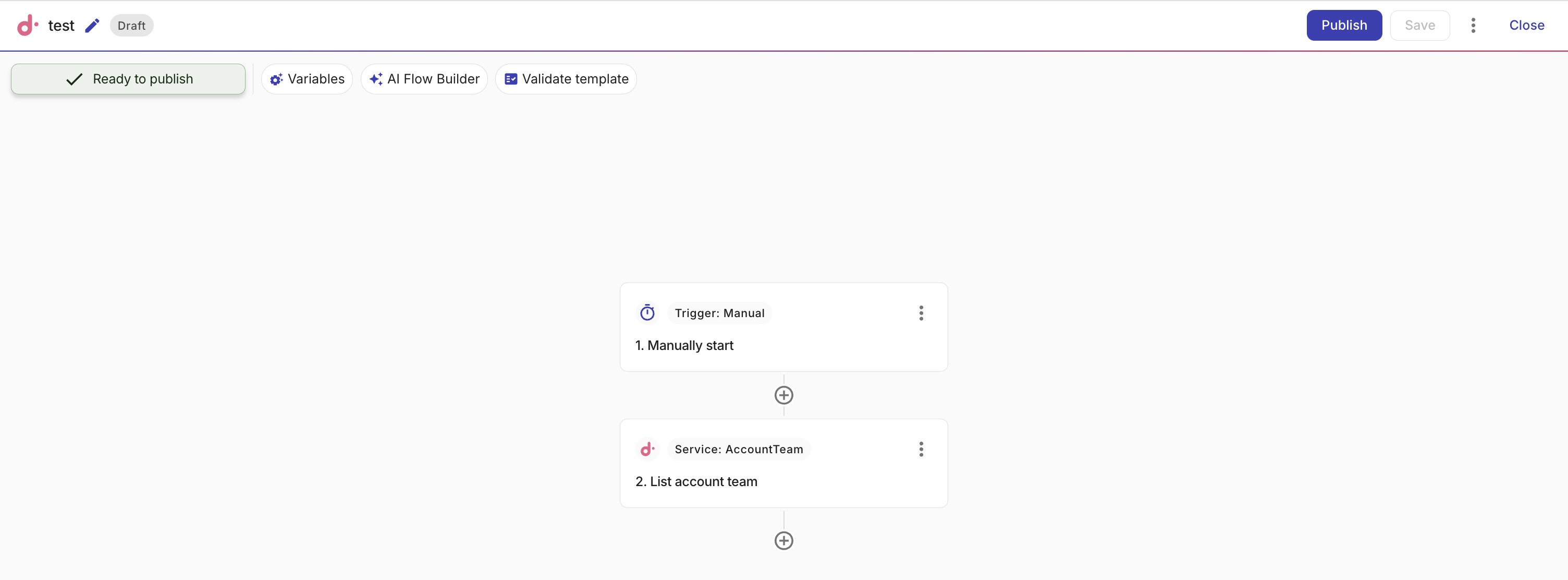
Select Validate template.
-
Review the validation report in the side panel. If the report identifies issues, resolve them in your flow and select Rerun to revalidate.
-
Template validation is available for custom flows only. Blueprint and demo flows do not display Validate template.
-
Validation checks the template's configuration but does not verify runtime behavior. Make sure your flow runs successfully before you publish it as a template.
Publish a partner template
To publish a flow as a partner template:
-
Open a flow in the CloudFlow builder. The flow must pass validation before it can be published. Flows that are incomplete or have configuration errors cannot be published.
-
Select (⋮), and then select Publish partner template.

-
Review the customer-specific values removed from the template copy, such as account IDs, connections, and notification recipients. These values belong only to your tenant, so they are removed from the copy that downstream tenants receive. Your original flow is unchanged. Select Continue.
-
Enter a name and description for the template, and then select cloud provider tags, a category, and a priority level. The available cloud provider tags depend on which providers your organization has access to.
-
Select Publish to library.
-
Choose how to publish the template:
-
Publish new: Publishes the template as a new entry in the catalog.
-
Publish and replace existing: Replaces one of your existing published templates with the new one. When you select Publish and replace existing, choose a published template to replace. You can search by name or description to find the template you want to replace.
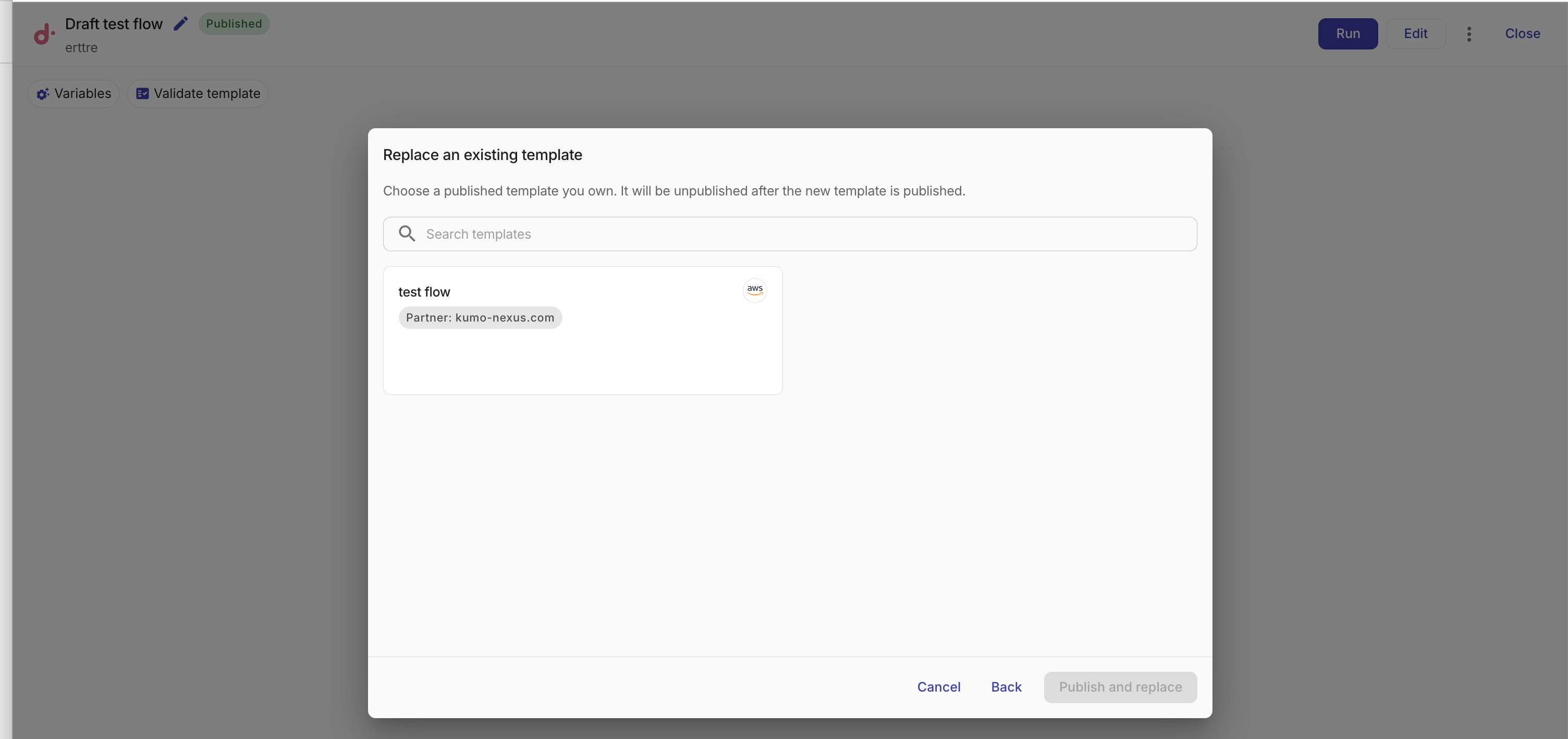
Select the published template that you want to replace and then select Publish and replace. The new template is published first, and then the selected template is unpublished. Flows that were previously created from the replaced template are not affected.
-
Manage partner templates
On a template your organization owns in the templates gallery, select (⋮). The menu shows only the action for that template's state.
| State | Action | Description |
|---|---|---|
| Draft | Publish to library | Publishes the draft template to the catalog. |
| Draft | Delete draft | Permanently deletes the draft template. |
| Published | Unpublish | Removes the template from downstream tenants' catalogs. Flows already created from the template are not affected. |
| Archived | Republish | Validates the template and returns it to the catalog. |