Diagrams
Cloud Diagrams provides a complete view of your cloud infrastructure at a glance, giving you valuable insights into the current state of your deployment, helping you understand your cloud footprint. You can zoom into specific services, view their properties, and understand any current issues.
When you view a cloud diagram, you can see:
-
Nodes: Service instances like S3 buckets, cloud storage buckets, load balancers, Lambda functions, and so on. The nodes are displayed from left to right.
-
Links: Links between nodes and groups.
-
Groups: Regions, security groups, subnets, VPCs, or virtual networks.
Required permissions
To use Cloud Diagrams, your DoiT account must have the Cloud Diagram User permission.
View a diagram
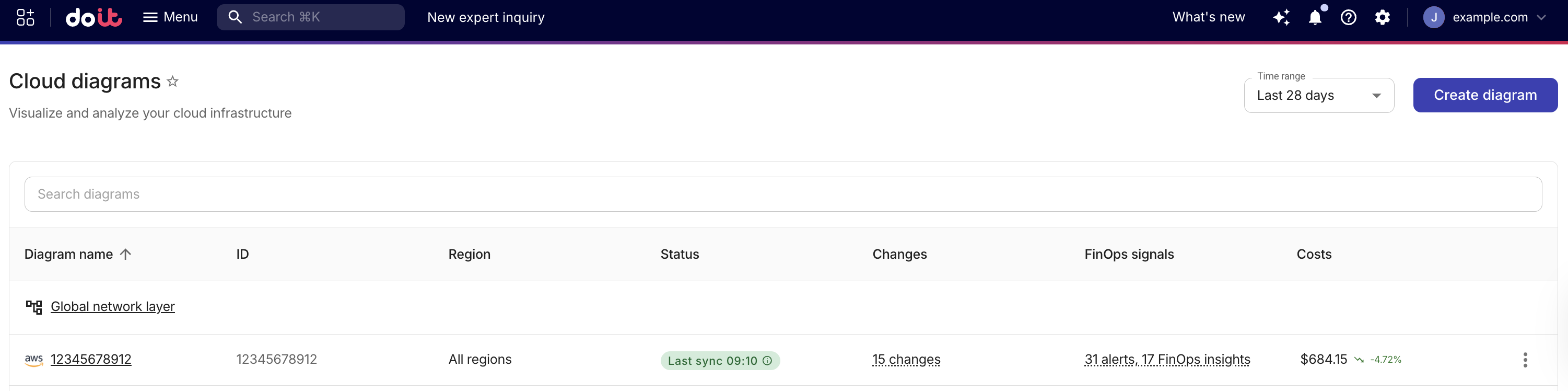
To view a cloud diagram, from the Cloud Diagrams dashboard, select the diagram you want to view.
When you open a diagram, the sidebar provides access to all diagram tools and features.
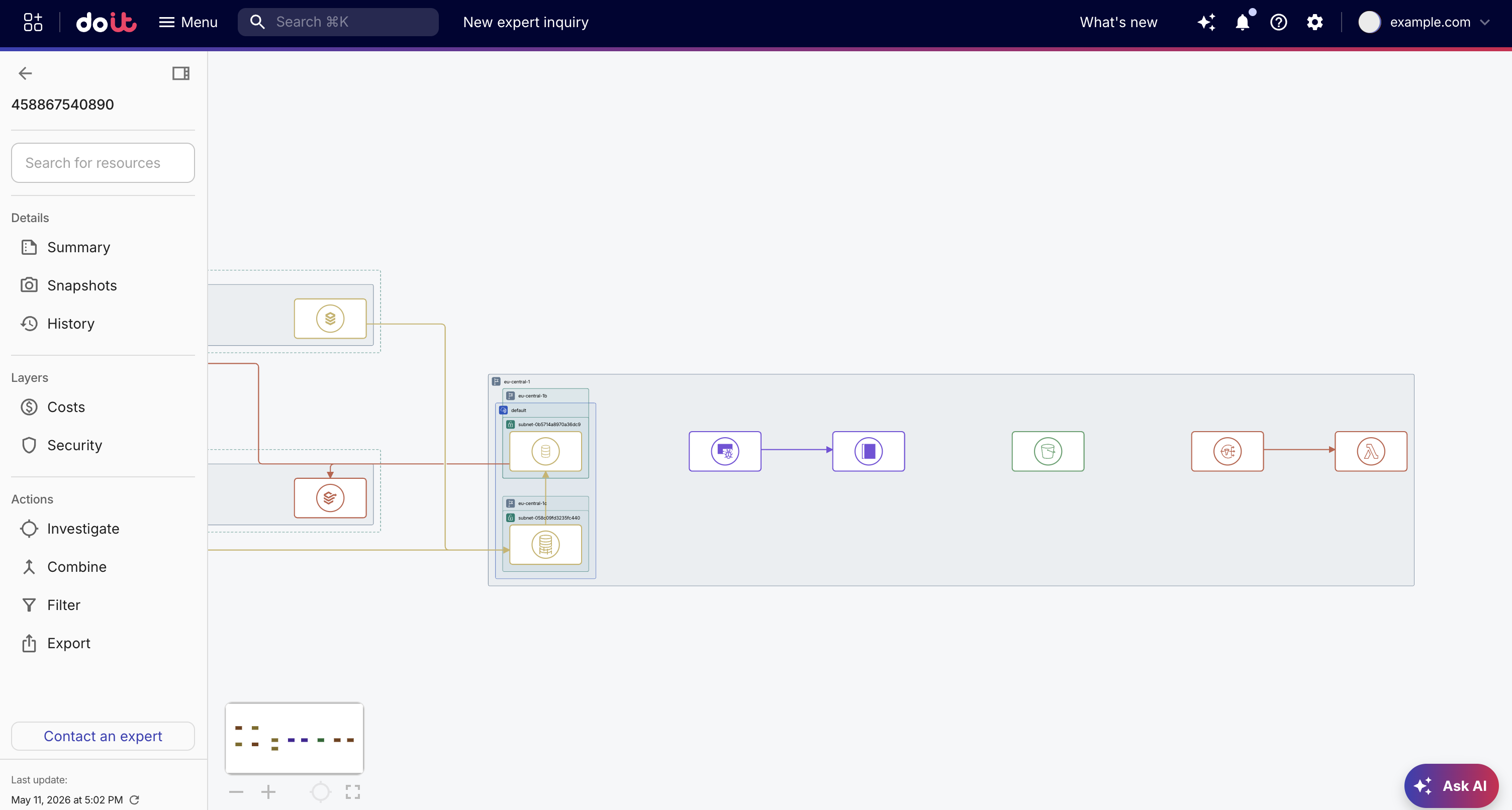
-
Layers: Overview, Costs, Security, and Network. The Layers section is available for diagrams only.
-
Actions: Investigate, Combine, Filter, and Export.
The diagram name is displayed at the top of the navigation and can be edited.
The footer of the sidebar shows the last sync time and import error count, along with a Contact an expert button to open an expert inquiry.
Search for resources
You can search for specific resources within a diagram using the search field in the sidebar. Enter a resource name, ID, or IP address to filter the diagram and locate the resource.
Rename a diagram
You can rename a diagram directly from the sidebar.
-
Hover over the diagram name at the top of the sidebar and select the edit icon.
-
In the Edit diagram name dialog, enter a new name. Diagram names can contain letters, numbers, and hyphens.
-
Select Save.
Sync status
Cloud Diagrams automatically updates every 4 hours. The footer of the sidebar displays the last update timestamp and a refresh button to manually trigger an update. If the last import encountered errors, the footer also displays the import error count. Select the error count to view details.