Global network layer
The global network layer provides a unified view of your cloud networking infrastructure across all imported AWS accounts, Google Cloud projects, and Azure subscriptions. It helps you understand the network flows between subnets in different VPCs or virtual networks, regions, accounts, projects, and subscriptions.
The global network layer enables you to:
-
Map complex CloudWAN, TransitVPC, VPN, and similar networks between different accounts, projects, subscriptions, and hybrid cloud setups.
-
Get inventory of NAT and internet gateways.
-
Troubleshoot routing issues and verify that routing tables are set up correctly.
The global network layer references the Open Systems Interconnection (OSI) model. It shows resources starting from subnet and above. No individual service instances are shown, only the network components, for example, subnet, availability zone, VPC or virtual network, and region.
-
Each account, project, or subscription is shown as a vertical column.
-
Links are shown for private connections and VPNs only. The network layer does not track connections over the public internet if they are not described on the infrastructure level, for example, an EC2 instance connecting to an ELB in another account.
The global network layer does not display security controls like security groups, ACLs, or network firewall rules, although you can see security groups in a diagram.
Required permissions
To use Cloud Diagrams, your DoiT account must have the Cloud Diagram User permission.
View global network layer
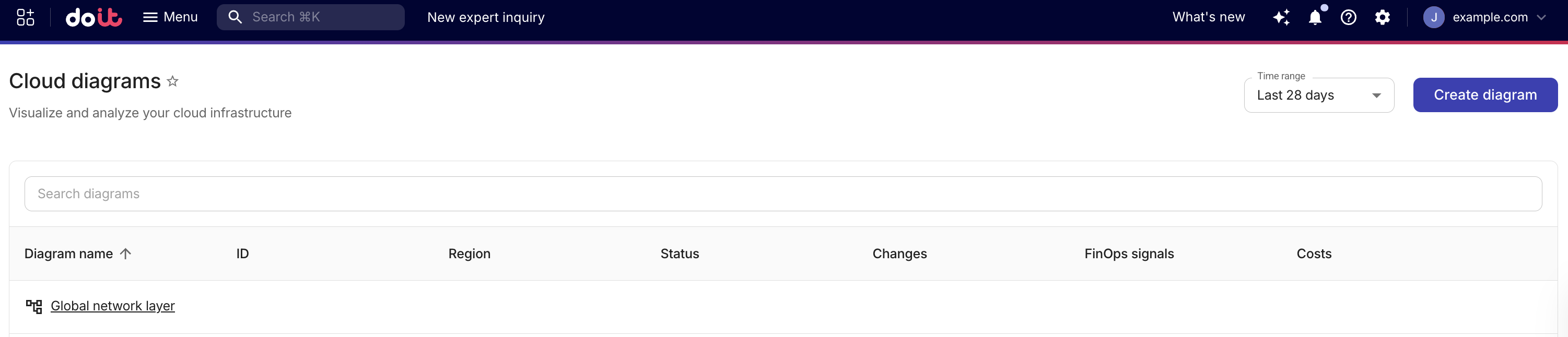
To view the global network layer, from the Cloud Diagrams dashboard, select Global network layer.
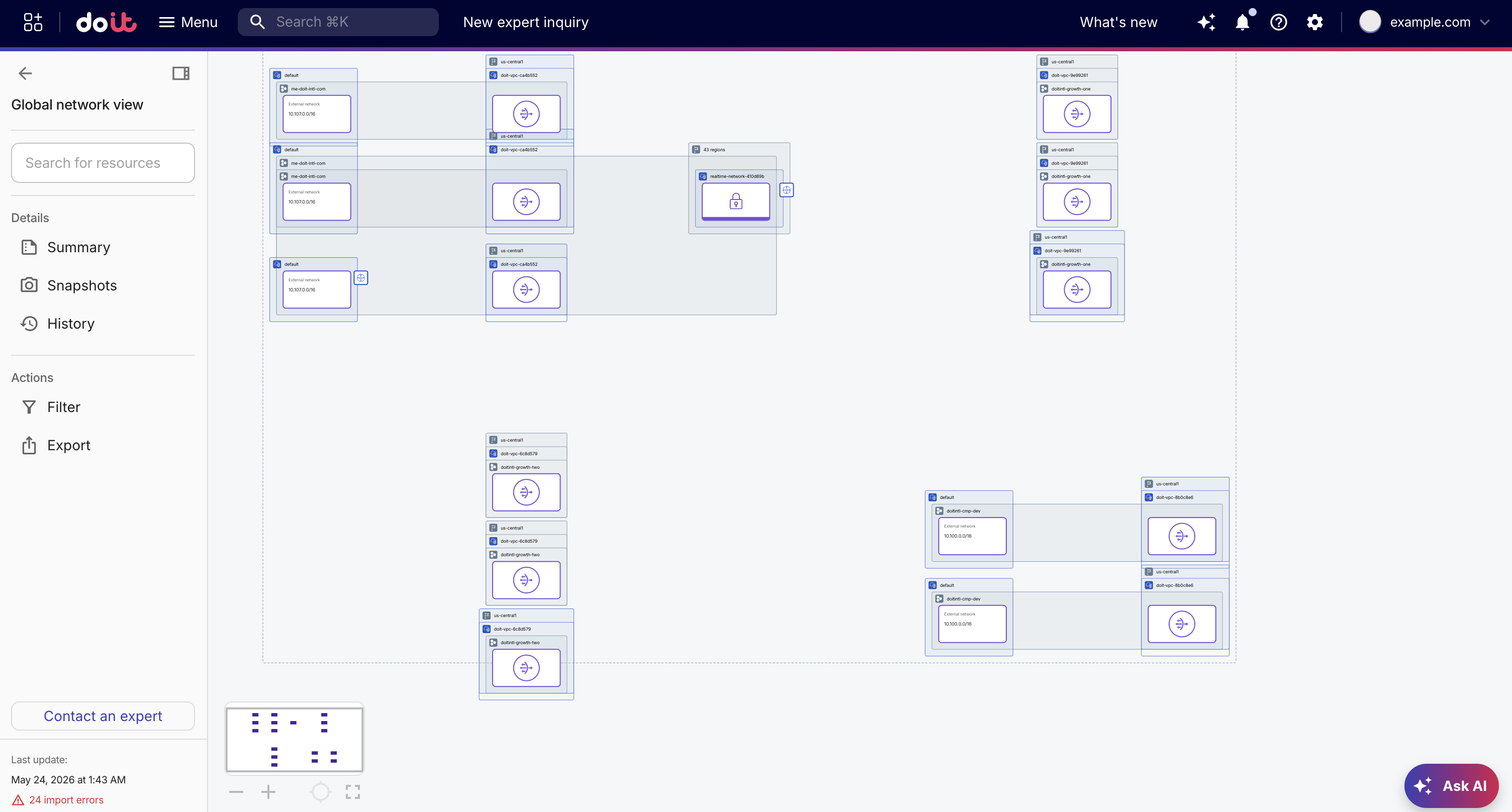
When you open the global network layer, the sidebar provides access to network-layer details and actions.
-
Details: The Details section of the global network layer sidebar gives you access to information about the global network layer and how it changes over time including a Summary, Snapshots, and History.
-
Actions: The Actions section of the global network layer sidebar provides tools for focusing, simplifying, and sharing your global network layer including Filter and Export.
Search for resources
You can search for specific resources within the global network layer using the search field in the sidebar. Enter a resource name, ID, or IP address to filter the diagram and locate the resource.
Sync status
Cloud Diagrams automatically updates every 4 hours. The footer of the sidebar displays the last update timestamp. If the last import encountered errors, the footer also displays the import error count. Select the error count to view details.