User groups
A user group consists of users who share a single role and inherit its permissions. User groups in Cloud Intelligence let you assign a shared role to multiple users at once, reducing administrative overhead and ensuring consistent permissions.
-
One role per group: Each group can have only one role. If users need permissions from several roles, add them to all relevant groups or create a custom role with the required permissions.
-
Additive permissions: Joining a group grants extra access without overriding a user's individual role. Members inherit the group's role in addition to any roles assigned directly to them.
-
Single-point management: Instead of updating individual accounts, simply add users to a group or update the group's role to change permissions team-wide.
-
Groups without roles: A group with no assigned role acts solely as a member list and grants no additional access.
-
Imported groups: You can import a group from Google Workspace. Google Workspace manages the group's name and membership. Assign a DoiT role after import, and select Sync now to update membership.
Required permission
- Users Manager
Access user groups
To access user groups:
-
Sign in to the DoiT console, select the gear icon () from the top navigation bar, and then select Users and access.
-
Select Groups from the left-hand menu.

Each group shows the following information:
-
Group name: The name of the group.
-
Member count: The number of users in the group (for example,
3 users). -
Role: The role assigned to the group, or one of the following:
No role assigned: The group has no assigned role and does not grant extra access.Role unavailable: The role cannot be resolved.
-
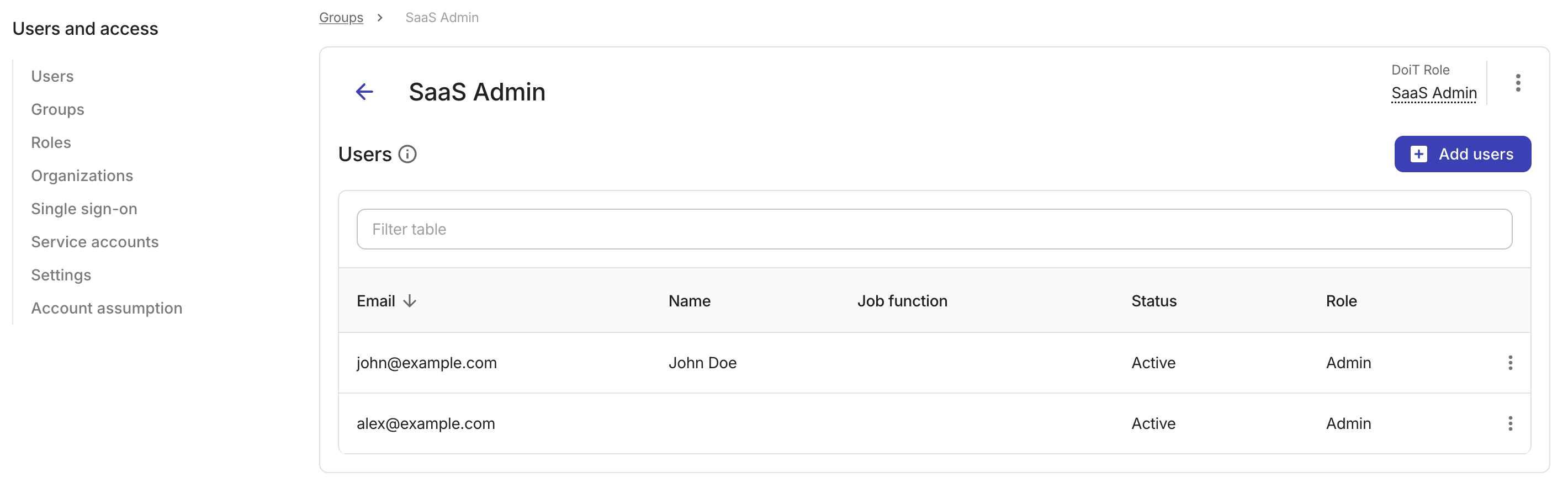
You can select a group to view its details.
Import groups from Google Workspace
If your organization uses Google Workspace, you can import a Google group instead of creating a group and adding its members manually.
To import a group:
-
On the Groups page, select Import from Google.
-
If prompted, sign in with a Google Workspace account.
-
In Import from Google, search for a Google group by name, or enter its email address or Google Groups URL.
-
Select Import group.
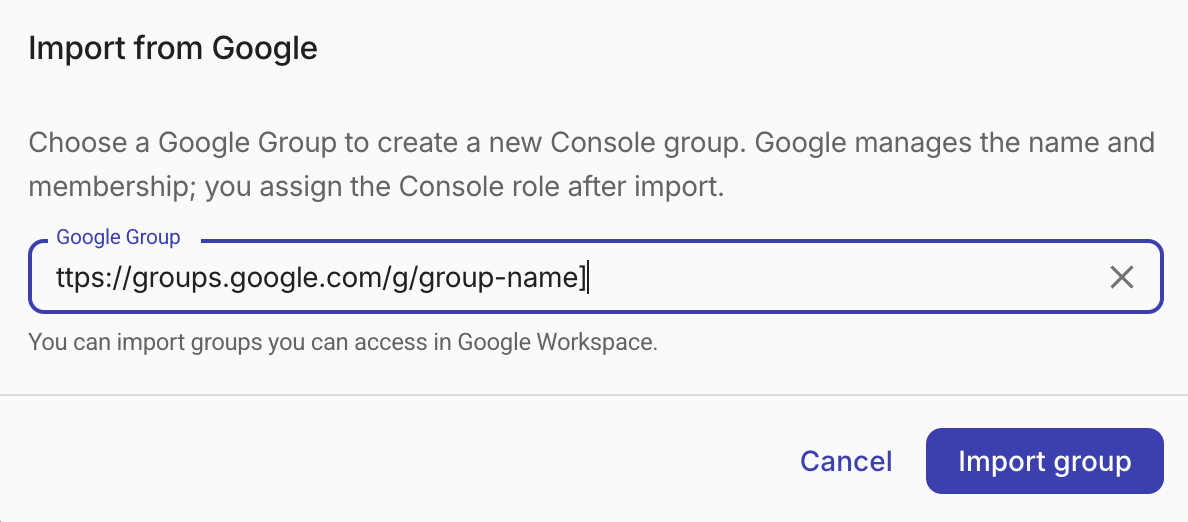
Cloud Intelligence opens the group's edit page so you can assign a role. To update membership later, see Synchronize imported groups.
To renew an expired Google Workspace authorization, select Import from Google again.
Create a group manually
To create a user group in Cloud Intelligence:
-
On the Groups page, select Create group.
-
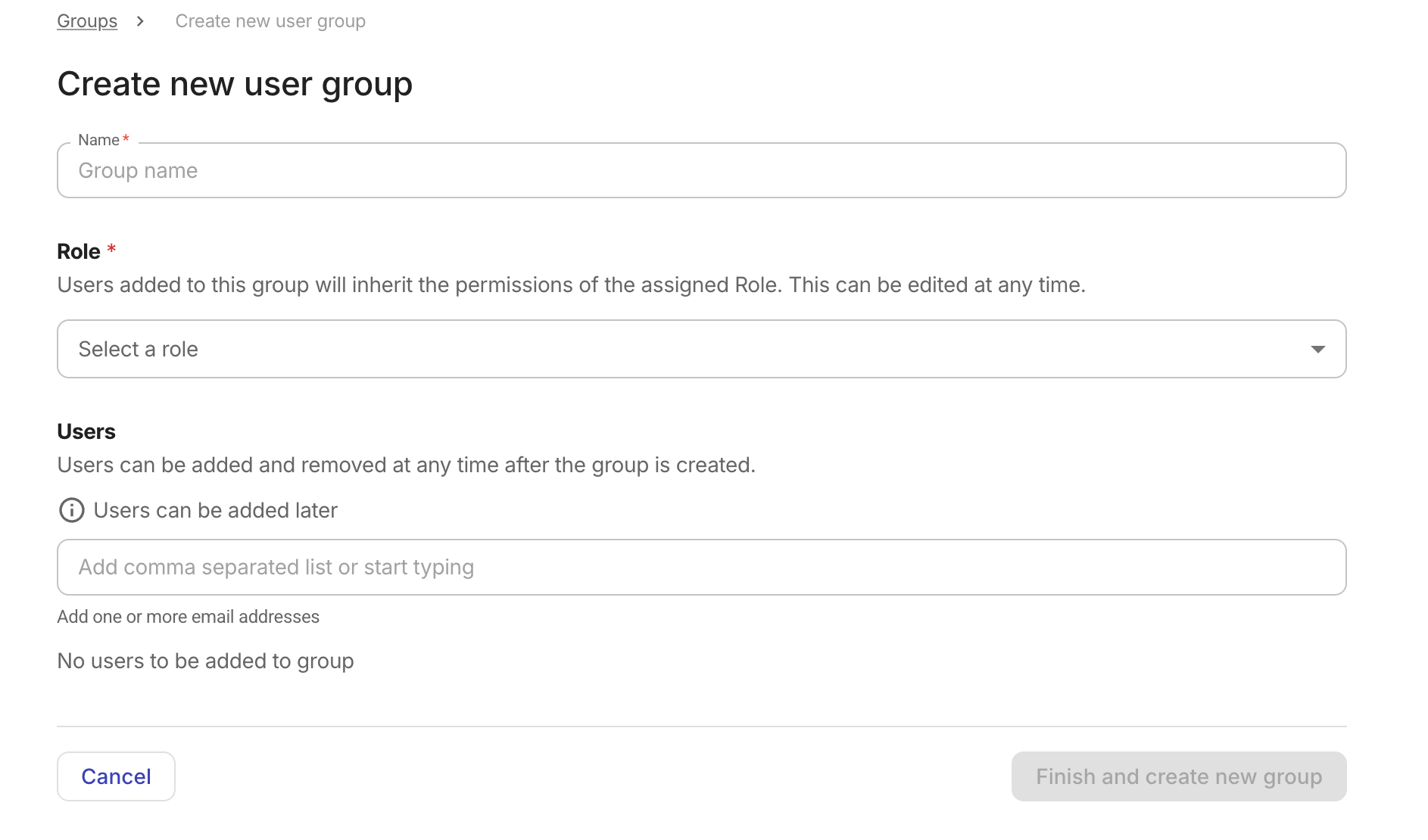
Configure the new group.
-
Name: Enter a unique group name.
-
Role (optional): Select a role for the group, or select No role to create a group without one. A group can have only one role. In the dropdown, roles are grouped into Preset and Custom, and each role displays its permission count. You can change or remove the role after creating the group.
After you select a role, a summary panel appears with the role name, permission count, and a description. Expand the panel to view the individual permissions.
-
Users (optional): Enter one or more email addresses. You can only add users who have accepted their invite and have an active account.
-
-
Select Finish and create new group.
Edit a group
You can change a group's role when editing it. For a group created in Cloud Intelligence, you can also change its name. For an imported group, the name is managed in Google Workspace and cannot be changed.
-
On the Groups page, select the group you want to edit.
-
On the group's detail page, select the kebab menu (⋮), and then select Edit group details.
-
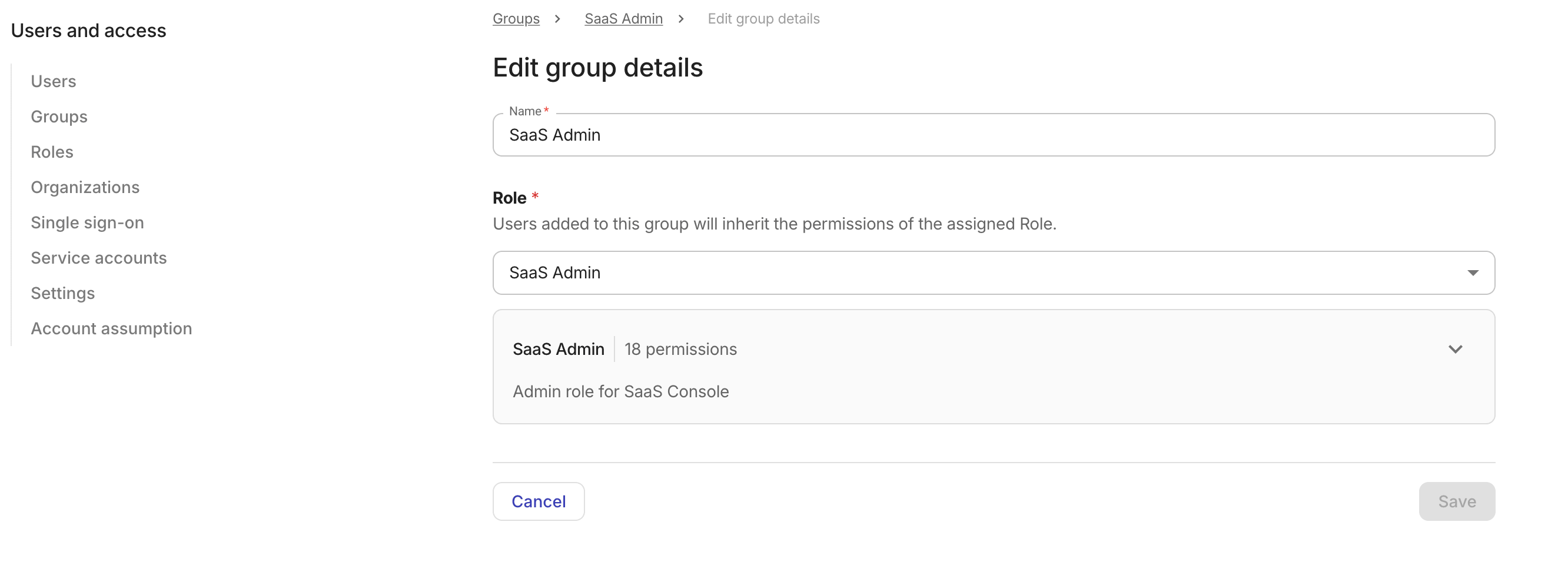
Update the following settings as needed:
-
Name: The display name for the group. For a group created in Cloud Intelligence, this field is required and cannot be left empty. For an imported group, this field is disabled.
-
Role: The role assigned to the group. The dropdown lists all roles available in your organization. To remove the group's current role, select No role. If the group's previously assigned role is no longer available, the field displays Role unavailable.
-
-
Select Save.
Add members
These steps apply to groups created in Cloud Intelligence. To update the membership of an imported group, see Synchronize imported groups.
To add members to a group:
-
On the Groups page, select the group of interest.
-
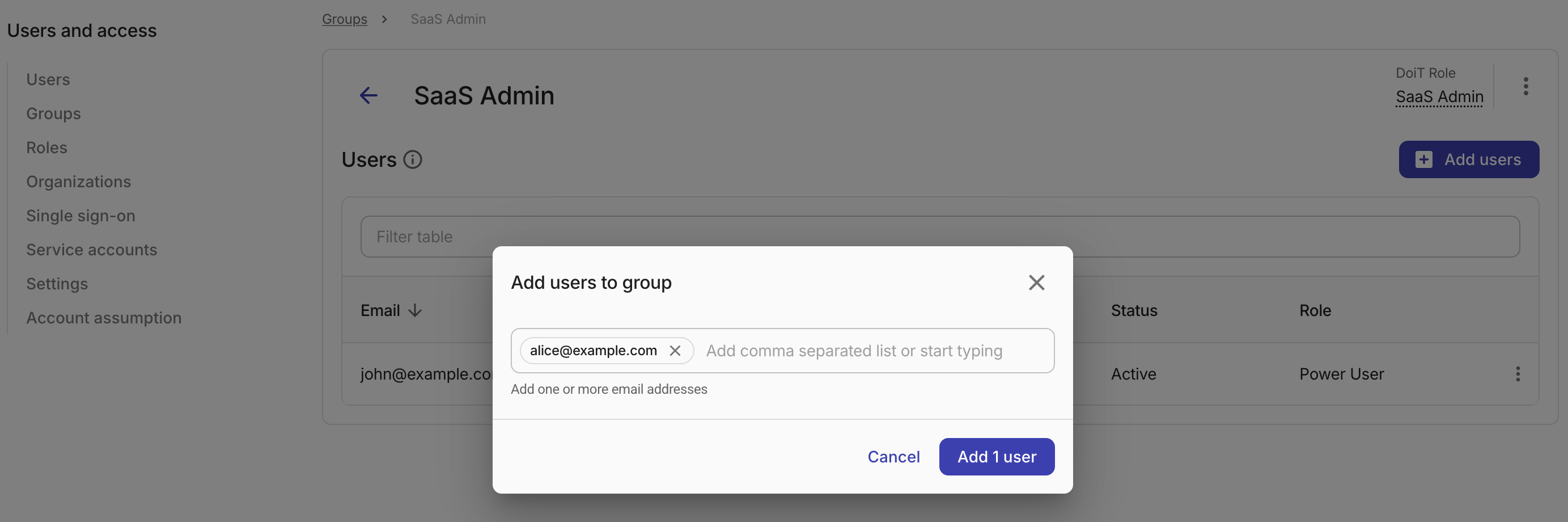
On the group's detail page, select Add users.
-
In the Add users to group dialog, enter one or more email addresses.
You can only add users who have accepted their invite and have an active account.
-
Select Add N users to confirm. The count reflects new users that will be added.
Remove a member
These steps apply to groups created in Cloud Intelligence. Removing a member revokes the access they inherit from that group. Roles assigned to the user individually or through other groups are unaffected.
To remove a member:
-
On the Groups page, select the group of interest.
-
On the group's detail page, locate the member in the Users table.
-
Select the kebab menu (⋮) at the end of the row, and then select Remove from group.
-
Select Remove to confirm.
Synchronize imported groups
Membership for an imported group is managed in Google Workspace. Select Sync now to update the user group with membership changes made in Google Workspace. Only members with an active DoiT account are included.
To synchronize an imported group:
-
On the Groups page, select the imported group.
-
On the group's detail page, select Sync now.
Delete a group
Deleting a group is permanent. Members are removed from the group and lose any access granted by the group's role. Deleting an imported group removes it from Cloud Intelligence only. The Google group and its membership are not changed.
To delete a group:
-
On the Groups page, select the target group.
-
On the group's detail page, select the kebab menu (⋮), and then select Delete group.
-
Review the displayed information. Select Delete group to confirm.