Audit logs
Cloud Intelligence provides audit logs to help you respond to security events, internal investigations, and compliance obligations. Audit logs are a chronological record of events across all areas of Cloud Intelligence, capturing the who, what, when, where, and why of each recorded action.
Audit logs are retained indefinitely. The audit data trail remains accessible within Cloud Intelligence as long as your organization remains a customer.
Actions performed through the DoiT API and the DoiT CLI are recorded. Actions performed in the Console are recorded only when they're handled by a backend service that emits audit events, and coverage of Console actions isn't yet complete. For example, deleting a Cloud Analytics alert in the Console is recorded, but creating one is not.
When you investigate an incident, treat the absence of an audit event as inconclusive: it doesn't prove that the action didn't take place.
Required permissions
To access audit logs, your DoiT account must have the Admin role.
Access audit logs
To access audit logs, sign in to the DoiT console, select the gear icon () from the top navigation bar, and select Audit logs.
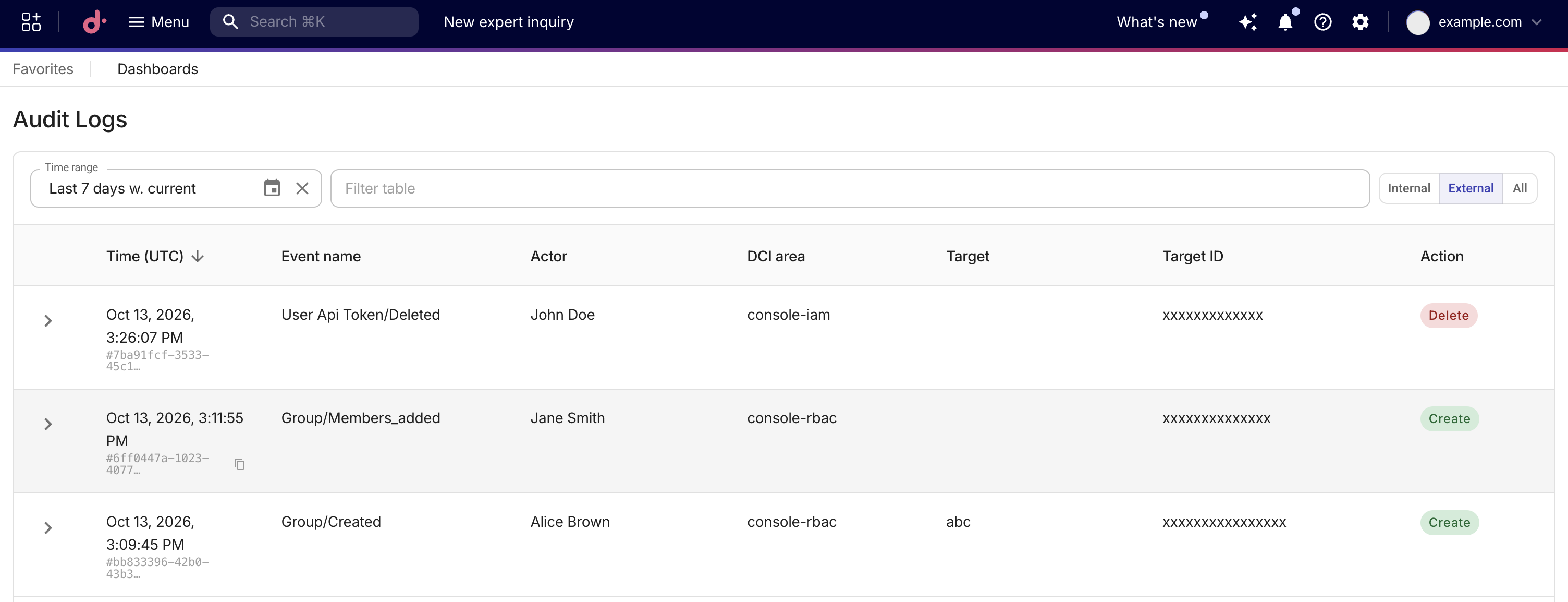
By default, the audit log displays the events from the last 7 days, sorted by time from newest to oldest. The following information is displayed for each event.
| Field | Description |
|---|---|
| Time | The date and time the action occurred. The timestamp is in ISO 8601 format (UTC). Hover over the event ID to view the full identifier. Use the Copy icon to copy it to your clipboard. |
| Event name | A descriptive label for the specific event that occurred, such as Cloud Analytics/Report/Create. Use this field to differentiate between event types that occur with the same area and share the same action. |
| Actor | Shows who performed the action: a user's name or email, or a system or service-account identifier. Users from a parent or reseller organization who act on a child tenant also appear with their name and email when the organization hierarchy verifiably reaches the target tenant. Hover over a system, service-account, or ID-only actor for details. Older events may show only a user ID, while unidentified non-user actors appear as DCI. An Impersonated badge marks console admin impersonation. |
| DCI Area | The area of Cloud Intelligence where the event occurred, for example, Alerts, Anomalies, CloudFlow, Cloud Diagrams, Commitment Manager, and so on. |
| Target | The human-readable resource name where the event took place. |
| Target ID | The unique identifier of the target resource. Together with Target, it identifies exactly which resource was changed (for example, a specific budget, alert, or dashboard). You can filter by Target ID to see all events for that resource. |
| Action | The action that occurred. Values are either Create, Update, or Delete. |
View audit event details
To view an audit event's details, expand the event whose details you want to view. The event details are generated in a comparison window that displays a before and after snapshot, allowing you to see the exact changes made during the event.

Filter audit logs
Instead of searching through audit logs, you can use filters, enabling you to quickly and easily focus on the events you are interested in. You can filter audit logs:
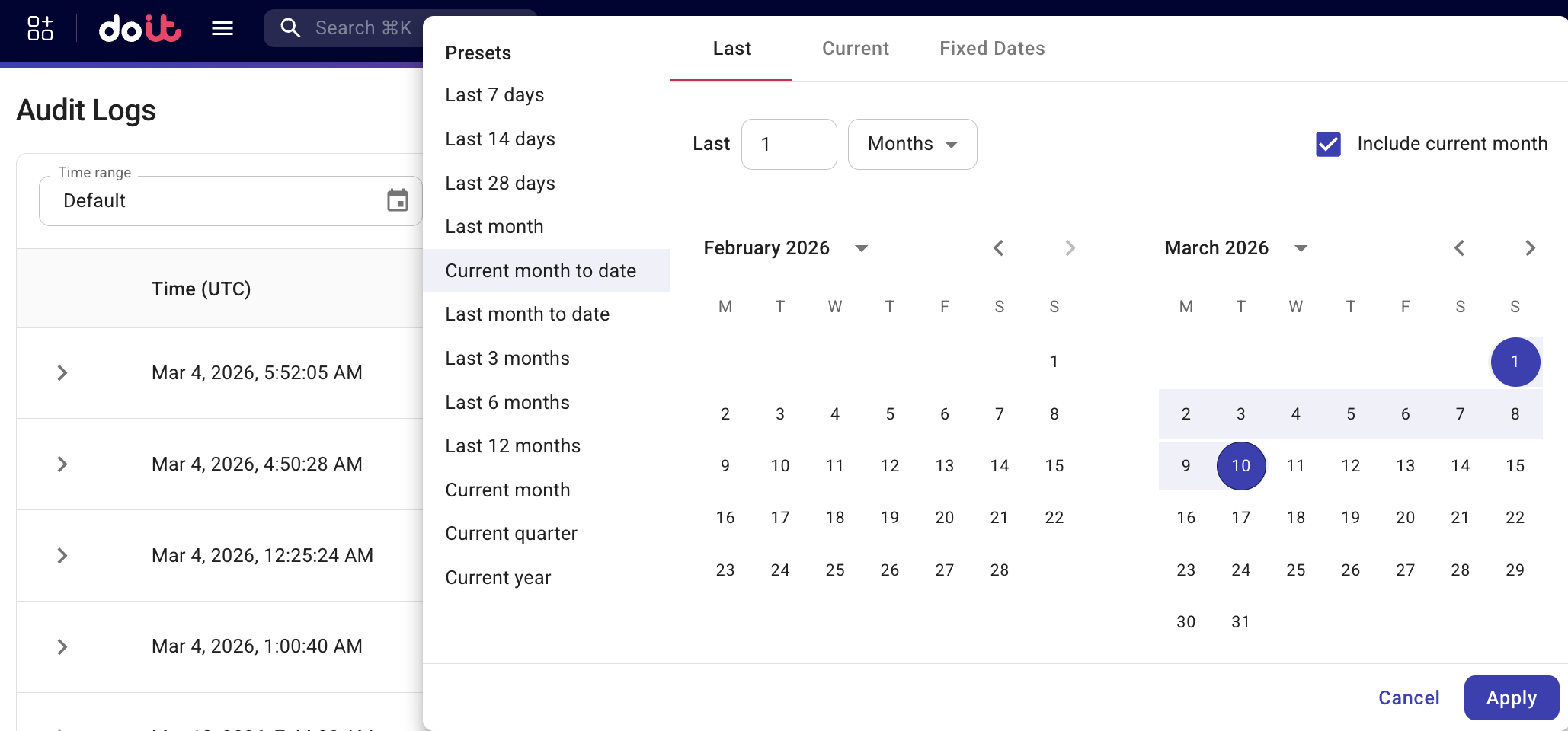
- Based on a time range. You can choose a predefined range or specify a custom one. Setting the time range to
Defaultrestores the default setting.
-
By field. Regular expressions work on every field:
- Event name
- DCI area
- Action
- Actor
- Actor ID
- Actor email
- Actor type
- Target
- Target ID
Target ID shows every event for one resource.
Actor matches the name. Actor ID and Actor email match those values directly.
Actor type limits results to User, Service account, System, or Impersonation. Impersonation shows only actions performed during a console admin impersonation session.
-
From a row. Hover over the event and select +. For the actor, + uses the name, email, or ID shown on that row.
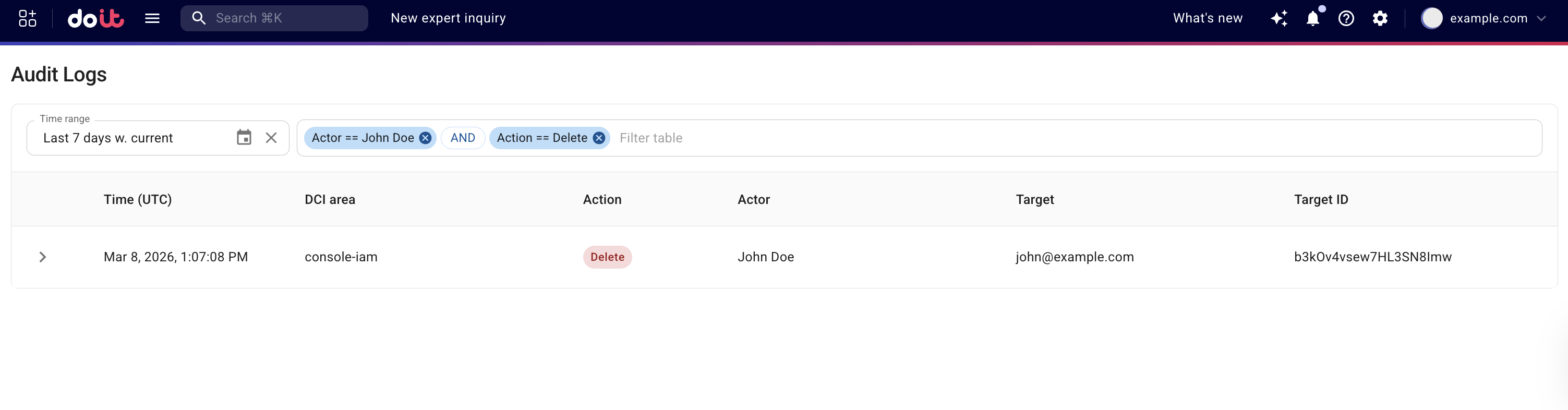
For example, you might want to see all Delete actions performed by a specific actor over the last 7 days.
Allocation events
When you create, update, or delete an allocation, Cloud Intelligence logs an audit event under the Cloud Analytics DCI area.
The following event names are logged:
| Event name | Description |
|---|---|
cloud-analytics-allocation.created | An allocation was created. |
cloud-analytics-allocation.updated | An existing allocation was updated. |
cloud-analytics-allocation.deleted | An allocation was deleted. |
When you expand an allocation event, the before-and-after comparison shows the changed fields, such as the allocation name, description, type, formula, filters, and member rules.
Sharing an allocation is tracked under a separate permissions.updated event, not the allocation events listed above.
Cloud Analytics report events
When you create, update, or delete a Cloud Analytics report, Cloud Intelligence logs an audit event under the Cloud Analytics DCI area. These events are recorded for actions performed in the Console, through the DoiT API, and through the DoiT CLI.
The following event names are logged:
| Event name | Description |
|---|---|
cloud-analytics-report.created | A report was created. |
cloud-analytics-report.updated | An existing report was updated. |
cloud-analytics-report.deleted | A report was deleted. |
When you expand a report event, the before-and-after comparison shows the changed fields, such as the report name, description, draft status, folder, and configuration.
Commitment Manager events
When you delete a commitment, change its adjustments, or close one of its periods, Cloud Intelligence logs an audit event under the Commitment Manager DCI area. Deleting a commitment is logged with a Delete action. Adjustment changes and period closes are logged with an Update action, because each change is an update to the parent commitment resource.
The following event names are logged:
| Event name | Description |
|---|---|
commitment.deleted | A commitment was deleted. |
commitment.adjustment.added | A new adjustment was added to a commitment period. |
commitment.adjustment.modified | An existing adjustment in a commitment period was changed. |
commitment.adjustment.removed | An adjustment was removed from a commitment period. |
commitment.period.closed | A commitment period was closed, either manually or automatically 30 days after it ended. |
When you expand an adjustment event, the before-and-after comparison labels each changed field with a path in the form adjustments[period][position].field. For both numbers, counting starts at 0, not 1. For example, adjustments[0][1].amount means the amount on the second adjustment in the first commitment period. If the before value is -245000 and the after value is -240000, that adjustment's dollar amount was updated from −$245,000 to −$240,000.