Commitment policies
Commitment policies define how PerfectScale for Commitments calculates commitment recommendations for each account and service.
Required permissions
-
To view policies: PerfectScale Commitments Admin or PerfectScale Commitments Read Only permission.
-
To create, edit, or delete custom policies: PerfectScale Commitments Admin permission.
Access Commitment Policies
To access commitment policies:
-
In the DoiT console, select Rate optimization > PerfectScale for Commitments from the top navigation mega menu.
-
Select Account Settings from the Accounts Overview or Settings page, or from the Account dropdown in the sidebar.
-
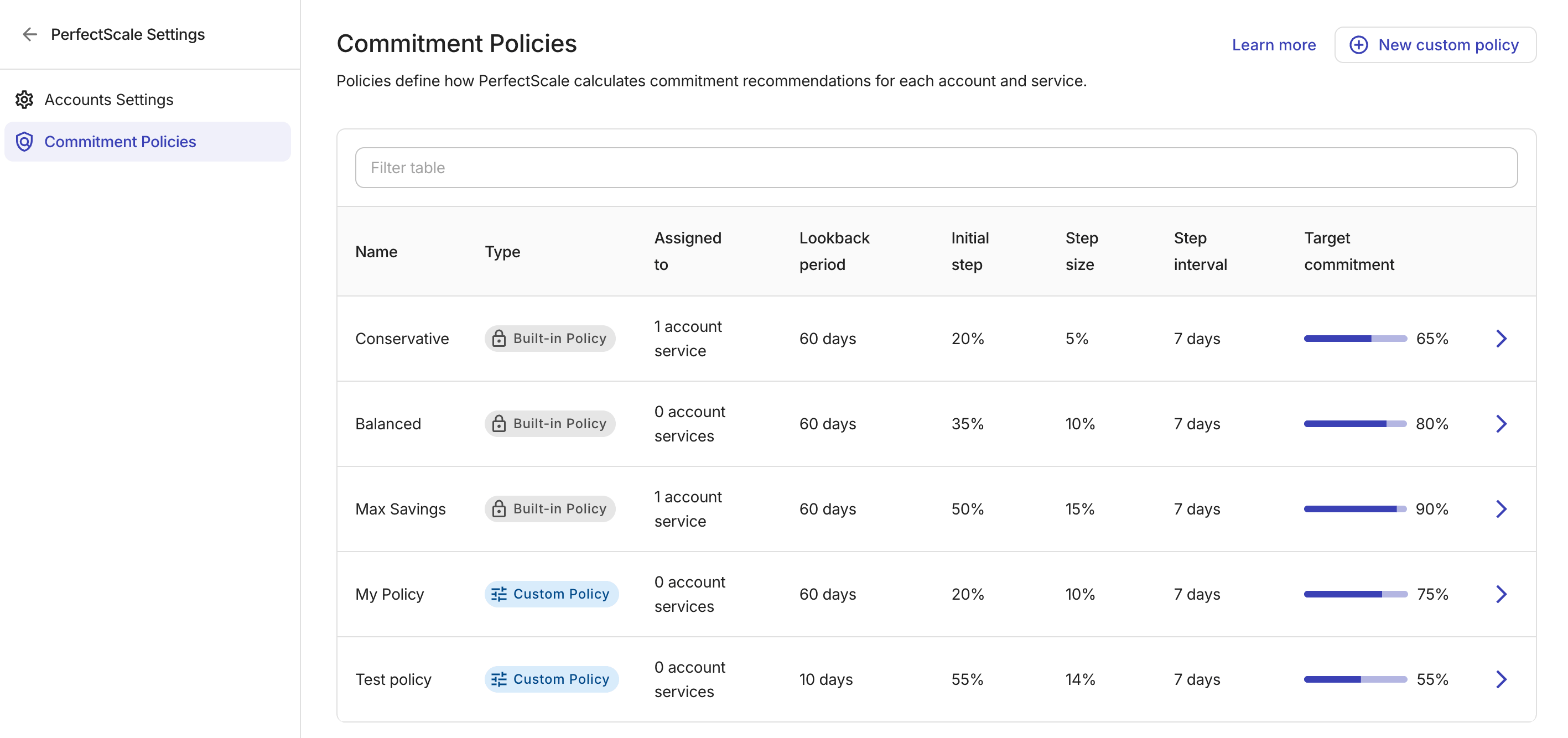
Select Commitment Policies to open the page with all policies.
-
Name: The policy name.
-
Type: Whether the policy is a
Built-in Policyor aCustom Policy. PerfectScale for Commitments provides three built-in policies and supports up to 10 custom policies per organization. -
Assigned to: The number of account services currently using the policy.
-
Lookback period, Initial step, Step size, Step interval, and Target commitment: The parameters that define the policy.
Select the right arrow (>) at the end of a policy row to open it in the side panel and view the policy parameters and assignments.
-
Policy parameters
A commitment policy is defined by a set of parameters that control how much historical usage to analyze, how aggressively to ramp up purchases, and what percentage of the optimal commitment to target.
-
Target commitment: Percentage of the optimal commitment to buy. A higher value targets greater savings but increases the risk of overcommitment and underutilization if your usage decreases. Actual coverage depends on your workloads.
-
Lookback period: Number of days of historical usage analyzed to establish the baseline for recommendations. Maximum 180 days.
-
Initial step: Percentage of the target committed in the first purchase step.
-
Step size: Size of each incremental commitment increase, as a percentage of the target.
-
Step interval: Number of days between each laddering purchase step.
Policy assignments
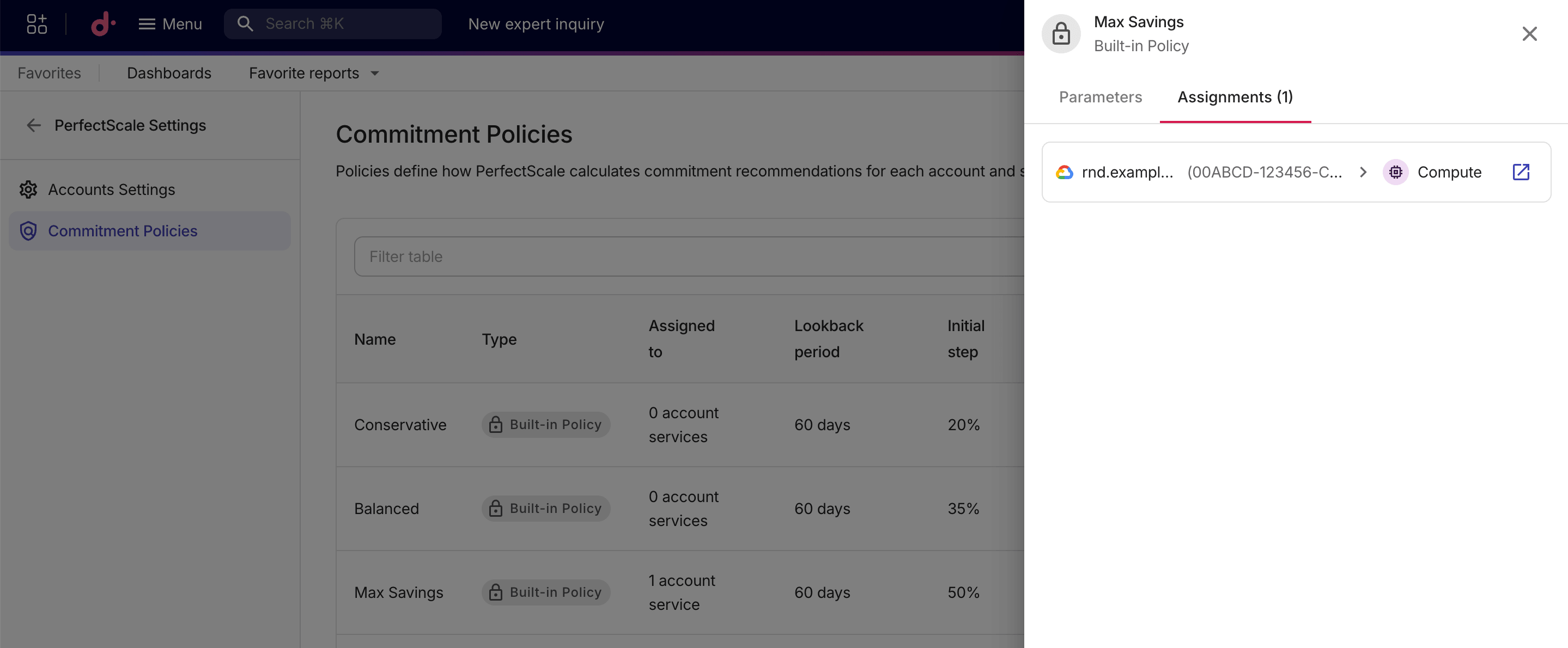
The Assignments tab in a policy's side panel lists the account services currently using the policy. Each entry shows the cloud provider, account name and ID, and the assigned service.
-
Select the open-in-new icon (↗️) next to the entry to go to the overview page of the specific account.
-
To change the policy assignment, navigate to the Settings page.