Inventory
The Inventory page lists commitments for the selected account, including the ones you purchased manually and those bought automatically by PerfectScale through the laddering process. Auto-purchased commitments appear here as each step runs.
Required permissions
You must have one of the following permissions:
- PerfectScale Commitments Read Only, or PerfectScale Commitments Admin
View inventory
The Inventory page includes Savings Plans and Reserved Instances for AWS payer accounts, and resource-based and spend-based CUDs for Google Cloud Billing accounts.
On Google Cloud, if your account has multiple product lines enabled, use the filter tabs at the top of the Inventory page (such as All, Compute, and Cloud SQL) to filter the KPI cards, commitments timeline, and commitments table by product line.
After onboarding, first-time Inventory data typically appears within 90 minutes on AWS and within a few hours on Google Cloud. Until then, the page may show empty or loading states.
Cloud SQL region filtering
When viewing the Cloud SQL tab, a region-scope header appears above the KPI cards. It displays the product line and the currently selected region scope (for example, Cloud SQL (All Regions)) along with helper text: "Select a region to filter commitments, or view all regions together." Use the Region dropdown to narrow the page to a specific region, or select All Regions to view Cloud SQL commitments across all regions.
When a specific region is selected, the KPI cards, commitments timeline, and commitments table show only Cloud SQL commitments in that region.
Summary cards
-
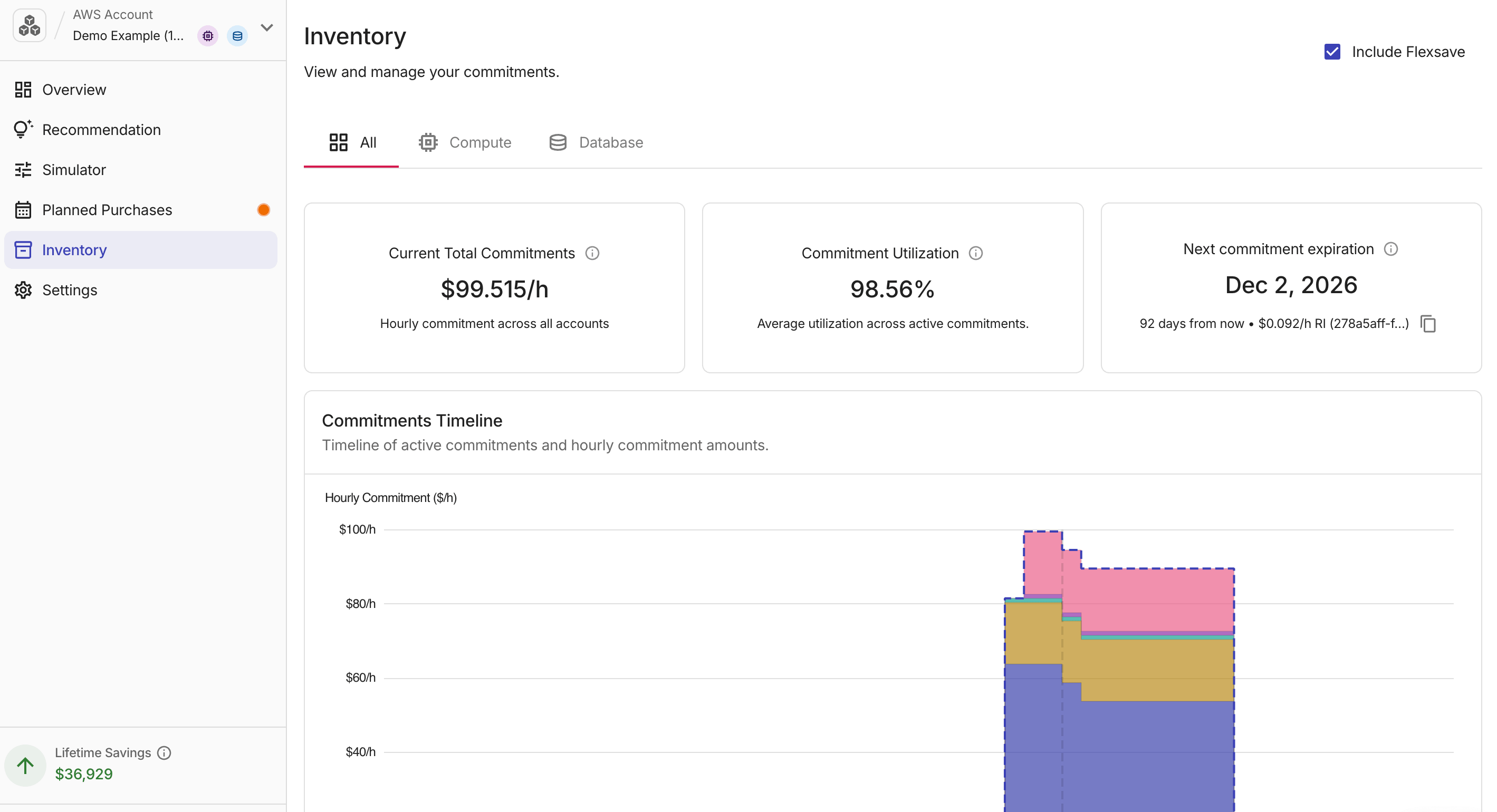
Current Total Commitments: Total hourly commitment ($/h) across active commitments in the account.
-
Commitment Utilization: Average utilization rate across active commitments. Higher utilization means commitments are being applied effectively to eligible usage.
-
Next Commitment Expiration: The date of the next commitment to expire among commitments that were not auto-purchased by PerfectScale. Below the date, a subtitle shows the days remaining, the hourly commitment rate, the commitment type (such as SP, RI, or CUD), and a truncated commitment ID. Select the copy icon to copy the ID to your clipboard.
For AWS:
-
Reserved Instances are excluded from Current Total Commitments and Commitment Utilization.
-
If your account uses Flexsave for Compute, you can select Include Flexsave to include Flexsave commitments in Current Total Commitments.
-
Commitment Utilization and Next Commitment Expiration always exclude Flexsave commitments.
Commitments timeline
The Commitments Timeline chart shows each active Savings Plan (AWS) or CUD (Google Cloud) as a stacked area over time.
Each layer represents one commitment, and the x-axis spans the full timeline of those commitments.
On AWS, Reserved Instances are not plotted on this chart. A Today reference line marks the current date. This makes the ladder structure visible; you can see how individual commitments overlap, when each one starts and ends, and how the total commitment level builds up as new steps are purchased.
Commitments table
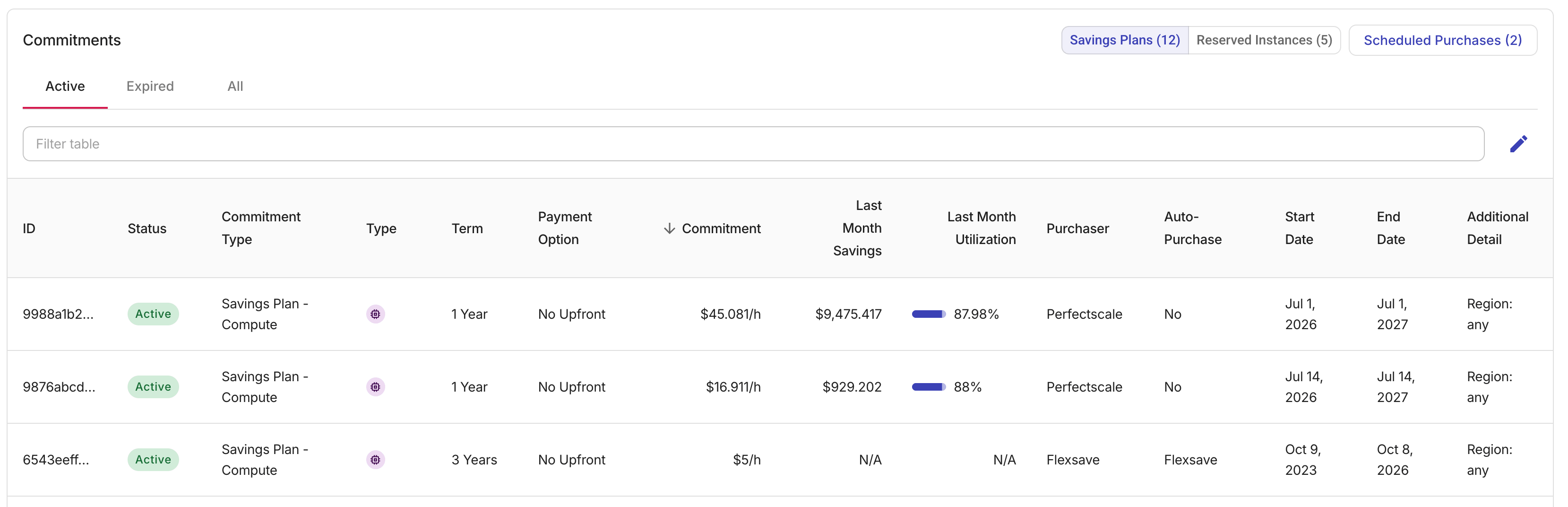
The commitments table lists every commitment. You can filter the table by commitment status: Active, Expired, or All.
-
On AWS, use the Savings Plans / Reserved Instances toggle in the table header to switch views. If your account uses Flexsave for Compute, you can select Include Flexsave to show Flexsave commitments in the table.
-
On Google Cloud, the table shows CUDs in a single view.
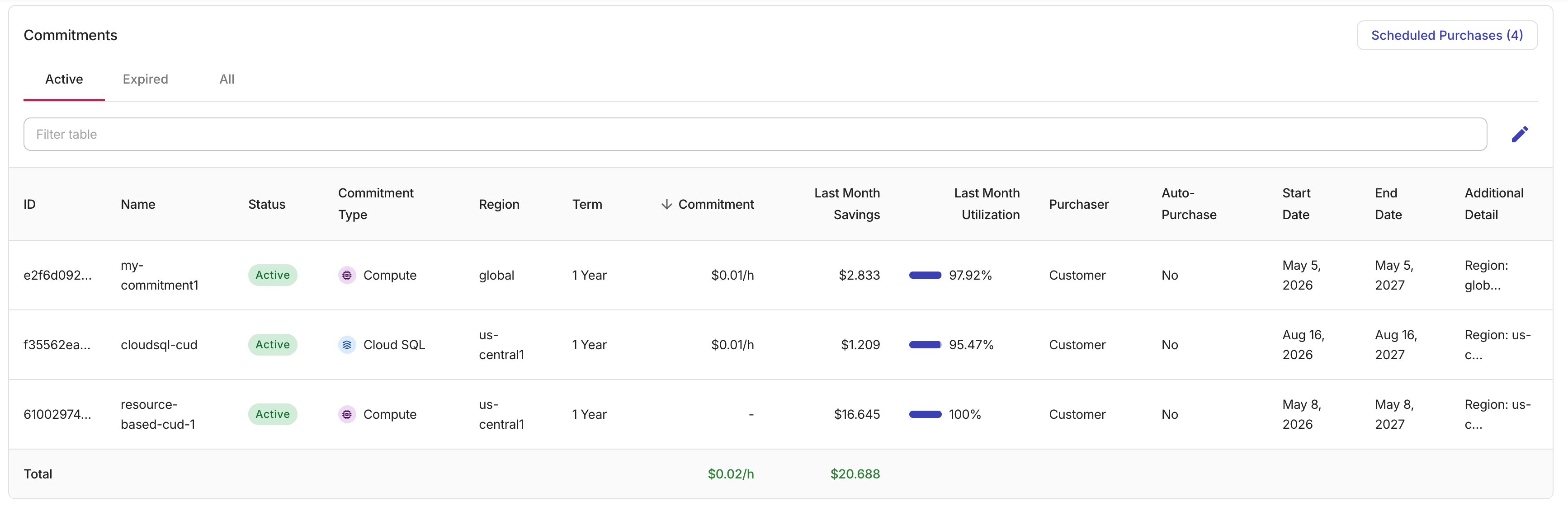
Table columns
-
ID: Commitment identifier.
-
AWS: The Savings Plan or Reserved Instance identifier.
-
Google Cloud: The GCP-assigned ID: the CUD ID from the billing export for spend-based CUDs, or the numeric commitment ID for resource-based CUDs. For a recently purchased spend-based CUD, the column shows a Pending badge until the next billing export assigns an ID.
-
-
Name (Google Cloud only): The human-readable name of the commitment.
-
Status:
ActiveorInactive. -
Commitment Type: On AWS, the commitment product class, such as Savings Plan - Compute and Savings Plan - Database. On Google Cloud, the product line such as Compute or Cloud SQL.
-
Type (AWS only): Commitment type shown as an icon, such as Compute or Database.
-
Region (Google Cloud, All and Cloud SQL tabs only): The region where the CUD applies. This column is hidden on the Compute tab because Compute CUDs are account-wide.
-
Term: Commitment term, such as 1 Year or 3 Years.
-
Payment Option (AWS only): Payment structure for the Savings Plan or Reserved Instance (All Upfront, Partial Upfront, or No Upfront).
-
Commitment: Hourly commitment amount ($/h). Resource-based CUDs (Google Cloud) show -.
-
Amortized $/h (Reserved Instances view only): The amortized hourly cost of the Reserved Instance, combining upfront and recurring fees.
-
Service Type, Instance Type, and Count (Reserved Instances view only): The AWS service, instance type, and number of instances in the reservation.
-
Last Month Savings: Savings for the previous month. Shows a learning indicator while metrics are still being calculated.
-
Last Month Utilization: Utilization for the previous month. Shows a learning indicator while metrics are still being calculated.
-
Purchaser: Who purchased the commitment.
-
Auto-Purchase: Whether PerfectScale purchased the commitment automatically.
-
Start Date and End Date: Commitment start and end dates.
-
Additional Detail: Extra commitment attributes. For AWS Savings Plans, can include region and machine family. For Google Cloud resource-based CUDs, includes region, machine family, vCPU, and memory. For Google Cloud spend-based CUDs, includes region.