Account settings
The Account Settings page lets you view onboarded payer and billing accounts, add services to existing accounts, set or update AWS purchasing accounts, and onboard new accounts.
Required permissions
-
To view account settings: PerfectScale Commitments Admin or PerfectScale Commitments Read Only permission.
-
To change settings: PerfectScale Commitments Admin permission.
View Account Settings
To view account settings:
-
In the DoiT console, select Rate optimization > PerfectScale for Commitments from the top navigation mega menu.
-
Open the Account Settings page using one of the following approaches:
-
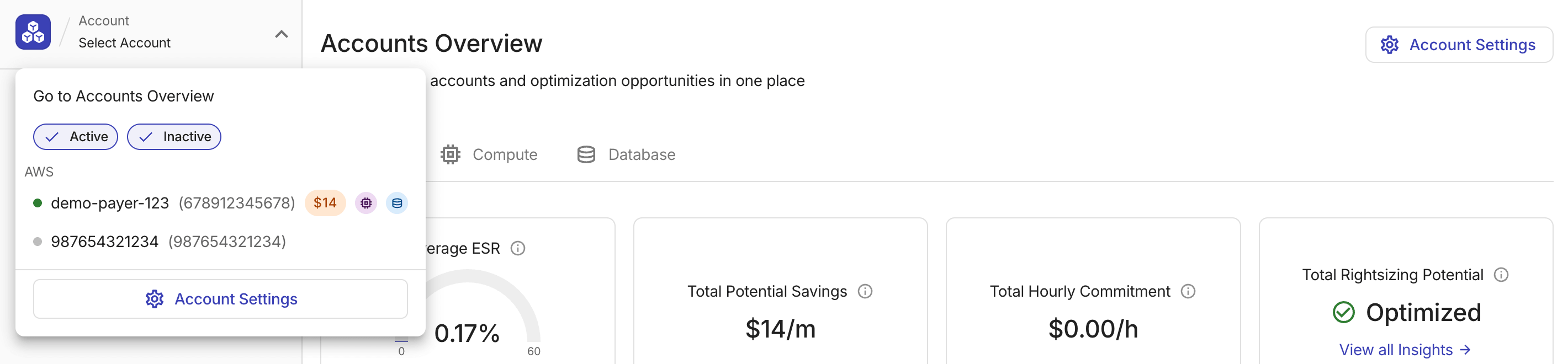
In the sidebar Account dropdown menu, scroll to the bottom and select Account Settings.
-
Select Account Settings from the Accounts Overview or Settings page.
-
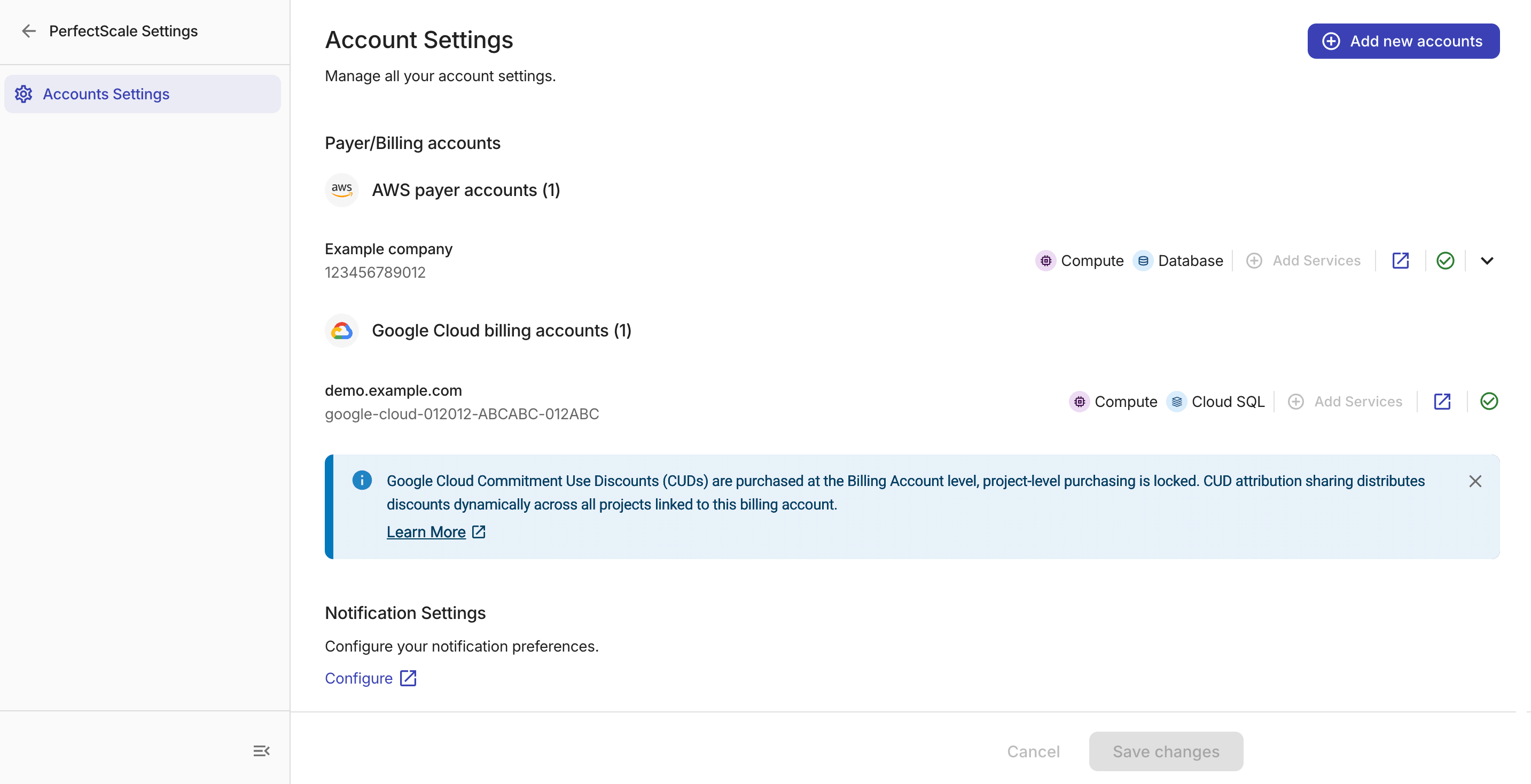
Account Settings page
-
Add new accounts: Opens the PerfectScale for Commitments onboarding wizard where you can onboard a new account.
-
Payer/Billing accounts: Lists the onboarded payer and billing accounts. Each account displays the account name, ID, enabled commitment type icons, an Add Services button, a link to Cloud Connect configuration, and a health-check status icon.
-
Notification Settings: PerfectScale for Commitments notifications are enabled by default. Select Configure to view or update the notification settings if needed.
If you update settings on this page, select Save changes at the bottom to apply them. Saving can trigger a recalculation of recommendations and purchase ladders for the affected accounts.
Add services to an existing account
To add new commitment-type services to an already-onboarded account:
-
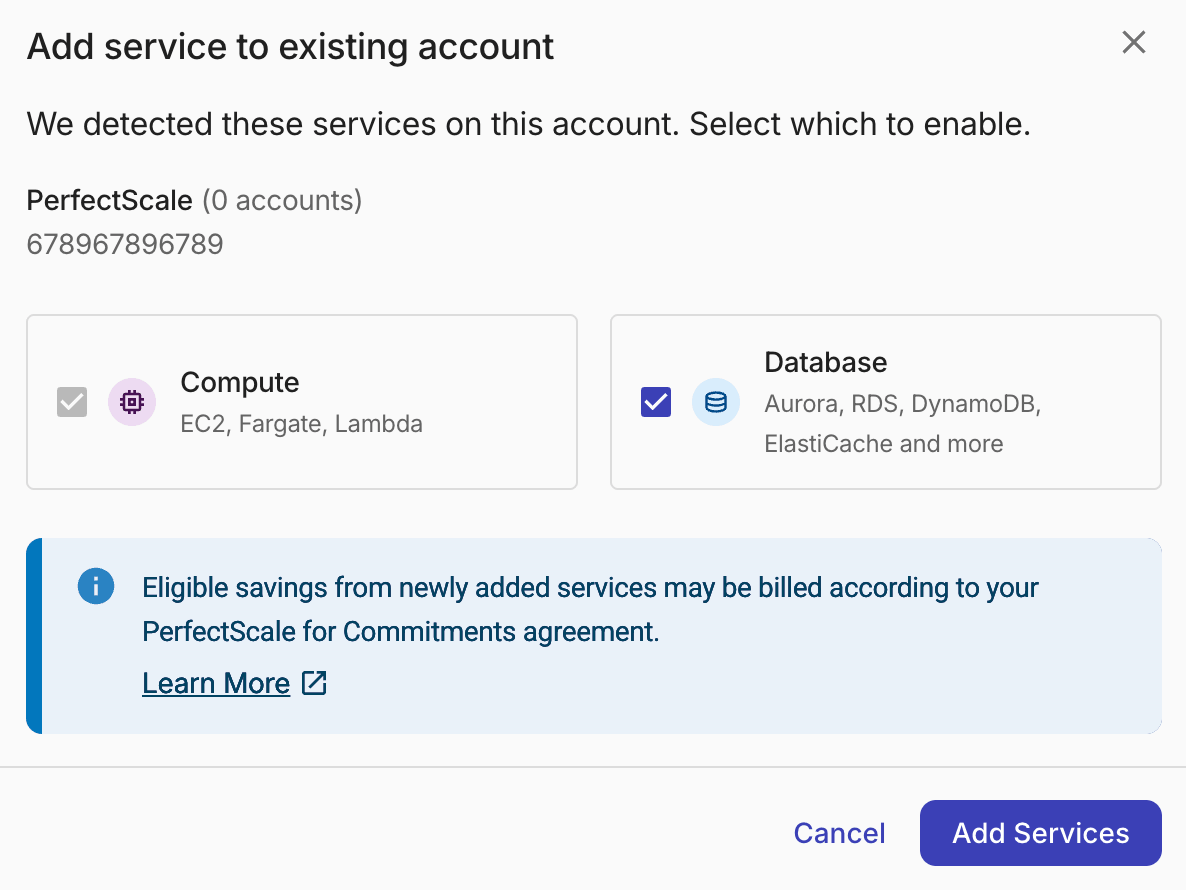
In the account row, select Add Services (the button is disabled if all supported services are already active).
-
Select one or more available services, and then select Add Services.
AWS payer accounts
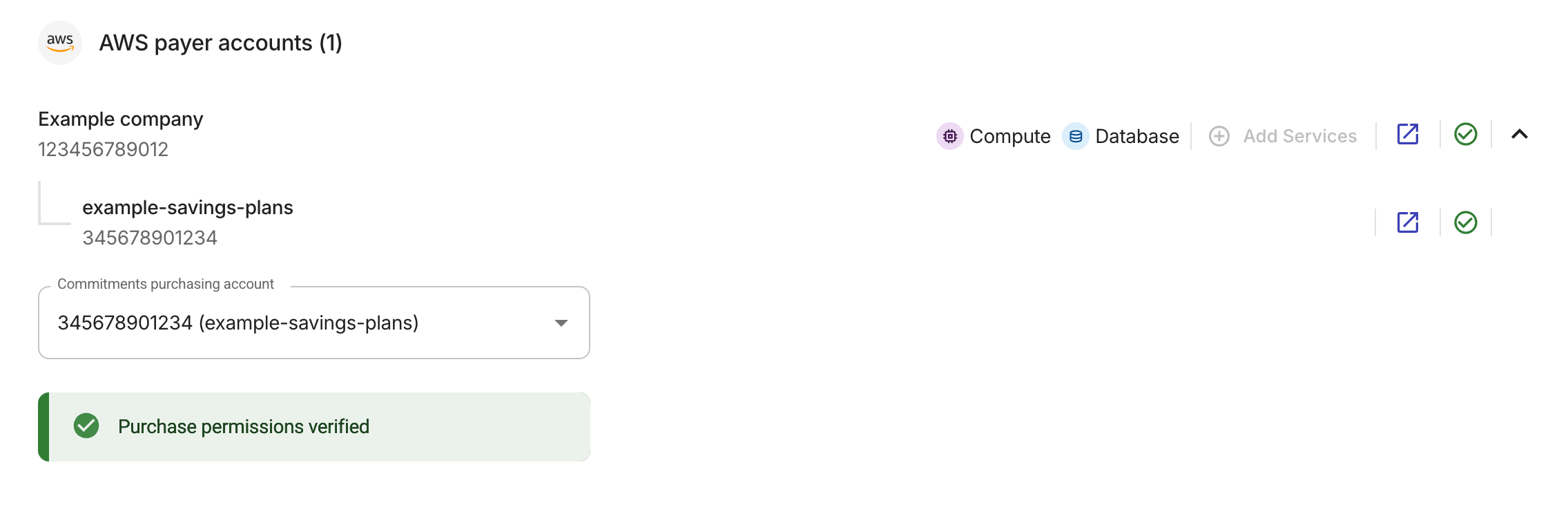
For an AWS payer account, expand the row to view linked accounts and their permission check status, and view or update the Commitments purchasing account if needed.