Planned purchases
After onboarding, purchase plans refresh automatically as usage, portfolio, and pricing signals change. Instead of one large purchase, PerfectScale for Commitments builds a commitment ladder, a sequence of incremental purchases spread over time. This approach maximizes savings while reducing the risk of over-commitment.
Required permissions
-
To view planned purchases: PerfectScale Commitments Read Only or PerfectScale Commitments Admin permission.
-
To change purchase state: PerfectScale Commitments Admin permission.
-
Make sure you've granted DoiT permissions to purchase commitments. See Resources and permissions.
Understand laddering
Laddering is a risk-mitigation strategy where commitments are purchased in smaller, staggered chunks with different start and end dates, rather than one large lump sum. This creates a "ladder" of overlapping commitments.
Key principles of laddering commitments:
-
Smaller commitments do not lock you into a massive spend if your workload decreases.
-
Commitments expire gradually and avoid "renewal shock" where a large portion of your coverage drops overnight.
-
Each step of the ladder is an opportunity to re-evaluate your usage and optimize the next purchase.
Before every purchase step, the system re-evaluates your current usage.
-
If a dip is detected, PerfectScale pauses or reduces the size of the next purchase to prevent locking you into unneeded commitments.
-
When eligible spend drops significantly week over week, PerfectScale places the next purchase on hold to avoid over-committing. Once usage stabilizes, the laddering plan is re-evaluated and purchasing resumes automatically.
View planned purchases
The Planned Purchases page shows the commitment ladder that PerfectScale generated based on your current commitment policy.
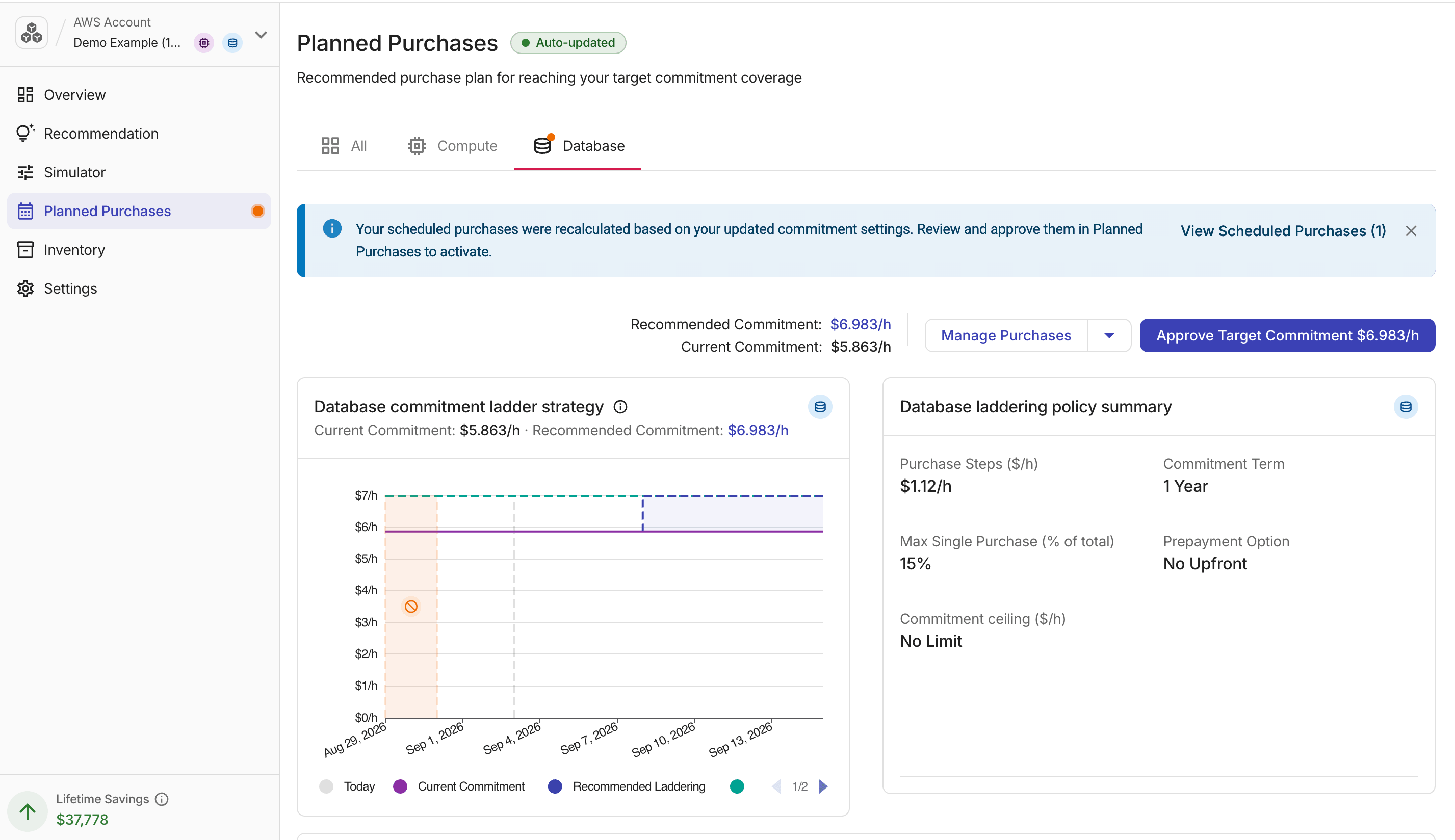
-
Auto-updated: Indicates that the purchase ladder is refreshed automatically.
-
Recommended Commitment ($/h): The target commitment the ladder is building toward.
-
Current Commitment ($/h): The current commitment.
Ladder strategy
The ladder strategy chart visualizes each scheduled step; hover over a bar to see the cumulative commitment at that point.
The chart highlights the No Purchase Window: the shaded period at the end of each month when new purchases are not scheduled, based on your Latest monthly purchase date in Settings.
-
If a Commitment ceiling is configured, a reference line appears on the chart at that value.
-
If the ceiling constrains the laddering plan, the chart tooltip includes an explanatory note.
If a Google Cloud billing account has Cloud SQL projections in multiple regions, select a region tab to view the region's commitment ladder and laddering policy summary. When both Compute and Cloud SQL have active purchase steps, the page shows their commitment ladder charts side by side.
When a week-over-week drop in eligible spend triggers a purchasing hold, hover over the Purchasing on hold chip next to the commitment type icon in the chart header to see the previous and current weekly eligible spend and the next evaluation date.
Policy summary
-
Purchase Steps ($/h): The commitment amount added at each step.
-
Commitment Term: 1 Year or 3 Years.
-
Max Single Purchase (% of total): The maximum size of any single ladder step, as a percentage of the total target commitment. This value is determined by the step size of the assigned commitment policy.
-
Prepayment Option (AWS only): No Upfront spreads the full cost across monthly payments with no money due at purchase. Partial Upfront requires at least half the total cost upfront and bills the rest monthly, in exchange for a lower rate. All Upfront charges the entire amount at purchase and offers the deepest discount. For more information, see AWS Savings Plans FAQ.
Google Cloud CUDs are always billed monthly (equivalent to No Upfront).
-
Commitment ceiling ($/h): The configured maximum commitment value, or No Limit if no ceiling is set. This corresponds to the Commitment ceiling field in Settings.
-
Total Laddering Cost ($/h): The cumulative commitment cost once all steps are complete.
Scheduled purchases
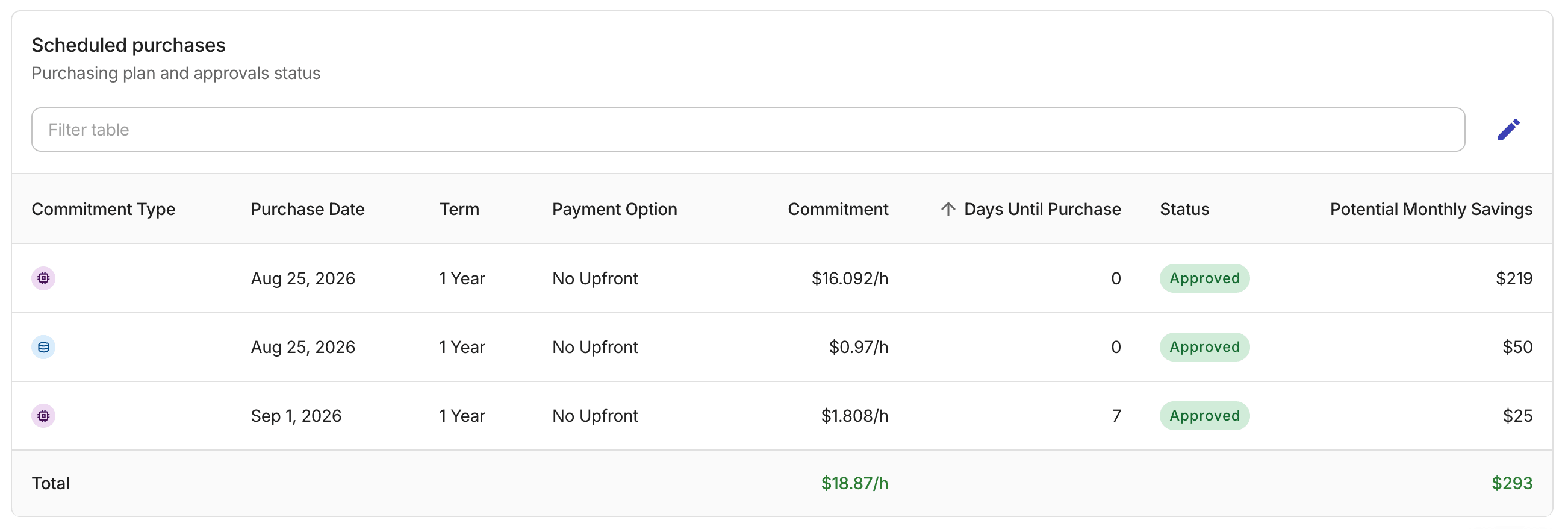
The Scheduled purchases table below the chart lists every step with its purchase date, commitment type, commitment amount, days until purchase, current status, and potential monthly savings.
-
On AWS, rows also include payment option.
-
On Google Cloud, when a commitment type with regional scope (such as Cloud SQL) is active, a Region column appears showing the target region for each purchase step.
Your next step depends on your Commitment Execution settings.
Requires Approval
When you approve purchases, you allow PerfectScale to buy commitments one step at a time, following the laddering plan, up to the ladder's ending hourly total (Total Laddering Cost, $/h) at the time of approval.
The next purchase runs automatically only if it keeps your cumulative hourly commitment within the approved total. If the next purchase would push you above this amount, that step waits until you approve the higher cost.
To approve purchases:
-
Look for the orange dot on the commitment type tab or Planned Purchases in the sidebar. It indicates a new plan is waiting for your approval.
-
At the top of the Planned Purchases tab, select Approve Target Commitment
$X/hto open the approval dialog. The amount is the recommended target commitment rate. -
Review the Approve target commitment dialog. When you have multiple commitment types enabled, the dialog shows a row for each type with an aggregated total:
-
Total Recommended Commitment (you are approving this rate): The target hourly commitment ($/h) the ladder is building toward. If you previously approved a lower rate, the dialog also shows Previously approved.
-
Current Commitment (Inventory): Your existing active commitment at the time of approval.
-
Purchase Steps: The number of individual purchases that will be scheduled.
-
Potential Savings (may change): Estimated monthly savings once the ladder is complete.
A commitment breakdown bar visualizes the proportion of your current inventory versus new purchases for each commitment type.
For Cloud SQL entries, a Region column appears showing the target region for each commitment.
-
-
Select Approve Target Commitment
$X/hto confirm. The status updates to green and the orange dot disappears.
After approval, scheduled purchases execute automatically on their dates. You can pause at any time. On AWS, when a commitment plan expires, coverage can be renewed through laddering based on your Recommended Commitment at that time.
Autonomous Execution
In Autonomous Execution mode, PerfectScale sets commitment targets and purchases ladder steps automatically based on your commitment policy and eligible usage.
Use Planned Purchases to monitor the ladder and scheduled steps, confirm that your guardrails still match your risk tolerance, or pause purchases when you need to stop new commitments temporarily.
Purchases remain binding once completed. Switch back to Requires Approval in Commitment Execution if you want PerfectScale to wait for approval before future purchases.
Pause and resume purchases
You can pause execution at any time, for example, due to an upcoming workload migration, or a decommission that will reduce eligible usage.
Pause and resume apply at the cloud provider and commitment type (product) level for the account you are viewing (for example, AWS Compute or Database, or Google Cloud Compute or Cloud SQL). For Cloud SQL, the action is also scoped to the selected region. Confirm you are on the correct commitment type tab before pausing.
-
To pause, open Manage Purchases in the header of the Planned Purchases tab, then select Pause Purchases. In the dialog, optionally enter a note explaining the reason. Select Pause to confirm. All remaining scheduled purchases for that type are stopped immediately.
-
To resume, open Manage Purchases and select Resume Purchases. PerfectScale continues from the next scheduled step for that type, executing remaining purchases on their original dates.
-
In Requires Approval mode, purchasing continues within your previously approved target.
-
In Autonomous Execution mode, purchasing continues toward the current recommended target within your guardrails.
-
Purchasing on hold
When a week-over-week spend drop triggers a purchasing hold, the first scheduled step displays a Purchasing on hold status chip. Hover over the chip to see the spend values that triggered the hold and the next evaluation date.
A hold is triggered automatically and resolves on its own once usage stabilizes. A manual pause, set through Manage Purchases, stops all remaining purchases until you explicitly resume.
If both conditions apply, the manual pause takes precedence.
Notifications
PerfectScale for Commitments notifications are enabled by default.
-
You receive a notification each time PerfectScale completes a commitment purchase. As each scheduled step is its own purchase, you receive one notification per ladder step.
-
In Requires Approval mode, you are also notified when purchases need approval.