Work with recommendations

PerfectScale for Commitments analyzes your usage and generates updated commitment recommendations throughout the month. Instead of one large purchase, PerfectScale for Commitments builds a commitment ladder, a sequence of incremental purchases spread over time. This approach maximizes savings while reducing the risk of over commitment.

Once your payer accounts are onboarded, it takes about 90 minutes for PerfectScale to generate recommendations. This page describes how to select your recommendation strategy and work with purchase plans.

If your account has both Compute and Database Savings Plans enabled, use the Compute and Database tabs at the top of the page to view recommendations for a specific service type.

Note

If you used Commitment Simulator to explore commitment levels, see how the two tools differ in the introduction.

Required permissions

  • To view recommendations, planned purchases, inventory, and settings you must have the PerfectScale Commitments Read Only permission or PerfectScale Commitments Admin.

  • To change settings, policy, or purchase state, you must have the PerfectScale Commitments Admin permission.

Review current savings

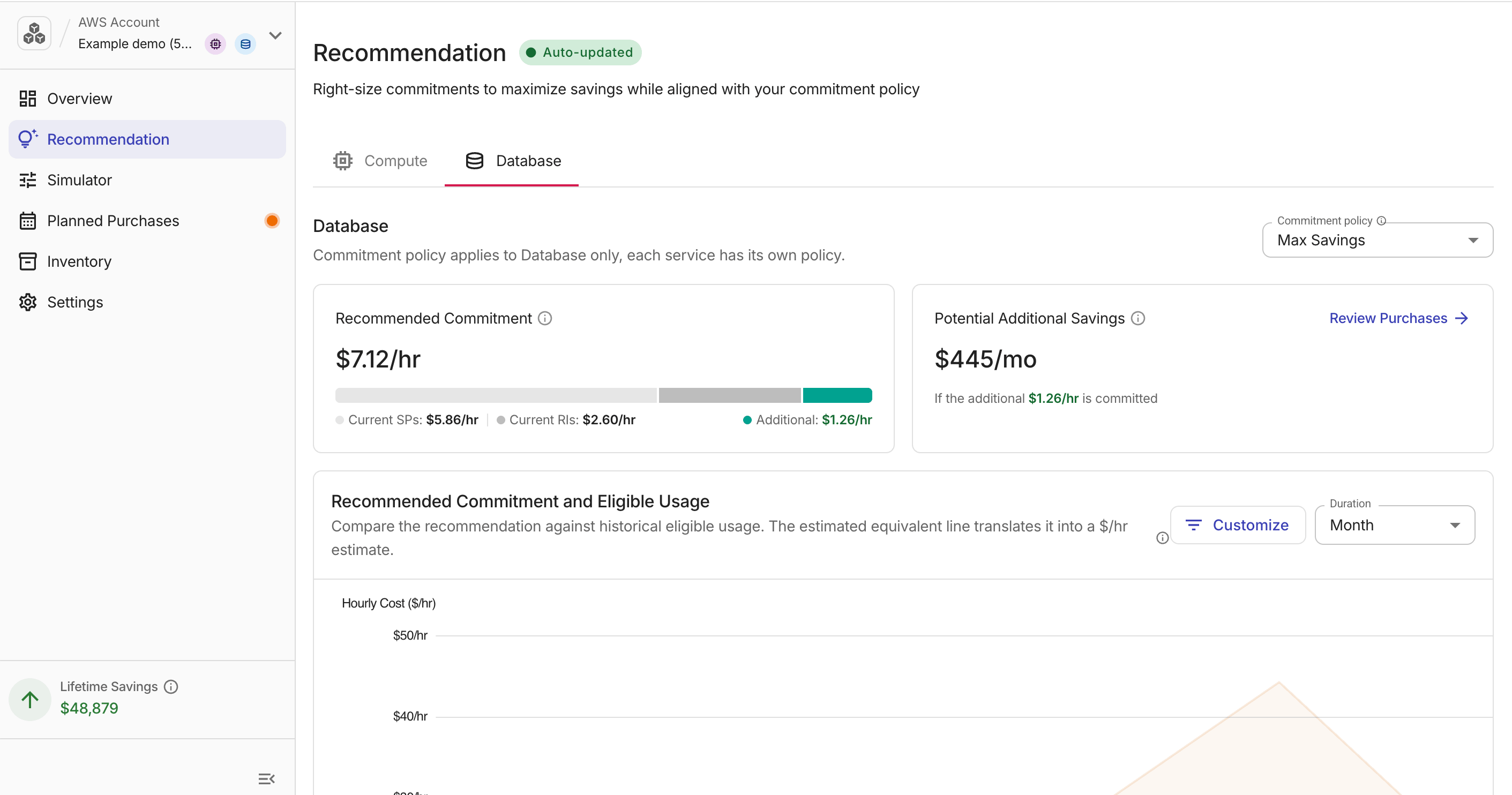
The Recommendation tab compares your active commitments to PerfectScale's recommended commitments. Recommendations reflect your inventory, expired commitments, planned purchases, settings, and cloud provider data.

The Auto-updated indicator in the page header shows when recalculation last ran. Hover over it for the usage, portfolio, and pricing signals behind the update.

Recommendation tab overview

  • Recommended Commitment ($/hour): target total hourly commitment. Sum of current commitment plus additional hourly amount PerfectScale recommends purchasing.

  • Current Commitment ($/hour): sum of active hourly commitment rates ($/h) for the selected payer account and service type. Includes DoiT Flexsave commitments when Include Flexsave is selected.

  • Potential Additional Savings ($/month): estimated monthly savings from reaching the recommended commitment, based on your commitment policy, term, and prepayment settings.

Recommendation commitment and eligible usage chart

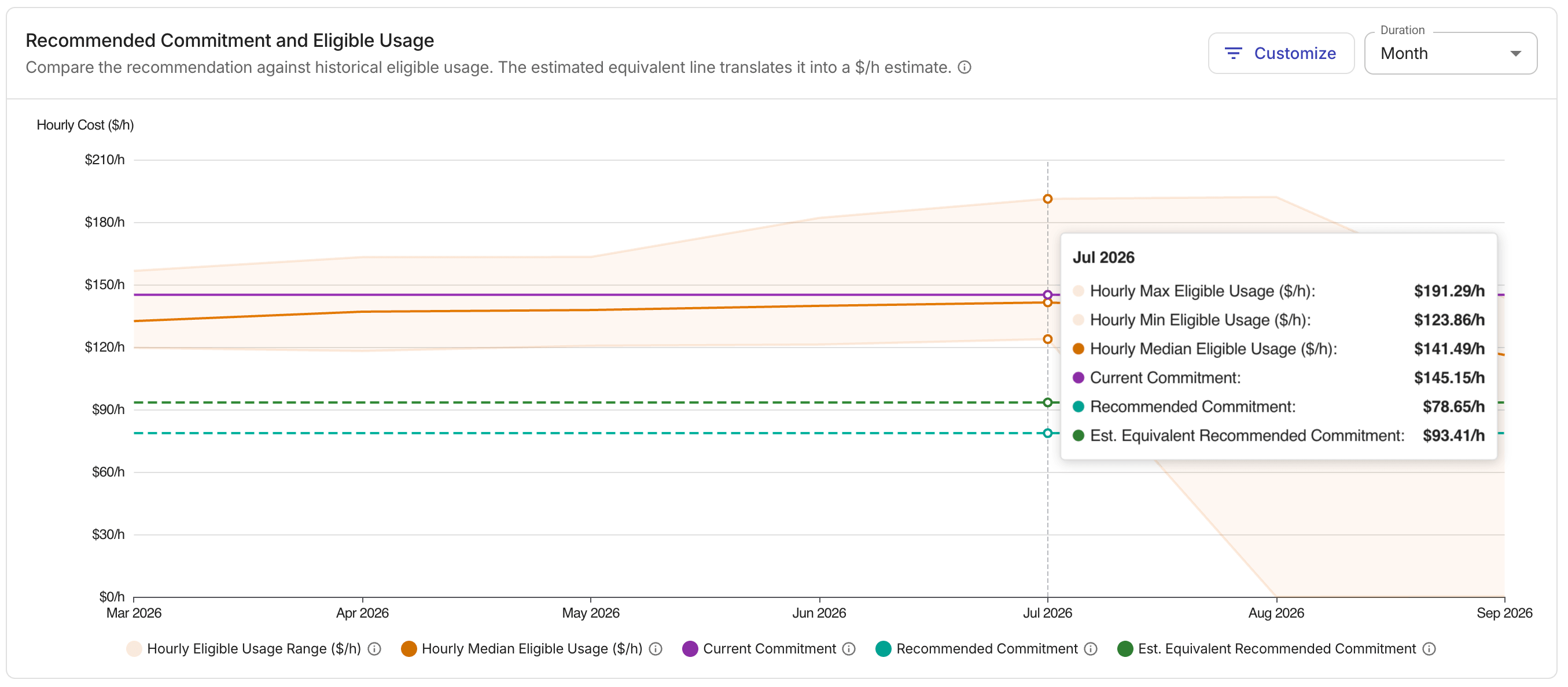
This chart plots eligible usage against your commitment levels. Eligible usage is on-demand spend on commitment-eligible services from your billing data, shown at shelf-price rates. Commitment series use post-discount $/h. Hover the ⓘ icon next to the chart title for pricing details.

  • Hourly Eligible Usage Range ($/h) and Hourly Median Eligible Usage ($/h): Minimum, maximum, and median eligible usage when Duration is Day, Week, or Month.

  • Hourly Eligible Usage ($/h): Eligible usage at hourly granularity when Duration is Hour. Replaces the Hourly Eligible Usage Range ($/h) and Hourly Median Eligible Usage ($/h) series.

  • Current Commitment: Flat line matching the Current Commitment metric card.

  • Recommended Commitment: Dashed line matching the Recommended Commitment metric card. Updates when you change commitment policy or use Preview Mode.

  • Est. Equivalent Recommended Commitment: Dashed shelf-price $/h equivalent of the recommendation for comparison with eligible usage. Derived from the median hourly eligible usage over the trailing 60 days, multiplied by the estimated average coverage percentage. Because it uses a 60-day median, the line is a constant flat value and does not change when you switch chart granularity. Hidden when there is no eligible usage in the trailing window. Updates with policy changes and Preview Mode.

Use the Duration dropdown for Hour, Day, Week, or Month views. Each option changes the time bucket size and how much historical eligible usage the chart includes. For example, the last 24 hours at hourly granularity, the last 21 days by day, the last 16 weeks by week, or the last 6 months by month.

Customize in the chart toolbar toggles series visibility. Hover the chart for exact $/h values at any point in time.

Note

If your account uses Flexsave, select Include Flexsave to add DoiT Flexsave commitments to the chart and metric cards.

Preview and apply commitment policy

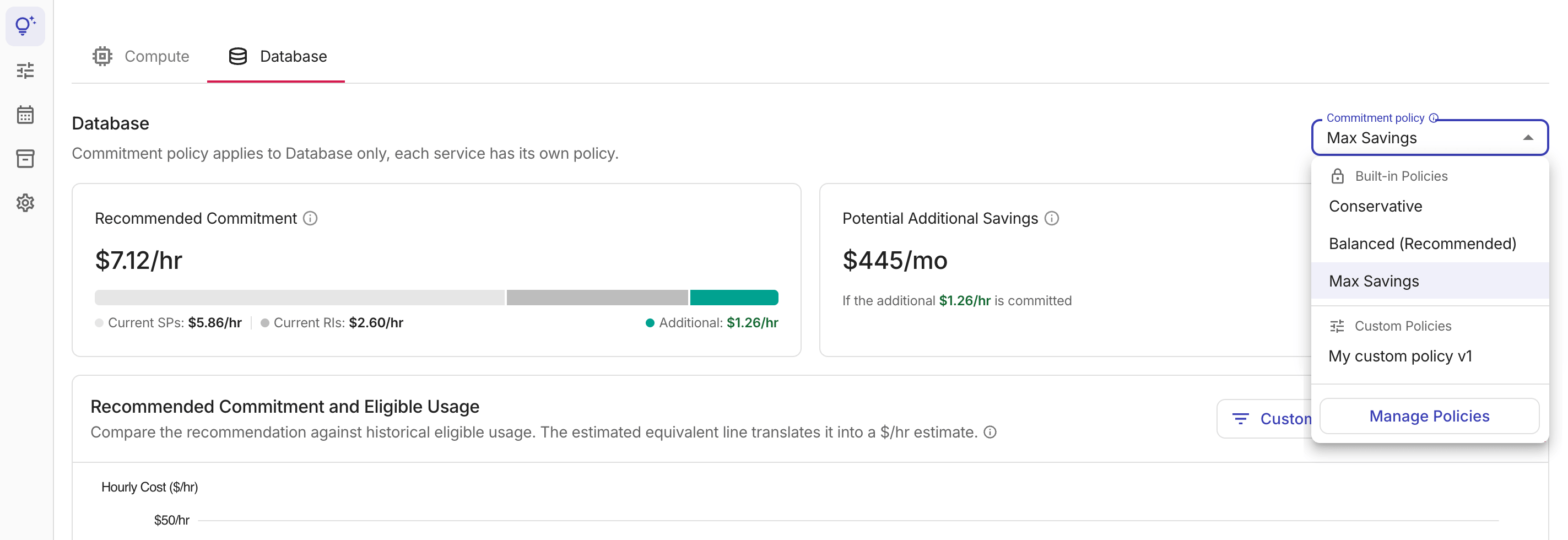
The Commitment policy dropdown lets you simulate how a different risk profile would affect the recommendation.

Recommendation tab - Select Policy

  • Conservative (Low risk): Commits only to your most stable usage, reducing the risk of underutilization. Reaches the target commitment more gradually.

  • Balanced (Recommended): Balances savings with a healthy buffer to absorb usage dips. Suitable for most workloads.

  • Max Savings: Targets higher coverage faster with the highest savings potential, but uses a smaller buffer that may increase underutilization risk if your usage decreases.

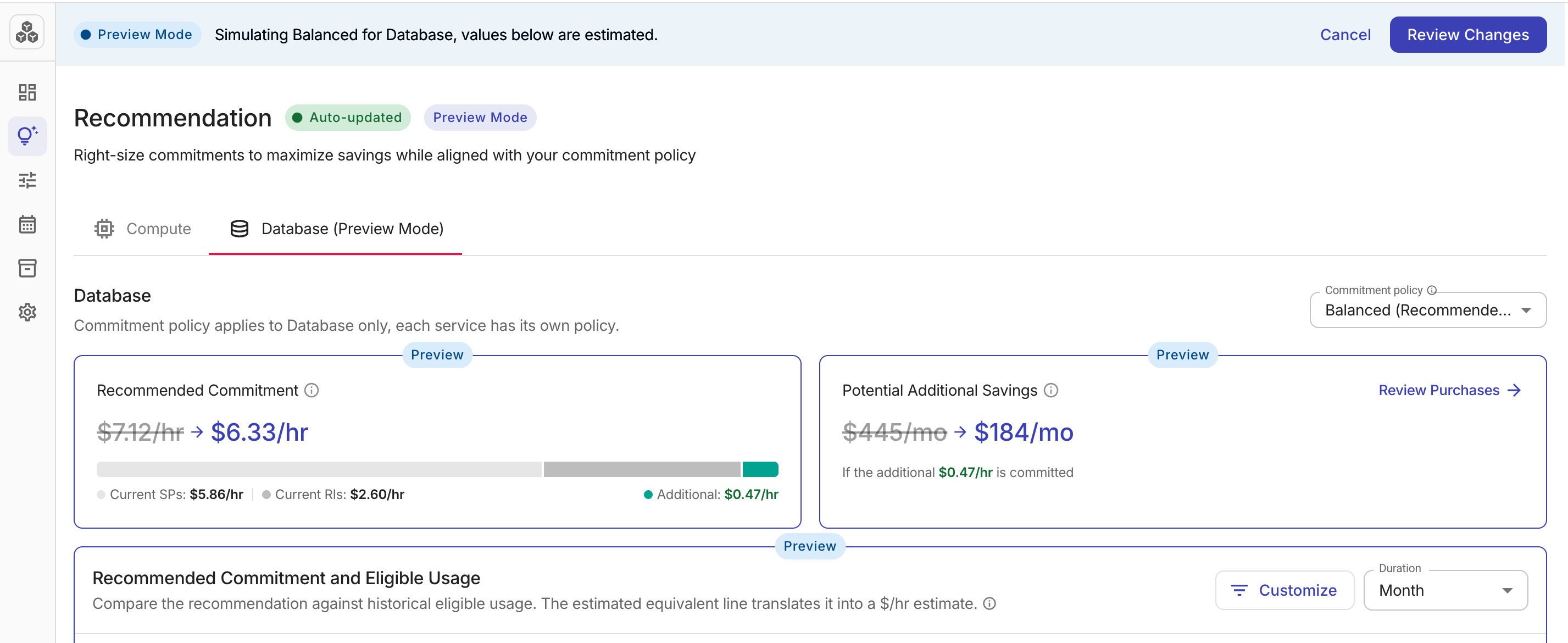
Selecting a different policy puts the page into Preview Mode. The metric cards and chart update immediately to reflect the new policy.

To review the full impact and apply the change, select Review Changes. This opens the confirmation dialog.

Recommendation tab - Preview Policy

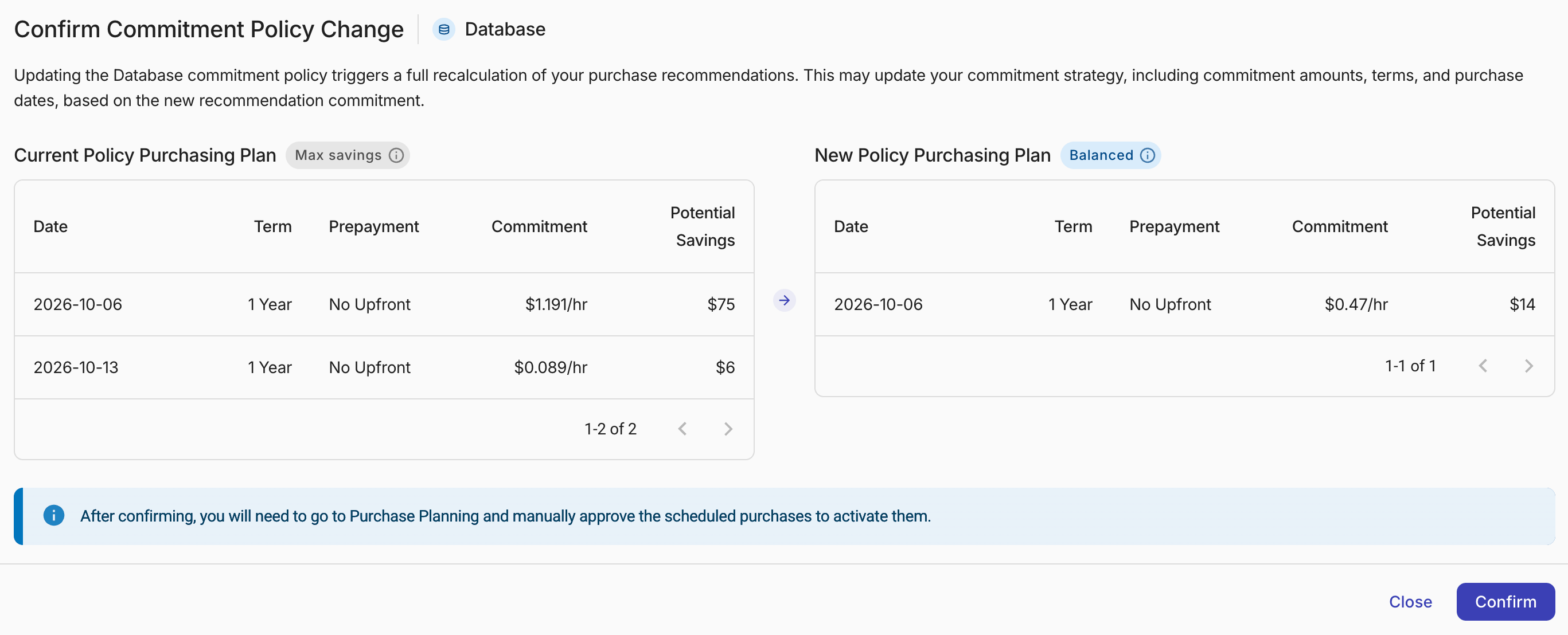
The confirmation dialog summarizes your Target coverage, Commitment policy, and Total savings and compares your current purchase ladder against the proposed new ladder, with each step's date, term, payment option, commitment amount, and potential savings.

Select Confirm to apply the policy change. This triggers a full recalculation of your purchase recommendations, which updates commitment amounts, terms, and purchase dates.

Understand laddering

Laddering is a risk-mitigation strategy where commitments are purchased in smaller, staggered chunks with different start and end dates, rather than one large lump sum. This creates a "ladder" of overlapping commitments.

Key principles of laddering commitments:

  • Smaller commitments do not lock you into a massive spend if your workload decreases.

  • Commitments expire gradually and avoid "renewal shock" where a large portion of your coverage drops overnight.

  • Each step of the ladder is an opportunity to re-evaluate your usage and optimize the next purchase.

Before every purchase step, the system re-evaluates your current usage. If a dip is detected, it will naturally pause or reduce the size of the next purchase to prevent locking you into unneeded commitments.

Approve purchases

The Planned Purchases tab shows the commitment ladder that PerfectScale has generated based on your current commitment policy. The page header shows an Auto-updated indicator when the purchase ladder is refreshed automatically. A ladder visualizes each scheduled step; hover over a bar to see the cumulative commitment at that point.

The Laddering Policy Summary panel shows the parameters driving the current plan.

Planned Purchases tab - Ladder

The chart highlights the No Purchase Window; the shaded period at the end of each month when new purchases are not scheduled, based on your Latest monthly purchase date in Settings.

  • Purchase Steps ($/h): The commitment amount added at each step.

  • Commitment Term: 1 Year or 3 Years.

  • Max Single Purchase (% of total): The ceiling on how large any single step can be.

  • Prepayment Option: No Upfront spreads the full cost across monthly payments with no money due at purchase. Partial Upfront requires at least half the total cost upfront and bills the rest monthly, in exchange for a lower rate. All Upfront charges the entire amount at purchase and offers the deepest discount. For more information, see AWS Savings Plans FAQ.

  • Recommended Commitment: The target commitment the ladder is building toward.

  • Total Laddering Cost ($/h): The cumulative commitment cost once all steps are complete.

The table below the chart lists every step with its purchase date, commitment type, commitment amount, payment option, days until purchase, and current status. When multiple service types are enabled, each row also shows a Compute or Database icon indicating the commitment type for that step. Adjust these parameters in the Settings tab.

Planned Purchases tab - Schedule purchases

When you approve purchases, you allow PerfectScale to buy commitments one step at a time following the laddering plan, up to the ladder's ending hourly total (Total Laddering Cost, $/h) at the time of approval. The next purchase runs automatically only if it keeps your cumulative hourly commitment within that approved total. If the next purchase would push you above this amount, that step waits until you approve the higher cost.

To approve purchases:

  1. Look for the orange dot on the service-type tab or Planned Purchases in the sidebar. This indicates a new plan is waiting for your approval.

  2. At the top of the Planned Purchases tab, select Approve Purchases to open the approval dialog.

  3. Review the approval dialog, which summarizes what you are approving. When you have both Compute and Database enabled, the dialog shows a row for each service type with an aggregated total:

    • Recommended Commitment (you are approving this rate): The target hourly commitment ($/h) the ladder is building toward.

    • Current SP (Inventory): Your existing active commitment at the time of approval.

    • Purchase Steps: The number of individual purchases that will be scheduled.

    • Potential Savings (may change): Estimated monthly savings once the ladder is complete.

    A commitment breakdown bar visualizes the proportion of your current inventory versus new purchases for each service type.

  4. Select Approve to confirm. The button label shows the total commitment rate ($/h) across all service types you are approving. The status updates to green and the orange dot disappears.

Note

After approval, scheduled purchases execute automatically on their dates. You can pause at any time. When a commitment plan expires, it is automatically renewed based on your Recommended Commitment at that time.

Notifications

Enable PerfectScale for Commitments notifications to be notified when purchases need approval and each time PerfectScale completes a commitment purchase. As each scheduled step is its own purchase, you will get one notification per ladder step.

Pause and resume purchases

After approving a laddering plan, you can pause execution at any time, for example, due to an upcoming workload migration, or a decommission that will reduce eligible usage. Pausing prevents new commitments from being purchased while you review the situation.

To pause, select Pause Purchases in the header of the Planned Purchases tab. In the dialog, optionally enter a note explaining the reason. The note is saved and visible in the scheduled purchases table. Select Pause to confirm. All remaining scheduled purchases are stopped immediately.

To resume, select Resume Purchases in the same header. PerfectScale continues from the next scheduled step, executing remaining purchases on their original dates.

Monitor commitments

The Inventory tab shows all Savings Plans (SP) associated with the selected payer account. It shows plans you purchased manually and those bought automatically by PerfectScale through the laddering process. Auto-purchased plans appear here as each step runs.

Note

In addition to checking this tab, you can enable PerfectScale for Commitments notifications to receive a notification each time a ladder purchase completes.

Inventory tab

  • Current Total Commitments: Total hourly commitment ($/h) across all active plans in the account.

  • Commitment Utilization: Average utilization rate across all active commitments. Higher utilization means commitments are being applied effectively to eligible usage.

  • Next Commitment Expiration: The date of the next commitment to expire. Below the date, a subtitle shows the days remaining, the hourly commitment rate, the commitment type, and a truncated commitment ID. Select the copy icon to copy the ID to your clipboard.

The Commitments Timeline chart shows each active commitment as a stacked area over time. Each layer represents one commitment, and the x-axis spans the full timeline of active commitments. A Today reference line marks the current date. This makes the ladder structure visible; you can see how individual commitments overlap, when each one starts and ends, and how the total commitment level builds up as new steps are purchased.

The commitments table provides a row-by-row view of every plan. If the Include Flexsave checkbox is selected, DoiT Flexsave commitments are shown alongside your customer-purchased plans.

Inventory table

  • Use the tabs at the top to switch between Active, Expired, and All commitments.

  • If you are in the Compute tab, a default filter shows only Compute Savings Plans, and if you are in the Database tab, a default filter shows only Database Savings Plans. To display Reserved Instances, remove the filter.

  • Each row shows the plan ID, status, commitment type (such as Compute Savings Plan, Database Savings Plan, or Reserved Instance), term (1 Year or 3 Years), payment option, hourly commitment ($/h), month-to-date savings, month-to-date utilization, purchaser, whether it was auto-purchased by PerfectScale, and its start and end dates.

Configure commitment settings

On an onboarded account, open the Settings tab and select the sub-tab for the commitment category you want to configure (for example, Compute or Database).

Note

To configure cloud providers, commitment types, and payer accounts, see Manage account settings.

Compute settings

Recommendation settings

These fields define the target and constraints for recommendations:

  • Commitment policy: How aggressively PerfectScale reaches the recommended commitment. See Preview and apply commitment policy for the three risk profiles.

  • Maximum commitment ($/h): Upper bound on recommended commitment. Leave empty for No Limit.

  • Prepayment option: Payment structure for purchased Savings Plans (No Upfront, Partial Upfront, or All Upfront). See Approve purchases. On the Database tab, only No Upfront is available.

  • Upfront percentage (%) (AWS Compute only): Share of total cost paid upfront when Partial Upfront is selected (50–99%). A higher percentage lowers the hourly rate.

  • Preferred commitment period: Default term for purchase recommendations (1 Year or 3 Years). On the Database tab, only 1 Year is available.

Automation settings

These fields control when and how purchases run:

  • Automation mode:

    • Requires Approval (default): PerfectScale schedules purchases, then waits for your approval before execution.

    • Autonomous Purchasing (coming soon): Purchases run automatically based on your commitment policy, without approval.

  • Minimum commitment purchase ($/h): Minimum step size in the purchase ladder. Planned steps below this amount are skipped.

  • Latest monthly purchase date: Last day of the month (1–28) on which new purchases can be scheduled. After this date, the No Purchase Window on the Planned Purchases chart applies until the next month. The default is the 25th. The latest value you can set is the 28th, to leave a buffer before month-end billing cycles.

Select Save changes to apply updates. This recalculates recommendations and the purchase ladder for the selected category.