Create AWS diagrams
This page describes how to create a diagram for your AWS cloud environment in the DoiT console.
Required permissions
To create Cloud Diagrams, your DoiT account must have the Cloud Diagram User permission.
Your AWS account must be linked in the DoiT console with the Cloud Diagrams feature enabled so DoiT can read your resources. If you have not linked an account yet, or you need to add this feature, follow Link AWS accounts.
Read the content below or check out the ▶️ interactive demo for a visual walkthrough.
Prerequisites
To create diagrams for your AWS environment, the corresponding AWS account must be linked to an active billing account.
EKS and Kubernetes
Your EKS clusters must have a public connection point and be configured to allow EKS API access. Cloud Diagrams cannot display private-only clusters or those that only use configmap for authentication.
If you want to include EKS clusters on your diagram, you must:
-
Enable Kubernetes core on your connected cloud account to grant DoiT permissions to access the relevant information in your environment.
-
Install the Kuberneties Intelligence agent.
Link an AWS account
To link an AWS account and create your diagram:
-
Sign in to the DoiT console, select Automation and operations from the top navigation mega menu, and then select Cloud Diagrams.
-
If this is your first diagram, select Create first diagram, otherwise select Create diagram.
-
Select AWS and select Next.
NoteIf AWS is your only connected cloud provider, the wizard skips this step and takes you directly to account selection.
-
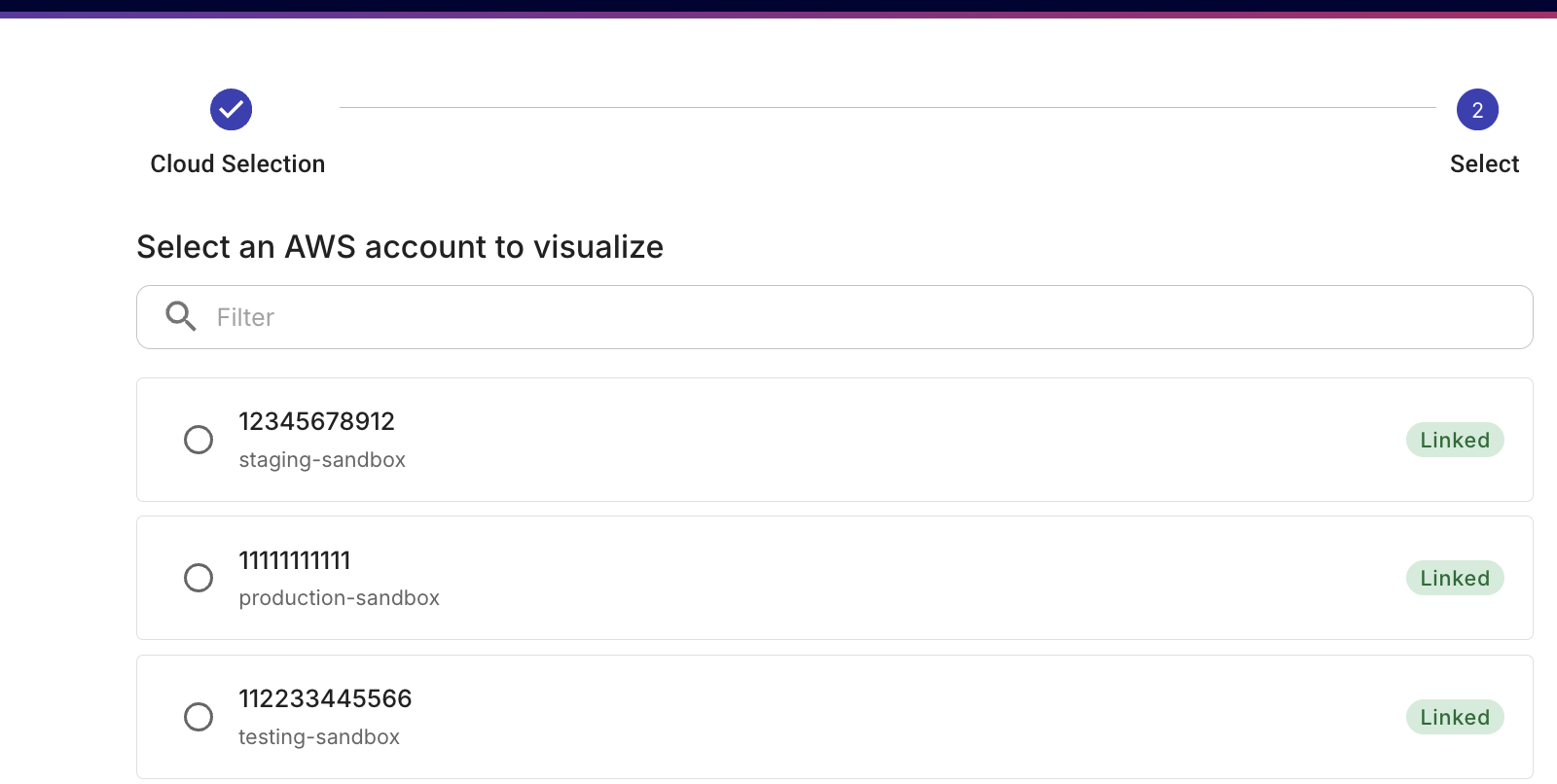
From the Select account list, search for and select the AWS account you want to visualize. You can filter by account ID, account name, or other account details.
-
If the account is already linked for Cloud Diagrams, it is labeled as Linked.
-
If the account is not yet linked, select the account. In the connection dialog, connect the account using one of the options below.
-
-
Choose how you want to create a CloudFormation stack:
- AWS Management Console
- CLI commands
-
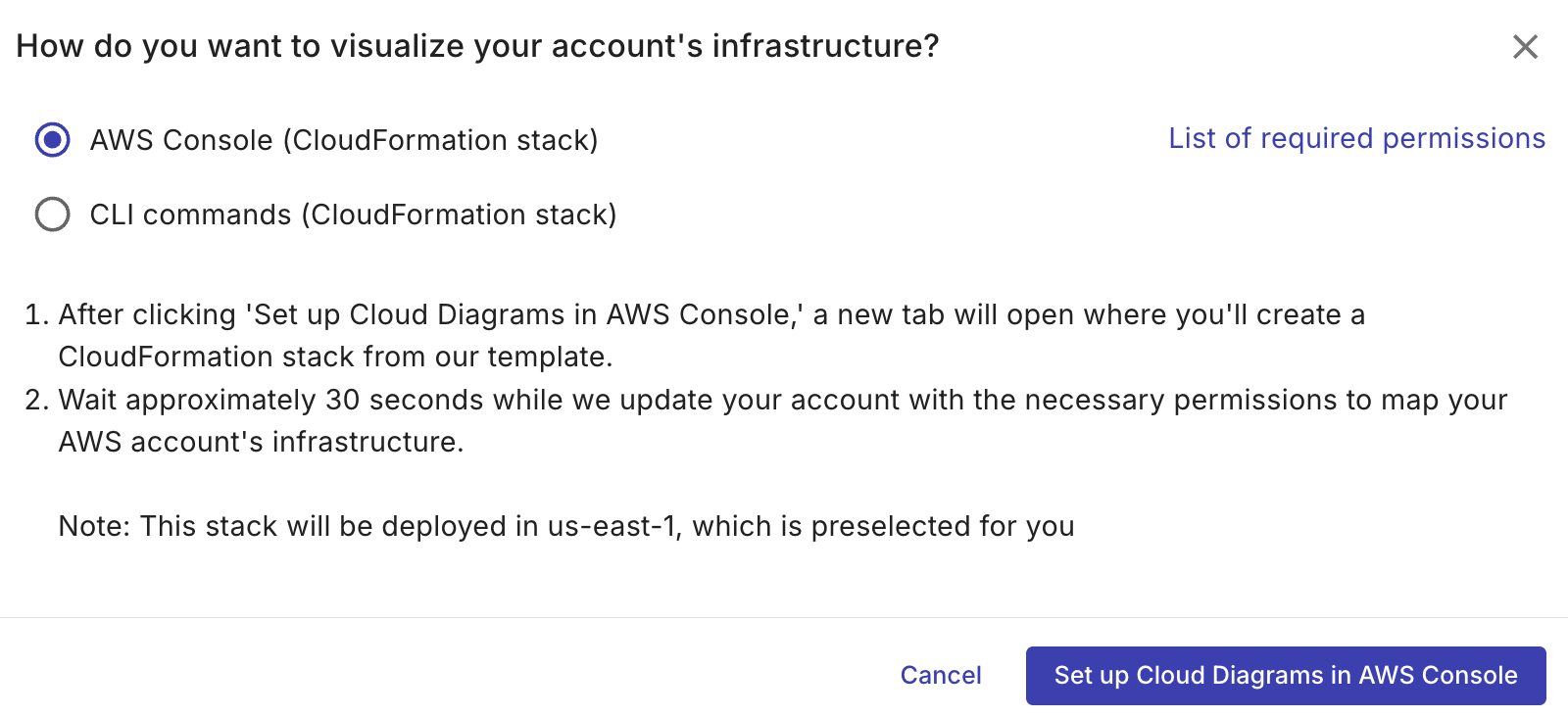
Select AWS Console (CloudFormation stack).
-
(Optional) Select List of required permissions required by Cloud Diagrams to visualize your AWS resources.
-
Select Set up Cloud Diagrams in AWS Console. You'll be taken to the AWS Management Console to create a CloudFormation stack from a template.
-
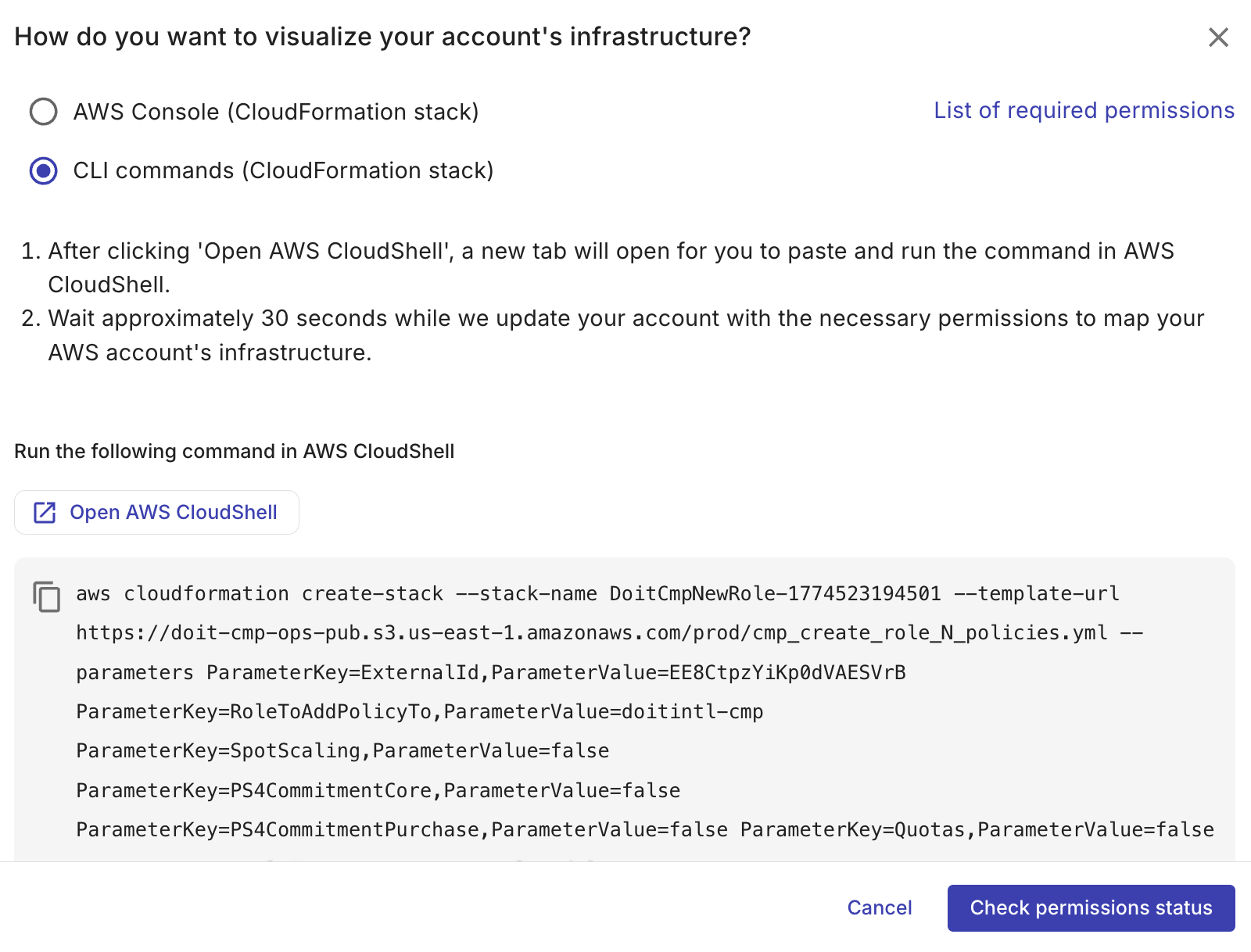
Select CLI commands (CloudFormation stack).
-
(Optional) Select List of required permissions required by Cloud Diagrams to visualize your AWS resources.
-
Copy the provided code block.
-
Select Open AWS CloudShell.
-
Paste the code and run the command.
-
Select Check permissions status. The console verifies your permissions which may take a few minutes.
-
If the check succeeds, the AWS account is linked.
-
If the Cloud Intelligence is unable to load permissions, select Try again to retry, or select Contact an expert to open an expert inquiry.
-
Once you have created a CloudFormation stack from a template, you may have to wait about 30 seconds while we update your account. Once your account is connected, the dialog closes and you can continue.
-
When the account shows as linked, select Create diagram. The console creates your diagram and opens the Cloud Diagrams viewer.
▶️Interactive demo
Try out our interactive demo for a hands-on walk-through experience.
If the demo doesn't display properly, try expanding your browser window or opening the demo in a new tab.